Setting up Model Context Protocol servers in your editor transforms a standard coding assistant into a deeply integrated development partner. By connecting external tools and data sources, you allow the assistant to read local files safely, query remote error tracking systems, and understand the broader context of your application architecture. This guide walks through the exact steps required to configure both local and remote servers within Cursor.
We will focus on practical implementation details using the official filesystem reference server and the Sentry remote endpoint. You will learn how to structure your configuration files, manage permissions, and troubleshoot common connection errors that arise during initial setup.
Retrospective edition for 2026-04-14. Researched and published September 9, 2026. Product details reflect documentation checked at publication unless explicitly identified as historical.
Understanding Cursor Configuration Files
Managing server connections in Cursor requires understanding how the editor reads and applies your settings. According to the Cursor MCP documentation, the editor looks for a specific JSON file to define available servers. You have two choices for where to place this configuration file.
The first option is a global configuration located at ~/.cursor/mcp.json in your user directory. This file applies to every project you open in the editor. The second option is a project specific configuration located at .cursor/mcp.json within your workspace root. Project specific settings allow you to tailor the available tools to the exact needs of a repository without cluttering your global environment.
The core of this configuration file is the mcpServers object. Each key within this object represents a unique server name, and the corresponding value defines how the editor should connect to it. Connections can be local commands executed by your machine or remote URLs accessed over HTTP.
Always prefer project specific configurations for tools that access sensitive local directories or repository specific remote endpoints. This makes the configuration easier to review per repository. It does not sandbox the process or replace server-side credentials and operating-system permissions.
Prerequisites and Test Environment
Before modifying any configuration files, you need a stable environment to test the connections. Local servers often require external runtimes. For the official filesystem reference server, Node.js is a strict prerequisite. Ensure you have a recent version of Node installed and accessible in your system path.
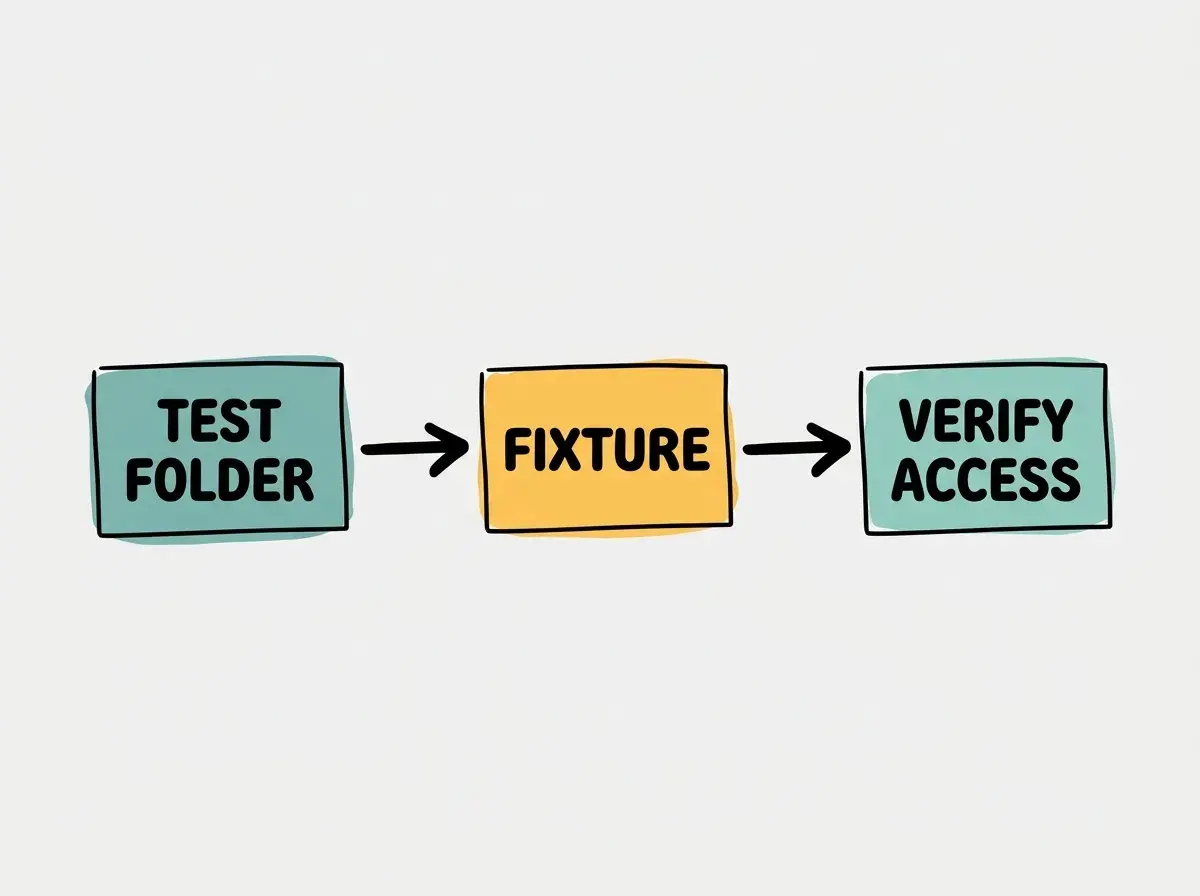
Create a dedicated test directory to act as a sandbox. Use only dummy data, and review the package before executing it. A dedicated folder defines the intended test scope; it is not a process sandbox. Open your terminal and create a new folder named mcp-sandbox in your home directory. Inside this folder, create a simple text file named fixture.txt and add a few lines of dummy data.
This sandbox directory will serve as the restricted root for our local filesystem server. By limiting access to this specific folder, you can test whether the server enforces its configured roots.
Setting Up a Local Filesystem Server
The MCP servers repository provides a reference filesystem server that allows the assistant to read and write files within specified directories. We will configure Cursor to launch this server locally.
Open or create the .cursor/mcp.json file in your current project workspace. You will define a new server entry that uses the Node package runner to execute the filesystem server package.
{
  "mcpServers": {
    "local-fs": {
      "command": "npx",
      "args": [
        "-y",
        "@modelcontextprotocol/server-filesystem",
        "/absolute/path/to/mcp-sandbox"
      ]
    }
  }
}
In this configuration, the command is npx and the args array provides the necessary flags and package names. The -y flag instructs the package runner to accept installation prompts automatically. The final argument must be the absolute path to the sandbox directory you created earlier.
It is important to understand the difference between unpinned demo installations and production deployments. The command above uses an unpinned version of the package. Even for a local test, inspect the resolved release and prefer a reviewed pinned version. Unpinned examples are shown here only to explain the configuration shape. However, for a production environment, you should pin the package to a specific reviewed version to prevent unexpected changes if the remote package updates. The reference server allows defining roots, but it is not a production certification standard on its own.
Connecting to a Remote Server
Remote servers operate differently than local commands. Instead of spawning a process on your machine, the editor communicates with an external service over HTTP. The official Sentry remote endpoint provides a clear example of this architecture.
To add the Sentry integration, update your .cursor/mcp.json file to include a new entry for the remote connection.
{
  "mcpServers": {
    "local-fs": {
      "command": "npx",
      "args": [
        "-y",
        "@modelcontextprotocol/server-filesystem",
        "/absolute/path/to/mcp-sandbox"
      ]
    },
    "sentry-remote": {
      "url": "https://mcp.sentry.dev/mcp"
    }
  }
}
The Sentry server requires authentication to access your specific organization and project data. Cursor handles server permissions on the client side. When the editor attempts to connect to the Sentry URL, it will typically prompt you to complete an OAuth flow. Follow the Sentry connection instructions to authorize the intended organization and projects; private project data requires an authorized connection.
Explore clear explanations of AI coding tools, project context, and reliable development workflows.
Explore the blogVerifying the Connection
After saving the configuration file, you must verify that the editor successfully initialized the servers and loaded the available tools. Cursor provides a user interface section for managing these connections. Navigate to the editor settings and locate the MCP section.
You should see both local-fs and sentry-remote listed. Check the status indicators. If a server fails to connect, the editor will display an error message.
Common connection errors often stem from environment variables. If the local filesystem server fails, verify that the Node executable is available in the path used by the editor. Sometimes, graphical applications inherit different path variables than your terminal. For this example, specify the absolute path to npx, keeping its arguments unchanged. Replacing npx with node requires changing the arguments to point to an installed server entry script.
To test the functionality, open a prompt in the editor and ask the assistant to read the contents of the fixture.txt file located in your sandbox directory. The assistant should invoke the filesystem tool, read the file, and return the dummy data you entered earlier. If the assistant claims it cannot find the file, verify the absolute path in your configuration arguments and restart the editor.
Forgetting to restart the editor or reload the window after modifying the configuration file is a frequent source of frustration. The editor may not automatically detect changes to the JSON file immediately.
Comparing Editor Configurations
While Cursor uses the .cursor/mcp.json file, other editors in the ecosystem utilize different configuration paths and formats. If you transition between different tools, you must adapt your setup accordingly. Windsurf and Cline, for example, use their own distinct configuration files rather than reading the Cursor file.
| Item to migrate | What to verify |
|---|---|
| Configuration path | Open the destination editor’s MCP settings and documented config file |
| Local command | Preserve the reviewed executable, package version, and arguments |
| Remote connection | Verify the URL and repeat authorization when required |
| Permissions | Check tool approvals, credentials, and server-enforced scope |
Do not assume a different file location implies a completely different protocol or JSON structure. Compatible clients can connect to the same underlying server while differing in configuration and permissions UX.
Understanding these differences ensures that your customized tools remain accessible regardless of which editor you choose for a specific project.
Run a Small Acceptance Test
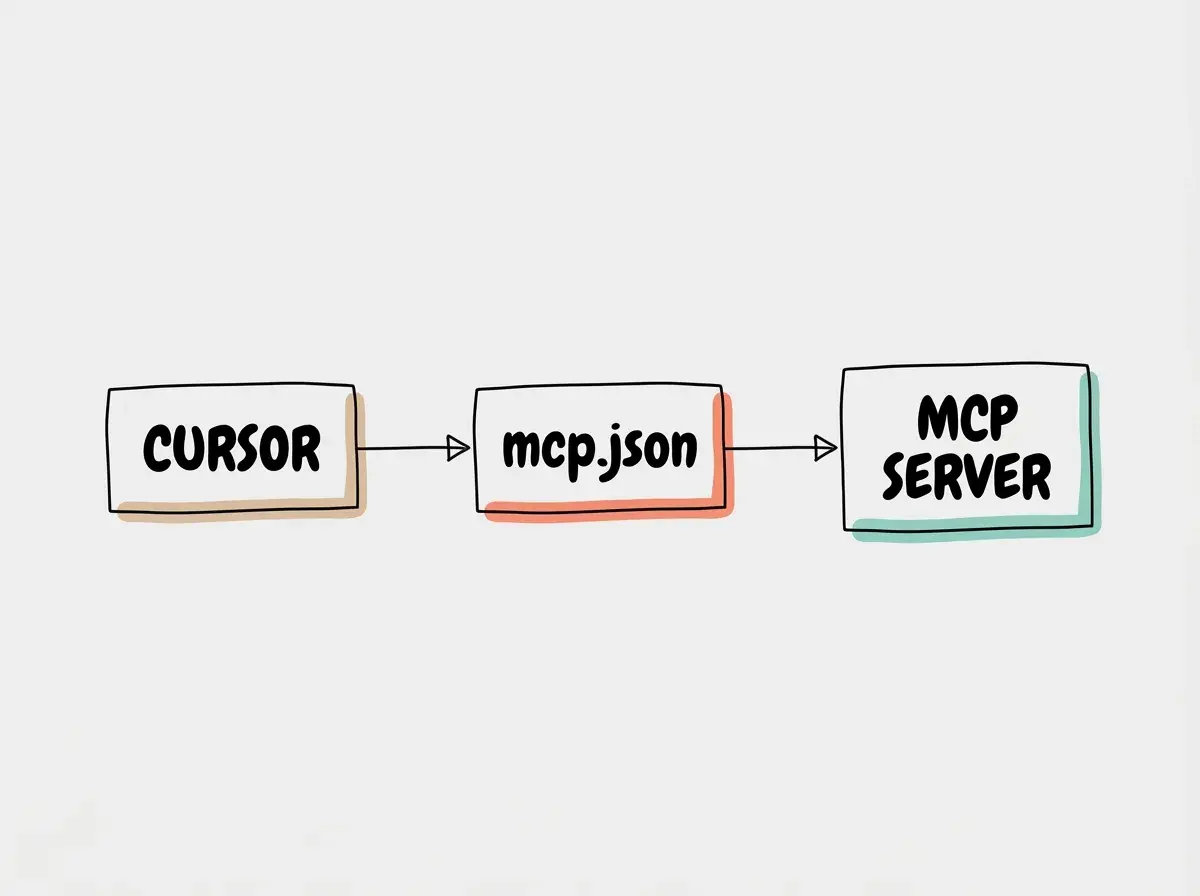
Give the fixture a distinctive line such as “sandbox verification blue lantern.” Ask Cursor to read that exact file and identify the tool it used. Compare the returned text with the file on disk and inspect the tool-call details. A plausible summary or a green connection indicator does not prove that the intended server supplied the answer. The assistant may have another way to read workspace files.
Next, create a second harmless fixture outside the configured test root. Ask specifically for a read through the filesystem MCP tool and inspect the result. The server should reject access outside its allowed roots. If Cursor reads the file through another tool instead, that tests a different boundary; it does not demonstrate an MCP server failure. Review the server call itself before drawing a conclusion.
The reference filesystem server includes write capabilities. Do not call the setup read-only simply because your first task reads a file. If you evaluate a write operation, use a disposable fixture, review the requested change, and verify the resulting file. For a genuinely read-only workflow, choose an implementation and underlying permissions that enforce that restriction.
For Sentry, select a non-sensitive test issue and ask for its identifier and title. Check those fields in the Sentry UI. Then attempt a request outside the authorized project using only test resources you control. Record the permission response and confirm that the account’s access matches your expectation. This checks a useful business boundary, rather than merely confirming that OAuth completed.
Keep a short setup record containing the Cursor version, configuration scope, server version or endpoint, authorized account, and the two fixture results. Exclude tokens and report contents. After a server or editor update, repeat the same checks. If a connection stops working, this record helps separate a path problem, expired authorization, changed tool availability, and a changed permission boundary.
Frequently Asked Questions
What this means for you
Properly configuring these servers bridges the gap between your local development environment and external diagnostic tools. By mastering the JSON configuration structure and understanding how to isolate local access, you create a safer and more capable assistant. Taking the time to verify connections and resolve path issues upfront saves significant debugging time later.
Read more practical articles for choosing tools, reviewing changes, and shipping useful software.
Read more guides