Voice to code AI is one of the least talked about techniques in vibe coding, even though it was part of the original workflow from day one. When Andrej Karpathy first demonstrated what he called vibe coding, he was not typing his prompts into Cursor Composer. He was speaking them. And that small detail changes more about the process than most people realize.
With 92% of builders now using AI tools daily, prompting has become the core skill of modern development. But almost everyone is typing their prompts. This guide shows you how to speak them instead, why that often produces better results, and how to structure verbal instructions so the AI understands exactly what you want.
Why Karpathy Used Voice in the First Place
When Karpathy showed the world his vibe coding workflow, the Cursor Composer chat window was open and he was dictating his instructions aloud. He would describe what he wanted the app to do, the AI would generate the code, and he would accept or reject the changes. The entire loop was conversational.
This was not an accident or a gimmick. Karpathy is one of the sharpest minds in AI, and he chose voice input deliberately. Speaking forces you to think in terms of what you want to happen rather than how it should be implemented. You naturally say things like "make the sidebar collapse when the screen gets narrow" instead of getting bogged down in CSS media query syntax. That shift in framing is exactly what makes AI coding work well.
The spoken prompt tends to be more natural, more descriptive, and less self-edited. When you type, you second-guess your words. When you speak, you just explain what you need. And for AI prompting, that natural explanation is often exactly the right level of detail.
Voice input naturally produces prompts that focus on behavior and outcomes rather than implementation details. That is precisely the style of prompt that AI coding tools respond to best. You are not dumbing things down by speaking. You are communicating at the level the AI is designed to understand.
What Makes Voice Prompting Different From Typing
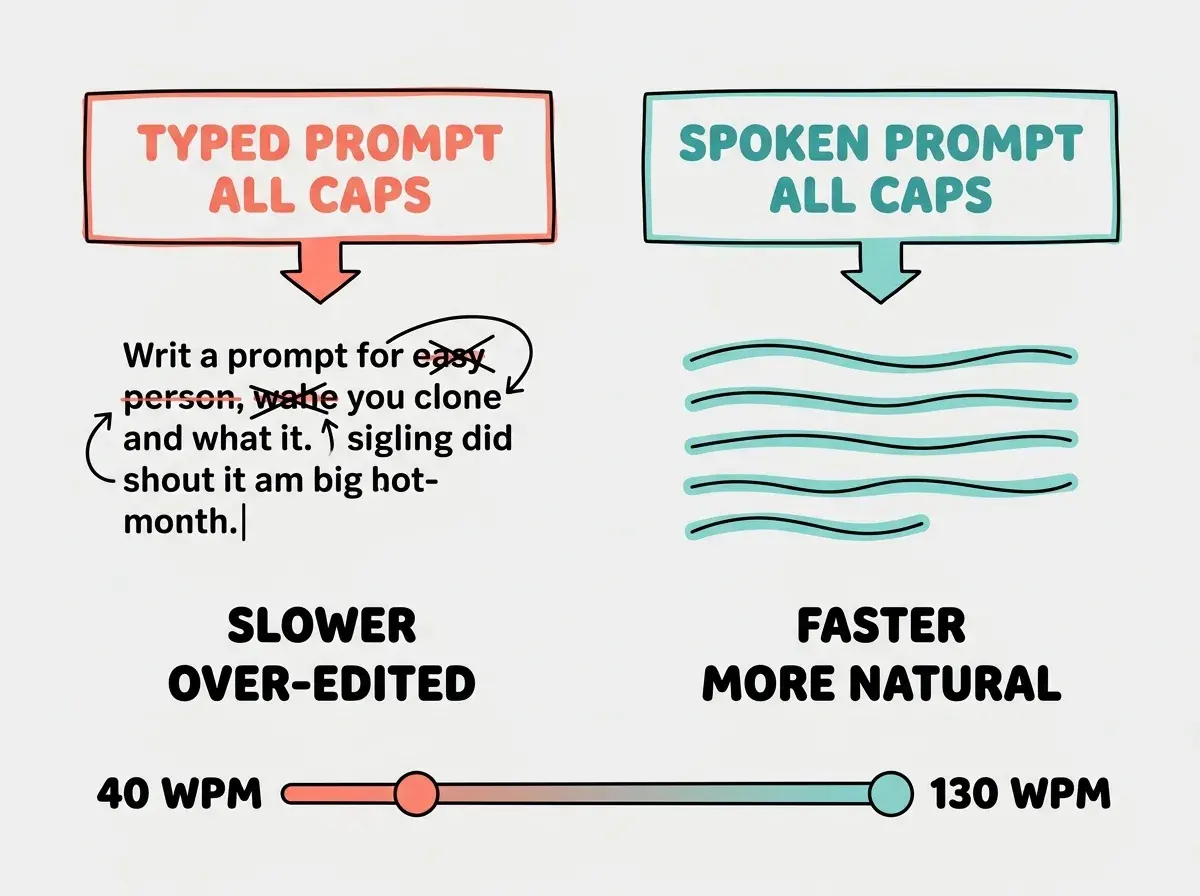
The difference between voice and typed prompts comes down to three things: speed, naturalness, and reduced overthinking.
Speed matters more than you think. The average person types around 40 words per minute. The average person speaks around 130 words per minute. That is more than three times faster. When you are iterating quickly on a project, asking the AI to make change after change after change, that speed difference compounds. A ten-prompt iteration cycle that takes five minutes of typing takes less than two minutes of speaking.
Natural language is the AI's native format. Large language models were trained on human speech and writing. When you speak naturally, you are giving the AI input in the format it understands best. Typed prompts often become telegraphic, dropping articles and context in ways that introduce ambiguity. "Add button header right blue" is what people type. "Add a blue button to the right side of the header" is what people say. The spoken version is clearer every time.
Overthinking kills good prompts. When typing, you stare at your words and start editing before you finish the thought. You delete sentences, rephrase, second-guess. When speaking, the thought flows out complete. For brainstorming and describing visual layouts, that flow state is exactly what you want.
Tools That Turn Your Voice Into AI Prompts
You do not need special equipment to start voice coding. The tools range from free and built-in to specialized and powerful.
macOS Dictation (free, built-in). Press the microphone key on your keyboard or double-tap the Fn key, and start talking. macOS dictation works in any text field, including Cursor, VS Code, and browser-based tools like Lovable and Bolt. It is surprisingly accurate for everyday language. The main limitation is that it struggles with technical terms and code-specific vocabulary on the first try.
Windows Voice Typing (free, built-in). Press Windows key + H to activate voice typing. It works the same way in any text field. Similar accuracy to macOS dictation for natural language prompts.
SuperWhisper (macOS, paid). This is the tool many serious voice coders recommend. SuperWhisper runs OpenAI's Whisper model locally on your Mac, which means your audio never leaves your computer. It handles technical vocabulary better than built-in dictation, and you can train it on terms you use frequently. It runs in the background and activates with a hotkey.
OpenAI Whisper (free, open source). If you want maximum control, you can run Whisper directly on your machine. It requires a bit of setup, but it gives you the same speech-to-text model that powers many commercial tools. There are several open source wrappers that make it work as a system-wide dictation tool.
The tool matters less than the habit. Pick whichever option you can start using in the next five minutes and practice with it for a week. You can always upgrade later.
Learn the fundamentals of prompting and building with AI before adding voice to your workflow.
Start with the basicsHow to Structure a Verbal Prompt
Speaking a prompt is not the same as rambling at your computer. Effective voice prompts follow a simple three-part structure that you can internalize in a few minutes.
Start with what you are working on. "I am building a recipe sharing app and I am on the profile page." This gives the AI context before you make your request. Just like you would tell a coworker what you are looking at before asking for help.
Describe what you want to happen. "I want to add a grid of recipe cards below the user's bio. Each card should show the recipe photo, the title, and how long it takes to make. When someone clicks a card it should open the full recipe." Notice how naturally this flows when spoken. You are describing behavior, not writing pseudocode.
Mention anything the AI should avoid or follow. "Keep the same color scheme we have been using. Do not add any new dependencies. Make it work on mobile." Constraints at the end act like guardrails.
That is it. Context, request, constraints. You can say it in one breath or three. The structure keeps your spoken prompts organized without making you sound like you are reading from a script.
Do not try to dictate code or technical syntax through voice input. Saying "open curly brace function handle click open parenthesis event close parenthesis" is painful and error-prone. Voice is for describing what you want. Typing is for the rare moments when you need to specify exact code. Use each input method for what it does best.
When Voice Beats Typing (and When It Does Not)
Voice input is not universally better. It is a tool, and like any tool, it has situations where it excels and situations where typing wins.
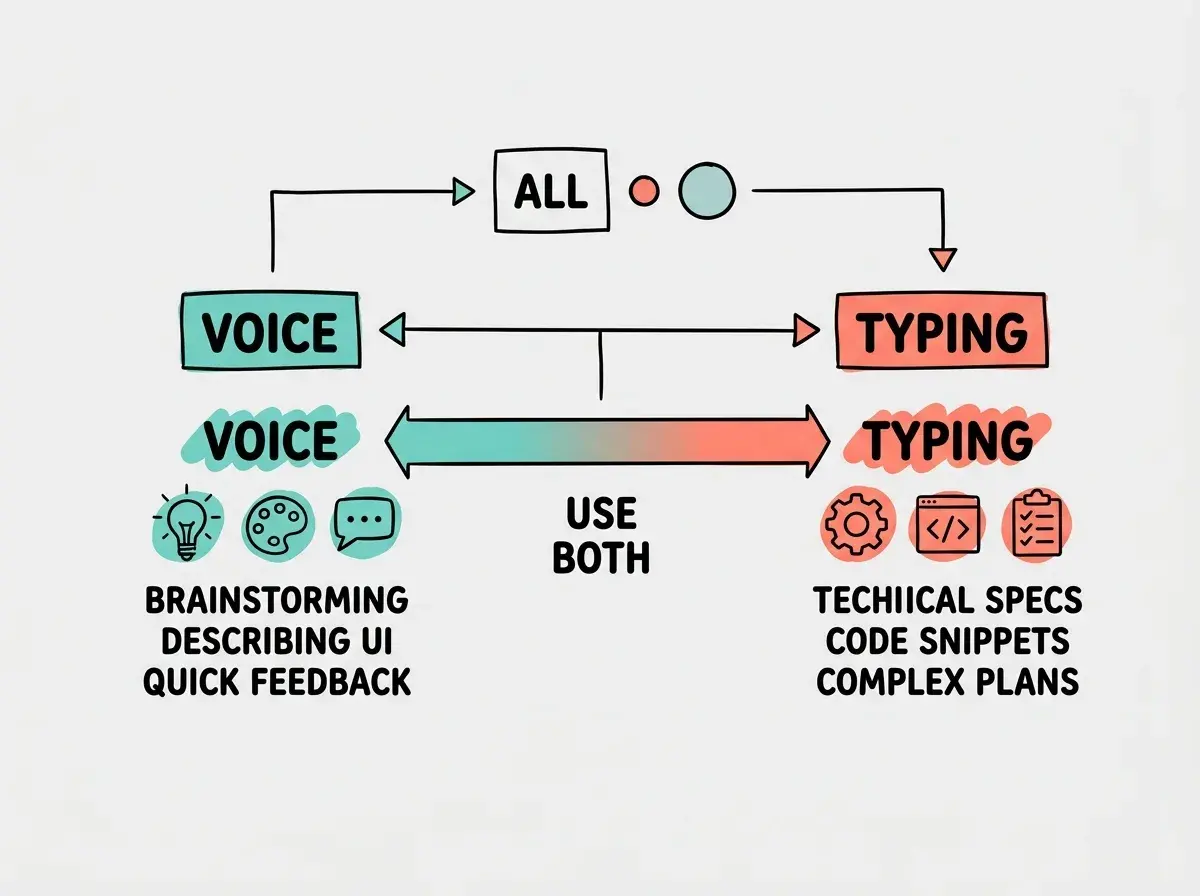
Voice is better for brainstorming new features. When you are exploring ideas, voice lets you think out loud. "What if we added a way for users to save recipes to collections, and each collection could have a cover image, and maybe they could share collections with friends" flows naturally when spoken. Typing that same stream of consciousness feels labored.
Voice is better for describing user interfaces. "I want a hero section with a large headline on the left, a signup form on the right, and a subtle gradient background that goes from dark blue to purple" is a perfectly clear UI description that takes about five seconds to say and thirty seconds to type.
Voice is better for iterative feedback. "That looks good but make the font bigger, move the button up a bit, and change the background to white" is the kind of rapid-fire adjustment that voice handles beautifully. You look at the preview, speak your changes, and the AI updates. It feels like directing rather than coding.
Typing is better for technical specifications. When you need to specify an exact API endpoint path, a database schema, or a specific npm package name, typing is more precise. Voice recognition can mangle technical terms, and spelling things out loud defeats the purpose.
Typing is better for code snippets. If you want to paste in an error message, share a code block, or reference specific variable names, type it. Voice is for natural language. Code is for the keyboard.
Typing is better for complex multi-step instructions. If your prompt is a detailed implementation plan with specific technical requirements at each step, typing gives you the ability to review and organize before sending.
A Practical Voice Coding Workflow
Here is how to integrate voice into your actual building process, starting today.
Step 1. Enable your system dictation or install SuperWhisper. Spend five minutes talking to a text editor to get comfortable with the activation and the slight delay.
Step 2. Open your AI coding tool and start your next project or feature with a spoken prompt. Use the three-part structure. Context, request, constraints.
Step 3. As you iterate, alternate between voice and typing based on the task. Describe visual changes and new features with voice. Paste error messages and specify technical details with typing.
Step 4. Pay attention to when voice feels natural and when it feels forced. Within a few sessions, you will develop an intuition for which input method fits each moment.
The goal is not to do everything by voice. The goal is to add voice as another input method so you can use whichever one is faster and more natural for the task at hand. Most experienced voice coders estimate they use voice for about 60 to 70 percent of their prompts and typing for the rest.
Practice voice prompting on your next project and feel the difference in speed and flow.
Start buildingWhat This Means For You
Voice to code AI is not a futuristic concept. It is a technique you can start using in the next five minutes with tools already on your computer. Karpathy used it from the very beginning of vibe coding because it works. Speaking your prompts produces more natural instructions, moves you through iteration cycles faster, and keeps you in a creative flow state instead of an editing-and-deleting loop.
You do not need to choose between voice and typing. The best workflow uses both, switching between them based on what feels right for each prompt. Start with your built-in dictation, speak your next prompt out loud, and notice how different it feels from typing. That difference is the beginning of a faster, more intuitive way to build.