Tool specific prompting AI is the difference between getting useful output on the first try and burning through tokens while the model misunderstands what you want. With 92% of developers now using AI tools daily, most people have settled on a favorite. But the prompting strategies that work brilliantly in Cursor fall flat in Claude Code, and what Copilot needs is different from both.
This is the guide to prompting each tool the way it was designed to be prompted. Not generic tips that apply everywhere, but specific techniques that exploit the strengths of Cursor Composer, Claude Code agent mode, and GitHub Copilot.
Why One Prompt Style Does Not Fit All Tools
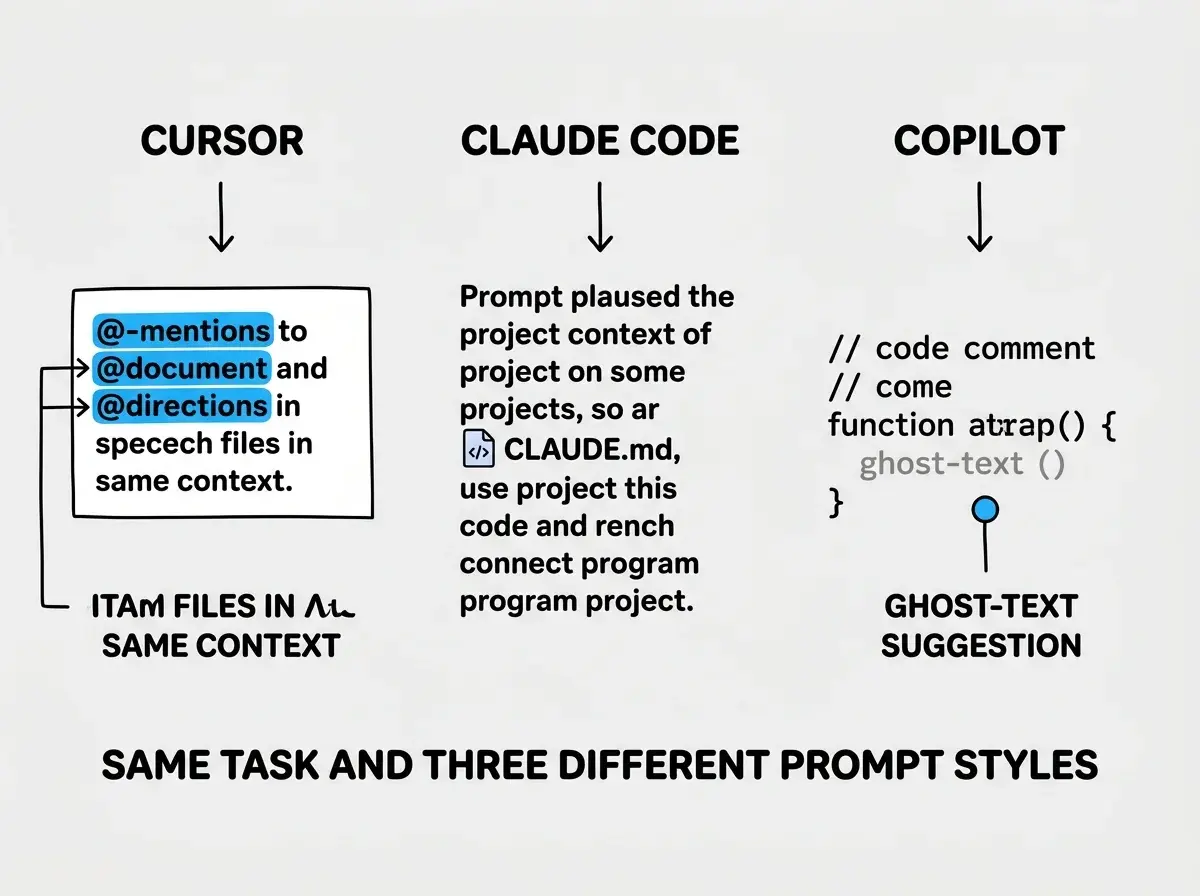
Each AI coding tool has a fundamentally different architecture. Cursor is an IDE that uses @-mentions to scope context and shows visual diffs. Claude Code is a terminal agent that reads your entire codebase and executes commands autonomously. Copilot is an inline suggestion engine that predicts the next few lines based on surrounding code.
These architectural differences mean the same prompt produces wildly different results depending on where you type it. A long, detailed description works perfectly in Claude Code, gets partially ignored in Cursor if you do not scope the context, and is completely useless in Copilot because it does not read paragraphs. Tool specific prompting AI is about matching your communication style to the tool's design.
Prompting Cursor the Right Way
Cursor's superpower is context scoping through @-mentions. When you reference a file with @filename.tsx or a symbol with @functionName, you are telling Cursor exactly which parts of your codebase matter for the current task. Without these references, Cursor has to guess what context is relevant, and those guesses burn tokens and often miss.
Use @-mentions aggressively. Every Composer prompt should include at least one @-mention pointing to the files or functions involved. "Refactor the auth middleware" is vague. "@middleware/auth.ts Refactor the token validation to use jose instead of jsonwebtoken, and update @lib/session.ts to match the new return type" gives Cursor exactly what it needs.
Composer for multi-file, Tab for inline. This distinction matters more than most people realize. If you are making changes that touch three or more files, open Composer and describe the full task. If you are writing code line by line and want smart completions, let Tab do its thing. Trying to do multi-file refactors through Tab completions is like trying to renovate a house one nail at a time.
Keep Composer prompts scoped and sequential. Cursor works best when each Composer prompt handles one coherent change. "Update the API route, then update the form, then update the types" is three tasks disguised as one. Break it into three Composer prompts that build on each other. Overloading a single prompt means the later parts get less attention than the earlier parts.
Use .cursorrules for recurring patterns. If you find yourself repeating the same constraints in every prompt, put those in your .cursorrules file. This frees up your prompts to focus on the actual task instead of repeating project conventions.
Prompting Claude Code for Maximum Autonomy
Claude Code is an agent, not an autocomplete engine. The biggest mistake people make is prompting it like Cursor, giving it small, incremental instructions instead of letting it think through the full problem. Claude Code was built to handle complex, multi-step tasks autonomously. Let it.
Give full context upfront. Unlike Cursor, Claude Code indexes your project and builds understanding as it works. But you can accelerate this by front-loading your prompt with the big picture. "I have a Next.js app with Supabase auth. The current session handling is scattered across six different files with inconsistent error handling. I want to centralize session management into a single module that every route handler imports." This kind of prompt gives Claude Code enough context to make good architectural decisions without asking follow-up questions.
CLAUDE.md is your most powerful tool. The CLAUDE.md file is not just documentation. It is persistent instruction that shapes every task Claude Code performs. Define your build commands, your testing approach, your coding standards, and your architectural patterns. A well-written CLAUDE.md means you spend less time repeating constraints in individual prompts because the agent already knows the rules.
Not using plan mode enough is super important. Plan mode can 2-3x success rates pretty easily.
Use agent mode for exploration, not just execution. "Before making any changes, read through the auth-related files and explain the current flow" helps both you and the agent build shared understanding. Then follow up with "Now refactor it using the pattern I described." Two-step prompting (explore, then execute) produces better results than a single prompt that tries to do both.
My favorite way to use Claude Code to build large features is spec based. Start with a minimal spec or prompt and ask Claude to interview you using the AskUserQuestionTool. Then make a new session to execute the spec.
Be specific about success criteria. "Refactor the database queries" is wasteful with Claude Code because the agent makes dozens of autonomous decisions without checking in. "Refactor the database queries to use parameterized statements, add error handling that logs the query name, and run the test suite afterward" tells Claude Code exactly what "done" looks like.
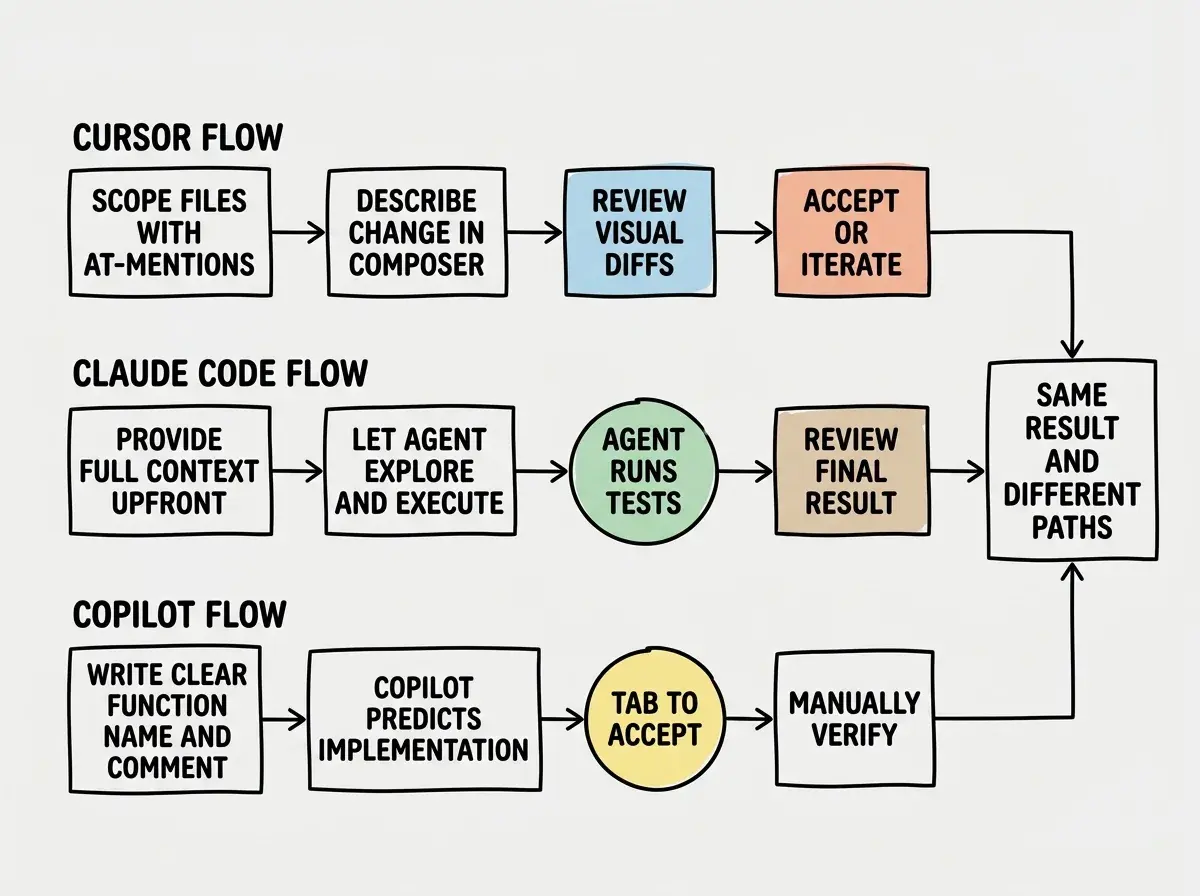
The core difference in prompting these three tools comes down to context scoping. Cursor needs you to point at specific files. Claude Code needs you to describe the full picture and let it find the files. Copilot needs you to write the right comment directly above where you want the code to appear. Match your prompt strategy to the tool's context model, and the output quality jumps immediately.
Prompting Copilot for Precise Inline Results
Copilot is the simplest of the three to use, but the hardest to prompt well because you are not writing traditional prompts at all. You are writing code comments and function signatures that guide the prediction engine.
Short inline comments beat long descriptions. Copilot reads the lines immediately above and below your cursor. A comment like // validate email format and return boolean right above an empty function body gives Copilot everything it needs. A five-line comment explaining the business logic of your entire application gives it too much noise and not enough signal.
Function signatures are prompts. function calculateShippingCost(weight: number, zone: string, expedited: boolean): number tells Copilot the inputs, output, and purpose. The implementation that follows will almost always be reasonable because type information acts as a constraint.
Use Copilot Workspace for planning, not code-level work. When you need to think through an approach before writing code, Copilot Workspace lets you describe a task in natural language and get a plan with proposed file changes. This is where longer, more descriptive prompts work. But once you are in the editor writing code, switch back to the short-comment approach.
Name things well and Copilot follows. If your function is called fn1 and your variables are x and y, Copilot has nothing to work with. If your function is called parseUserPreferences and your variables are rawInput and validatedPreferences, Copilot generates dramatically better code because it understands the semantic meaning.
Developers who switch between tools often keep using the same prompt style everywhere. They write long Composer-style paragraphs as Copilot comments (which get ignored) or they give Claude Code tiny one-line instructions (which underutilize its autonomy). The prompt that makes you productive in one tool can actively slow you down in another. Build separate mental models for each tool you use.
Same Task, Three Different Prompts
Here is a concrete example. The task is adding email validation to a signup form.
In Cursor Composer:
"@components/SignupForm.tsx @lib/validators.ts Add email validation to the signup form. Create a validateEmail function in the validators file that checks format and common disposable email domains. Import it in SignupForm and show an inline error message below the email field when validation fails. Use the existing ErrorMessage component from @components/ui/ErrorMessage.tsx."
In Claude Code:
"I need email validation added to the signup flow. The form is in components/SignupForm.tsx and we keep validators in lib/validators.ts. The validation should check email format and reject disposable email domains. Show an error inline using our existing ErrorMessage component. Check the existing form validation patterns in the codebase and follow the same approach for consistency. Run the tests after making changes."
In Copilot (inline comment above function):
// Validate email: check format with regex, reject disposable domains from DISPOSABLE_DOMAINS list
// Return { valid: boolean, error?: string }
Same task. Three completely different communication styles, each optimized for how that tool processes context.
Quick Reference Table
| Cursor | Claude Code | Copilot | |
|---|---|---|---|
| Prompt length | Medium (2-4 sentences + @-mentions) | Long (full context paragraph) | Short (1-2 line comments) |
| Context scoping | Manual via @-mentions | Automatic via codebase indexing | Automatic via surrounding code |
| Best for | Multi-file edits with visual review | Complex refactors and exploration | Line-by-line code generation |
| Persistent config | .cursorrules | CLAUDE.md | Repository patterns |
| Success signal | Visual diff looks right | Tests pass | Suggestion matches intent |
Start with the comparison that helps you choose the right AI coding tool for your workflow.
Compare AI coding toolsWhat This Means For You
The developers getting the most out of AI tools in 2026 are not the ones using the "best" tool. They are the ones who have learned to speak each tool's language. Tool specific prompting AI is a skill that compounds over time because the mental models you build for each tool make you faster with every session.
- If you primarily use Cursor: Build your @-mention muscle memory. Every Composer prompt should reference specific files. Set up .cursorrules with project conventions so your prompts can focus on the task. When a result is wrong, re-prompt with more precise @-mentions, not more words.
- If you primarily use Claude Code: Invest time in your CLAUDE.md file. The better your persistent context, the less you repeat in individual prompts. Use two-step prompting (explore, then execute) for unfamiliar code. Trust the agent, but always define what "done" means.
- If you primarily use Copilot: Your code itself is your prompt. Clean function names, clear type signatures, and short comments above complex logic will transform your experience. Write the right three words instead of hoping a paragraph gets read.
The real power move is learning all three styles so you can switch tools based on the task. Copilot for fast inline completions. Cursor Composer for scoped multi-file changes. Claude Code for heavy architectural work. Each tool shines in its lane, and knowing how to prompt each one means you are never stuck using the wrong approach.
Learn the fundamentals of prompt engineering that apply across every AI coding tool.
Read the prompt guide