Most developers using multiple AI coding tools are running them one at a time, switching between tabs like it is 2023. With 92% of developers now using AI tools daily, the bottleneck is no longer "should I use AI" but "how do I use several AI tools without them stepping on each other." This guide walks you through practical setups that actually work.
The Parallel Agent Lifestyle Is Here
Simon Willison coined the phrase "parallel agent lifestyle" to describe what senior developers have quietly been doing for months. Instead of waiting for one AI agent to finish a task, they spin up two or three agents working on separate parts of a codebase simultaneously. The Pragmatic Engineer newsletter reported that senior devs ship 2.5x more AI-assisted code than juniors, and a big reason is workflow design, not just better prompting.
Reddit threads and Hacker News discussions are full of developers sharing their multi-tool setups. But most of those posts read like think-pieces. What is missing is a concrete, repeatable guide for combining AI coding tools into something that feels like a multiplier rather than a mess.
That is what this article delivers.
Why One AI Tool Is No Longer Enough
Every AI coding tool has a sweet spot. Copilot excels at inline autocomplete, predicting the next few lines while you type. Cursor shines at multi-file edits with its Composer mode, letting you describe changes across an entire feature. Claude Code operates as a terminal-first agent that can plan, execute, and iterate on complex tasks autonomously. App builders like Bolt and Lovable generate full scaffolds in minutes.
The problem is that none of them do everything well. Copilot's autocomplete is fast but shallow. Cursor's Composer is powerful but context-limited to what you explicitly include. Claude Code is thorough but terminal-based, which means it is not ideal for quick inline suggestions while you are typing. App builders produce working prototypes but messy code that needs refactoring.
When you combine tools strategically, each one compensates for the others' blind spots. You get Copilot's speed for boilerplate, Cursor's multi-file awareness for features, and Claude Code's depth for architecture decisions, all running in the same project.
The goal of a multi-tool AI setup is not to use more tools. It is to assign each tool a specific role where it performs best, then keep them out of each other's way. Think specialization, not accumulation.
This distinction matters because most developers who try multiple tools end up with conflicting suggestions, duplicated work, and a vague sense that things were simpler with just one tool. The fix is structure, not simplicity.
The Workshop Analogy for AI Tool Stacks
Think of your AI tool stack like a well-organized workshop. You would not use a table saw to drive screws, and you would not grab a screwdriver to rip a sheet of plywood. Each tool sits at its own station, tuned for a specific job. The workshop works because you know which station to walk to for each task.
Your AI coding workshop has three stations. The first station is the autocomplete bench, where Copilot (or Cursor's Tab completion) handles the fast, repetitive work. Writing boilerplate, completing function signatures, generating test assertions. This station is always on, running in the background as you type.
The second station is the feature workbench, where Cursor's Composer or a similar multi-file editor lives. When you need to implement a feature that touches three files, refactor a component and its tests simultaneously, or scaffold a new API endpoint with types and validation, you walk over to this station. It needs more context but produces more coordinated output.
The third station is the architecture desk, where Claude Code or a similar agentic tool handles the complex, multi-step tasks. Planning a migration strategy, debugging a production issue across multiple services, writing a complete feature from spec to tests. This station runs autonomously and delivers finished work.
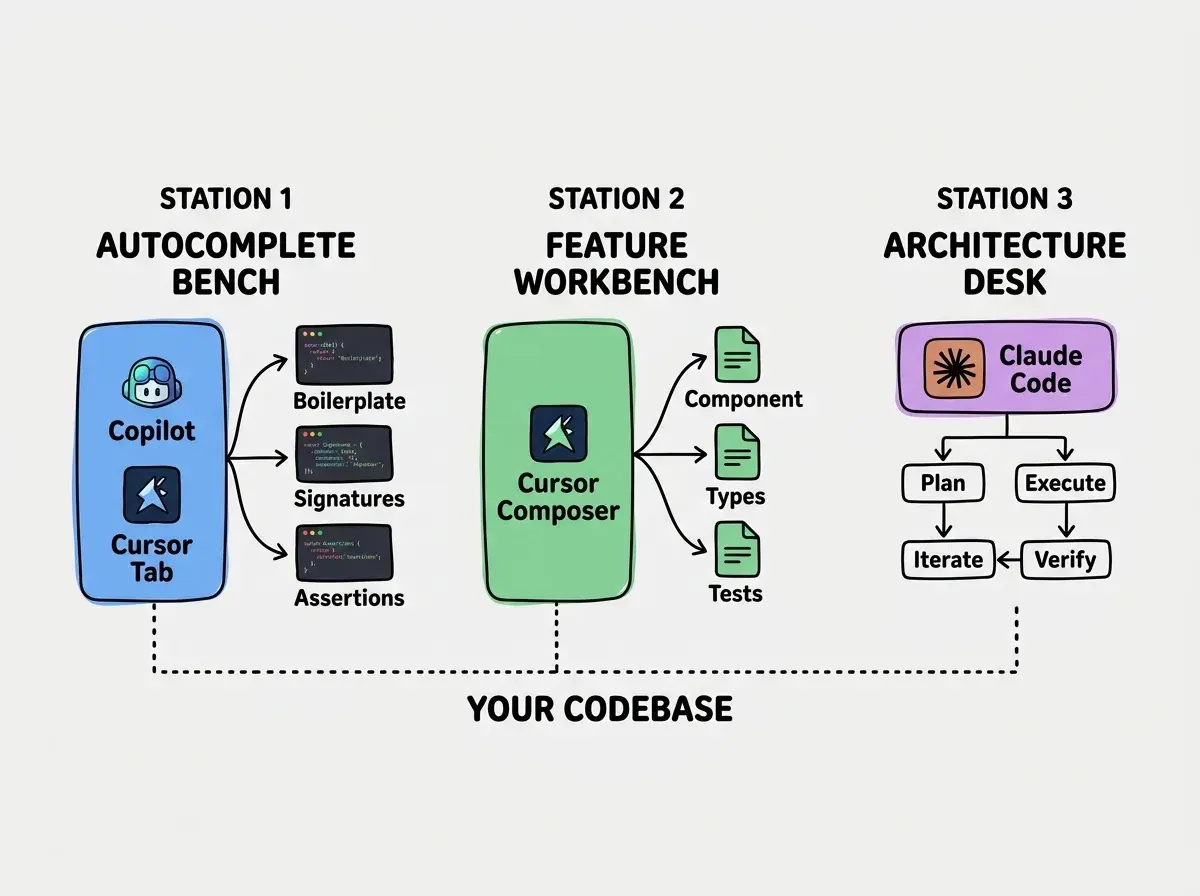
The workshop analogy holds because the key principle is the same. You do not carry your table saw to the screw station. When you are typing code and Copilot suggests a completion, you accept or reject it. You do not also have Cursor's Composer open trying to rewrite the same file. When Claude Code is running an autonomous task on a feature branch, you work on something else entirely.
The Three Practical Combinations That Work
After testing dozens of configurations, three combinations consistently produce good results without the tools fighting each other.
Combination 1, Cursor plus Claude Code. This is the most popular pairing in 2026. Cursor handles your day-to-day editing with Tab completion and Composer for multi-file features. Claude Code runs in a separate terminal, handling larger tasks like "write the complete test suite for this module" or "refactor the database layer to use connection pooling." The key is giving Claude Code its own git branch or worktree so its changes do not collide with what you are doing in Cursor.
Combination 2, Copilot plus Claude Code. If you prefer VS Code over Cursor, this pairing works almost as well. Copilot handles inline completions while Claude Code runs in your terminal for bigger tasks. You lose Cursor's Composer mode, but you gain the familiarity and extension ecosystem of VS Code. Many developers find this combination simpler to manage because there is a clearer boundary between the two tools.
Combination 3, App builder plus code editor. For indie hackers building new products, starting with Bolt or Lovable to generate a scaffold and then switching to Cursor or VS Code with Copilot for refinement is surprisingly effective. The app builder gets you a working prototype in minutes. The code editor with AI assistance handles the cleanup, customization, and production-readiness work. This combination works best for greenfield projects, not for adding features to existing codebases.
We compare the top AI coding tools, frameworks, and deployment platforms so you can build faster with confidence.
Browse All ComparisonsThe common thread across all three combinations is clear separation of responsibilities. Each tool has a defined lane, and you avoid running two tools on the same file at the same time.
Running Parallel Agents Without Chaos
The real productivity multiplier comes from running AI agents in parallel. Instead of giving Claude Code a task, waiting for it to finish, reviewing the output, and then starting the next task, you can have multiple agents working simultaneously on different parts of your codebase. This is the "parallel agent lifestyle" in practice.
Git worktrees are the foundation. A git worktree lets you check out multiple branches of the same repository into separate directories simultaneously. You can have Claude Code working on a feature in one worktree while you edit code in another worktree, and both are working on the same repo without merge conflicts during development. The command is simple: git worktree add ../my-project-feature-x feature-x. Each worktree gets its own working directory with its own branch.
Separate branches prevent collisions. Every parallel agent gets its own branch. Agent A works on feature/auth-refactor in one worktree. Agent B works on feature/api-tests in another. You work on feature/dashboard-ui in the main worktree. When each agent finishes, you review and merge sequentially. This mirrors how a team of human developers would work, just faster.
Shared context files keep agents aligned. Create a AGENTS.md or CLAUDE.md file at the root of your project that describes your architecture, conventions, and current priorities. Every agent reads this file at the start of its task. When Agent A makes a decision that affects Agent B's work (like changing an API contract), you update the context file before starting Agent B. This is cheap coordination that prevents expensive rework.
Practical limits exist. Running more than three parallel agents on a single codebase creates diminishing returns. The merge overhead grows, context conflicts increase, and you spend more time reviewing than the agents save you. Two parallel agents is the sweet spot for most solo developers. Three works if the tasks are truly independent (like frontend, backend, and tests).
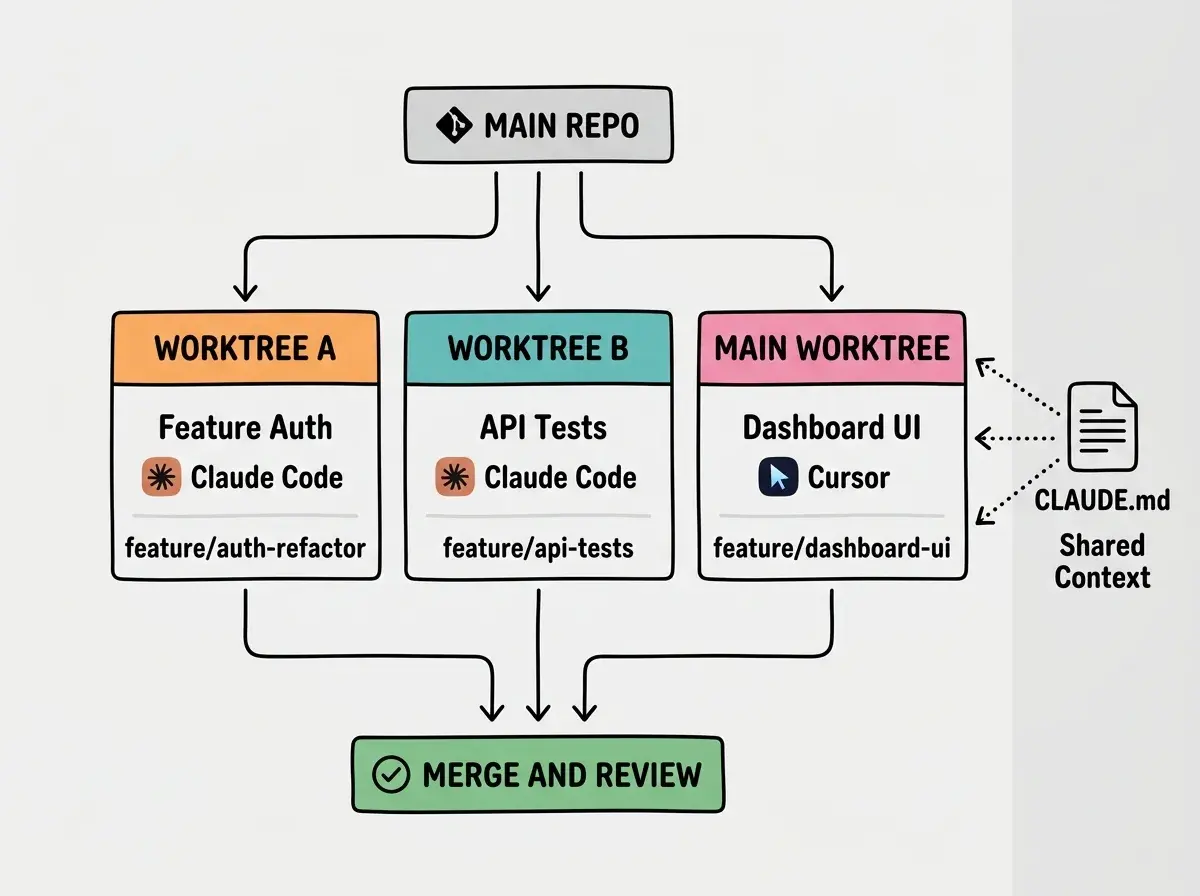
The merge step is where discipline matters. Review each agent's output individually before merging. Run your test suite after each merge, not just at the end. If two agents touched related code, merge the simpler change first and rebase the other.
Running multiple AI agents on the same branch or the same files simultaneously. This creates constant merge conflicts, overwrites each agent's work, and produces code that is worse than what a single agent would have generated. Parallel agents need parallel branches. Always.
The overhead of setting up worktrees and branches pays for itself on the second task. Once you have the workflow running, spinning up a new parallel agent takes about thirty seconds.
What This Means For You
The shift from single-tool to multi-tool AI workflows is happening now, and the developers who figure it out first will have a significant advantage.
- If you are a founder building a product, combining an app builder for prototyping with Cursor or Claude Code for production code cuts your time-to-launch dramatically. You stop choosing between "fast but messy" and "clean but slow."
- If you are a senior developer advancing your career, mastering parallel agent workflows is a force multiplier that hiring managers are starting to notice. The developer who ships three features in the time it takes others to ship one is not working harder; they are working with better tools.
- If you are a career changer learning to code, start with one tool (Cursor is the most approachable) and add Claude Code once you are comfortable with git branching. The multi-tool setup rewards people who understand version control, so invest there first.
Get practical guides on AI coding tools, framework comparisons, and workflow strategies delivered to your inbox.
Explore More Guides