A deployment rollback is the fastest way to fix a broken production app. I shipped a bad deploy last month that wiped my landing page. The fix was not debugging. The fix was undoing the deployment itself. Here is how to do that on every major platform.
What a Rollback Actually Does
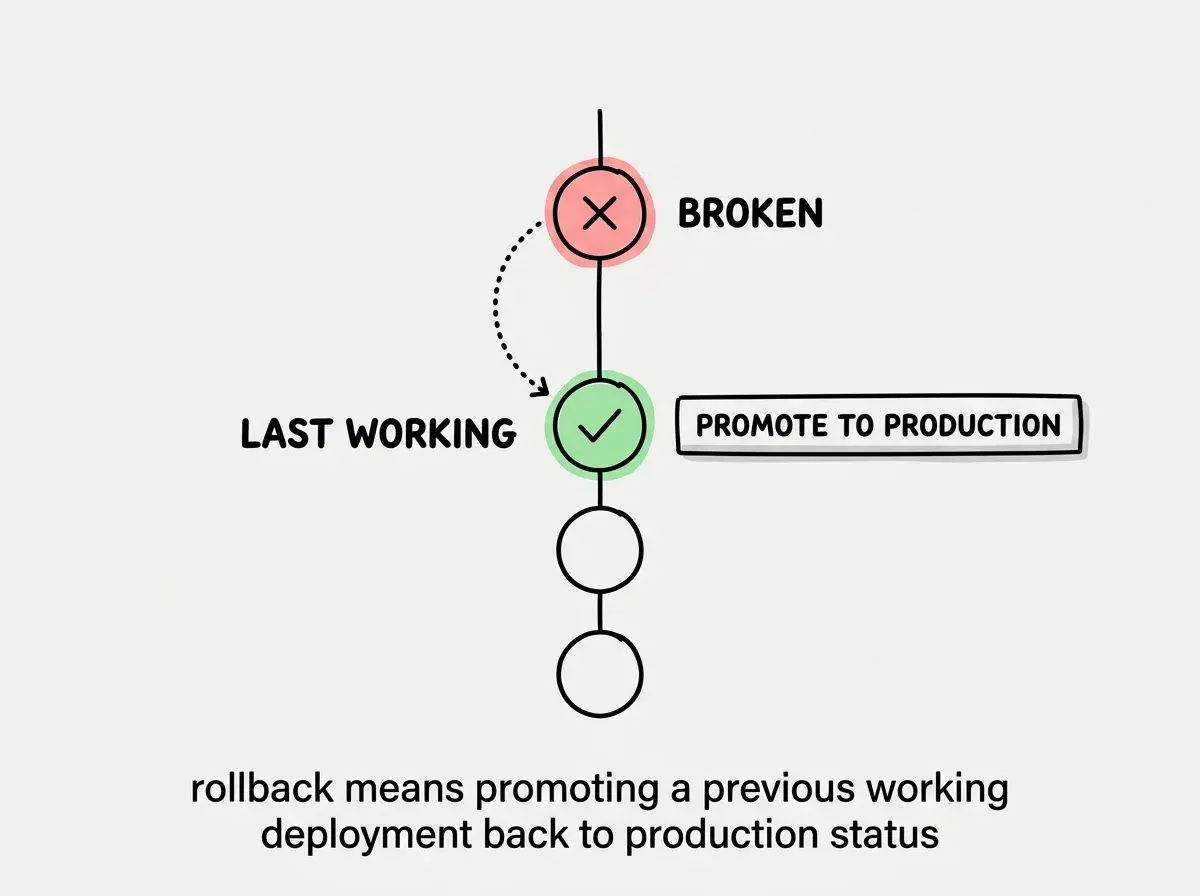
When you deploy, your hosting platform takes a snapshot of your built application and makes it live. The previous version does not get deleted. It sits there, waiting, like a save file in a video game. A rollback tells the platform to stop serving the current (broken) version and start serving the previous (working) version instead.
That is the entire concept. Your code on GitHub does not change. Your branch history stays the same. The rollback only affects what the hosting platform is actively serving to visitors. This makes it incredibly safe. You are not undoing work or losing code. You are just switching which build is live while you figure out what went wrong.
The 92% of US developers who now use AI tools daily are shipping faster than ever. That is great for velocity. It also means broken deploys happen more frequently, because AI-generated code does not always survive the transition from localhost to production. Every deployment should be reversible, and on modern platforms, it is.
A rollback does not change your code or Git history. It simply tells your hosting platform to serve the previous working build instead of the current broken one. This makes it the safest and fastest recovery option when production breaks.
The real skill is not the rollback itself. It is recognizing that you need one. If your site loads but something is subtly wrong (a form does not submit, an API returns errors, styles are broken), that is a rollback situation. Do not start debugging in production. Roll back first, then debug locally.
Vercel Instant Rollback
Vercel makes this almost trivially easy. Every deployment you have ever made is saved and accessible from the dashboard.
Step 1. Go to your project in the Vercel dashboard and click the "Deployments" tab. You will see a list of every deployment, ordered by most recent.
Step 2. Find the last deployment that was working. It will have a green "Ready" status and a timestamp from before things broke.
Step 3. Click the three-dot menu on that deployment and select "Promote to Production." Vercel will instantly start serving that build.
That is it. The switch happens in under 30 seconds. Your broken build stays in the list (so you can inspect it later), but traffic immediately routes to the older, working version.
If you prefer the CLI, run vercel promote [deployment-url] and it does the same thing. I keep the Vercel dashboard bookmarked on my phone for exactly this reason. You do not always have your laptop handy when you get the "site is down" text.
Netlify Deploy Rollback
Netlify follows the same principle but with a slightly different interface.
Step 1. Open your site in the Netlify dashboard and navigate to "Deploys." You will see a chronological list of every build.
Step 2. Click on the deploy you want to restore. This opens its detail page, where you can preview what that version looked like.
Step 3. Click "Publish deploy." Netlify switches production traffic to that build immediately.
Netlify also supports deploy locks. If you roll back and want to prevent automatic redeploys from overwriting your rollback (say, while you fix the issue on a branch), you can click "Lock to stop auto publishing." This freezes production on your chosen deploy until you unlock it.
Railway Redeploy Previous
Railway handles deployments differently because it runs server-side applications, not just static sites. But the rollback concept is the same.
Step 1. Open your service in the Railway dashboard and go to the "Deployments" section.
Step 2. Find the last successful deployment. Railway marks failed builds clearly, so the working one should be easy to spot.
Step 3. Click "Redeploy" on that deployment. Railway will spin up a new instance running that exact build.
One important difference with Railway: because it runs actual servers (not pre-built static files), the redeploy takes a bit longer. Expect 30 to 90 seconds instead of the near-instant switch you get with Vercel or Netlify. During that window, the broken version is still serving traffic. For most apps this is acceptable, but it is worth knowing.
If this is your first time shipping an app, start with the fundamentals before learning rollbacks.
Learn deployment basicsFly.io Releases Rollback
Fly.io gives you the most explicit rollback tooling of any platform, but it is entirely CLI-driven.
Step 1. Run fly releases to see your deployment history. Each release has a version number and a status.
Step 2. Find the version you want to restore. Note its version number.
Step 3. Run fly deploy --image with the image reference from your target release. Fly will deploy that exact image to your machines.
If you are on Fly Machines, you can also use fly machine update to point a specific machine back to a previous image. This gives you granular control when running multiple machines.
Git Revert as a Universal Fallback
Every platform-specific method above is the fastest option. But if you are on a platform that does not offer one-click rollbacks, or if the broken deploy was caused by a configuration change rather than a code change, git revert is your universal tool.
git revert creates a new commit that undoes the changes from a previous commit. It does not rewrite history. It adds history. This is important because it means it is safe to push and it will trigger a normal deployment.
# Find the commit that broke things
git log --oneline -10

# Revert that specific commit
git revert abc123f

# Push the revert commit
git push origin main
Your hosting platform sees a new commit on main, triggers a build, and deploys the result. The result is your code without the breaking change. This takes longer than a platform rollback (you have to wait for a full build cycle), but it works everywhere and it keeps your Git history clean.
If multiple commits caused the breakage, revert a range: git revert abc123f..def456a. This creates one revert commit per original commit, in reverse order. Push and let the platform rebuild.
Using git reset --hard instead of git revert to undo bad commits. Reset rewrites history, which causes problems when you push (you will need force push, which can destroy teammates' work). Revert is always safer because it adds a new commit instead of erasing old ones.
Database Rollbacks Are the Hard Part
Everything above handles code rollbacks. Database changes are a completely different problem, and they are the reason experienced developers get nervous about deployments.
If your deployment ran a database migration that altered a table structure, rolling back the code does not roll back the database. Your old code is now running against a new database schema, and it might not be compatible.
This is why database migrations should always be backward-compatible. The safe pattern is to deploy in stages. First, deploy code that works with both the old and new schema. Then run the migration. Then deploy code that uses only the new schema. If anything breaks at stage two or three, you can roll back to the code from stage one without a database rollback.
If you did not follow this pattern and now you have an incompatible database, your options depend on your provider. Supabase, PlanetScale, and Neon all offer point-in-time recovery, which restores your database to a specific timestamp. This is your emergency brake, but it also undoes any data users created after that timestamp. Use it only when there is no other option.
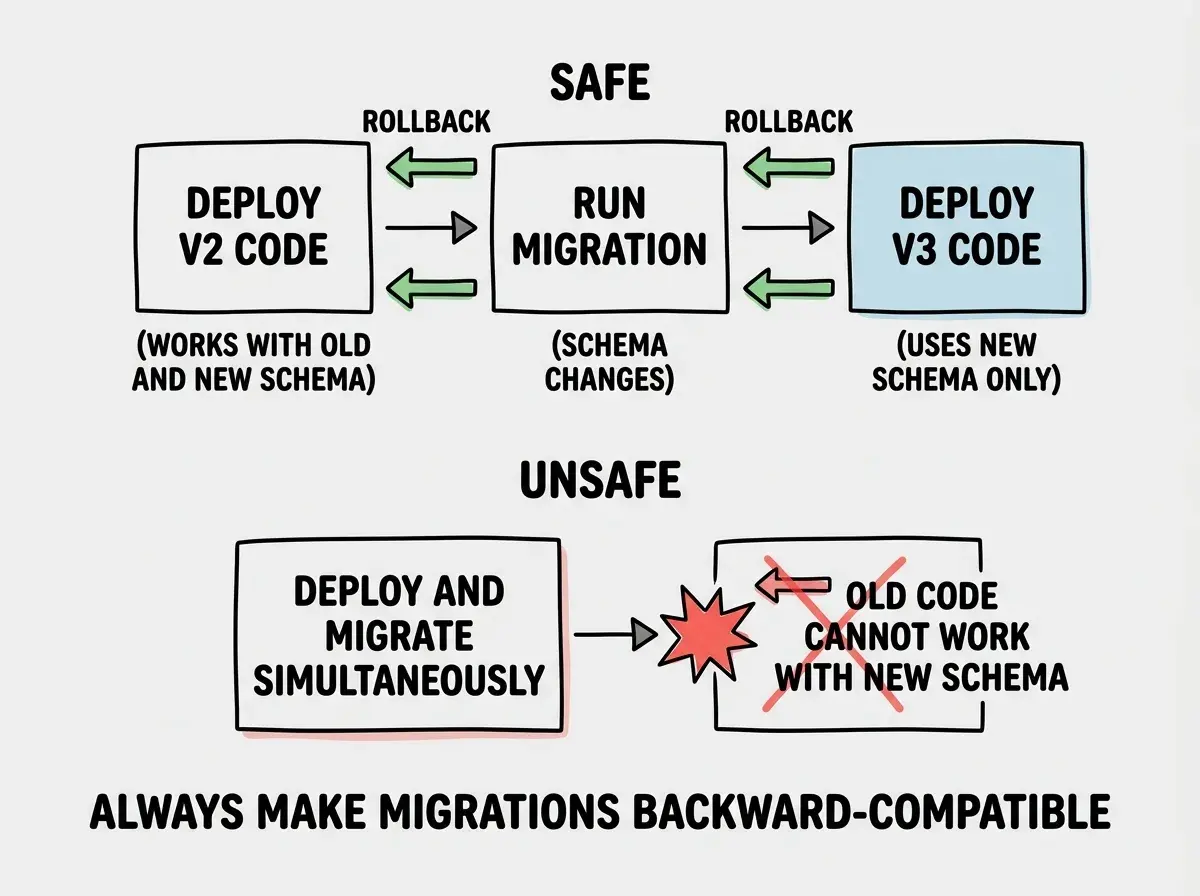
The takeaway is simple: separate your code deploys from your database changes. If they go out together and one breaks, you cannot roll back independently.
Preventing the Need for Rollbacks
The best rollback is one you never have to perform. Two practices dramatically reduce the chance of a broken production deploy.
Preview deployments are the single most effective prevention tool. Vercel, Netlify, and Cloudflare Pages all generate a unique URL for every pull request. This lets you (or a teammate, or a stakeholder) click through the app and verify it works before merging. I catch roughly half of my would-be broken deploys this way.
Staging environments are the second line of defense. A staging environment mirrors production (same environment variables, same database provider, same configuration) but is not public. Deploy to staging first, verify, then promote to production. This catches issues that preview deployments miss, especially around environment variables and third-party integrations.
Between preview deploys and staging, you will catch the vast majority of issues. But not all of them. This is why knowing your rollback procedure is non-negotiable.
This is also where the 70% wall becomes relevant. AI tools can generate and ship code rapidly, but they hit a wall around the 70% mark of a project's complexity. The remaining 30% is where deployment issues, edge cases, and production behavior live. Rollback skills are part of that 30% that separates shipping a demo from running a product.
Rollbacks are one skill in the complete deployment toolkit. Learn the full workflow from build to production.
Explore deployment guidesWhat This Means For You
Every platform you will use has a rollback mechanism, and learning it takes five minutes. Bookmark your hosting dashboard. Practice a rollback on a non-critical deploy so you know exactly where the buttons are. Write down the CLI commands if you use Fly.io or Railway. The moment production breaks is not the moment to read documentation for the first time.
Your rollback checklist should be three items. First, promote or redeploy the last working build from your hosting dashboard. Second, lock deployments if your platform supports it so an auto-deploy does not overwrite your fix. Third, investigate and fix the issue on a branch, not in production.
If you followed a database migration in the same deploy, assess whether the old code is compatible with the new schema before rolling back. If it is not, you may need point-in-time recovery from your database provider.
The best engineers I know do not avoid broken deploys entirely. They recover from them so fast that nobody notices. That speed comes from preparation, not talent. Know your rollback procedure before you need it, and a broken deploy becomes a two-minute inconvenience instead of a two-hour crisis.