Migrating AI code editors feels like it should be simple, but the moment you try, you realize how much invisible configuration holds your workflow together. With 92% of developers now using AI tools daily, switching editors is becoming as common as switching phones. This guide gives you a practical, step-by-step system for migrating between Cursor, Claude Code, Copilot, Windsurf, and any combination without losing what makes you productive.
You have probably felt this already. You read a compelling thread about a new AI editor, install it, open your project, and immediately hit a wall. Your custom rules are gone. Your keybindings feel wrong. The AI does not understand your codebase the way your old tool did. Within thirty minutes you are back in your familiar editor, telling yourself you will "try again later." That later never comes, and you miss out on genuinely better tooling because the switching cost felt too high.
The truth is that the switching cost is real, but it is also mostly a one-time setup problem. Once you understand what actually transfers between editors and what needs manual recreation, migrating AI code editors becomes a weekend project instead of an ongoing frustration.
Why Switching AI Editors Feels Harder Than It Should
The AI code editor market is moving faster than any dev tooling category in history. Cursor ships major features every two weeks. Claude Code went from terminal experiment to full-featured agent in months. GitHub Copilot keeps expanding from autocomplete into workspace-level understanding. Windsurf (formerly Codeium) is carving out its own approach to AI-native development.
This pace creates a real problem. The editor you chose six months ago might not be the best fit for how you work today. Maybe you started with Copilot for autocomplete, moved to Cursor for agentic capabilities, and now you are eyeing Claude Code for deep codebase understanding. Each switch means rebuilding your environment from scratch, unless you have a system.
The friction is not really about the editors themselves. It is about the invisible layer of customization you have built up over months. Your .cursorrules file that teaches the AI your project conventions. Your extension list that took dozens of "oh I need that" moments to assemble. Your keybindings that let your fingers move without thinking. That accumulated configuration is your actual productivity multiplier, and losing it feels like starting over as a junior.
The biggest barrier to migrating AI code editors is not learning the new tool. It is recreating the invisible configuration layer you have built in your current one. Inventory that layer first, and the actual migration becomes straightforward. Most developers overestimate the learning curve and underestimate the setup cost.
Think of it this way. The AI editor is just the vehicle. Your configuration, rules, and muscle memory are the driver. Swapping vehicles is easy once you know exactly what to pack.
The Moving House Analogy for Editor Migration
Switching AI editors is a lot like moving to a new house. You do not just grab your suitcase and go. You need to sort everything you own into three categories: what transfers directly (furniture that fits any room), what needs adapting (curtains that need rehemming for new windows), and what you leave behind (that built-in shelf that only works in your old kitchen).
Editor migrations follow exactly the same pattern. Some things transfer perfectly. Your project code, git history, and package configurations come along without any effort. They live in your repository, not in your editor. Other things need translation. Your .cursorrules file does not work in Claude Code, but the same instructions can live in a CLAUDE.md file with minor adjustments. And some things simply do not transfer. Cursor's composer UI has no direct equivalent in a terminal-based tool like Claude Code, so you adapt your workflow rather than trying to replicate it exactly.
The analogy holds all the way through. You would not move everything in one trip. You would not set up the kitchen before you have a bed. And you would definitely run both houses in parallel for a few days, keeping the old lease active until you are confident the new place works.
The developers who migrate successfully do exactly this. They run both editors simultaneously for a week or two, gradually shifting more work to the new tool until the old one collects dust naturally. The ones who fail try to go cold turkey on day one, hit friction, and bounce back.
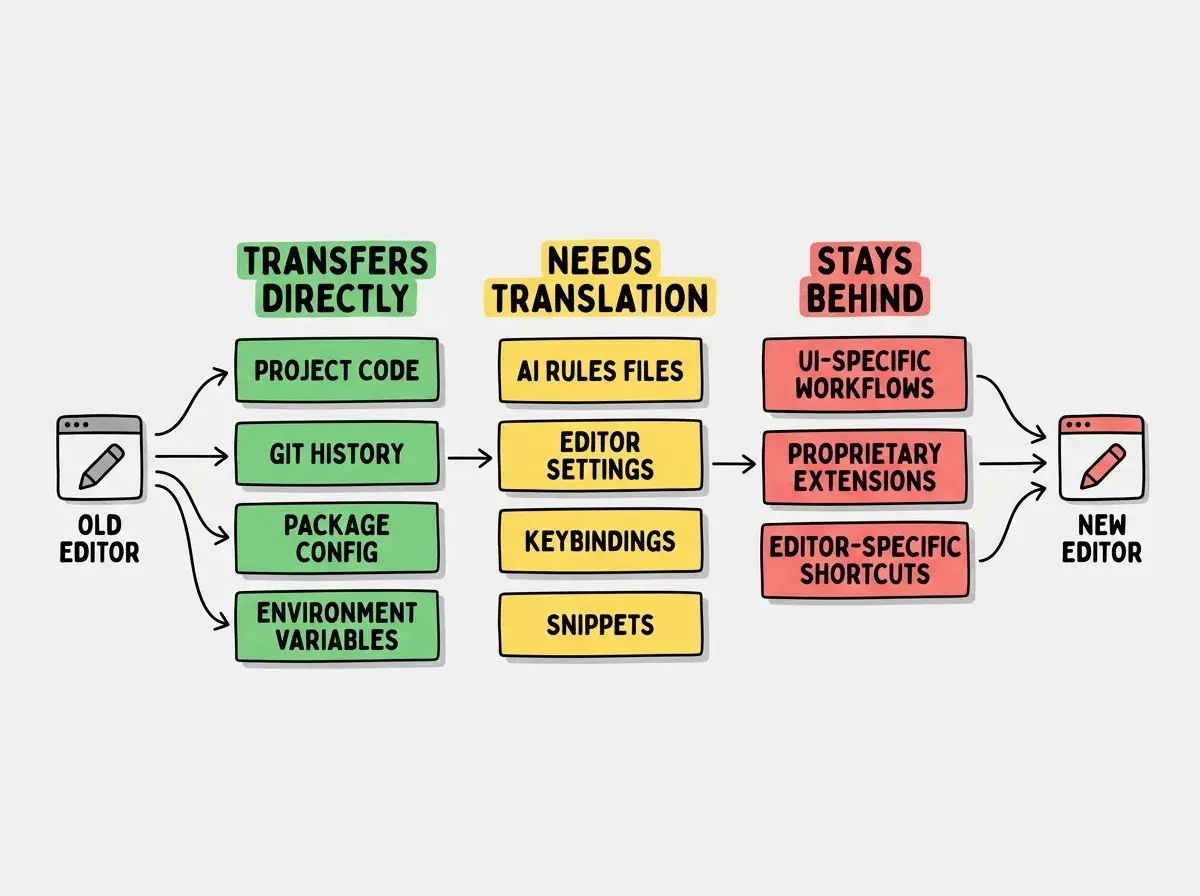
Once you have sorted your configuration into these three buckets, the actual migration plan writes itself. Start with what transfers automatically, then work through the translation layer, and consciously decide what to leave behind or replace with the new editor's equivalent.
What Actually Transfers Between Editors
Let's get specific. Here is what moves between the major AI editors and what needs manual work.
AI instruction files are the most important thing to migrate. Cursor uses .cursorrules (or .cursor/rules), Claude Code uses CLAUDE.md, Windsurf uses .windsurfrules, and Copilot uses .github/copilot-instructions.md. The format differs slightly, but the content is nearly identical. Copy your rules, adjust the formatting, and you are done. If you have been writing good instruction files, this takes about fifteen minutes.
VS Code extensions transfer between any VS Code-based editors (Cursor, Windsurf, and Copilot all build on VS Code). Export your extension list with code --list-extensions, then install them in the new editor with a simple loop. Claude Code is the exception here since it runs in the terminal, so extensions do not apply. Instead, you rely on your project's existing tooling (linters, formatters, LSP servers) which Claude Code picks up automatically.
Keybindings and settings also transfer between VS Code-based editors. Copy your keybindings.json and settings.json from one editor's config directory to another. For Claude Code, keybindings live in ~/.claude/keybindings.json with a completely different format, so this is a "needs translation" item.
Snippets and templates are usually stored as JSON files in your editor config. They copy directly between VS Code-based editors. For Claude Code, snippets become slash commands or prompt templates, which is a different mechanism but serves the same purpose.
Git hooks, linter configs, and formatter settings live in your project repository, not your editor. These transfer automatically because they are just files in your repo. This is actually the strongest argument for keeping as much configuration as possible in your project rather than your editor.
Find honest comparisons and practical guides for every major AI development tool.
Browse tool guidesThe key insight is that project-level configuration (linters, formatters, CI pipelines, instruction files) makes future migrations easy. Editor-level configuration is what creates lock-in.
Step-by-Step Migration Paths
Here are the three most common migrations happening right now, with concrete steps for each.
Cursor to Claude Code. This is the most dramatic shift because you are moving from a GUI to a terminal-first workflow. Start by converting your .cursorrules to a CLAUDE.md file in your project root. The syntax is plain markdown, and Claude Code reads it automatically. Next, identify which Cursor Composer workflows you use most. Multi-file edits translate well since Claude Code handles those natively. Run both tools for two weeks. Use Cursor for visual tasks (CSS tweaks, layout work) and Claude Code for backend logic, refactoring, and complex multi-file changes. Most developers who complete this migration end up using Claude Code as their primary tool within three weeks.
GitHub Copilot to Cursor. This is the gentlest migration because both run on VS Code. Install Cursor, open your project, and your extensions, settings, and keybindings transfer immediately. Create a .cursorrules file based on your .github/copilot-instructions.md if you have one. Spend the first week using only Cursor's autocomplete (which works like Copilot), then gradually start using Composer for larger tasks. This is low-risk because you can always fall back to familiar autocomplete behavior.
Running multiple editors simultaneously. This is not a migration but a strategy, and it is increasingly popular among senior developers. Keep your primary editor for most work, then add a secondary tool for tasks where it excels. Many developers use Cursor for day-to-day coding and Claude Code for complex refactoring or codebase-wide changes. The key is a shared instruction file. Create an AI_RULES.md in your project root, then symlink its contents into each editor's specific format.
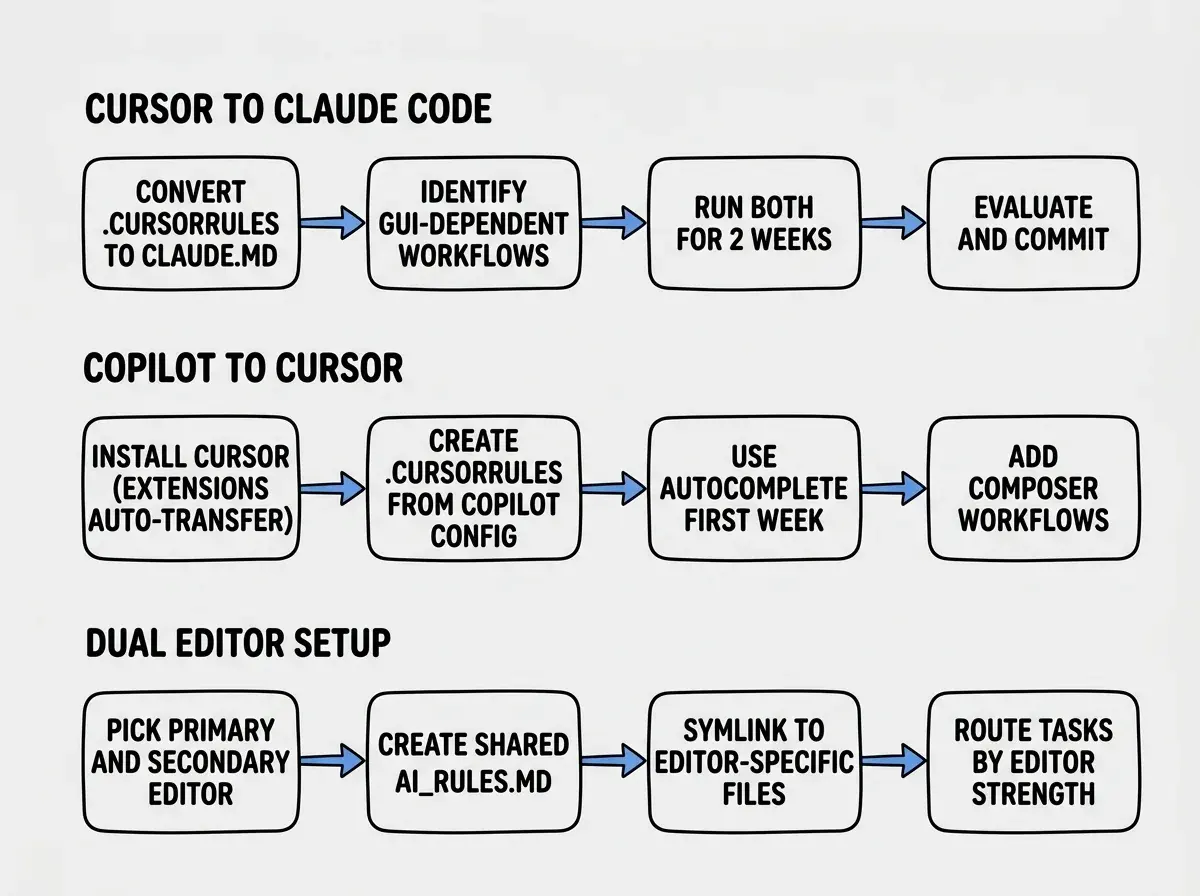
The pattern across all three paths is the same. Never switch cold. Always run parallel. Migrate your AI rules first because that is where most of your productivity gains live. And give yourself at least two weeks before making a final decision.
Developers often try to replicate their exact workflow in the new editor instead of adapting to its strengths. If you move from Cursor to Claude Code and spend all your time trying to make Claude Code behave like a GUI, you will hate it. Instead, learn what the new tool does differently and let your workflow evolve. The goal is not a 1:1 copy; it is finding the fastest path to productivity in the new environment.
Give yourself permission to feel slow for a few days. Every editor switch has a productivity dip, and the developers who push through it and learn the new tool's native patterns come out faster on the other side.
What This Means For You
Your situation determines how you should approach editor migration.
- If you are a founder building a product, stability matters more than having the latest tool. Pick one editor, invest heavily in your instruction files, and only migrate when a new tool offers a concrete capability you cannot get today. The two-week parallel approach protects you from productivity loss during critical shipping windows.
- If you are a senior developer at a company, your team's tooling choices may constrain you. Focus on making your AI instruction files editor-agnostic by keeping a master version in your repo. This way, any team member can use their preferred editor while everyone benefits from the same AI context.
- If you are exploring AI tools for the first time, start with whatever your team uses or whatever has the most tutorials for your stack. Do not overthink the choice. The migration techniques in this guide mean you are never locked in. Your first editor is a starting point, not a life sentence.
The AI editor landscape will keep shifting. New tools will launch, existing ones will merge features, and today's best choice might not be tomorrow's. The developers who thrive build portable, project-level configurations that make any migration painless.
Learn the workflows and techniques that make every AI coding tool more effective.
Start learning