GitHub Copilot Workspace is the closest thing we have to mission control for software engineering. With 92% of developers now using AI tools daily, the question has shifted from "should I use AI for coding?" to "which AI workflow actually fits how I build?" Copilot Workspace answers that by turning GitHub issues into full implementation plans, generated code across multiple files, and pull requests ready for your review. Think of it as NASA mission control for your codebase. It reads the mission brief (your issue), generates the flight plan (a step-by-step implementation plan), executes the maneuvers (multi-file code changes), and then waits for your go/no-go before launch (the PR).
I have been using Copilot Workspace on real projects for the past several months. This is a hands-on review of what it actually does well, where it falls short, and who should care.
What Copilot Workspace Actually Is
Copilot Workspace is a cloud-based development environment built directly into GitHub. It lives alongside your repositories, issues, and pull requests. Unlike Copilot Chat (which answers questions inline) or Copilot Agent mode in VS Code (which executes tasks in your local editor), Workspace operates at the project level. You start from a GitHub issue, and Workspace builds a complete plan for resolving it.
The mental model matters here. Copilot Chat is your co-pilot sitting next to you in the cockpit, answering questions as you fly. Agent mode is autopilot handling turbulence while you monitor instruments. Copilot Workspace is mission control. It takes the entire mission objective, analyzes the terrain, plots a course through multiple waypoints, and presents the full flight plan before you authorize a single engine burn.
This distinction is not marketing fluff. It fundamentally changes how you interact with AI-assisted development.
The Issue-to-PR Workflow
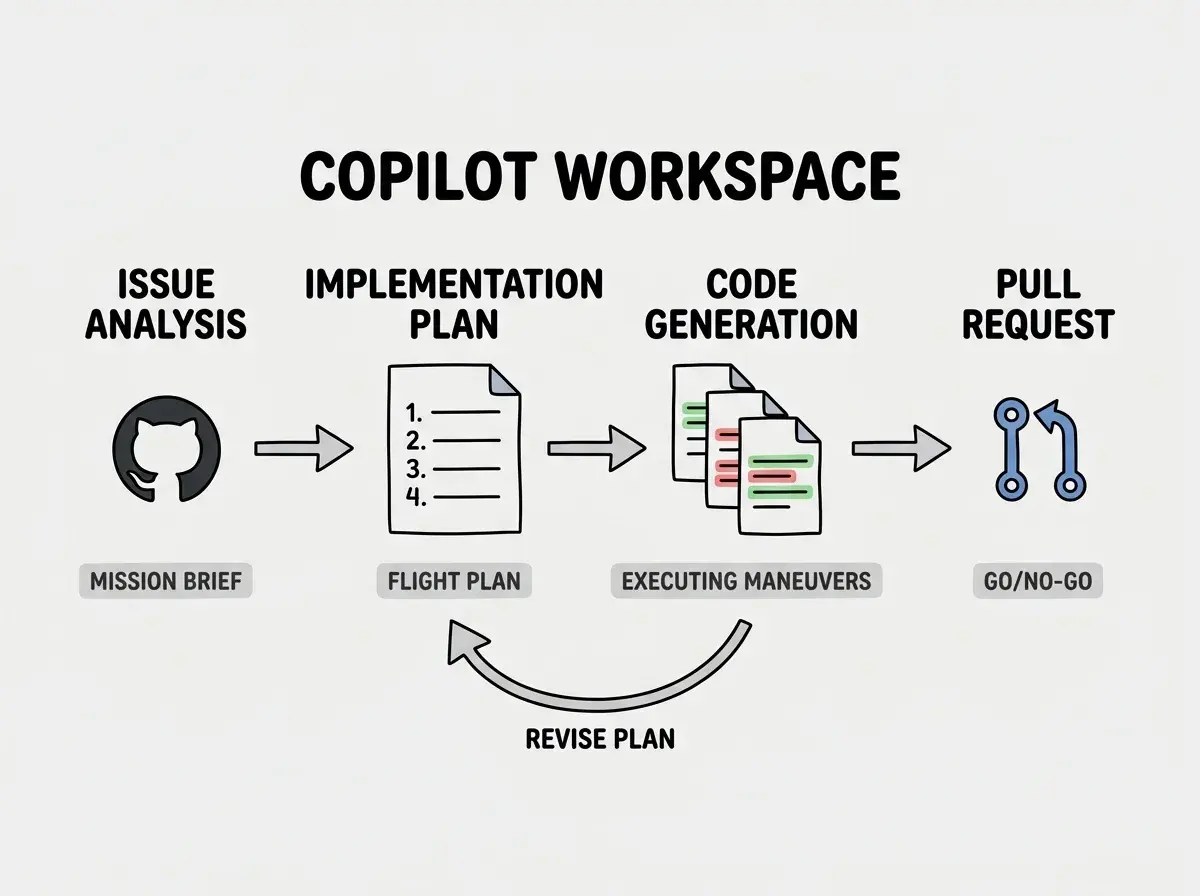
The core loop in Copilot Workspace follows four stages, and each one maps to a phase in our mission control analogy.
Stage 1: Mission Brief (Issue Analysis). You open a GitHub issue and click "Open in Workspace." Copilot reads the issue title, description, labels, and any linked context. It then generates a natural language summary of what needs to happen. This is the briefing room phase where mission control reviews the objectives.
Stage 2: Flight Plan (Implementation Plan). Workspace produces a step-by-step plan describing which files need to change, what new files should be created, and how existing code should be modified. The plan is written in plain English, not code. You can read it, edit it, add steps, remove steps, or reorder the sequence. This is the most underrated feature. You are reviewing the strategy before any code gets written.
Stage 3: Executing Maneuvers (Code Generation). Once you approve the plan, Workspace generates code changes across all the files identified in the plan. It handles multi-file edits, new file creation, import updates, and test scaffolding. The changes appear in a diff view so you can inspect every line.
Stage 4: Go/No-Go (Pull Request). When you are satisfied with the generated code, you create a pull request directly from Workspace. The PR includes the implementation plan as context, making code review easier for your teammates. You can also iterate, asking Workspace to revise specific files or regenerate sections before the PR goes out.
Natural Language Planning Done Right
The planning phase is where Copilot Workspace separates itself from every other AI coding tool I have used. Most tools jump straight to code. You describe what you want, and the AI starts generating functions immediately. Workspace forces a planning step in between, and that constraint turns out to be incredibly valuable.
When I pointed Workspace at an issue requesting "add rate limiting to the API endpoints," the plan it generated listed seven specific steps. It identified which middleware file to create, which routes needed the middleware applied, what configuration values to extract into environment variables, and where to add tests. I could see the entire approach before a single line of code existed.
I edited the plan to move the configuration into a separate config file instead of environment variables (a preference for the project), and Workspace adjusted all downstream code generation to match. This is the flight plan review working exactly as intended. You catch architectural decisions early, not after 400 lines of generated code that assumed the wrong structure.
The implementation plan is the most valuable output of Copilot Workspace. Even if you end up writing all the code yourself, the structured plan that analyzes your codebase and proposes a multi-step approach saves significant time on complex issues. Review and edit the plan carefully before generating code.
Multi-File Code Generation
Once the plan is approved, Workspace generates code across every file it identified. This is where the mission control analogy really holds. Traditional AI coding tools (including Copilot Chat) work best on single-file, localized changes. Workspace handles coordinated changes across your project.
In my testing, it handled scenarios like adding a new API endpoint that required a route handler, a service layer function, a database migration, updated TypeScript types, and a test file. All five files were generated in a single pass with consistent naming, proper imports, and matching type signatures.
The quality varies by complexity. For well-defined tasks with clear patterns in your codebase, the generated code is production-ready about 60-70% of the time. For novel architecture or complex business logic, it gets the structure right but often needs refinement in the implementation details. That is still a significant time savings compared to writing everything from scratch.
GitHub Ecosystem Integration
Copilot Workspace benefits enormously from living inside GitHub. It has native access to your repository's file structure, commit history, existing pull requests, and issue discussions. This context makes its analysis substantially better than tools that only see the files you have open in your editor.
When generating plans, Workspace references your existing code patterns. If your project uses a specific error handling approach or a particular folder structure for API routes, Workspace picks up on those conventions and follows them in generated code. It also links back to relevant existing code in its plan descriptions, so you can verify it understood the codebase correctly.
The PR integration is seamless. Generated PRs include the implementation plan as structured context, making reviews faster. Reviewers can see not just what changed but why each file was modified and how it fits into the overall plan. For teams, this is a genuine workflow improvement.
How It Differs from Copilot Chat and Agent Mode
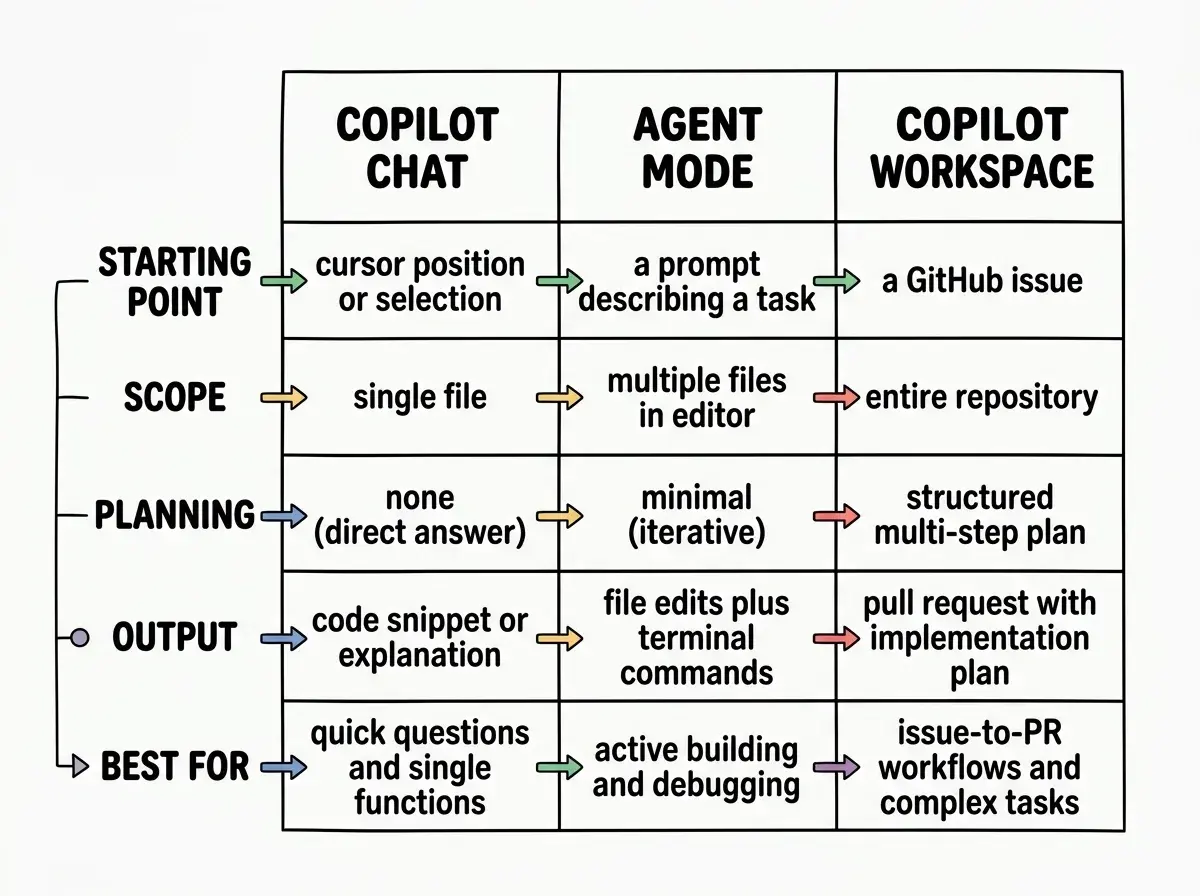
These three tools overlap enough to cause confusion, so here is the practical breakdown.
Copilot Chat is reactive and localized. You highlight code, ask a question, get an answer. It works in your editor, operates on the file you are looking at, and is best for explanations, small refactors, and generating individual functions. Think of it as asking your co-pilot a question mid-flight.
Copilot Agent Mode (in VS Code) is more autonomous. It can make multi-file edits, run terminal commands, and iterate on errors. But it operates within your local development environment and works best when you are actively steering it with prompts. It is autopilot that still needs you in the cockpit.
Copilot Workspace operates at a higher altitude. It starts from an issue (not a cursor position), analyzes the full repository (not just open files), produces a reviewable plan (not just code), and outputs a PR (not just file edits). It is mission control, handling the entire operation from objective to delivery.
The practical implication is that you should not choose one. Use Workspace for issue-level tasks that require coordinated changes across multiple files. Use Agent mode for implementation tasks where you are actively building. Use Chat for quick questions and single-function generation.
Trying to use Copilot Workspace for small, single-file changes. The planning overhead does not pay off for quick fixes. If you need to rename a variable or fix a typo, Workspace's four-stage process adds unnecessary steps. Save it for issues that genuinely require multi-file coordination, and use Chat or Agent mode for everything else.
Limitations Worth Knowing
Copilot Workspace is not a replacement for understanding your codebase. The plans it generates sometimes miss project-specific constraints that are not documented in code. Authentication patterns, deployment requirements, and business rules that live in team knowledge rather than source files can lead to plausible-looking plans that miss critical details.
Performance on very large repositories can be inconsistent. Workspace occasionally generates plans that reference outdated file structures or miss recently added modules. For monorepos with hundreds of packages, the analysis sometimes focuses on the wrong area of the codebase.
The iterative feedback loop is slower than working locally with Agent mode. Each revision requires a cloud round-trip. If you find yourself making ten revisions, you would have been faster writing the code directly.
Finally, Workspace currently works only with GitHub repositories. If your team uses GitLab, Bitbucket, or self-hosted Git, this tool is not available to you. That is a meaningful limitation for enterprise teams with diverse infrastructure.
Who Should Actually Use This
Copilot Workspace delivers the most value to senior developers who work on repositories with well-established patterns. If your codebase has consistent conventions, clear folder structures, and existing examples of the patterns Workspace needs to follow, the generated code will be significantly better.
Team leads who triage issues also benefit. Pointing Workspace at a complex issue and reviewing its proposed approach is a fast way to validate scope estimates and catch architectural concerns before anyone writes code.
If you are a solo developer on a smaller project, Agent mode in VS Code will probably serve you better. Workspace's planning overhead makes more sense when the cost of getting the implementation wrong is high, which typically means larger codebases and team environments.
Mission control does not fly the rocket. It plans the mission, runs the simulations, and gives the crew the best possible flight plan. Copilot Workspace works the same way. It will not replace your engineering judgment, but it will give you a structured, reviewable path from issue to pull request that catches mistakes earlier and saves time on multi-file changes.