Keyboard shortcuts for AI coding are the difference between developers who feel fast and developers who actually are fast. With 92% of developers now using AI tools daily, the gap between hunting through menus and hitting the right key combo adds up to hours every single week. This guide covers the essential shortcuts across Cursor, Claude Code, Windsurf, and GitHub Copilot so you can stop reaching for your mouse.
Why Shortcuts Matter More With AI Tools
Traditional code editors had shortcuts for things like "find and replace" or "go to file." Useful, but the stakes were low. Missing a shortcut meant an extra second of clicking. With AI coding tools, the stakes are completely different. Every AI interaction is a context switch, and the friction of navigating to a chat panel, clicking "accept," or manually triggering a suggestion compounds into real lost time across a workday.
Senior devs who have internalized their AI tool shortcuts ship 2.5x more AI-assisted code than those who rely on mouse navigation. That is not because they are better programmers. It is because they never break flow. They prompt, review, accept, and iterate without their hands leaving the keyboard. The AI becomes an extension of their thinking instead of an interruption to it.
The problem is that every AI coding tool has its own shortcut system. Cursor uses one set of keybindings, Claude Code has terminal-based shortcuts, Windsurf invented new patterns, and Copilot lives inside VS Code's existing ecosystem. If you switch between tools, keeping track of what works where gets confusing fast.
You do not need to memorize every shortcut in every tool. Focus on the five or six actions you perform most often, like opening the AI chat, accepting suggestions, and regenerating responses, and drill those into muscle memory first. The rest will come naturally as you encounter them in daily work.
The good news is that most AI coding tools share a common set of interaction patterns. Once you understand the categories of actions (prompting, accepting, navigating, editing), you can pick up any new tool's shortcuts in an afternoon. The underlying logic is the same even when the specific key combos differ.
The Instrument Analogy for AI Tool Fluency
Think of your AI coding tool the way a musician thinks about their instrument. A guitarist who knows three chords can play songs, but a guitarist who has practiced scales, transitions, and fingerpicking patterns can improvise. They do not think about where to put their fingers; the music just flows. Keyboard shortcuts are your scales and transitions. They turn an AI tool from something you operate into something you play.
A beginner Cursor user opens the AI chat by clicking the sidebar icon, types a prompt, waits for the response, reads it, scrolls to find the "Apply" button, clicks it, reviews the diff, and clicks "Accept." That is seven discrete steps with at least three mouse movements. An experienced Cursor user hits Cmd+L, types, sees the result stream in, presses Cmd+Enter to apply, and Tab to accept. Same outcome, half the steps, zero mouse involvement.
This is not about speed for its own sake. When you remove the micro-friction from every AI interaction, you start using the AI for smaller tasks, like renaming a variable, writing a quick test, or explaining a confusing line. The tool becomes useful for a wider range of situations because the cost of using it drops to nearly zero.
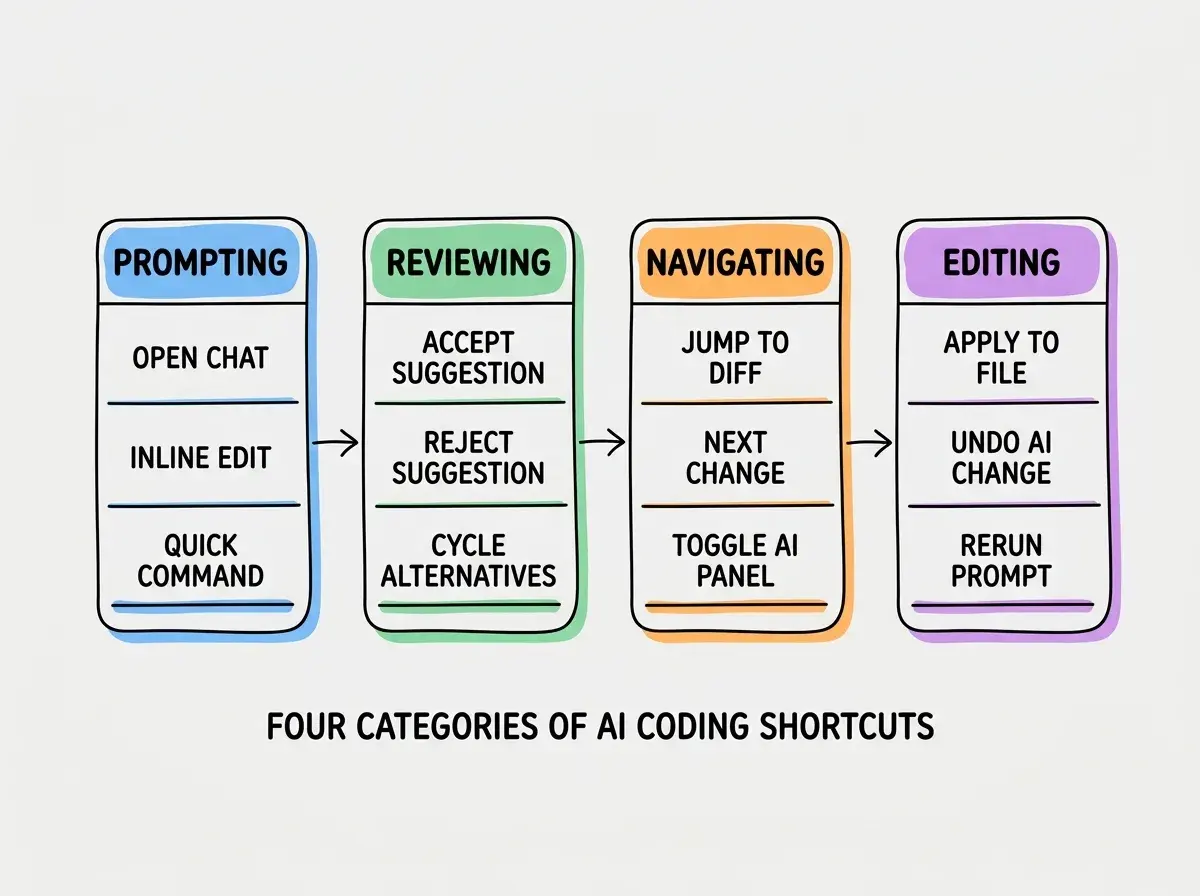
Knowing these four categories gives you a mental framework for any tool. When you pick up a new AI editor, you do not start from scratch. You ask yourself "what is the prompting shortcut, what is the accept shortcut" and you are productive within minutes.
Cursor Shortcuts Every Developer Should Know
Cursor's shortcut system is designed so AI interactions feel as natural as regular editing. Here are the shortcuts that matter most (Mac keys shown; replace Cmd with Ctrl on Windows/Linux).
- Cmd+L opens the AI chat panel. This is the shortcut you will use most. Highlight code first, then hit Cmd+L to include it as context automatically.
- Cmd+K triggers inline editing. Your cursor stays in the file, a small prompt box appears, and the AI edits the code in place. Faster than chat for targeted changes.
- Cmd+I opens Composer, Cursor's multi-file editing mode. Use this when a change touches multiple files at once.
- Tab accepts the current AI suggestion. This works for both autocomplete suggestions and applied diffs.
- Esc rejects a suggestion and dismisses the prompt or diff view.
- Cmd+Shift+L adds the current file to chat context without switching panels. Useful for building up context before you ask a complex question.
- Cmd+Enter (in chat) sends the prompt. Sounds obvious, but many people reach for the send button with their mouse.
- Cmd+. toggles Copilot-style ghost text suggestions on and off. Helpful when autocomplete gets noisy and you need clean screen space.
- Cmd+Shift+K opens the terminal AI command palette, letting you describe what you want to run and Cursor generates the command.
- Option+] and Option+[ cycle through alternative AI suggestions when multiple completions are available.
These ten shortcuts cover about 90% of daily Cursor interactions. Print them and stick them next to your monitor for a week.
Shortcuts are just the beginning of a productive AI coding workflow.
Explore the blogThe key insight with Cursor is that Cmd+K (inline edit) and Cmd+L (chat) serve different purposes. Use inline edit for surgical, single-location changes. Use chat when you need to discuss or plan across a broader scope.
Claude Code and Windsurf Shortcuts Worth Memorizing
Claude Code runs in your terminal, which means its shortcuts follow terminal conventions rather than editor conventions. This actually makes it simpler once you adjust to the paradigm. Windsurf, on the other hand, is a full editor with its own AI-specific keybindings layered on top of a VS Code foundation.
Claude Code essentials:
- Enter sends your prompt (no Cmd needed since you are in a terminal REPL).
- Esc cancels the current AI generation if you realize mid-stream that you asked the wrong question. This saves time and API costs.
- Tab accepts a file edit suggestion. Claude Code shows diffs inline and Tab confirms them.
- Ctrl+C interrupts the current operation, standard terminal behavior but crucial when a long generation goes off track.
- / followed by a command name triggers slash commands like
/compactto summarize context or/clearto reset the conversation. - Up arrow recalls your previous prompt for quick re-editing. Useful when you want to refine a question without retyping it.
- Ctrl+L clears the terminal screen without clearing conversation context. Good for visual tidiness.
- Shift+Tab rejects a suggested edit and keeps your original code.
Windsurf essentials:
- Cmd+L opens the Cascade AI panel (Windsurf's primary AI chat interface).
- Cmd+K triggers inline AI editing, similar to Cursor's implementation.
- Cmd+Enter sends a prompt in the Cascade panel.
- Tab accepts AI suggestions and completions.
- Cmd+Shift+Enter applies a suggested change directly to the file from chat.
- Cmd+. toggles AI autocomplete suggestions.
- Esc dismisses suggestions or closes the AI panel.
- Cmd+Shift+L attaches the current file as context to the AI conversation.
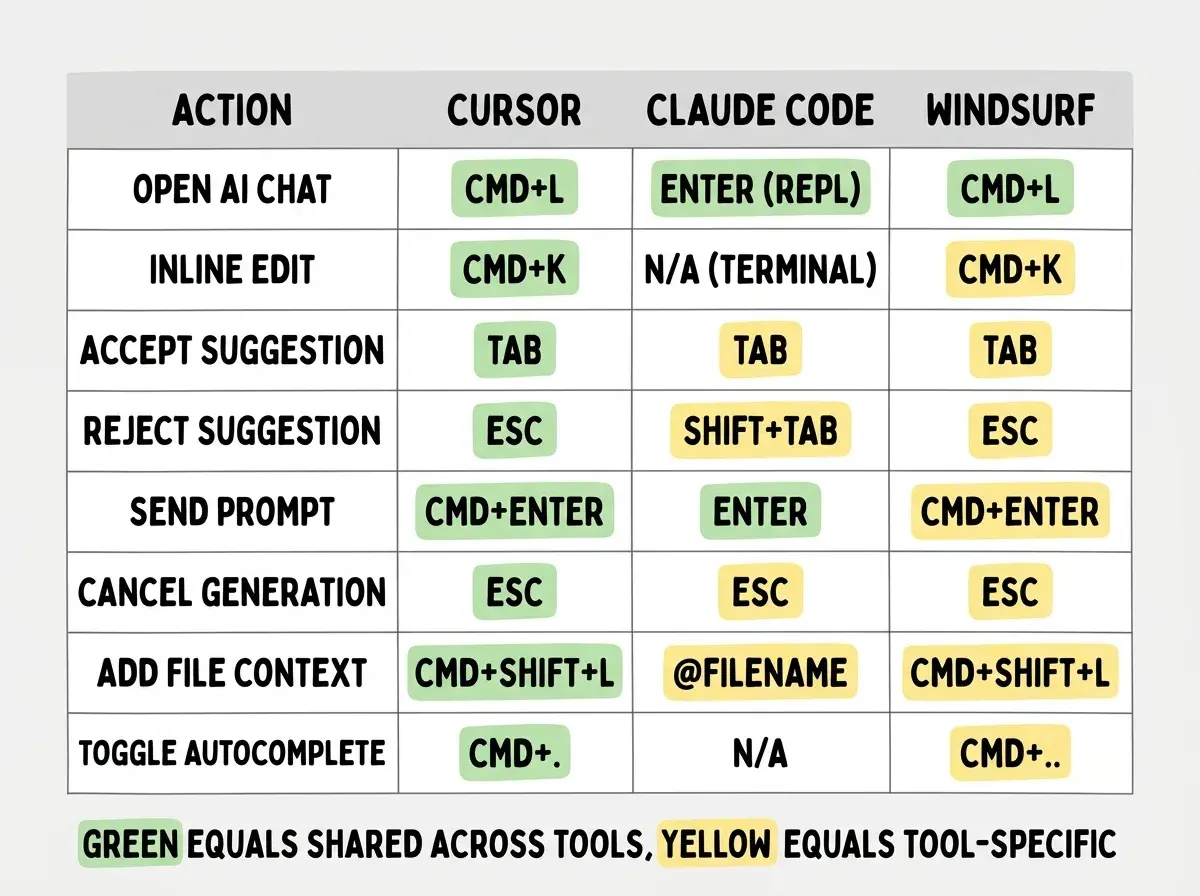
Notice the pattern: Tab for accept, Esc for dismiss, and Cmd+L for chat show up across nearly every tool. These three shortcuts alone give you a functional baseline in any AI coding environment. The differences are mostly in multi-file operations and tool-specific features like Cursor's Composer or Windsurf's Cascade flows.
Trying to learn every shortcut at once and then not using any of them consistently. Pick three shortcuts today, use them exclusively for one week (even when it feels slower than mousing), and add three more the following week. Muscle memory requires repetition, not memorization. A printed cheat sheet on your desk beats a bookmarked reference page you never open.
GitHub Copilot in VS Code follows the same accept/reject patterns: Tab (accept), Esc (dismiss), Alt+] and Alt+[ (cycle suggestions). If you already know Copilot's shortcuts, you have a solid foundation for picking up any of these tools.
What This Means For You
The investment in shortcut fluency pays off differently depending on where you are in your coding journey.
- If you are a senior developer or tech lead, shortcuts compound across dozens of daily AI interactions. Saving three seconds per interaction across 100 interactions is five minutes a day, roughly 20 hours per year. The reduced friction also means you actually use AI for small quality tasks like generating tests or refactoring verbose functions.
- If you are a career changer or bootcamp grad, shortcuts help you keep pace with experienced developers who have years of editor muscle memory. Learning AI tool shortcuts now means you build the right habits from the start instead of unlearning slow patterns later.
- If you are a student, this is the single highest-leverage skill you can develop alongside learning to code. Classmates who master these shortcuts will iterate more and build more ambitious projects, not because they are smarter, but because they removed the friction between idea and execution.
Shortcuts are one piece of a much bigger productivity puzzle.
See all guidesEvery second of friction between you and your AI tool is a tax on your creativity. Keyboard shortcuts eliminate that tax. Start with Tab, Esc, and Cmd+L this week. Add three more next week. Within a month, you will wonder how you ever coded any other way.