AI tool settings optimization is the difference between code suggestions that feel generic and ones that match your stack, patterns, and intent. With 92% of developers now using AI tools daily, the gap between default configurations and tuned setups has become the quiet multiplier behind the teams shipping the fastest code.
Most developers install Cursor, Claude Code, or Windsurf, accept every default, and never look at settings again. They treat their AI like a new hire who showed up on day one with zero onboarding. Then they wonder why the output feels disconnected from their codebase. The developers getting the best results are doing something different, and it takes about fifteen minutes.
Why Default Settings Leave Performance on the Table
Default settings in any AI coding tool are designed for the broadest possible audience. They work reasonably well for a React tutorial, a Python script, or a quick Node.js API. But they have no idea that your project uses Drizzle instead of Prisma, that your team prefers named exports, or that your Next.js app runs on Cloudflare Workers where fs doesn't exist at runtime.
This is the core problem. Default context is generic context. And generic context produces generic code.
Senior devs who have tuned their settings ship roughly 2.5x more AI-assisted code than juniors on the same tools. The difference is not talent or typing speed. It is that their tools understand the project before generating a single line. They have configured what files the AI reads, which model handles which task, and how aggressively suggestions get applied.
The single highest-leverage setting in any AI coding tool is not the model. It is the project context. A well-configured context file (like .cursorrules or CLAUDE.md) transforms output quality more than switching from GPT-4o to Claude Sonnet ever will. Context tells the AI how to think about your specific codebase, not just what to generate.
Think of it this way. Two photographers can use the same camera, but the one who adjusts white balance, ISO, and focus for the specific lighting conditions will produce dramatically better images. The camera (model) matters, but the settings for the environment matter more.
The Equalizer Board for AI Code Quality
The best analogy for AI tool settings optimization is an audio mixing board. Every knob and slider affects the final output, but most people only touch the volume (which model to use) and ignore everything else. The result is sound that technically works but lacks clarity, punch, and definition.
Your AI coding tool has three main channels on this equalizer board. Context is the low-end foundation; it determines what the AI knows about your project before it starts generating. Model selection is the mid-range; it shapes the intelligence and style of the output. Behavior configuration is the high-end detail; it controls how code gets applied, reviewed, and integrated into your workflow.
Most developers crank the model selector to "best available" and leave everything else flat. That is like maxing out the treble on a speaker system and wondering why the bass sounds muddy. The channels work together. A smaller, faster model with perfect context will consistently outperform a frontier model with zero project awareness.
The practical reality is that you don't need to spend hours tweaking. You need to understand which knobs exist, which ones have the biggest impact, and what the right starting position looks like for your specific workflow. Let's walk through each channel.
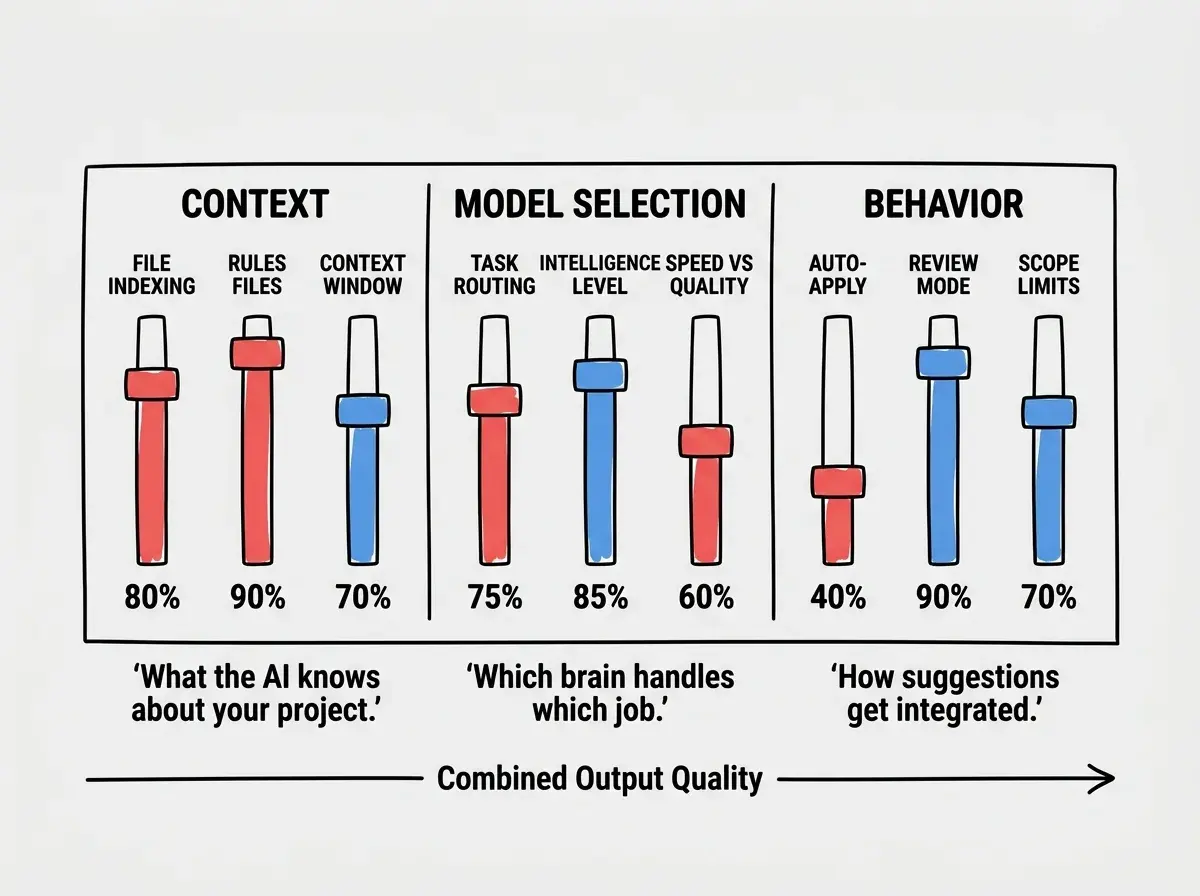
The good news is that these settings are not hidden. They are documented, accessible, and take minutes to configure. The bad news is that almost nobody reads the docs for their AI coding tool's settings page.
Context Settings That Make the Biggest Difference
File indexing is where everything starts. Cursor indexes your entire project by default, but it makes choices about what to prioritize. Large monorepos can overwhelm the context window if you don't tell the tool which directories matter. In Cursor, you can configure .cursorignore to exclude node_modules, build artifacts, and generated files. In Claude Code, the tool respects .gitignore automatically but benefits from explicit inclusion patterns in your CLAUDE.md.
Rules files are your highest-leverage setting. Cursor uses .cursorrules (or the newer .cursor/rules directory). Claude Code uses CLAUDE.md at the project root. Windsurf uses .windsurfrules. These files are loaded into every conversation, every completion, and every generation. They are your standing instructions.
A good rules file includes your tech stack versions, architectural constraints, naming conventions, and common patterns. It does not need to be long. A focused 50-line file that says "we use Tailwind v4, Next.js App Router, server components by default, and named exports" will eliminate half the corrections you currently make by hand.
Context window management is the subtlest setting. Every AI model has a fixed context window (128K tokens for Claude, 128K for GPT-4o). When your project context, conversation history, and the current file exceed that window, older context gets dropped silently. Cursor lets you pin important files. Claude Code lets you use /compact to summarize and reclaim space. Windsurf's Cascade feature manages context automatically but benefits from shorter, focused conversations.
The practical move is to start a fresh conversation for each distinct task. Long-running conversations accumulate stale context that dilutes the AI's understanding of what you are currently trying to do.
Learn the fundamentals that make every AI coding tool more effective.
Start with the basicsOne pattern that senior developers use consistently is treating the rules file like onboarding documentation for a new team member. If a human joining your team would need to know it on day one, put it in the rules file. If it is a deep implementation detail they would learn over weeks, leave it out. The AI, like a new hire, needs the right level of context to be productive without being overwhelmed.
Model Selection and Behavior Configuration
Choosing the right model per task is where most developers oversimplify. Frontier models like Claude Sonnet 4.6 or GPT-4o are excellent for complex architectural decisions, debugging tricky issues, and generating multi-file features. But they are slower and more expensive than necessary for simple completions, test generation, or boilerplate.
Cursor makes this easy with its model dropdown. You can use Claude Sonnet for chat and architecture discussions, then switch to a faster model for tab completions. Claude Code lets you configure the model in your settings, and many developers keep the default Sonnet for complex tasks while using /compact frequently to keep context lean. Windsurf routes models automatically through its Cascade system, but you can override the default in settings.
Temperature and creativity controls vary by tool. Cursor exposes a temperature-like setting through its "creativity" slider in chat. Lower values produce more predictable, conventional code. Higher values explore more creative solutions but introduce more variance. For production code, keep it low. For brainstorming architecture or exploring approaches, turn it up.
Auto-apply versus review mode is a behavior setting that changes your entire workflow. Cursor's "apply" feature can automatically insert generated code into your files. Claude Code applies changes by default but asks for confirmation on destructive operations. Windsurf's Cascade applies changes automatically in its flow.
The right setting depends on your trust level and the task. For well-understood patterns (adding a new API route that follows your existing pattern), auto-apply saves time. For novel features or complex refactors, review mode catches the subtle mistakes that look correct at first glance but break edge cases.
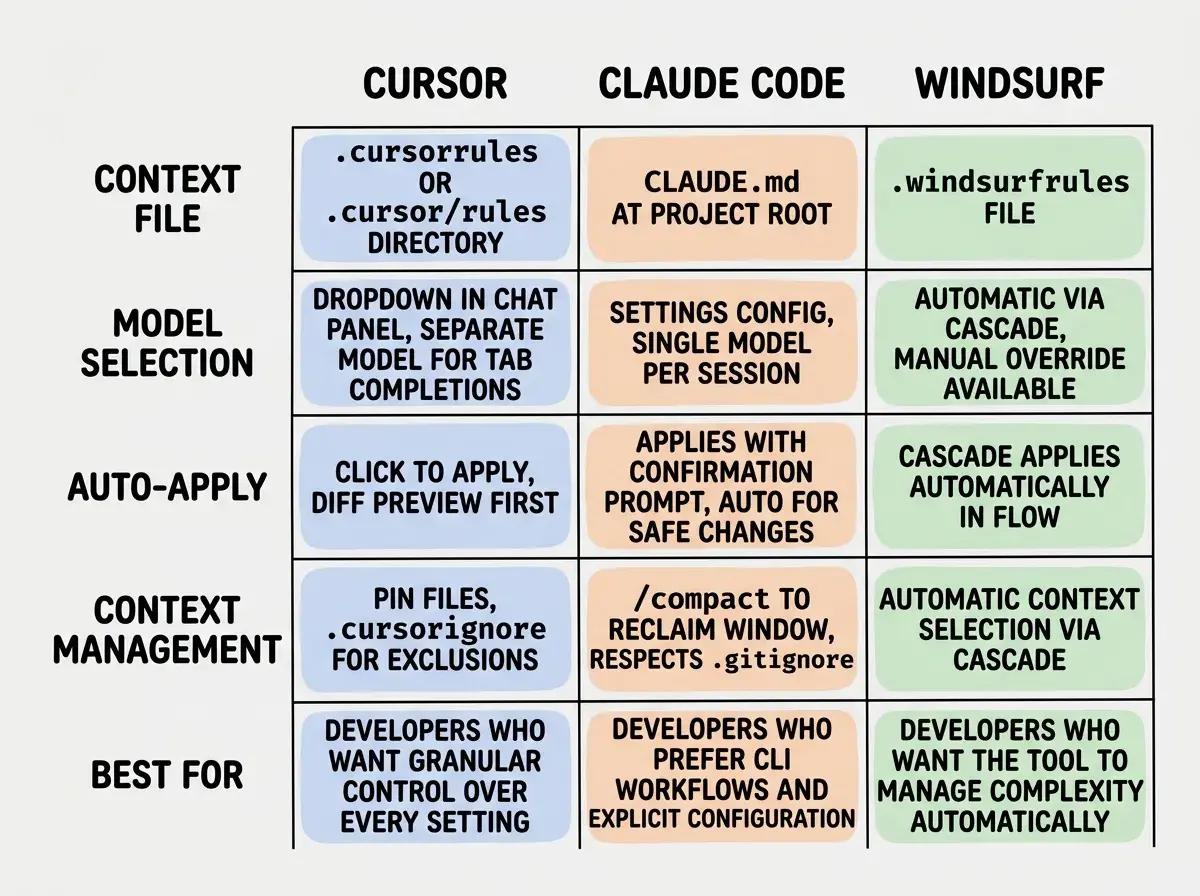
The pattern across all three tools is consistent. Context quality beats model quality. Specific instructions beat generic ones. And reviewed output beats auto-applied output for anything beyond straightforward tasks.
Switching to the most expensive, most capable model for every task without fixing your context first. A frontier model with no project rules file will confidently generate code using the wrong framework version, the wrong import style, and the wrong deployment target. Fix context first, then evaluate whether you need a more capable model. Most developers find they don't.
The developers who get the most from these tools treat model selection as the last optimization, not the first. They dial in context, set behavior preferences, and only then experiment with which model produces the best results for their specific workflow.
What This Means For You
- If you are a founder building with AI tools, spend fifteen minutes writing a rules file before your next coding session. List your stack, your constraints, and your conventions. This single file will save you more correction time than any model upgrade.
- If you are a career changer learning to vibe code, start with one tool's default settings but add a context file immediately. Understanding how context shapes output will teach you more about effective AI collaboration than any prompt engineering course.
- If you are a student exploring AI-assisted development, experiment with model switching on the same task. Generate a component with a fast model and a frontier model using identical context, then compare. You will learn exactly where model intelligence matters and where context does the heavy lifting.
Explore more guides on getting the most from AI coding tools.
Browse tool guides