JetBrains AI has quietly become one of the most capable AI coding assistants available in 2026, yet most conversations about AI-powered development still revolve around Cursor and Copilot. With 92% of developers now using AI tools daily, the question for anyone already invested in IntelliJ IDEA, PyCharm, or WebStorm is whether JetBrains' own AI offering is good enough to skip the migration entirely.
Think of it this way. VS Code with Cursor is the sports car you customize. You bolt on extensions, tweak configs, wire up MCP servers, and build exactly the experience you want. JetBrains IDEs are the luxury sedan. Everything is already built in, the ride is smooth, and you never think about the engine. JetBrains AI leans hard into that luxury sedan philosophy, embedding AI directly into the workflows you already use rather than asking you to learn a new tool.
This review covers what JetBrains AI actually does well, where Junie (their agentic coding tool) fits in, how pricing compares to the competition, and whether you should stay in your JetBrains IDE or make the jump to something else.
What JetBrains AI Assistant Actually Does
JetBrains AI Assistant is a plugin that ships with every JetBrains IDE starting from version 2024.1. It is not a separate product or a bolt-on extension. You activate it, connect your JetBrains account, and it integrates directly into the IDE's existing features. That distinction matters because JetBrains has access to something Cursor and Copilot do not have by default: deep structural understanding of your code.
Inline code completion works similarly to Copilot. You type, the model suggests, you accept or reject. The completions are context-aware and pull from your project's types, function signatures, and import patterns. In languages where JetBrains has historically strong indexing (Java, Kotlin, Python, TypeScript), the suggestions feel noticeably more accurate than generic LLM completions because the IDE's own type analysis feeds into the prompt.
AI Chat lives in a sidebar panel with full access to your project context. You can ask questions about your codebase, request explanations for complex functions, or ask it to generate code that slots into your existing architecture. The chat understands your project structure, dependencies, and build configuration without you needing to manually add files to context.
Refactoring and code analysis is where the luxury sedan analogy really holds up. JetBrains IDEs have always excelled at automated refactoring, and the AI layer enhances this. You can select a block of code and ask the AI to suggest refactoring approaches, explain potential issues, or generate unit tests that respect your existing test framework and patterns. It works with the IDE's refactoring engine rather than against it, so rename operations propagate correctly and type signatures stay consistent.
Commit message generation and documentation round out the feature set. The AI can draft commit messages from your staged changes, generate KDoc/JSDoc/docstring comments, and explain code in natural language. These features are table stakes in 2026, but they work reliably here.
JetBrains AI's real advantage is not any single feature. It is the integration depth. Because the AI has access to the IDE's type system, refactoring engine, and project model, it produces more structurally correct suggestions than tools that treat your code as raw text. For strongly-typed languages like Java, Kotlin, and TypeScript, this integration gap is significant.
Junie, the Agentic Coding Tool
Junie is JetBrains' answer to Cursor's agent mode and GitHub Copilot's workspace features. Released in early 2025 and now generally available across all JetBrains IDEs, Junie operates as an autonomous coding agent that can plan, execute, and verify multi-step tasks.
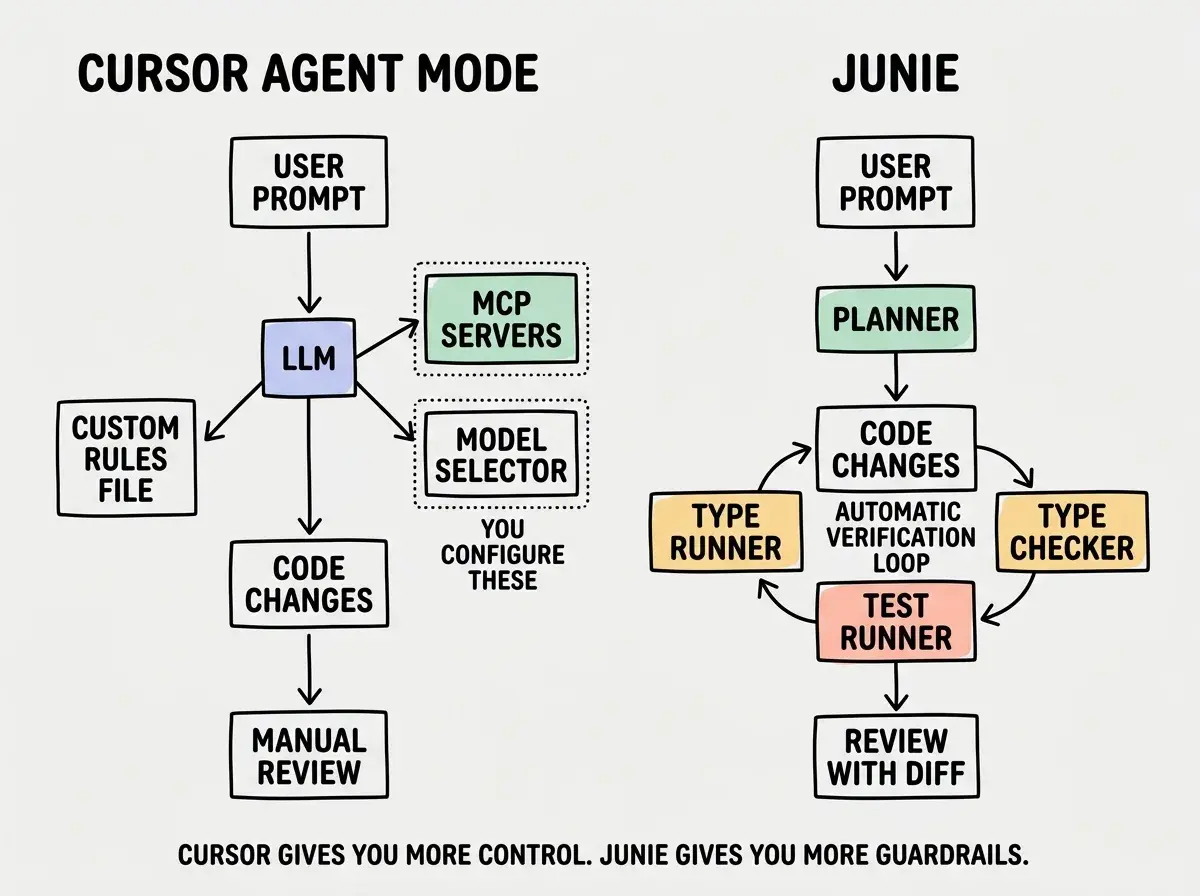
How it works in practice. You describe a task in natural language ("add pagination to the user list endpoint with cursor-based navigation"), and Junie creates a plan, modifies the relevant files, runs your test suite, and presents the changes for review. It reads your project structure, understands your framework conventions, and attempts to write code that matches your existing patterns.
Where Junie shines. Multi-file refactoring tasks that involve updating types, implementations, and tests together are where Junie demonstrates its value. Because it runs inside the JetBrains IDE with full access to the project model, it can verify that its changes compile, that imports resolve correctly, and that existing tests still pass. This verification loop catches errors that pure LLM-based agents miss regularly.
Where Junie struggles. Tasks that require creative architectural decisions or novel patterns are still hit-or-miss. Like every agentic tool in 2026, Junie works best when the path is relatively clear and the task involves applying known patterns to your specific codebase. Asking it to "design a real-time collaboration system" will produce something, but you will likely rewrite most of it.
The luxury sedan analogy extends here too. Junie does not give you the raw configurability of Cursor's agent mode, where you can swap models, define custom rules files, and wire up arbitrary tool integrations. Instead, it provides a polished, opinionated experience that works well within the boundaries JetBrains has defined.
How It Compares to Cursor and Copilot
The comparison comes down to philosophy, not just features.
Cursor is purpose-built for AI-first coding. Every aspect of the editor is designed around AI interactions. Tab completion, inline edits, multi-file agent mode, custom context with @-mentions, and deep model configurability make Cursor the most flexible AI coding environment available. But it requires you to leave JetBrains. For developers with years of muscle memory in IntelliJ keybindings, custom inspections, and framework-specific plugins, that migration cost is real and ongoing.
GitHub Copilot works everywhere, including inside JetBrains IDEs. The completion quality is solid, the chat feature is capable, and Copilot Workspace adds agentic capabilities. But Copilot runs as a somewhat isolated plugin within JetBrains. It does not tap into the IDE's type analysis or refactoring engine with the same depth that JetBrains AI does. You get a good AI assistant sitting beside your IDE rather than one woven into it.
JetBrains AI is the integrated option. Less flexible than Cursor, deeper integration than Copilot, and designed for developers who have already chosen JetBrains as their IDE. If you are a Java developer with custom IntelliJ inspections, live templates, and framework plugins, JetBrains AI preserves all of that while adding AI capabilities on top.
| JetBrains AI | Cursor | GitHub Copilot | |
|---|---|---|---|
| IDE integration | Native, deep type-system access | Native (it is the IDE) | Plugin, surface-level integration |
| Model flexibility | JetBrains-hosted models + OpenAI/Anthropic options | Any model, easy switching | GPT-4o, Claude Sonnet primarily |
| Agent capabilities | Junie with verification loop | Agent mode with MCP support | Copilot Workspace |
| Best language support | Java, Kotlin, Python, TypeScript | Language-agnostic | Language-agnostic |
| Customization | Limited to IDE settings | Extensive rules, MCP, custom models | Moderate |
| Existing workflow impact | None, stays in JetBrains | Full editor migration required | Minimal, plugin-based |
Switching from JetBrains to Cursor solely for AI features without accounting for productivity loss during migration. Developers who have spent years building custom IntelliJ configurations, inspection profiles, and framework-specific workflows often underestimate how long it takes to replicate that setup in a VS Code-based editor. The AI might be better, but your overall output can drop for weeks or months during the transition. Evaluate the total cost, not just the AI capability delta.
Pricing Breakdown
JetBrains restructured their pricing in late 2025, and the AI tier is now bundled more aggressively with their IDE subscriptions.
JetBrains AI Pro costs $10/month (or $100/year) on top of your existing JetBrains IDE subscription. This includes full AI Assistant access, Junie, and a generous token allocation that covers most individual developers' usage. The All Products Pack ($24.90/mo for individuals) combined with AI Pro brings the total to roughly $35/month for every JetBrains IDE plus AI.
Cursor Pro costs $20/month and includes the editor plus AI features. There is no separate IDE subscription because Cursor is the IDE. For developers who only need one language environment, Cursor is often the cheaper total package.
GitHub Copilot ranges from $10/month (Individual) to $19/month (Pro) and works inside any editor, including JetBrains IDEs. This means you can pair Copilot with your JetBrains IDE for a combined cost similar to JetBrains AI Pro, though with less integration depth.
For teams, JetBrains AI becomes more cost-effective at scale because organizations already paying for JetBrains licenses add AI at a relatively low marginal cost. Cursor's per-seat pricing for businesses ($40/month) adds up faster for large teams.
The best tool depends on your language, workflow, and team size.
Compare all AI toolsLimitations Worth Knowing
JetBrains AI is not the right choice for everyone, and being honest about its weaknesses matters.
Model selection is limited compared to Cursor. While JetBrains has added support for multiple model providers, the switching experience is not as smooth. Cursor lets you jump between Claude, GPT-4o, and open-source models mid-conversation with a dropdown. JetBrains AI requires more configuration and does not support the same breadth of models.
The AI features are still catching up. Cursor has a multi-year head start on AI-native UX. Features like Cursor's inline diff editing, multi-file @-mention context, and background agents feel more polished. JetBrains is iterating quickly, but the gap in AI-specific UX is real as of early 2026.
Performance overhead exists. JetBrains IDEs are already resource-intensive. Adding AI features increases memory usage and can introduce latency on machines with less than 16GB of RAM. Cursor, being VS Code-based, runs lighter overall even with AI features active.
Community tooling is thinner. Cursor benefits from the massive VS Code extension ecosystem. MCP server integrations, custom AI workflows, and community-built prompts are more abundant in the Cursor and VS Code ecosystem than in the JetBrains plugin marketplace.
Who Should Stay on JetBrains
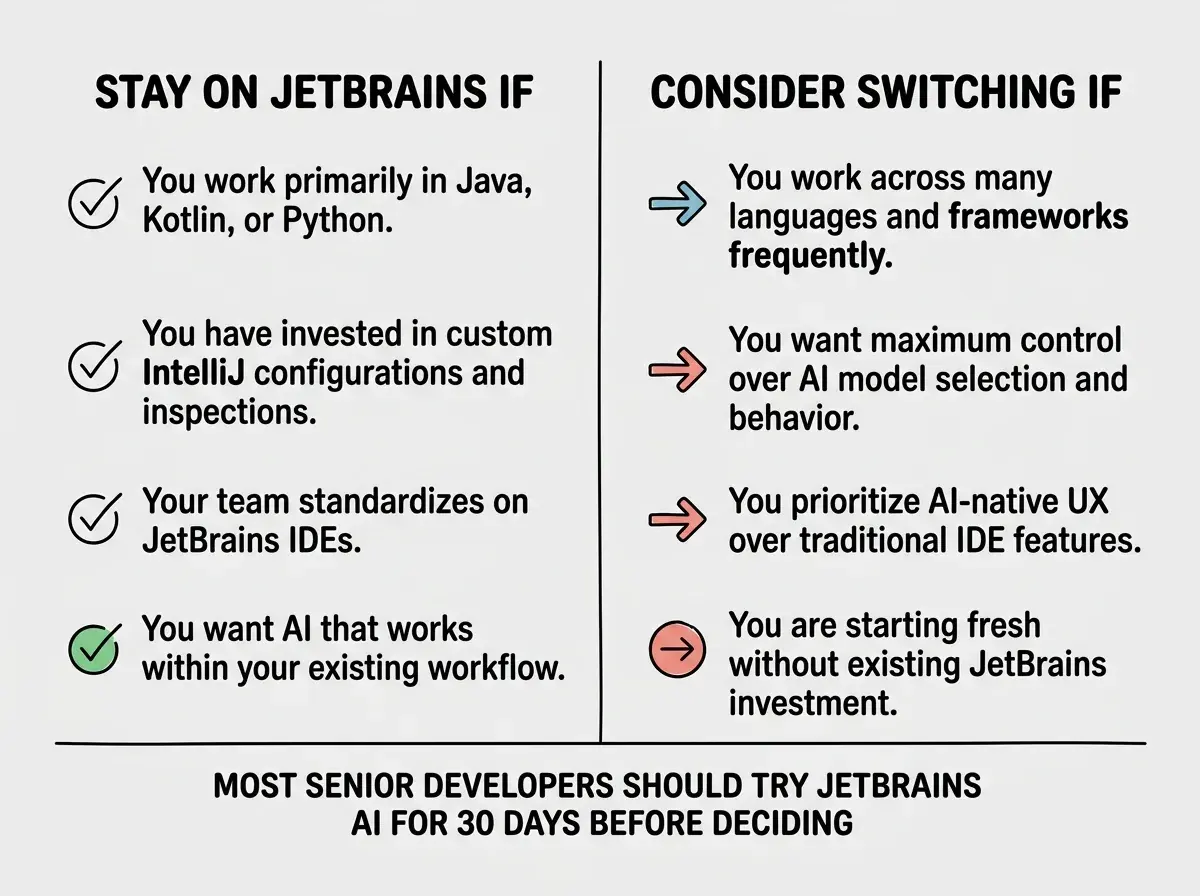
Stay if you are a Java, Kotlin, or Python developer with years of IntelliJ or PyCharm customization. The AI integration with the type system and refactoring engine provides genuine value that you cannot get from Cursor or Copilot. Your muscle memory, custom inspections, and framework plugins all keep working.
Stay if your team standardizes on JetBrains. Consistent tooling across a team matters, and JetBrains AI Pro is a cost-effective addition to existing team licenses. Migration disruption multiplied across an entire engineering team is a serious productivity risk.
Consider switching if you are a polyglot developer working across JavaScript, Python, Rust, Go, and other languages in the same week. Cursor's language-agnostic AI and lighter weight make it better suited for this kind of workflow. JetBrains excels at depth in specific languages but Cursor excels at breadth across all of them.
Consider switching if AI-native UX is your priority. If you find yourself spending more time in AI chat than in traditional code editing, Cursor was designed for exactly that workflow. JetBrains AI is AI added to an IDE. Cursor is an IDE built around AI. That difference shows up in daily use.
Your editor choice shapes how you build software every single day.
See the full tools guideThe Bottom Line
JetBrains AI in 2026 is a genuinely capable AI coding assistant that benefits enormously from its integration with the best traditional IDEs ever built. It is not the most flexible AI tool available, and it is not the cheapest standalone option. But for developers who already live in IntelliJ, PyCharm, or WebStorm, it delivers AI assistance without asking you to give up everything else you value about your IDE.
The luxury sedan does not win drag races against the sports car. But it gets you where you need to go in comfort, with every feature exactly where you expect it. For a lot of senior developers, that predictability is worth more than the extra speed.
Try the 30-day free trial of JetBrains AI Pro before making any permanent decisions. Your existing workflow is worth protecting, and the only way to know whether JetBrains AI is enough is to use it on your actual projects with your actual codebase. The answer might surprise you in either direction.