You built something. Maybe you prompted an AI tool for a few hours, clicked a few buttons, and now there is a working app sitting in front of you. It looks right. The buttons seem to do things. But there is a quiet voice in the back of your head asking: does this actually work?
That voice is worth listening to.
Here is the good news. You do not need to read a single line of code to answer that question. Think of it like test-driving a car. You do not need to be a mechanic to know if the brakes work, if the steering pulls left, or if a strange rattling sound starts at highway speed. You just need to drive it the way a real person would and pay attention to what happens.
Testing your app works the same way. You are not inspecting the engine. You are taking it for a drive.
With 92% of US developers now using AI coding tools daily and 63% of vibe coding users being non-developers, more people than ever are building real software without traditional coding backgrounds. The gap is not in building anymore. The gap is in knowing whether what you built actually holds up.
This guide closes that gap.
Why Testing Matters More When AI Wrote the Code
When a professional developer writes code by hand, they understand every decision the code makes. They know where data flows, what happens on failure, and which parts are fragile.
When AI writes the code, nobody has that understanding. Not you, not the AI (it has no persistent memory of its choices), and not the next person who looks at the project. The code works, but nobody is fully accountable for its behavior.
That is not a reason to panic. It is a reason to test thoroughly. A mechanic who built the car by hand might skip the test drive. But when the car rolled off an unfamiliar assembly line, you would absolutely take it around the block before driving it to an important meeting.
How Can I Test My App
Start with the simplest question: does it do the thing it is supposed to do? Before worrying about edge cases, performance, or security, verify that the core features work from start to finish.
Write down the three to five most important things your app should do. If it is a landing page with a waitlist, those things might be: the page loads, the signup form accepts an email, the confirmation message appears, and the email actually arrives. If it is a dashboard, the list might be: login works, data displays correctly, filters change the results, and logout returns to the home page.
Now do each one. Slowly. Narrate what you are doing like you are showing a friend. "Okay, I am clicking the signup button. Now I am entering my email." This sounds silly, but it forces you to notice things your eyes skip when clicking around casually.
This is the test drive on flat, open road. If something breaks here, you have a serious problem that needs fixing before anything else.
You do not need to test everything at once. Start with the three to five core actions your app is supposed to perform and verify each one works completely. If those pass, you have a solid foundation. If any of them fail, nothing else matters until they are fixed.
The Fresh Eyes Test
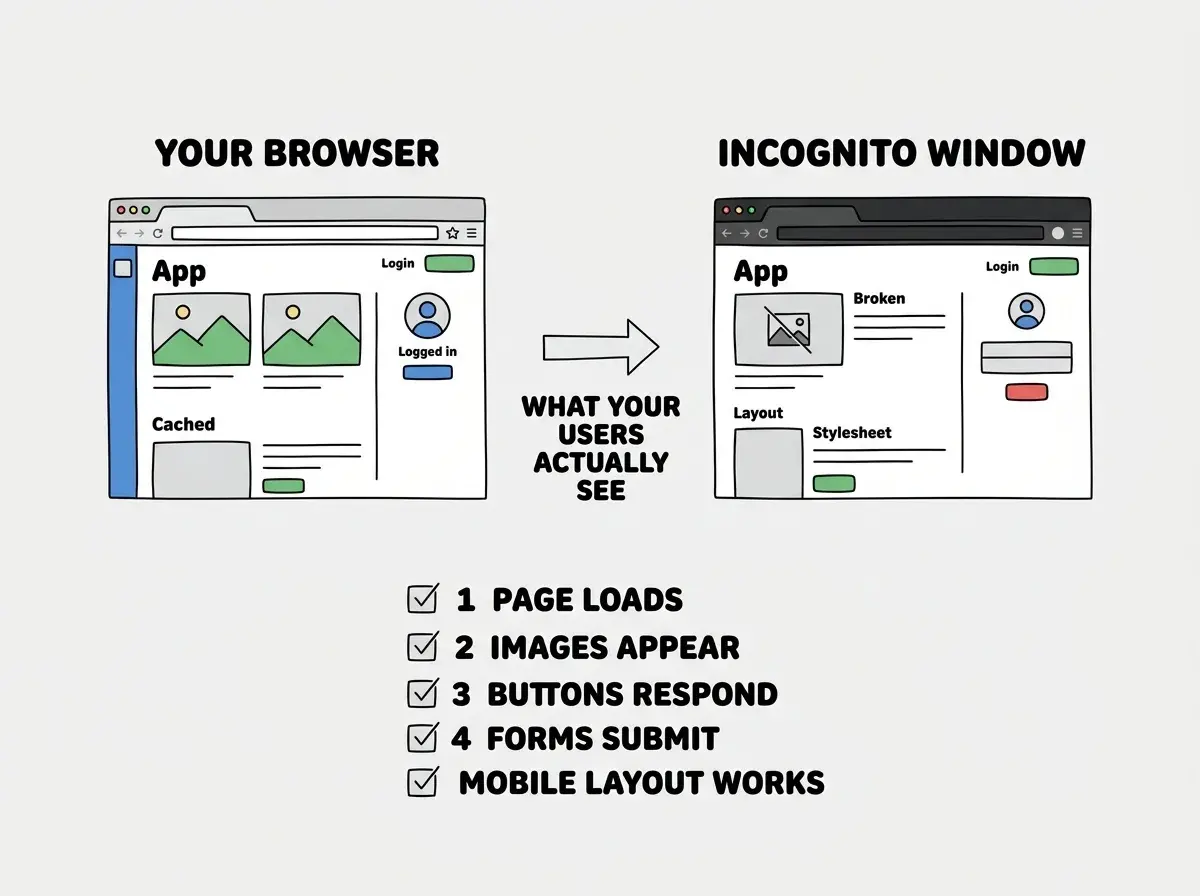
Open your app in an incognito or private browser window. This is non-negotiable.
Your regular browser remembers things. It has cached files, saved passwords, stored cookies, and autofill data that make your app appear to work even when it would fail for someone visiting the first time. An incognito window strips all of that away. It shows you exactly what a stranger sees when they click your link.
Think of it this way. You have been test-driving this car for weeks on the same route. You know the pothole on Third Street, so you swerve around it automatically. But your passengers do not know it is there. The incognito window puts you back in the passenger seat so you experience every pothole fresh.
Here is what to check in that fresh window:
- Does the page load at all? A blank white screen is more common than you think, especially with missing environment variables.
- Do images appear? Scroll through every page. Broken image icons mean missing files or incorrect URLs.
- Do buttons respond? Click every button and link. Confirm each one takes you somewhere real, not a 404 error page.
- Do forms submit? Enter real data in every form and hit submit. Watch for error messages, spinning loaders that never stop, or confirmations that never arrive.
- Does the mobile layout work? Open your app on your actual phone, not a resized desktop browser. Tap buttons, scroll, and try filling out a form with the on-screen keyboard.
If everything passes in the incognito window, your app's first impression is solid. That alone puts you ahead of most AI-built projects.
Testing the Unhappy Path
Most people test only the path where everything goes right. Enter correct data, click the right buttons, follow the expected flow. But real users do unexpected things constantly. They leave fields blank. They enter their phone number in the email field. They hit the back button at the worst possible moment. They double-click submit.
You need to test what happens when things go wrong. This is the part of the test drive where you slam the brakes, crank the wheel, and see if the car holds the road.
Try these scenarios:
- Leave required fields empty and hit submit. Does the app show a helpful error, or does it silently fail?
- Enter obviously wrong data. Put "asdf" in an email field. Put letters in a phone number field. Enter a single character as a password. The app should catch these and tell the user what went wrong.
- Hit the back button mid-flow. Start a signup or checkout, go halfway, then press back. Does the app recover gracefully, or do you get a broken page?
- Double-click submit buttons. This is a classic. If clicking submit twice creates two accounts or sends two payments, you have a real problem.
- Try using the app while signed out when it expects you to be signed in. Copy the URL of a page that requires login, open it in incognito, and paste. You should see a login screen, not the protected content.
You will almost certainly find something here. That is normal and expected. AI-generated code tends to handle the happy path well and the unhappy path poorly, because your original prompt probably described what the app should do, not what it should do when things go sideways.
Start with the foundations before diving into testing.
Explore the basicsThe "Show a Friend" Test
This is the most powerful test you can run, and it requires zero technical knowledge. Hand your app to someone who has never seen it. Do not explain anything. Just say "try this" and watch.
Do not help. Do not point. Do not say "click that button right there." Just watch.
You will learn more in five minutes of watching someone else use your app than in an hour of using it yourself. You will see where they hesitate, where they get confused, where they click something you did not expect, and where they give up entirely.
Pay attention to questions they ask. "Where do I sign up?" means your signup flow is not obvious. "Did it work?" means your confirmation feedback is missing. "What is this page?" means your navigation is unclear.
This is the equivalent of handing the car keys to your friend and sitting in the passenger seat. You built it, so every quirk is familiar to you. Your friend's confusion reveals the blind spots you cannot see alone.
Guiding the person through the test. The moment you say "oh, you need to click there first," you have invalidated the test. The whole point is to see what happens without your knowledge. If they cannot figure out a core feature without help, that is not their failure. That is a design problem your app needs to fix.
Keeping a Simple Test Log
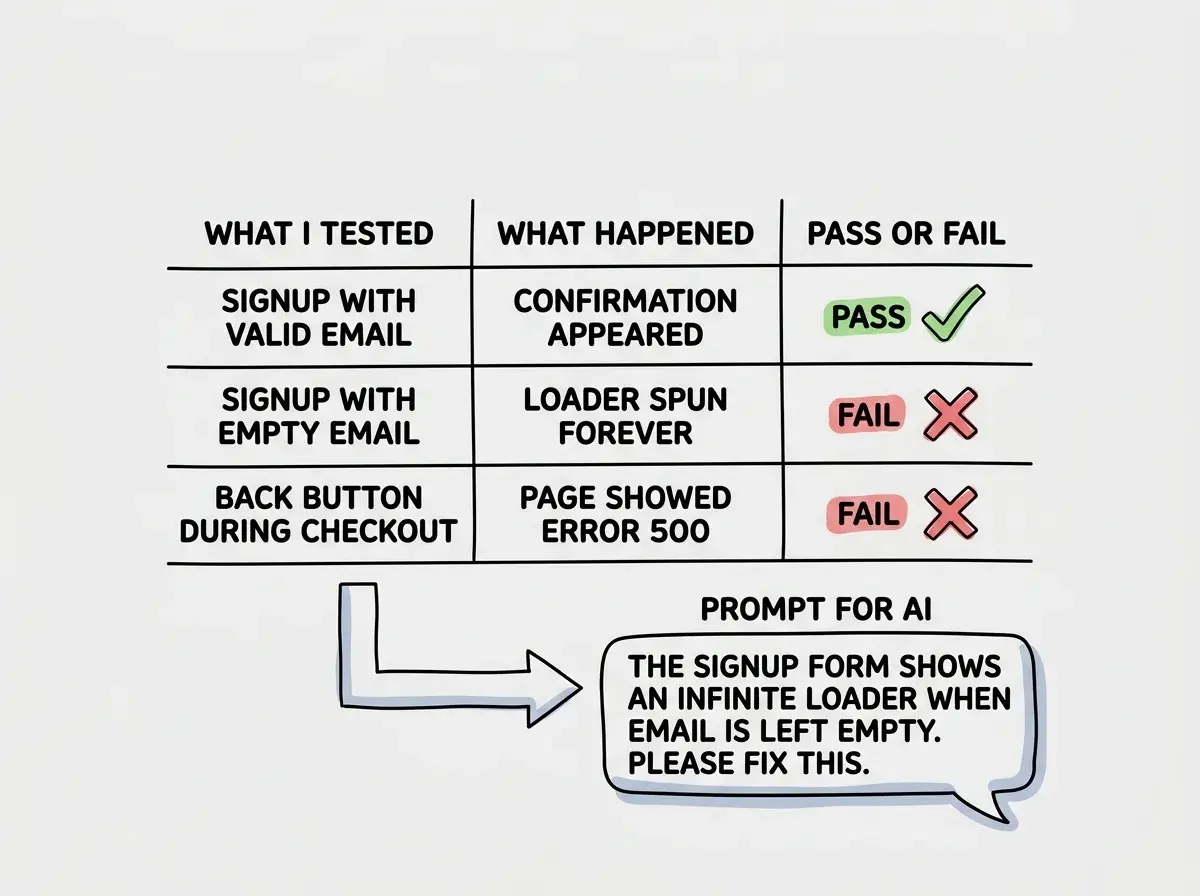
Every time you test, write down what you found. It does not need to be fancy. A note on your phone, a simple spreadsheet, or a document with three columns works fine: what you tested, what happened, and whether it passed or failed.
This log prevents you from forgetting issues, gives you a clear list to hand to your AI tool for fixes, and builds a record of which parts of your app are reliable over time.
A sample entry: "Tested signup form with empty email field. Expected error message. Got spinning loader that never stopped. FAIL." That single sentence gives your AI tool everything it needs to fix the issue.
The specificity of your notes matters, not technical vocabulary. "This broke when I did that" is a perfectly useful test result.
Testing is a skill that gets easier fast. By your third round, you will instinctively check the incognito window, try the wrong inputs, and notice when something feels off before it fully breaks. That instinct is the same sense a driver develops after thousands of miles behind the wheel. You do not need to understand the engine to feel when something is wrong.
Your AI tool built the car. Your job is to make sure it actually drives.
What This Means For You
- If you are a founder, testing is the difference between showing investors a working product and showing them an embarrassing demo. Fifteen minutes of structured testing saves you from the "it worked on my computer" moment that kills credibility.
- If you are a marketer, every landing page and form you test before launch is one less support ticket, one less lost lead, and one less awkward explanation to your team about why the signup page was broken all weekend.
- If you are a creative, your portfolio projects reflect your standards. A tested, polished app tells clients you care about quality, even when the code was generated by AI. That attention to detail separates hobbyists from professionals.
Testing is step one. Learn what comes next after your app passes.
See the next steps