Drawing your app before you prompt visualizes intent in ways verbal description cannot match. Beginners often skip drawing because they assume drawing requires artistic skill; basic boxes and arrows beat polished UI mockups for AI prompting purposes. Four sketch components matter most: screen rectangles, navigation arrows, data labels, and user flow numbering. The drawing takes 10-20 minutes and produces dramatically better AI generation than equivalent text descriptions.
This tutorial walks through the four sketch components, how to draw each without artistic skill, what to do with the drawing, and the four mistakes beginners make when skipping visual design.
Why Drawing Matters For Beginners Specifically
Drawing matters specifically for beginners because beginners do not yet have the vocabulary to describe apps verbally. Drawing bypasses vocabulary by using visuals; AI converts visuals to functional code.
The 2026 reality is that AI vision capabilities accept hand drawn sketches and produce code from them. Vision capability changed what counted as effective prompting; sketches now compete with text.
A 2025 beginner vibe coder study of 400 first time builders found that beginners who sketched apps before prompting completed first projects 56 percent more often than beginners who only described apps verbally. Sketching dramatically increased completion rates among beginners specifically.
The pattern to copy is the way children explain ideas using drawings before they learn complex vocabulary. Children draw what they cannot yet articulate; drawings communicate effectively. Beginner vibe coders benefit from same approach; visual articulation beats verbal struggling.
The Four Sketch Components
Four components form a complete app sketch.
Component 1, screen rectangles for each major screen. One rectangle per screen; label what screen it is. Login screen, home screen, profile screen.
Component 2, navigation arrows between screens. Arrows showing how user moves between screens; labels on arrows showing what triggers movement.
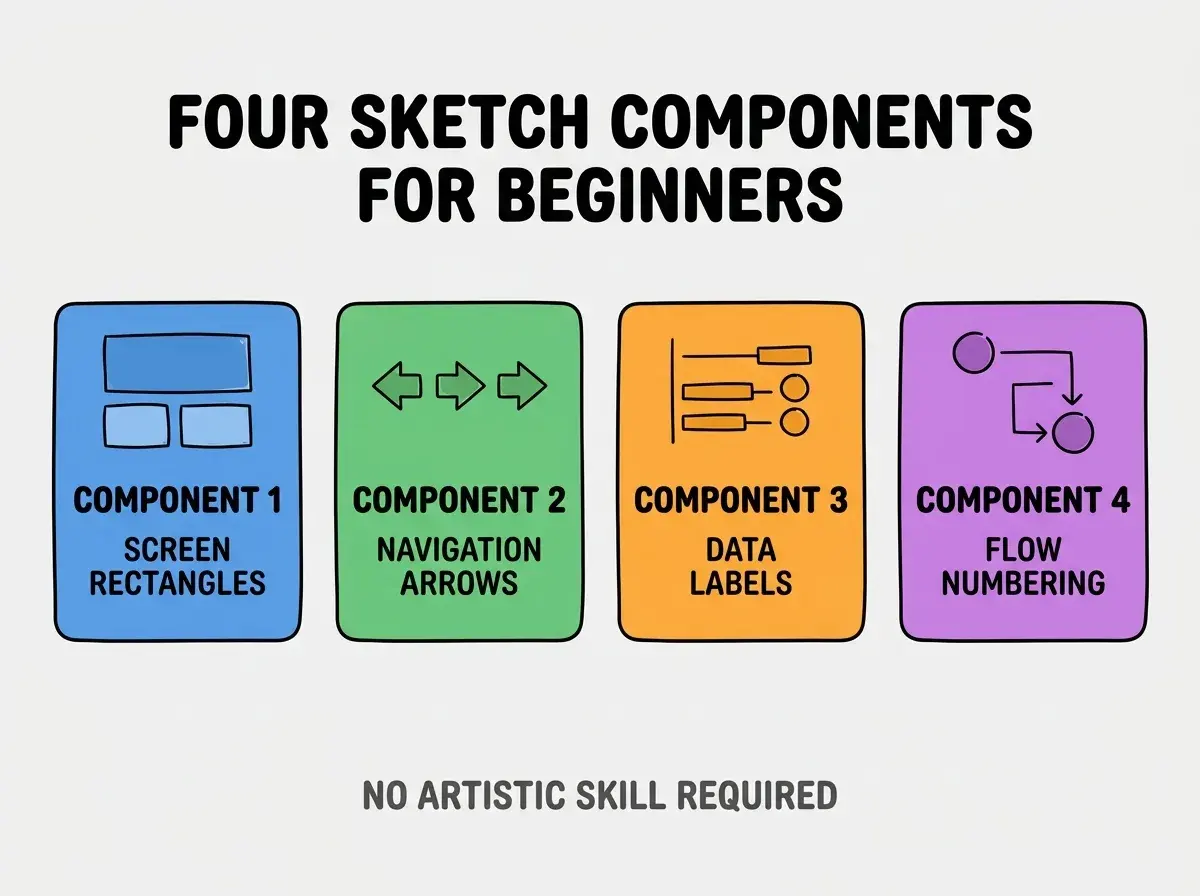
Component 3, data labels inside screens. What information does each screen show? Labels inside rectangles describe content.
Component 4, user flow numbering. Number the steps a user takes; numbers show happy path through screens.
How To Draw Each Component Without Artistic Skill
Four drawing patterns produce sketches that work without artistic talent.
Drawing 1, screens as rectangles. Use whatever you have; pencil and paper, iPad, whiteboard. Rectangle shape means screen.
Browse more foundations
Read more foundationsDrawing 2, arrows with labels. Straight lines with arrowheads. Word above arrow describes what causes the navigation.
Drawing 3, content as text labels. Write what shows on screen inside the rectangle. "Username", "Submit button", "Photo gallery".
Drawing 4, numbers inside circles. Circle around number shows step order; arrows connect circles.
What To Do With The Drawing
Three usage patterns convert drawings into AI prompts.
Pattern 1, photograph and upload to AI. Modern AI tools accept image uploads; AI reads sketch and generates code.
Pattern 2, describe sketch in text alongside. Write what each screen does; combine drawing with text for clarity.
Pattern 3, iterate based on AI questions. AI may ask clarifying questions; sketch updates as questions reveal gaps.
What Makes Visual Design Sustainable For Beginners
Three patterns separate sustainable visual design from one off attempts.
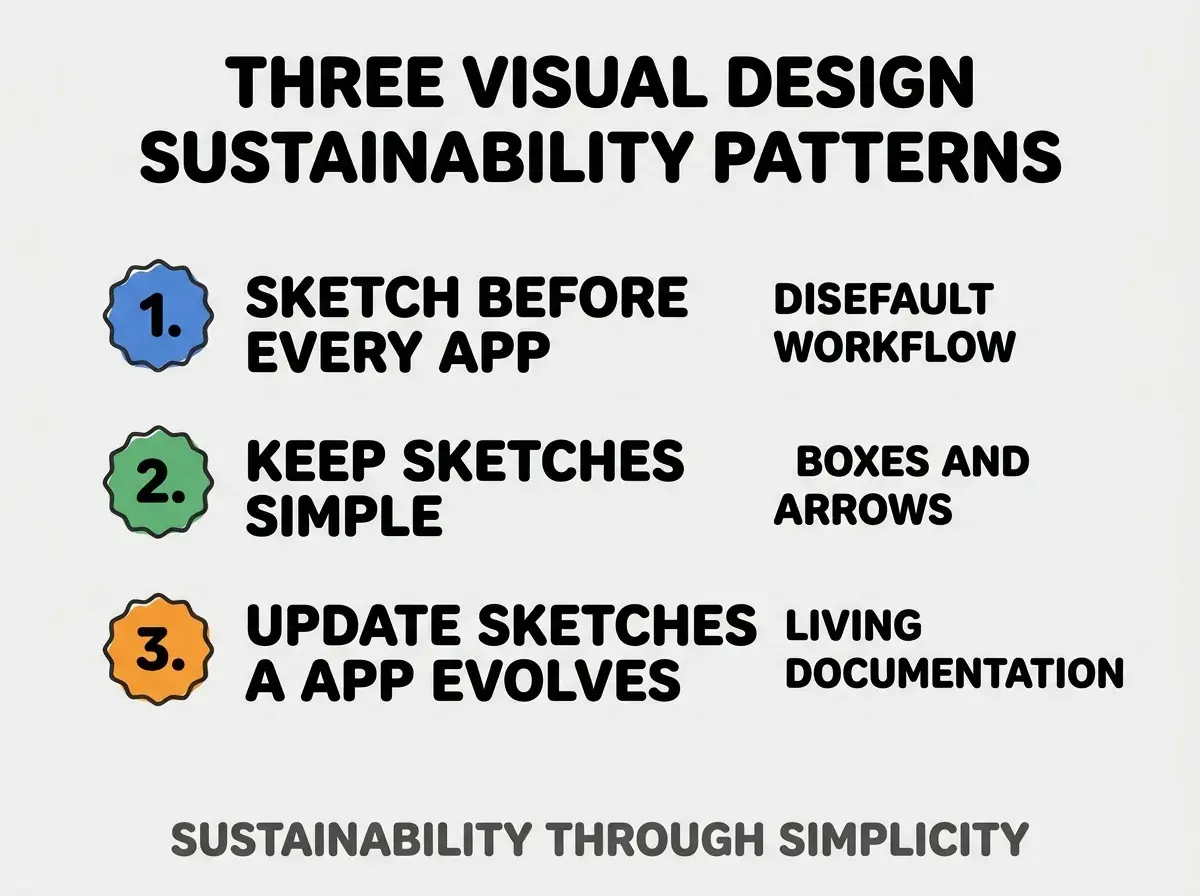
Pattern 1, sketch before every app. Default workflow step prevents skipping; habit forms through repetition.
Pattern 2, keep sketches simple. Boxes and arrows beat detailed mockups; complexity defeats purpose.
Pattern 3, update sketches as app evolves. Sketches reflect current design; stale sketches mislead.
The combination produces sustainable visual design habit. Without these patterns, sketching becomes exception.
How To Use Digital Sketching Tools
Three digital tools work well for beginner sketches.
Pattern A, Excalidraw for hand drawn aesthetic. Browser based, free, produces sketchy drawings that look hand drawn.
Pattern B, Figma for clean vector sketches. Free tier, learning curve, but produces clean professional sketches.
Pattern C, iPad with Apple Pencil for natural drawing. Most natural digital sketching; Procreate or Notes app work fine.
Common Questions About Visual Design For Beginners
Visual design for beginners raises questions worth addressing directly.
The first question is whether AI tools really accept hand drawn sketches. Yes; modern vision models read hand drawn sketches surprisingly well. Test on simple sketches first.
The second question is whether to learn UI design before sketching. No; sketching does not require design knowledge. Boxes and arrows suffice.
The third question is whether to share sketches with stakeholders. Yes; sketches communicate concept to non technical stakeholders effectively.
The fourth question is how detailed sketches should be. Detailed enough to communicate intent; not detailed enough to constrain AI implementation choices.
How Visual Design Affects Project Success
Visual design affects beginner project success in compounding ways. Success effects compound across early projects.
The first compounding effect is project completion. Sketched projects complete more often; completion compounds confidence.
The second compounding effect is communication ability. Sketching builds visual communication skills; skills transfer to all communication.
The third compounding effect is design intuition. Sketching develops design intuition; intuition compounds across projects.
The combination produces beginner trajectories shaped by sketching habit. Without sketching, beginners face higher abandonment rates.
How To Sketch Common App Types
Three app types have common sketch patterns.
Pattern A, content apps sketch screens with content blocks. Blog, news, gallery apps; rectangles with content type labels inside.
Pattern B, action apps sketch flows with buttons and forms. Productivity, tracking, transactional apps; arrows show user actions.
Pattern C, social apps sketch user interactions and feeds. Social, messaging, community apps; arrows show interactions between users.
The combination produces app type matching sketches. Without type matching, sketches miss app specific patterns.
The most damaging beginner sketching mistake is trying to sketch beautifully. Beautiful sketches take hours; ugly sketches take minutes and work just as well for AI. The fix is to embrace ugly sketches; messy boxes and arrows beat polished mockups for prompting purposes. Beginners who embrace ugly produce more sketches; beginners who chase beauty produce fewer.
The other mistake is sketching everything before sketching anything. Whole app sketching at once overwhelms; sketch core flow first, expand later.
A third mistake is missing the iteration opportunity. Sketches improve as you build; updates compound value.
A fourth mistake is treating sketches as final designs. Sketches are starting points; final design emerges through building.
What This Means For You
Drawing your app before you prompt produces dramatically better AI generation than verbal description alone. The four components, drawing patterns, and digital tools produce sketching as accessible foundational skill for beginners.
- If you're a founder: Sketch your app on a napkin before next prompting session; results will surprise you.
- If you're a career changer: Sketching is professional skill that transfers across all software work; investment compounds.
- If you're a creative: Visual thinking is your strength; lean into it for vibe coding.
Browse more foundations
Read more foundations