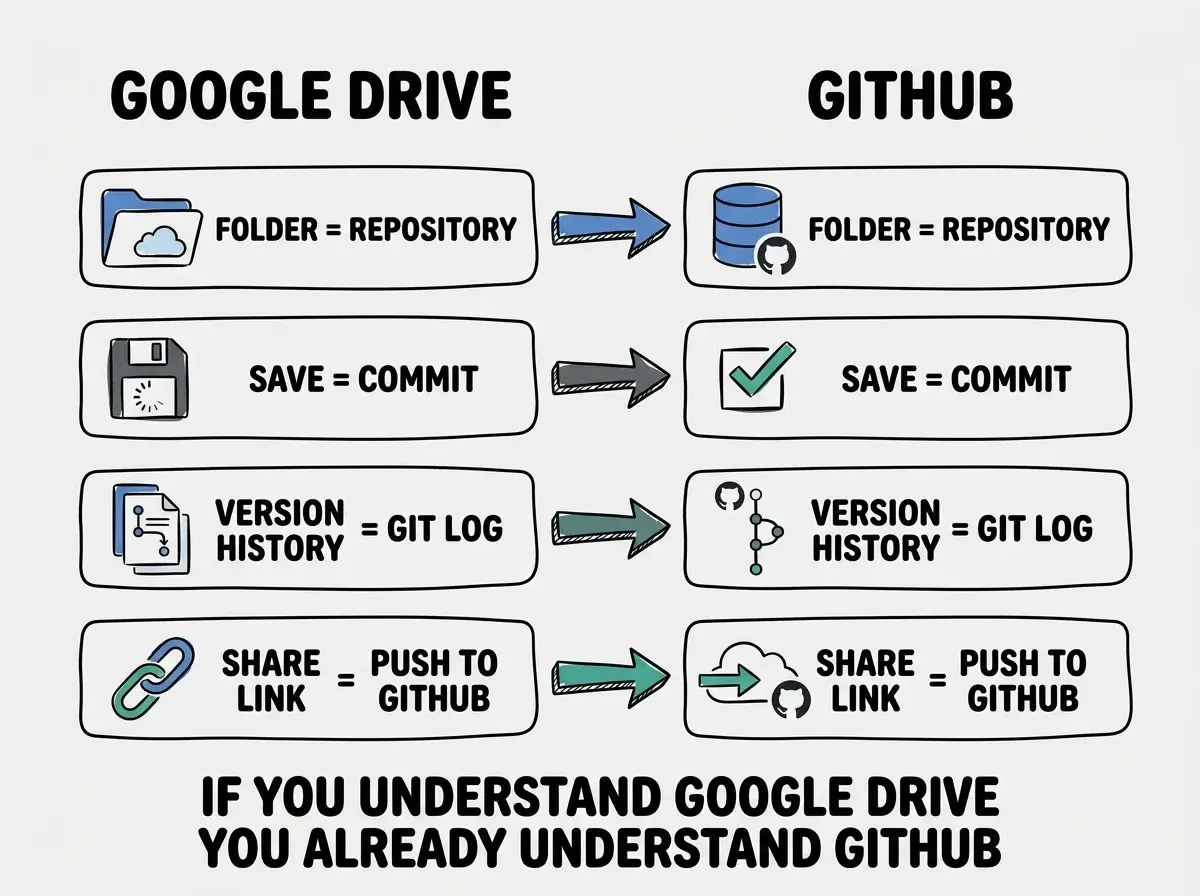
GitHub is Google Drive for code. That is genuinely the best one-sentence explanation, and it is the mental model that will carry you through this entire tutorial. You already know how to use Google Drive: you upload files, organize them in folders, share them with other people, and access them from any device. GitHub does the same thing for code, with one powerful addition. It remembers every version of every file you have ever saved.
If you have been vibe coding with AI tools and keeping all your projects on your laptop, you are one coffee spill away from losing everything. GitHub fixes that. It also unlocks the ability to deploy your projects to the internet, which is probably the real reason you are reading this.
Why GitHub Matters (Even If You Never Code by Hand)
You might be thinking this is a developer tool and not something you need. But GitHub has become the central hub that connects everything in the vibe coding workflow. When you deploy an app on Vercel or Netlify, those platforms pull your code from GitHub. When you collaborate with a freelancer or a co-founder, they access the project through GitHub. When your AI tool generates code, the safest place to store it is GitHub.
The Google Docs analogy goes deeper than storage. In Google Docs, you can click "Version history" and see every edit anyone has ever made to the document. You can scroll back through time, see what the doc looked like last Tuesday, and restore an older version if someone accidentally deleted a paragraph. GitHub does exactly this for your entire project. Every save (called a "commit") is a snapshot you can return to. You can always go back.
The Four Words You Need to Know
GitHub has its own vocabulary, and it intimidates people. But you only need four words to get started, and each one maps to something you already understand.
Repository. A repository (or "repo") is a project folder on GitHub. It contains all the files for one project. If you built a landing page with Lovable, that entire project lives in one repository. Think of it as a Google Drive folder dedicated to a single project.
Commit. A commit is a saved snapshot of your project at a specific moment. Every time you make changes and "commit" them, GitHub photographs every file and stores it permanently. In the Google Docs analogy, every entry in version history is a commit.
Branch. A branch is a parallel copy of your project where you can experiment without affecting the original. Imagine duplicating your Google Doc so you can try rewriting the introduction without risking the approved version. If the rewrite works, you merge it back. If not, you delete the copy. The original was never touched.
Push. Pushing is uploading your local changes to GitHub. When you work on code on your computer, those changes exist only on your machine until you push them. Pushing is like hitting "sync" on Google Drive. Your local files and the online version match up.
That is the entire vocabulary you need for your first month. Dozens of other Git terms exist, and you can learn them as they become relevant.
A repository is your project folder. A commit is a save point. A branch is a safe copy for experimenting. A push uploads your work to GitHub. If you remember nothing else, remember these four words. They are the foundation for everything that follows.
Creating Your First Repository
Here is the step-by-step process. No assumptions, no skipping ahead.
Step 1: Create a GitHub account. Go to github.com and sign up with your email. The free tier gives you everything you need.
Step 2: Click the green "New" button. You will find it on your GitHub dashboard or in the top-right menu (the "+" icon).
Step 3: Name your repository. Use lowercase letters and hyphens, like my-landing-page or portfolio-site. Select "Public" or "Private" (for learning, either works).
Step 4: Check "Add a README file." This creates a starter file so your repo is not completely empty.
Step 5: Click "Create repository." You now have a repository on GitHub with one file, one commit, and one branch (called "main"). Now you need to put your actual project in it.
Understanding what version control is and why it matters gives you the context for everything on this page.
Learn version control basicsMaking Your First Commit
If your AI tool already created a project on your computer, you need to connect that local project to your GitHub repository and push the files up. There are two ways to do this, and I recommend the easier one first.
The easy way (if your tool supports it). Lovable, Replit, and Bolt all have built-in GitHub integrations. Look for a "Push to GitHub" or "Connect to GitHub" button in your tool. Click it, authorize the connection, select your repository, and the tool handles the rest. Your code appears on GitHub within seconds.
The terminal way (if you are using Cursor, VS Code, or Claude Code). Open the terminal in your editor and run these commands one at a time:
git init
git add .
git commit -m "Initial commit"
git remote add origin https://github.com/YOUR-USERNAME/YOUR-REPO-NAME.git
git branch -M main
git push -u origin main
Replace YOUR-USERNAME and YOUR-REPO-NAME with your actual values. If this is your first time using Git from the terminal, GitHub will ask you to authenticate. Follow the prompts.
What just happened? git init started tracking the folder. git add . staged all your files. git commit created a snapshot with a label. git remote add origin pointed your folder at the GitHub repo. And git push uploaded everything.
Refresh your repository page on GitHub. Your files are there. You just made your first commit and your first push.
The Workflow After Setup
Once your repo is connected, the daily workflow is three steps repeated over and over.
Make changes. Work on your project with your AI tool. Add features, fix bugs, tweak the design.
Commit. When something works, commit. In VS Code and Cursor, the Source Control panel on the left sidebar lets you type a short message ("added contact form" or "fixed mobile layout") and click the checkmark.
Push. Click the sync/push button (or run git push) to upload your commits to GitHub.
That is it. Change, commit, push. The key habit is committing frequently. Do not work for three hours and then try to capture everything in one giant commit. Finished the header? Commit. Fixed a broken link? Commit. Like how things look right now? Commit. Each commit is a save point you can return to if something breaks later.
Why This Unlocks Deployment
Here is where GitHub stops being just a backup tool and becomes the bridge to getting your app live on the internet.
Deployment platforms like Vercel, Netlify, and Cloudflare Pages all work the same way. You connect your GitHub repository, and the platform automatically builds and deploys your app. Every time you push new code to GitHub, the platform detects the change and redeploys. No manual steps, no file uploads, no FTP.
This is the single biggest reason GitHub matters for vibe coders who are not professional developers. It is not about collaboration or open source or impressing other programmers. It is about connecting your AI-built project to the infrastructure that puts it on the internet.

What You Do Not Need to Know (Yet)
This is permission to ignore things. You do not need to understand pull requests, forks, merge conflicts, rebasing, or GitHub Actions. Those concepts exist for teams of developers coordinating on large projects. As a solo vibe coder working on your own projects, the workflow of commit, push, and connect to a deployment platform covers everything.
You also do not need to memorize Git commands. VS Code, Cursor, and GitHub Desktop all have visual interfaces that let you commit and push with buttons and menus. The terminal commands are there if you want them, but they are not required.
Forgetting to push after committing. A commit only saves changes on your local machine. If you commit but do not push, your GitHub repository still has the old version. Deployment platforms pull from GitHub, not from your laptop. So if you are wondering why your deployed app did not update after you made changes, check whether you pushed. This trips up almost every beginner at least once.
The depth will come naturally. After your third or fourth project, you will start creating branches before big experiments and writing more descriptive commit messages. That instinct develops through doing, not through studying a Git tutorial.
Dig deeper
A few hand-picked sources if you want to go further.
What This Means For You
GitHub is your safety net, your deployment bridge, and your project's permanent home. It takes ten minutes to set up and saves countless hours of anxiety about lost work and manual deployments.
- If you are a founder building a product: Get your code on GitHub from day one. It protects your investment the same way Google Drive protects your business documents. When you are ready to deploy, connecting GitHub to Vercel takes five minutes. When you eventually hire a developer or freelancer, they can access the project immediately through GitHub instead of you emailing zip files back and forth.
- If you are a career changer learning to build: GitHub is the first thing hiring managers check. A profile with real projects signals that you can ship, not just talk about ideas. Start with one repository for your first project and commit often. Active repositories with regular commits tell a stronger story than a perfect README with no activity behind it.
- If you are a marketer who builds landing pages and tools: GitHub is the invisible infrastructure that makes your "build it in an afternoon" workflow possible. Once your project lives on GitHub and connects to Vercel or Netlify, updating your live site means pushing a single button. No tickets to engineering, no waiting for a deploy window. Change, commit, push, live.
GitHub is just one piece of the foundation. Learn the concepts that make building with AI click.
Start learning