Deployment troubleshooting feels terrifying when you are not a developer. You built something with an AI coding tool, it worked perfectly on your computer, and now the live version is broken. Take a breath. You are not alone, and most deployment failures have simple, fixable causes.
Here is the encouraging reality. 92% of US developers use AI tools daily now, and 63% of people using vibe coding tools are not developers at all. You are part of a massive wave of new builders, and every one of them has hit the exact wall you are staring at. The fixes are almost always simple once you know where to look.
This guide works like a decision tree. Find the symptom that matches what you see, follow the steps. No technical background required.
Before You Start
Grab two things before we dig in. First, open your hosting platform's dashboard (Vercel, Netlify, Cloudflare, or wherever you deployed). Second, open a new browser tab and load your broken site. You will bounce between these two tabs throughout this guide.
One critical thing to understand: missing environment variables cause roughly 80% of deployment failures. The very first thing to check for almost every symptom is whether your environment variables are set correctly in your hosting platform.
Symptom 1 - You See a Completely Blank Screen
A blank white page is the most common deployment failure, and it is almost always one of three things.
Check your build logs first. Go to your hosting dashboard, find the most recent deployment, and click into the build log. Scroll to the bottom. If you see red text or the word "error," your app did not build successfully. The most likely cause is a missing environment variable that your app needs during the build process.
Look for "module not found" in the build log. This means a package your AI tool used is not listed in your package.json file. Ask your AI tool: "Can you check that all imported packages are listed in package.json?"
Check if the build succeeded but the page is still blank. Open your browser's developer tools (right-click the blank page, click "Inspect," then click "Console"). Red error messages tell you what is failing at runtime. Copy the first red message and paste it into your AI coding tool.
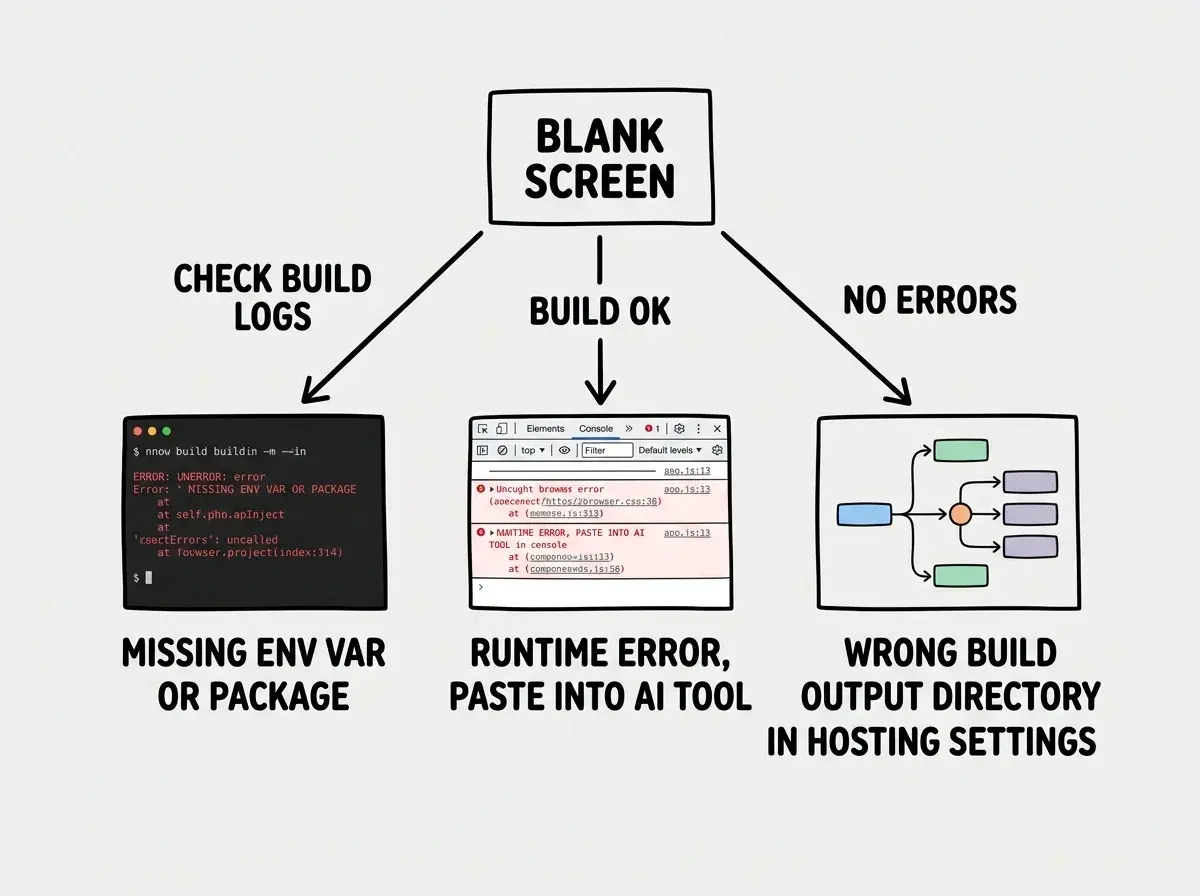
If the build succeeded and the console shows no errors, your build output directory setting is probably wrong. In your hosting dashboard, find the build settings and check the "output directory" field. For Next.js apps, this is usually .next or left blank. For plain React apps, it is usually build or dist. A mismatch here means the platform is looking for files in the wrong place.
Symptom 2 - You See an Error Page
Error pages with numbers like 404, 500, or 503 are actually helpful, because the number tells you roughly what went wrong.
404 means "page not found." The most common cause for AI-built apps is that your routes are configured for development but not production. If you are using Next.js and pages show 404 in production, check that your hosting platform's framework preset is set to "Next.js" (not "Other" or "Static HTML").
500 means "something crashed on the server." This is almost always a missing environment variable. Go to your hosting platform's environment variables section and compare every variable in your local .env file against what is set in production. Pay special attention to database URLs, API keys, and any variable starting with SUPABASE_, STRIPE_, or RESEND_.
503 means "the server is not responding." This usually means your app is crashing immediately on startup. Check the runtime logs (different from build logs) in your hosting dashboard. The crash reason is usually the first error in those logs.
Symptom 3 - The App Loads But Looks Wrong
Your app loads, but the styling is broken, things are in the wrong place, or it looks nothing like it did on your computer.
Missing CSS is the most common cause. If your site loads but has no styling (plain text, no colors, everything stacked vertically), your CSS file is not being loaded correctly. Check the browser console for errors mentioning .css files. If you are using Tailwind CSS, ask your AI tool: "Is Tailwind configured correctly for production builds?"
Different screen sizes reveal hidden problems. If the layout looks fine on your laptop but broken on your phone, the issue is responsive design. Ask your AI tool to review the responsive design of the specific page that looks wrong.
The overwhelming majority of deployment failures come down to one thing: a difference between your local development environment and your production environment. Environment variables, build settings, and output directories are the three places where that difference hides. Check all three before you go deeper.
Fonts looking different in production is common. If your AI tool loaded custom fonts, they might load from a local path that does not exist in production. Check the browser console for 404 errors on font files.
Symptom 4 - Login or Authentication is Broken
Users cannot log in, or they get redirected to weird URLs after signing in. Authentication is the trickiest part of deployment because it involves multiple systems talking to each other.
Check your OAuth redirect URLs. If you are using Google, GitHub, or any social login, those services need to know your production URL. Go to your authentication provider's dashboard and look for "redirect URLs" or "callback URLs." Add your production URL (like https://yourapp.com/api/auth/callback). If only http://localhost:3000 is listed, that is your problem.
Verify your authentication environment variables. Your production NEXTAUTH_URL or equivalent must be set to your live domain, not localhost. Missing or wrong auth variables cause redirect loops, blank login pages, and mysterious "invalid state" errors.
Cookie settings might be blocking login. If authentication works on the raw hosting URL (like yourapp.vercel.app) but not on your custom domain, cookie domain settings are the likely cause. Ask your AI tool to check if authentication cookies are configured for your custom domain.
Learn what actually happens when you hit deploy, step by step.
Read the deployment basics guideSymptom 5 - Images Are Missing
Your app loads fine, but all the images show broken icons or empty spaces where pictures should be.
Check for localhost image URLs. Use browser developer tools to inspect a broken image. If the src attribute points to localhost:3000/images/... instead of a real URL, your AI tool hardcoded development paths. Search your codebase for localhost and replace those image references with correct production paths.
External image domains might be blocked. If you are using Next.js with its <Image> component and your images come from an external service, you need to whitelist those domains in your next.config file. The console error will mention "hostname not configured." Ask your AI tool to add the image domain to the Next.js config.
Uploaded images might not have transferred. If your app stores uploaded images locally (in a /public or /uploads folder), they will not exist in production. Local file storage does not work on most hosting platforms. Ask your AI tool to switch image storage to a cloud service like Cloudflare R2 or Supabase Storage.
The Five-Minute Emergency Fix
When something breaks and you need it working immediately, here is the fastest path. This will not solve everything, but it catches the most common failures.
- Open your hosting dashboard and go to the latest deployment's build log
- If the build failed, read the last error message and paste it into your AI tool
- If the build succeeded, open your live site and check the browser console for red errors
- Compare every environment variable in your local
.envfile against your hosting platform's settings - Redeploy after making any changes (environment variable changes often require a new deployment to take effect)
Changing environment variables in your hosting dashboard without redeploying afterward. Most platforms do not automatically apply new variable values to your running application. After updating any variable, trigger a fresh deployment. On Vercel, click "Redeploy" on your latest deployment. On Netlify, push a small change or trigger a manual deploy.
That sequence resolves the vast majority of deployment problems. If yours persists, go back to the symptom-based sections above and work through the specific steps.
When to Ask for Help
Sometimes the problem is beyond what a troubleshooting guide can cover. Here is when to stop debugging alone.
If the same error persists after three different fix attempts, paste the full error message into a new conversation with your AI coding tool and give it complete context: what you changed, what you expected, and what actually happened. Fresh context often produces better solutions.
If the error message contains words you have never seen before, copy it and search for it in quotes on Google or ask your AI tool to explain it in plain language. Someone else has almost certainly hit the same error.
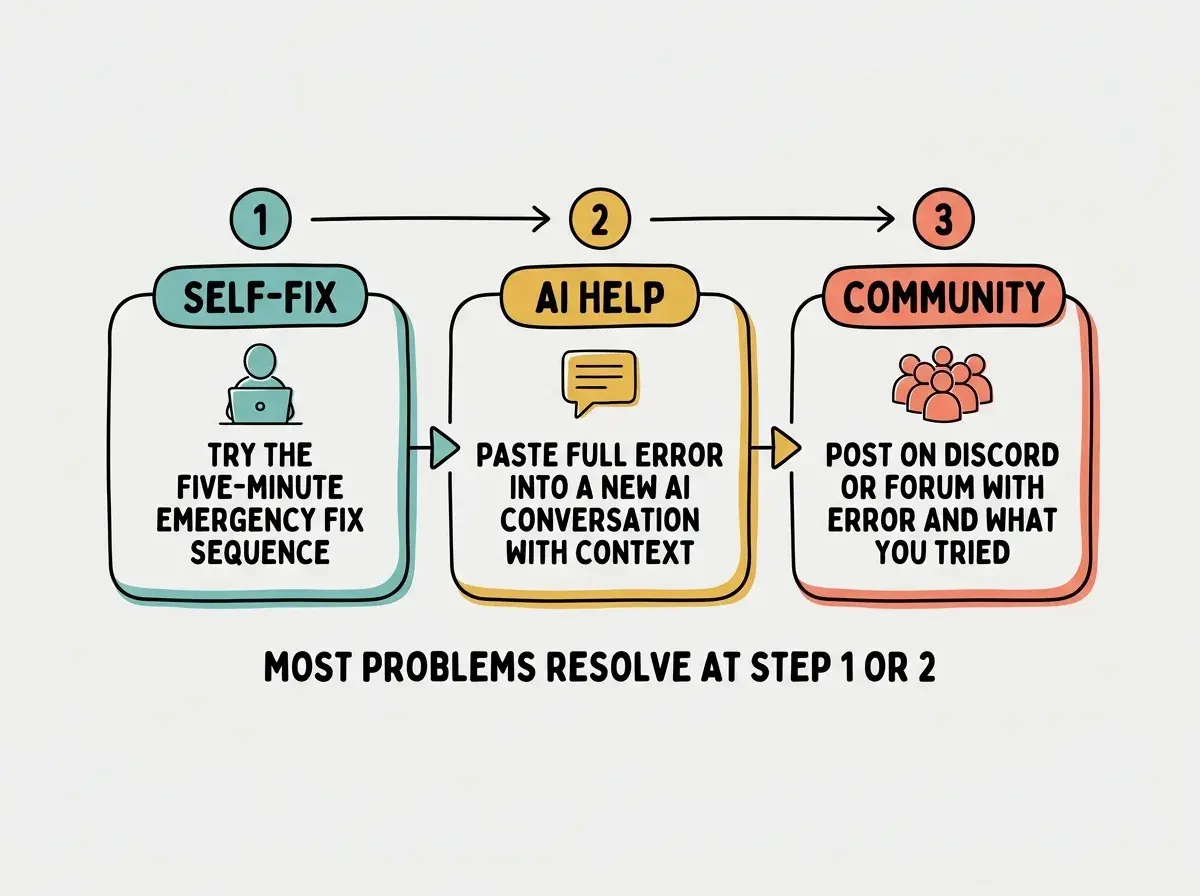
If your app works sometimes but not other times, post in the Discord or community forum for your AI coding tool with the full error message and a description of when it happens versus when it does not.
A pre-deployment checklist catches most of these issues before they reach production.
Get the deployment checklistWhat This Means For You
- If you are a founder building with AI tools: Deployment failures feel like the app is broken, but they are rarely about the code itself. They are almost always configuration mismatches between your local setup and your hosting platform. Keep this guide bookmarked and start with the symptom that matches what you see. You will resolve most issues in under fifteen minutes.
- If you are a designer or creative new to shipping apps: You have already done the hard part by building something. Deployment problems are the last mile, and they have predictable, repeatable solutions. Within a few deployments, you will fix most of these issues before they even happen.
- If you are a marketer launching a tool or landing page: Bookmark the five-minute emergency fix sequence and use it as your first response whenever a deployment goes sideways. If that does not solve it, the symptom-based sections will get you the rest of the way. You do not need to understand why the fix works. You just need it to work.