A build failure on deploy is the wall that stops most vibe-coded projects from ever going live. You have a working app on localhost, you push to Vercel or Netlify, and instead of a URL you get a red error message and a log full of text that looks like nonsense. This tutorial breaks down exactly how to read those logs and fix the 10 most common build errors.
I have hit every single one of these. Some of them multiple times. The pattern is always the same: the error looks terrifying, the actual fix takes under five minutes, and the log told you everything you needed to know if you knew where to look.
How Do You Check the Deployment Logs
Every hosting platform gives you a real-time log of what happens during deployment. On Vercel, click into the failed deployment and look for the "Building" tab. On Netlify, go to "Deploys" and click the failed deploy to see the log output. The log reads top to bottom, and the error is almost always near the bottom, right before the line that says the build exited with a non-zero code.
Here is what a typical failed build log looks like on Vercel:
info  - Checking validity of types...
./src/app/dashboard/page.tsx:14:7
Type error: Property 'user' does not exist on type '{}'.

   12 |   const session = await getSession();
   13 |
 > 14 |   if (session.user) {
      |       ^
   15 |     return <Dashboard user={session.user} />;
   16 |   }

npm run build exited with 1
That last line, npm run build exited with 1, is the one that matters. Exit code 1 means "something went wrong." Everything above it tells you what. In this case, TypeScript strict mode caught a type mismatch that your local dev server silently ignored.
This is the fundamental thing to understand about build failures. Your local development server is lenient. It shows you warnings but keeps running. The production build is strict. It treats warnings as errors and stops dead. TypeScript strict mode catches errors that only surface during builds, and 92% of US developers now use AI tools daily, meaning these strict-mode failures are more common than ever because AI-generated code often has subtle type mismatches.
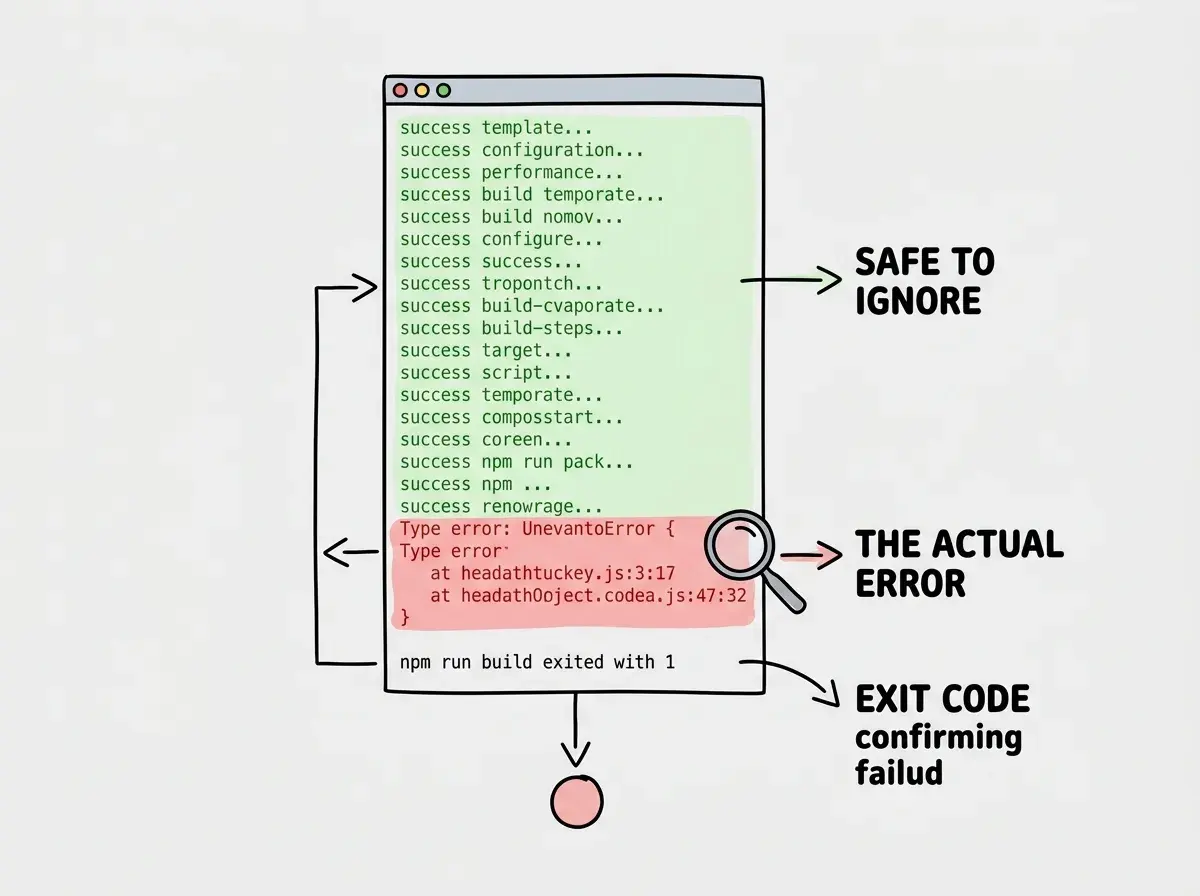
The key habit is to scroll to the bottom of the log first. Find the exit code, then scroll up to the red text just above it. That is your error. Everything before that is the build succeeding at earlier steps.
The 10 Most Common Build Errors and Their Fixes
I have collected these from my own projects and from helping other vibe coders debug theirs. They cover roughly 90% of the build failures you will encounter.
1. Module not found
Module not found: Can't resolve 'some-package'
Your code imports a package that is not in package.json. AI tools do this constantly. They write an import statement for a library and forget to add it as a dependency. Run npm install some-package locally, commit both package.json and package-lock.json, and push.
2. Type error in strict mode
Type error: Argument of type 'string | undefined' is not
assignable to parameter of type 'string'.
TypeScript found a value that might be undefined, but your code treats it as if it always exists. Add a null check or provide a default value. This is one of the most frequent failures in AI-generated code because AI tools often skip defensive checks.
3. Cannot find module (relative import)
Module not found: Can't resolve './components/Header'
The file path is wrong. Check the actual filename and casing. On Mac and Windows, filenames are case-insensitive locally but case-sensitive on Linux build servers. Header.tsx and header.tsx are different files on Vercel.
4. Environment variable undefined at build time
Error: Missing required environment variable: DATABASE_URL
Your code reads an environment variable during the build, but you have not added it to your hosting platform's dashboard. Go to your project settings and add every variable from your local .env file.
5. ENOENT (file not found)
Error: ENOENT: no such file or directory, open './data/config.json'
Your code references a file that exists on your machine but was not committed to Git. Check .gitignore to see if the file is excluded. If it should be in the repo, add it and commit.
Nine out of ten build failures come from the same root cause: something exists on your local machine that does not exist in the production environment. A package, a file, a type assumption, an environment variable. The build log always tells you which one. Train yourself to read the last error message before the exit code, and you will fix most failures in under five minutes.
6. Out of memory
FATAL ERROR: Reached heap limit Allocation failed
JavaScript heap out of memory
Your build process ran out of RAM. This happens with very large projects or when a dependency has a memory leak during compilation. On Vercel, you can try adding NODE_OPTIONS=--max-old-space-size=4096 as an environment variable. On Netlify, the same variable works in the build settings.
7. Image optimization error
Error: Unable to optimize image: /public/hero.png
Error: Input file is missing
Next.js tries to optimize images at build time, but the image file does not exist at the path specified. If you are using external images, make sure remotePatterns in your next.config.ts includes the domain you are loading from. If the image is local, verify it is committed to the repo.
8. Serverless function too large
Error: The Serverless Function "api/heavy-route" is
62.3mb which exceeds the maximum size limit of 50mb
Your API route bundles too many dependencies. This is common when AI tools import heavy libraries like puppeteer or sharp into serverless functions. Move heavy processing to a separate service, or use dynamic imports to reduce the bundle size.
9. Build command not found
sh: next: command not found
npm run build exited with 127
The build server cannot find the next CLI. This usually means next is listed as a devDependency but the hosting platform is running with NODE_ENV=production and skipping devDependencies. Move next to regular dependencies in your package.json, or set the environment variable NPM_FLAGS=--include=dev on your hosting platform.
10. Conflicting dependency versions
npm ERR! ERESOLVE could not resolve
npm ERR! peer react@"^17.0.0" from some-old-package@1.2.3
Two packages need different versions of the same dependency. This happens when AI tools install packages without checking compatibility. The quick fix is adding --legacy-peer-deps to your install command, but the real fix is updating the conflicting package or finding an alternative.
Start with the fundamentals before tackling build errors.
Learn deployment basicsHow Do You Handle Failed Deployments
The process is the same every time, and making it a habit removes the panic.
First, open the deployment log. Do not guess what went wrong. The log is the source of truth.
Second, scroll to the bottom and find the exit code. Then scroll up to the error block just above it. Copy that error message, including the file path and line number if they are present.
Third, fix it locally. Run npm run build on your own machine before pushing again. This is the single most important habit you can develop. If you run the build locally and it passes, it will almost certainly pass on the hosting platform too. If it fails locally, you can debug it faster because you have your full development environment available.
# Always run this before pushing
npm run build
If the local build passes but the remote build fails, the difference is almost always an environment variable or a file that exists on your machine but not in the repo. Check those two things first.
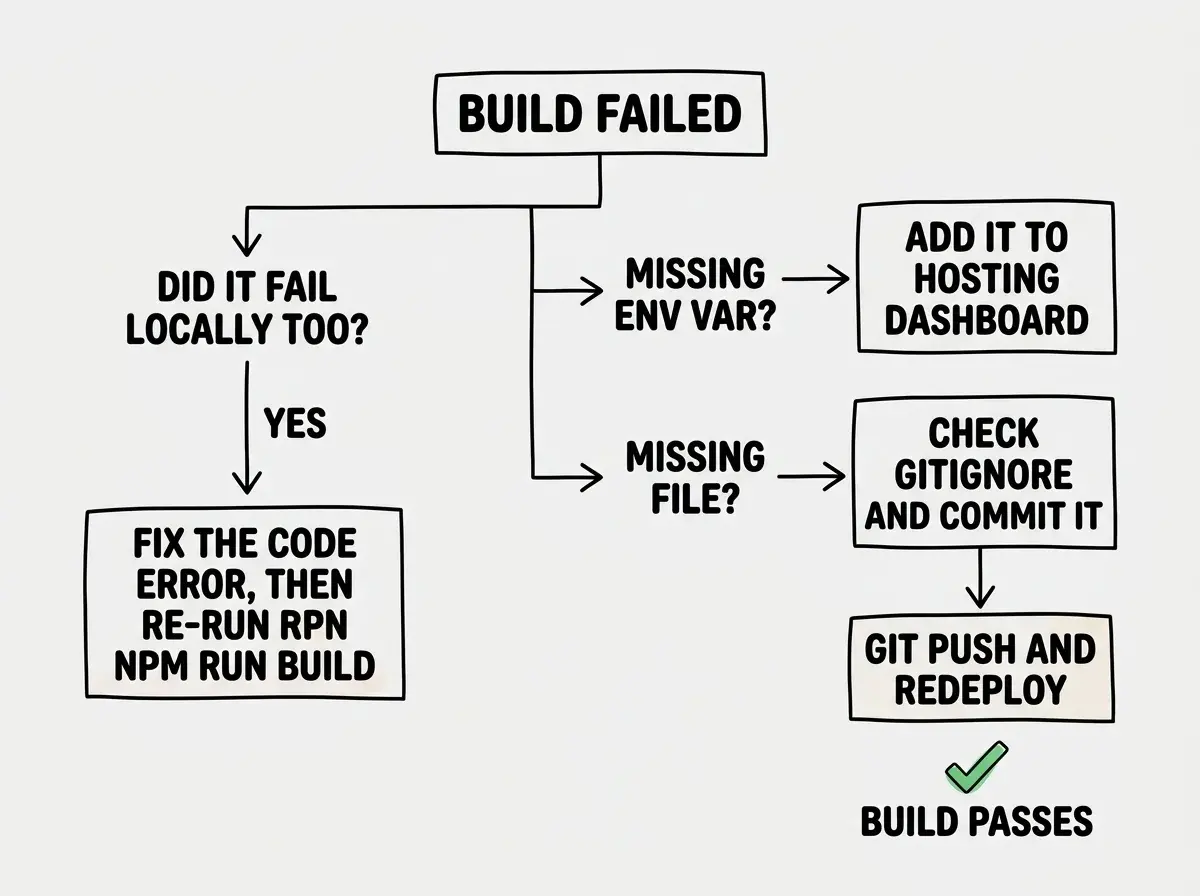
Fourth, push and watch the log again. If the build passes, you are done. If a new error appears, repeat the process. It is not uncommon to fix one error and uncover another one behind it. This is normal. Each fix gets you closer.
The 70% wall that many vibe coders hit is often a build failure wall. You can get 70% of an app working with AI tools, but that last 30% involves deployment, configuration, and the kind of strict validation that production builds enforce. Understanding build logs is what gets you past that wall.
Asking your AI tool to fix a deployment error without pasting the actual error message. "My deploy failed, fix it" gives the AI nothing to work with. Always copy the specific error from the deployment log and paste it into your prompt. The file path, line number, and error text are the information the AI needs to give you a useful answer.
Building the Habit of Local Builds
The developers who rarely have deployment failures all share one habit. They run npm run build locally before every push. This catches type errors, missing imports, and configuration problems before they ever reach the hosting platform.
Add it to your workflow. After your AI tool generates or modifies code, run the build. If it fails, you have the error right there in your terminal. Fix it, run the build again, and only push when it passes clean.
Some vibe coders set up a pre-push Git hook that runs the build automatically, blocking the push if it fails. You can set this up with a tool called Husky, but even running the build manually before each push is enough.
# Quick sanity check before every push
npm run build && git push
If the build fails, the push never happens. Two seconds of habit, hours of debugging saved.
Learn the full deployment workflow from localhost to live URL.
Read the deployment guideWhat This Means For You
Build failures are not random. They are specific, predictable, and fixable. The deployment log tells you exactly what went wrong and where. Your only job is to learn how to read it, which means scrolling to the bottom, finding the error above the exit code, and fixing that one thing.
Start with one habit: run npm run build before you push. That single change will prevent more deployment failures than any other technique. When a build does fail on the remote server, paste the exact error message into your AI tool and let it help you fix the specific problem. Do not guess, do not start over, and do not panic. The log has the answer. You just have to read it.