You built a personal tool with AI and it works on your machine. Now you want to deploy your personal project so you can use it from your phone, your work laptop, or anywhere with a browser. Getting it live takes minutes, not hours, and it costs nothing.
Kevin Roose at the New York Times calls this the "software for one" movement. People are building tools that solve their own specific problems, tools no company would ever make because the audience is exactly one person. A podcast transcriber tuned to your favorite shows. A freelance invoice tracker that matches how you bill clients. A bookmark organizer that actually works. 63% of the people building these with AI tools are not developers at all, and 92% of US developers now use AI coding tools daily.
The only thing standing between your working tool and using it everywhere is deployment. Let me walk you through it.
Why Personal Tools Deserve to Be Live
There is a temptation to keep your personal tool on localhost forever. It works on your laptop. Why bother deploying?
First, a tool you can only use at your desk is not as useful as one you can reach from your phone during a grocery run or from a borrowed computer at a coffee shop. Deployment turns your tool into something you can actually rely on.
Second, deployment gives you a URL. Even if you built this tool for yourself, the moment a friend says "I wish I had something like that," you can text them a link instead of explaining how to install Node.js.
Third, deploying forces you to confront small issues that localhost hides. Missing environment variables, hardcoded paths, things that only work on your specific machine. Fixing these makes your tool more reliable everywhere.
Three Free Paths to Get Your Tool Online
You do not need to understand servers, Docker, or the command line to deploy a personal tool. The three platforms below all have generous free tiers, and each one connects directly to GitHub so your tool stays updated whenever you push changes.
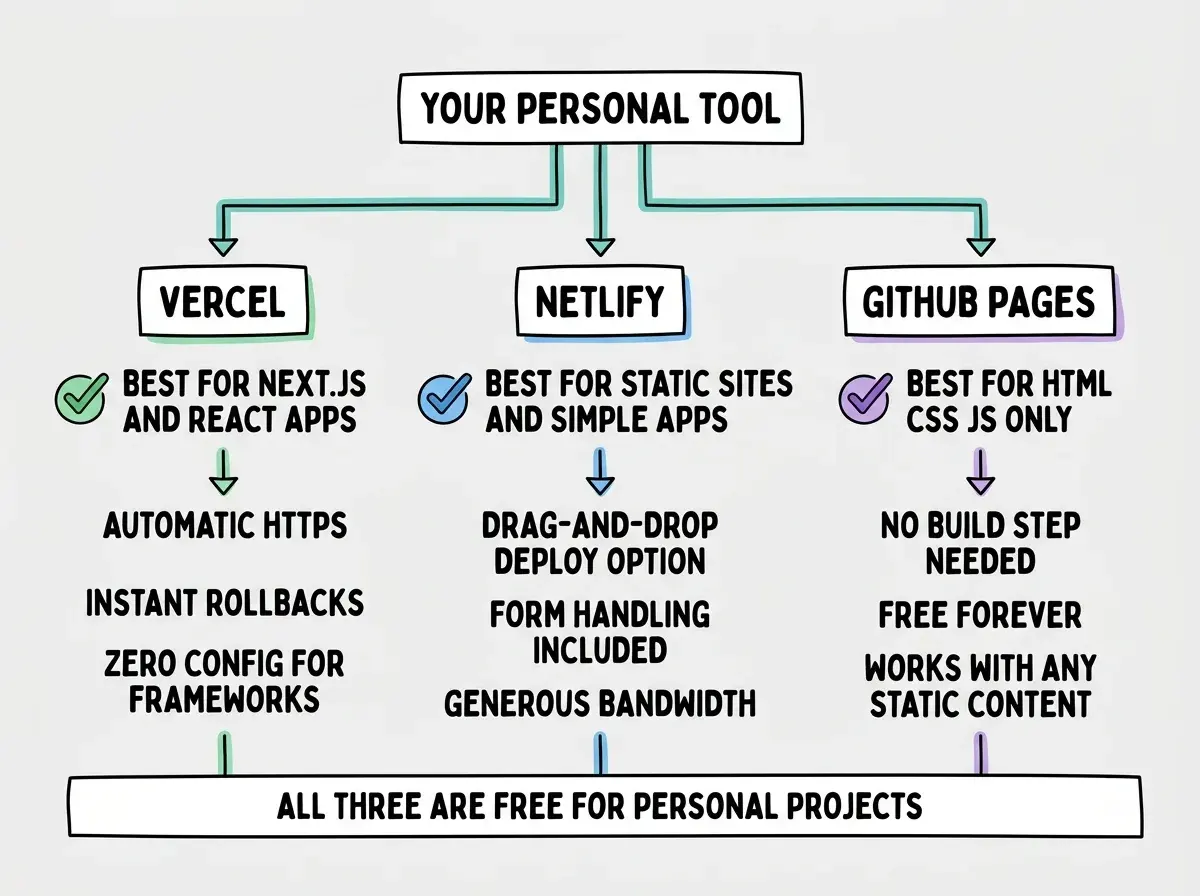
Path 1: Vercel (best for Next.js and React apps). If your AI tool generated a React or Next.js project (and most popular tools default to these), Vercel is the fastest option. Sign up with your GitHub account, click "Add New Project," select your repository, and click Deploy. Vercel detects the framework automatically, runs the build, and gives you a live URL. The whole process takes about three minutes if your project is on GitHub.
Path 2: Netlify (best for static sites and simpler apps). Netlify works similarly to Vercel but has one extra trick. You can drag and drop a folder onto the Netlify dashboard and it deploys instantly, no GitHub required. If your tool is a collection of HTML, CSS, and JavaScript files, this is the simplest path. Sign up, drag your build folder onto the dashboard, done. Connect GitHub and Netlify auto-deploys on push.
Path 3: GitHub Pages (best for pure HTML/CSS/JS tools). If your personal tool has no server-side logic, GitHub Pages is free and requires zero configuration beyond pushing your code. Go to your repository's Settings tab, scroll to Pages, select the branch you want to deploy, and save. GitHub hosts your site at yourusername.github.io/repo-name.
Getting Your Code Ready
Before you deploy, take five minutes to check three things. This small investment prevents the most common first-deployment headaches.
Check your environment variables. Open the .env file in your project. If your tool uses any API keys, database URLs, or secret tokens, you will need to add each one to your hosting platform's dashboard. This is the single biggest reason first deploys fail. Your .env file does not travel with your code to the hosting platform because it is (correctly) excluded by .gitignore.
Check your build command. Run npm run build locally before deploying. If it succeeds on your machine, it will almost certainly succeed on the hosting platform. If it fails, fix the errors now while you can see them clearly in your own terminal.
Check for hardcoded localhost references. Search your code for localhost or 127.0.0.1. If your tool makes API calls to http://localhost:3000/api/something, those calls will break in production. Replace them with relative URLs like /api/something.
The three things that cause 90% of first-deployment failures are missing environment variables, a broken build command, and hardcoded localhost URLs. Check all three before you click deploy. Five minutes of prevention saves hours of confusing error messages that give you no clear direction. Run npm run build locally first. If it works on your machine with these three items addressed, it will work on the hosting platform.
Walking Through a Real Deploy
Let me walk through deploying a personal tool on Vercel, step by step, so you can follow along with your own project.
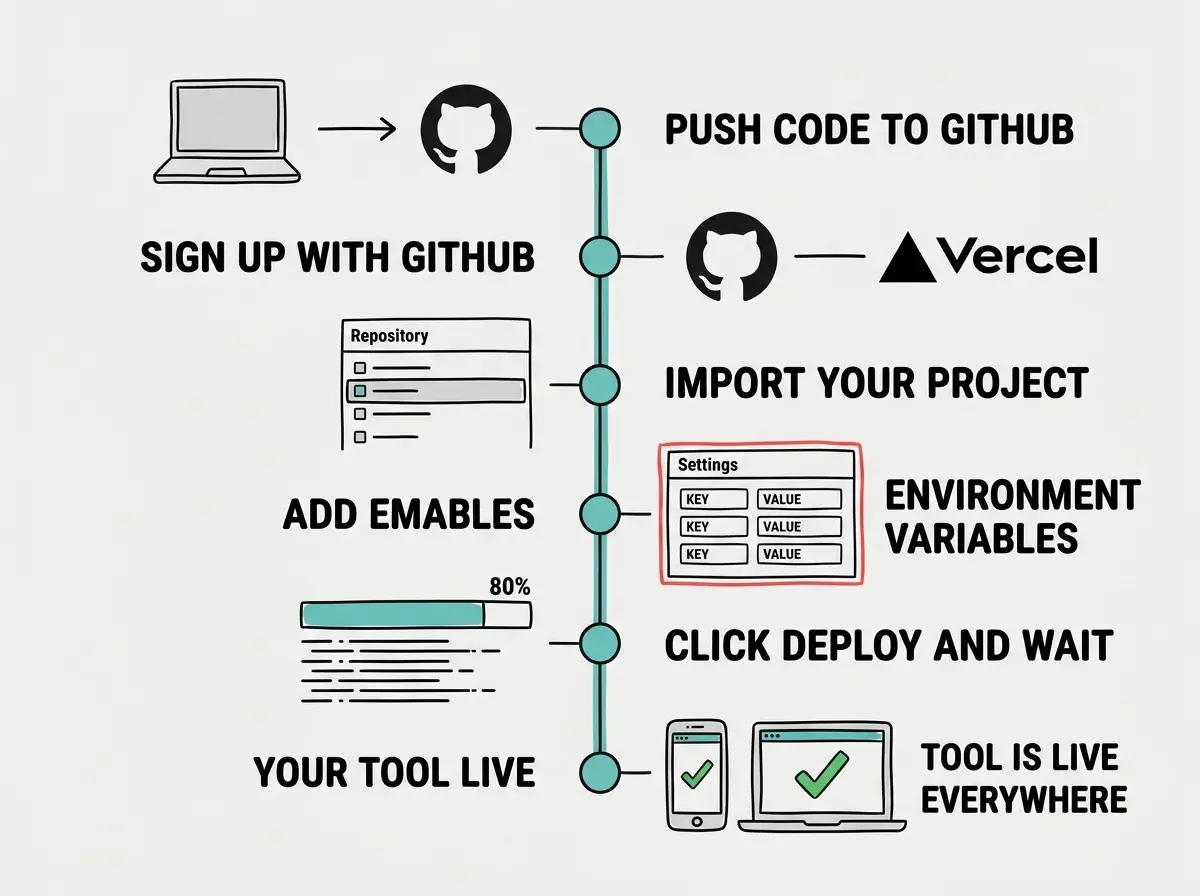
Step 1: Push your code to GitHub. If your AI tool has a "push to GitHub" or "export" button, use it. If not, create a new repository on github.com and follow the instructions to push your existing code.
Step 2: Sign up for Vercel with GitHub. Go to vercel.com and click "Sign Up." Choose "Continue with GitHub." This connects your accounts automatically.
Step 3: Import your project. Click "Add New Project" on the Vercel dashboard. Find your repository in the list. If it does not appear, click "Adjust GitHub App Permissions" and grant Vercel access to the repo. Click Import.
Step 4: Add environment variables. Before clicking Deploy, expand the "Environment Variables" section. Open your local .env file side by side and add each variable one at a time. Name on the left, value on the right. Do not skip any.
Step 5: Click Deploy and wait. Vercel pulls your code, installs dependencies, runs the build, and assigns a URL. This takes one to five minutes. If something fails, the error message will point you to the problem.
Step 6: Open your URL. Vercel gives you a link like your-tool.vercel.app. Open it on your phone. Bookmark it. Your tool is now live.
The process for Netlify is nearly identical. GitHub Pages skips the environment variable step entirely since it only serves static files.
When Things Go Wrong (and the Simple Fixes)
Your first deploy might fail. That is completely normal and does not mean you did anything wrong. Here are the three most common errors and their fixes.
"Module not found" error. Your code uses a package that is not listed in package.json. Run npm install locally, commit the updated package.json and package-lock.json, and push. The hosting platform will pick up the fix automatically.
Blank white screen after deploy. The build succeeded but the app breaks at runtime. This is almost always a missing environment variable. Open your browser's developer console (right-click, Inspect, Console tab) and look for errors mentioning undefined variables. Add the missing variable to your hosting dashboard and redeploy.
Build fails with type errors. Your local development server is more forgiving than the production build. The error message will tell you the file and line number. Fix it locally, push, and the hosting platform rebuilds automatically.
Every fix follows the same loop: read the error, fix it on your machine, push to GitHub, let the platform rebuild.
Treating deployment as the last step you do when everything is perfect. Personal tools are never finished. Deploy early, even if your tool is rough and only half-built. The bugs you will find in production are different from the ones you find locally, and catching them sooner makes your tool better faster. A live tool you improve over time beats a perfect tool that never leaves your laptop.
Keeping Your Tool Running
Once your personal tool is live, it stays live. Vercel and Netlify's free tiers do not expire. Your tool will keep running as long as your account exists.
Updating is simple. Make changes on your machine, push to GitHub, and the hosting platform automatically rebuilds and redeploys within minutes. If an update breaks something, both Vercel and Netlify keep a history of every deployment. Find the last working version in the dashboard and roll back with one click.
For personal tools that use external APIs (like OpenAI or Google Sheets), keep an eye on your API usage. Most free tiers are generous for a single user, but an accidental infinite loop could hit a rate limit or an unexpected bill.
Learn how to build your first personal tool from scratch with AI.
Start buildingDig deeper
A few hand-picked sources if you want to go further.
What This Means For You
The "software for one" movement is not a trend. It is a permanent shift in who gets to build software. When 63% of people using AI coding tools are not professional developers, something fundamental has changed. The tools you build for yourself are real software. They deserve to be live and reliable.
- If you are a creative professional: Your personal tools can automate the tedious parts of your workflow. A color palette generator trained on your brand guidelines. A client brief organizer that formats proposals the way you like them. Deploy these and they become part of your daily practice, not experiments on your laptop.
- If you are a career changer: Every deployed personal tool is a portfolio piece that proves you can ship. Employers do not care whether you wrote every line by hand. They care that you identified a problem, built a solution, and put it in front of users. A live URL demonstrates all three.
- If you are someone who just wants their life more organized: A meal planner, a reading list tracker, a bookmark manager that works the way your brain works. Deploying them means you can use them anywhere, from any device.
You do not need permission to ship software. You need a GitHub account, a free hosting platform, and five minutes. Your tool works. Now let the rest of your life use it.
Explore guides on deployment, hosting, and getting your projects in front of users.
Explore shipping guides