Debugging WebSocket connections is frustrating in a specific way: everything works on your laptop, you ship to production, and users start reporting that the chat is broken, the live updates stopped, or the connection just never established. You open the browser and it looks fine. You close and reopen the tab and it works for thirty seconds, then dies.
92% of US developers now use AI coding tools daily. One of the things AI is genuinely good at generating is WebSocket boilerplate. It gets the initial handshake right, the message event handlers in place, and a basic send() flow that runs cleanly on localhost. What it consistently misses is the stuff that only matters at scale: proxy negotiation, authentication headers, reconnection logic, and heartbeat signals to keep idle connections alive.
This guide walks through how to diagnose WebSocket failures using Chrome DevTools, the four most common failure patterns in AI-generated real-time apps, and how to fix each one.
How WebSocket Connections Actually Work
A WebSocket connection starts as a regular HTTP request. The client sends an Upgrade: websocket header, the server responds with a 101 Switching Protocols, and from that point on the connection stays open for bidirectional messages. No polling, no request-response cycle.
The upgrade handshake is where most failures happen. If your proxy, load balancer, or CDN does not know how to handle the Upgrade header, the connection silently falls back to a regular HTTP response and your WebSocket client throws a connection failed error with almost no useful context about why.
Understanding this upgrade dance matters because the debugging steps are different depending on whether the handshake completed (status 101), was rejected (status 400, 403, or 404), or timed out before a response.
Using Chrome DevTools to Debug WebSocket Connections
Chrome is the best WebSocket debug tool available, and most developers do not know it has dedicated WebSocket support built into the Network tab.
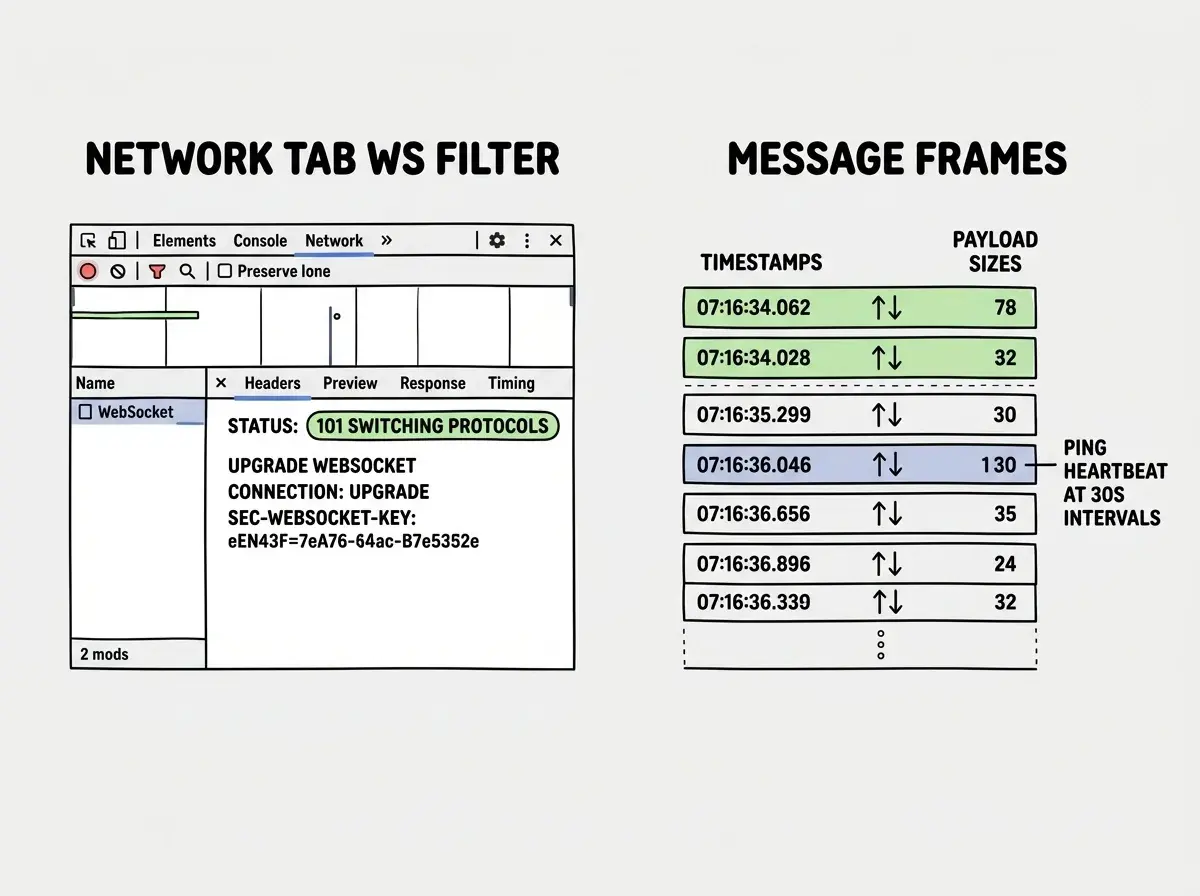
Open DevTools and go to the Network tab. Filter by "WS" (there is a small filter button in the toolbar). Reload the page and you will see every WebSocket connection attempt listed. Click on any connection and you get three things: the headers for the upgrade handshake, the status code, and a Messages pane showing every frame sent and received.
The Headers tab on the WebSocket connection shows you whether the upgrade was accepted. Look for the 101 Switching Protocols status. If you see anything else, the connection failed at the handshake. Common non-101 statuses and what they mean:
- 400 Bad Request means your request is malformed, often a missing
Sec-WebSocket-Keyheader or a protocol mismatch - 401 Unauthorized means the auth token is missing or rejected at the WebSocket endpoint (more on this shortly)
- 403 Forbidden means CORS or origin policy is blocking the upgrade
- 404 Not Found means the WebSocket URL path does not exist on the server
- 502 Bad Gateway means a proxy or load balancer received the request but the backend did not respond in time
If the connection shows status 101 but messages stop flowing after a while, the problem is not the handshake. It is the keepalive behavior. Check the Messages pane for a pattern where frames flow for a few minutes, then stop completely, often with a close frame showing code 1006 (abnormal closure).
Proxy and Load Balancer Failures
This is the most common production WebSocket failure by far, and the one AI-generated code never handles. Your local dev server does not have a proxy in front of it. Your production environment almost certainly does.
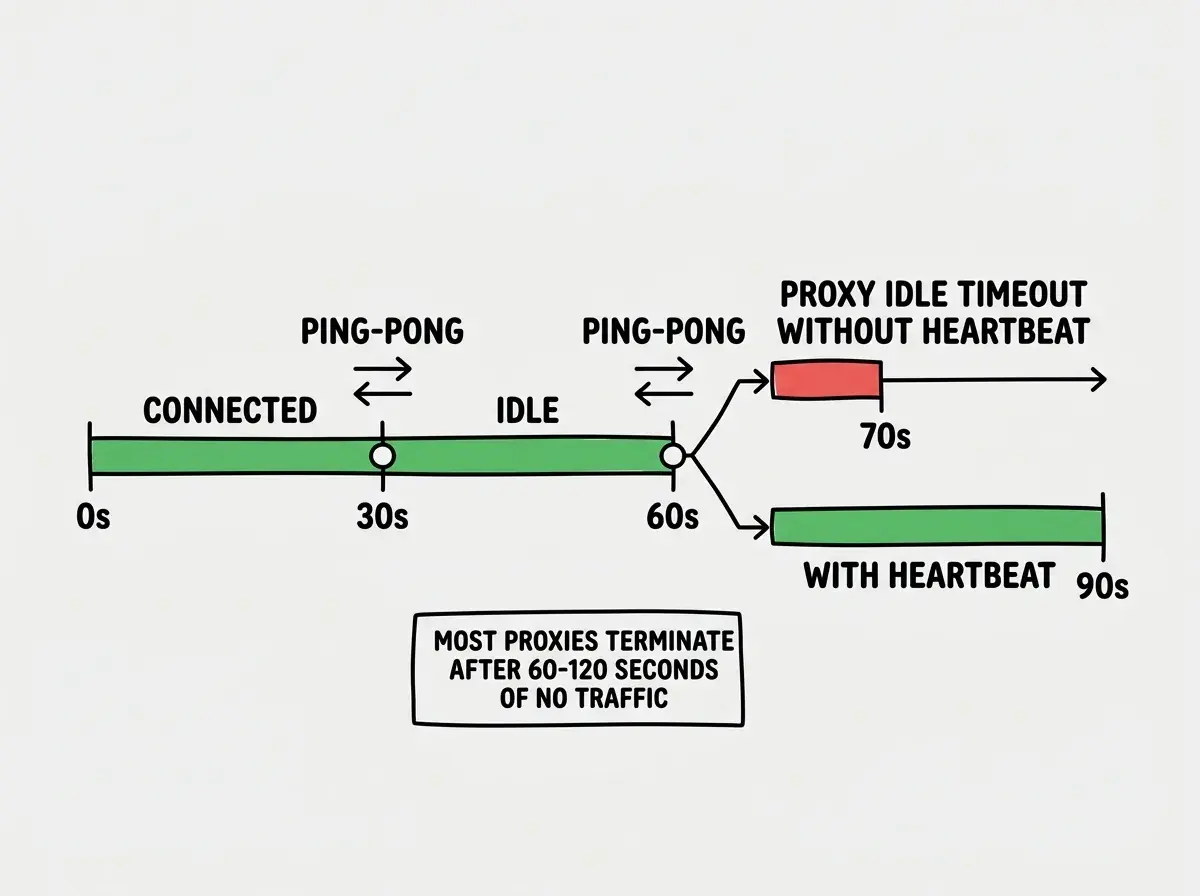
The problem is that most HTTP proxies and load balancers, by default, treat persistent connections as idle and terminate them after 60 to 300 seconds. They are designed for request-response traffic. A WebSocket connection that has not sent any data for two minutes looks like a hung request to an nginx or AWS ALB sitting in front of your server.
Nginx requires explicit configuration to proxy WebSocket connections. Without it, the upgrade header is stripped and the connection fails.
# Nginx WebSocket proxy configuration
location /ws {
  proxy_pass http://backend;
  proxy_http_version 1.1;
  proxy_set_header Upgrade $http_upgrade;
  proxy_set_header Connection "upgrade";
  proxy_set_header Host $host;
  proxy_read_timeout 86400;  # 24 hours, or use heartbeats to keep alive
}
AWS ALB handles WebSockets automatically, but the default idle timeout is 60 seconds. Any connection with no data flowing for 60 seconds gets terminated. The fix is either increasing the idle timeout in your ALB settings or adding a heartbeat to your application (covered below).
Cloudflare's proxy layer supports WebSockets on paid plans. On the free plan, WebSocket connections are limited and may be terminated. If you are running Cloudflare in front of a WebSocket server on a free plan and wondering why connections die after two minutes, that is why.
To test whether your proxy is the problem, try connecting to your WebSocket server directly (bypassing the proxy) using a tool like wscat:
# Install wscat
npm install -g wscat

# Connect directly to backend (bypasses proxy)
wscat -c ws://your-backend-server:3001/ws

# Connect through your production URL (goes through proxy)
wscat -c wss://yourapp.com/ws
If the direct connection works but the proxied one does not, you have confirmed a proxy configuration issue.
Authentication on WebSocket Connections
WebSocket connections cannot send custom headers after the initial upgrade request. This trips up a lot of AI-generated code that tries to add a Bearer token header to WebSocket messages the same way it would for a fetch call.
The correct approaches for WebSocket authentication are either passing a token as a query parameter during the initial handshake, or sending an auth message as the first message after the connection opens, before any other traffic is processed.
// Option 1: Token in query param (simpler, works everywhere)
const ws = new WebSocket(
  `wss://yourapp.com/ws?token=${encodeURIComponent(authToken)}`
);

// Option 2: Auth-first message after connection opens
const ws = new WebSocket("wss://yourapp.com/ws");
ws.onopen = () => {
  ws.send(JSON.stringify({ type: "auth", token: authToken }));
};

// Server side: reject connections that don't authenticate within 5 seconds
ws.on("connection", (socket) => {
  const authTimeout = setTimeout(() => {
    socket.close(4001, "Authentication timeout");
  }, 5000);

  socket.on("message", (data) => {
    const message = JSON.parse(data.toString());
    if (message.type === "auth") {
      clearTimeout(authTimeout);
      // validate token, store user on socket
    }
  });
});
Query parameter tokens show up in server logs, which is a tradeoff. For most internal apps this is fine. For public apps handling sensitive data, use the auth-first message pattern.
If your connection is getting 401 errors in the Chrome WebSocket debug panel, check whether your server is trying to read an Authorization header on the WebSocket upgrade request. It will not be there unless you put it in the query string or handled it at the cookie level before the upgrade.
AI-generated WebSocket code typically gets the happy path right: connect, send, receive. It almost never adds reconnection logic, heartbeats, or authentication. Before shipping any real-time feature, explicitly ask your AI tool to add exponential backoff reconnection, a ping interval to keep the connection alive, and an auth mechanism that does not rely on custom headers.
Reconnection Logic That AI Forgot
AI tools generate WebSocket code that connects once. If the connection drops, the client sits in a broken state until the user refreshes the page. For a chat app or live dashboard, that is unacceptable.
Production WebSocket clients need reconnection with exponential backoff. Every time the connection closes unexpectedly, wait a bit, then try again. Double the wait time on each failure, up to a maximum, to avoid hammering a server that is struggling.
class ReconnectingWebSocket {
  private ws: WebSocket | null = null;
  private url: string;
  private reconnectDelay = 1000;
  private maxDelay = 30000;
  private shouldReconnect = true;

  constructor(url: string) {
    this.url = url;
    this.connect();
  }

  private connect() {
    this.ws = new WebSocket(this.url);

    this.ws.onopen = () => {
      this.reconnectDelay = 1000; // reset delay on successful connection
      console.log("WebSocket connected");
    };

    this.ws.onclose = (event) => {
      if (!this.shouldReconnect) return;
      // 1000 = normal close, 1001 = going away (server shutdown)
      // anything else is unexpected
      if (event.code !== 1000 && event.code !== 1001) {
        console.log(`Reconnecting in ${this.reconnectDelay}ms...`);
        setTimeout(() => this.connect(), this.reconnectDelay);
        this.reconnectDelay = Math.min(this.reconnectDelay * 2, this.maxDelay);
      }
    };

    this.ws.onerror = (error) => {
      console.error("WebSocket error:", error);
    };
  }

  send(data: string) {
    if (this.ws?.readyState === WebSocket.OPEN) {
      this.ws.send(data);
    }
  }

  close() {
    this.shouldReconnect = false;
    this.ws?.close(1000, "Client closed");
  }
}
The shouldReconnect flag matters. You do not want the client attempting to reconnect when the user deliberately navigates away or logs out. Check for close codes 1000 and 1001 specifically before triggering reconnection.
Heartbeat and Keepalive
Even with reconnection logic, connections die silently if there is no traffic flowing. The proxy sees an idle connection and cuts it. The client has no idea the connection is dead until it tries to send something.
A heartbeat is a ping message sent on a timer, just to prove both ends are still alive. Most WebSocket implementations support the protocol-level ping-pong frames, but browser WebSocket APIs do not expose these directly. The reliable approach is an application-level heartbeat: send a JSON ping every 30 seconds and expect a pong back.
// Client-side heartbeat
let heartbeatInterval: ReturnType<typeof setInterval>;

ws.onopen = () => {
  heartbeatInterval = setInterval(() => {
    if (ws.readyState === WebSocket.OPEN) {
      ws.send(JSON.stringify({ type: "ping" }));
    }
  }, 30000);
};

ws.onclose = () => {
  clearInterval(heartbeatInterval);
};

ws.onmessage = (event) => {
  const message = JSON.parse(event.data);
  if (message.type === "pong") return; // ignore heartbeat responses
  // handle real messages
};

// Server-side heartbeat response
socket.on("message", (data) => {
  const message = JSON.parse(data.toString());
  if (message.type === "ping") {
    socket.send(JSON.stringify({ type: "pong" }));
    return;
  }
  // handle real messages
});
30 seconds is a safe interval for most setups. It keeps the connection alive through proxy idle timeouts without generating significant traffic. You can also add a pong timeout on the client: if a pong does not come back within 5 seconds of sending a ping, close the connection and let the reconnection logic kick in.
Message Format Mismatches
A subtler class of WebSocket bugs involves messages arriving but not being processed correctly. The client connects, messages flow, but the UI never updates. The Chrome Messages pane shows data coming in, but nothing happens.
AI tools generate WebSocket message handlers that assume a specific format, and if the server sends something slightly different, the handler silently ignores it. Common causes are the server sending a string when the client expects parsed JSON, the client parsing JSON when the server is sending binary data, and field name mismatches between what the server sends and what the client reads.
// Defensive message handler
ws.onmessage = (event) => {
  // Handle both string and binary data
  const raw = event.data instanceof Blob
    ? await event.data.text()
    : event.data;

  let message;
  try {
    message = JSON.parse(raw);
  } catch {
    console.error("Non-JSON message received:", raw);
    return;
  }

  // Log unexpected message types instead of silently ignoring
  if (!message.type) {
    console.warn("Message missing type field:", message);
    return;
  }

  switch (message.type) {
    case "update":
      handleUpdate(message.data);
      break;
    default:
      console.warn("Unknown message type:", message.type);
  }
};
Adding logging for unknown message types is the fastest way to catch format mismatches. You will see the unexpected messages in the console and can work backward to fix either the server output or the client handler.
Using ws.send(data) without checking ws.readyState === WebSocket.OPEN first. If the connection is in the CONNECTING state (0), closing state (2), or closed state (3), calling send() throws an error or silently drops the message. AI-generated code often assumes the connection is ready immediately after creating the WebSocket object, but the connection is async. Always check readyState or queue messages until the onopen event fires.
A Debugging Checklist for WebSocket Failures
When a WebSocket feature breaks in production, work through these steps in order before touching the application code.
- Check the Chrome Network WS filter. Confirm whether the connection reached 101 or failed at the handshake. Look at the specific failure status code.
- Test with wscat. Connect directly to the backend server, bypassing any proxy. If this works and the proxied URL does not, you have a proxy configuration issue.
- Check proxy configuration. Verify nginx or your load balancer has WebSocket-specific settings. Check timeout configurations.
- Verify authentication. Confirm your auth token is in the query string or sent as the first message, not as a header.
- Look at close codes. Code 1006 means abnormal closure (usually a proxy timeout). Code 1008 means policy violation (usually auth). Code 1011 means server error.
- Add heartbeat logging. Add
console.logto your ping interval to confirm the heartbeat is actually firing and getting a response. - Check message handler. Add logging for every incoming message to confirm messages are arriving before debugging why the UI is not updating.
What This Means For You
WebSocket debugging is one of those areas where knowing the failure modes in advance cuts hours of guessing. The AI got your real-time feature 80% of the way there. Proxy config, auth, reconnection, and heartbeats are the missing 20% that determines whether it actually works for users.
Add those four pieces to any WebSocket feature before shipping, and most production failures disappear before users ever see them.
Get the full checklist for what AI forgets in every real-time app.
See the full checklistThe Chrome WebSocket debug tools are the fastest path from "it's broken" to "I know exactly why." Open the Network tab, filter by WS, and let the close codes and message frames tell you what happened. Most WebSocket bugs leave clear evidence in those panels, you just have to know where to look.
Run a five-minute check on your app right after every deployment.
Read the post-deploy checklist