Images cause more performance failures in AI-built apps than any other single element. They produce layout shifts that tank Core Web Vitals scores, add megabytes of dead weight to pages, and break silently when paths or domains change. Because 92% of developers now ship with AI assistance daily, the failure pattern is predictable. The AI generates code that looks right, deploys fine, and quietly destroys load time.
AI coding assistants write Next.js <Image> components that work locally but fail in production because the width and height are missing, the priority flag is absent from the hero, or the image domain is not in the config. The bugs are consistent, the fixes are short, and once you know where to look they take minutes.
This tutorial covers the most common debugging image loading issues in AI-built web apps. You will learn to read the signals your browser sends you, fix configuration problems in Next.js, and diagnose root causes behind almost every slow or broken image you will encounter.
Reading What the Browser Is Telling You
Before you change any code, open your browser's DevTools and switch to the Network tab. Filter it to show only images and reload the page. Every image request your page makes will appear, showing the filename, HTTP status code, size transferred, and load time.
A 404 status means the file does not exist at that path. Almost always a path problem. The image was deleted, moved, or the AI generated a hardcoded relative path that breaks in production. Click the row to see the exact URL, then compare it to where the file actually lives.
A slow request (anything over 500ms) points to size or format issues. If an image is above 200KB and it is not a hero, it is unoptimized. If the type shows JPEG or PNG for a photo, there is a compression opportunity sitting there.
A CORS error shows up in the Console tab rather than Network. It means the image is hosted on a different domain that is not sending the right headers to allow your app to display it.
Spend two minutes in the Network tab before you do anything else. The information is already there.
The Next.js Image Component Misconfiguration Checklist
Next.js ships a built-in <Image> component that handles resizing, format conversion, and lazy loading automatically. AI tools often generate it with the configuration half-done. The component exists, but the settings that make it work are missing.
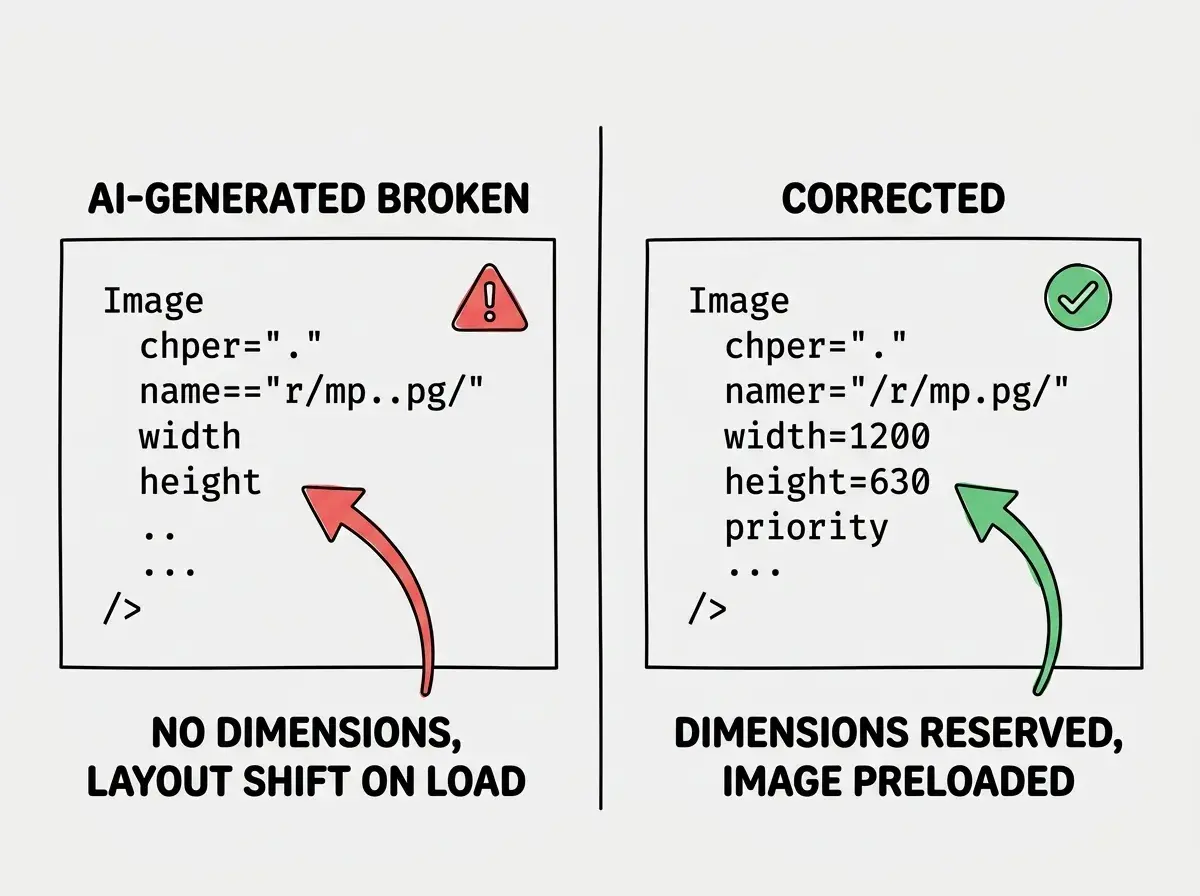
The most common misconfiguration is the width and height props on non-fill images. Skip these and Next.js cannot reserve space before the image loads, producing a Cumulative Layout Shift (CLS) score above zero. Your page visually jumps after the image loads. This is the top reason AI-built pages fail Core Web Vitals audits despite looking fine in development.
The correct pattern for a standard image is:
<Image
  src="/hero.webp"
  alt="App dashboard screenshot"
  width={1200}
  height={630}
  priority
/>
The priority prop tells Next.js to preload this image rather than lazy-load it. Use it on any image above the fold. AI tools almost never add this prop, so your hero image competes with lazy-loaded images below the fold and ends up being the slowest thing on the page.
The second common mistake is forgetting to add image domains to next.config.ts. When you reference an image from an external URL, Next.js blocks it by default. You will see an error like "hostname is not configured under images in your next.config.js." Add the domain to the remotePatterns array:
images: {
  remotePatterns: [
    {
      protocol: "https",
      hostname: "images.yourdomain.com",
    },
  ],
},
AI assistants frequently generate image components pointing to external URLs and forget to update the config. The component looks correct, but the image never loads in production.
Diagnosing Layout Shift From Images
Layout shift happens when content moves after an image loads. Your page renders, a user starts reading, and then an image pops in and shoves everything down. Google measures this as CLS and it directly impacts search rankings.
To see it happening, open the Chrome DevTools Performance tab and record a fresh page load. Look for the orange "Layout Shift" bars in the timeline. Click one to see which elements caused it. It is almost always an image without explicit dimensions.
The fix depends on how you are rendering the image. For standard images with known dimensions, add the width and height props as shown above. For images that need to fill a container fluidly, use fill with a parent that has explicit sizing:
<div style={{ position: "relative", width: "100%", height: "400px" }}>
  <Image src="/banner.webp" alt="Banner" fill style={{ objectFit: "cover" }} />
</div>
The parent needs position: relative and a defined height. The fill prop stretches the image to fill its parent. objectFit: "cover" keeps proportions correct. AI tools often generate fill images without the positioned parent, which causes the image to collapse to zero height or overflow the container.
If you are not using Next.js, use CSS aspect-ratio to reserve space before the image loads:
img {
  aspect-ratio: 16 / 9;
  width: 100%;
  height: auto;
}
The browser reserves vertical space before the file arrives. The layout holds steady when the image loads.
Every image above the fold needs two things to avoid hurting your Core Web Vitals score. First, explicit dimensions (width and height, or a sized parent container for fill images) so the browser can reserve space before the image loads. Second, the priority flag in Next.js so it gets preloaded instead of lazy-loaded. AI tools get both of these wrong more often than they get them right. Check every hero image before you ship.
Format and File Size Optimization
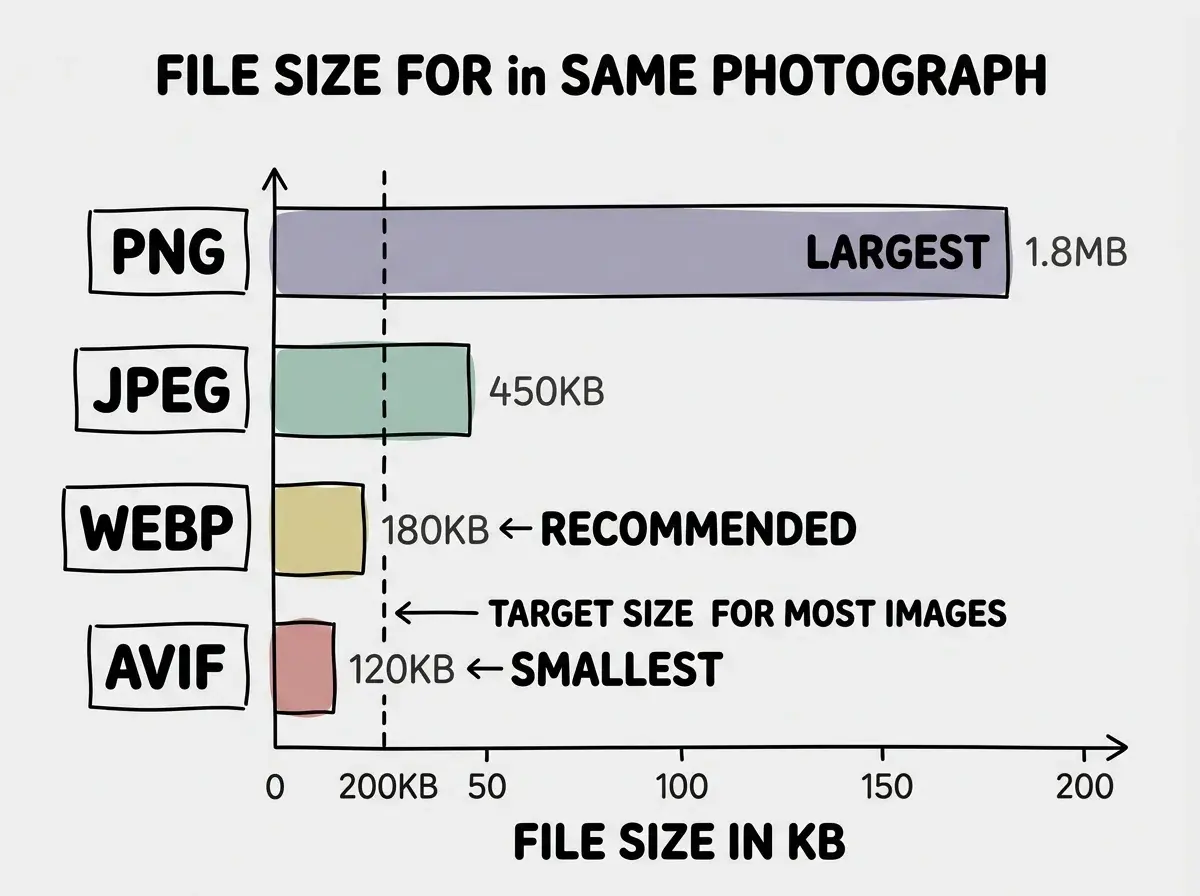
Even when images load correctly, they can still drag down your page. A 2MB JPEG of a product screenshot will load, but slowly, and it consumes bandwidth your users are paying for. The right format and compression can cut that to under 200KB with no visible quality difference.
The format hierarchy for web images is WebP first, then AVIF for modern browsers, then JPEG for fallback, PNG only when you need transparency, and SVG for icons. AI tools default to PNG because it is the safest fallback, but PNG files are significantly larger than WebP for photographic content.
If you are using Next.js Image, format conversion is automatic. The component serves WebP regardless of the source file format. Your source files can be PNG and users receive WebP.
If you are not using Next.js, use Squoosh or ImageOptim to convert and compress before uploading. Aim for under 200KB for standard images and under 400KB for hero images. Run Lighthouse and check the "Properly size images" and "Serve images in next-gen formats" audit items.
Fixing Broken Image Paths in Production
Some image bugs only appear after deployment. The image loads fine locally and breaks on the live URL. The cause is almost always one of three things.
Absolute paths that point to localhost. An AI tool might generate src="http://localhost:3000/images/photo.jpg". This works in development and silently breaks everywhere else. Search your codebase for localhost in any image src before you deploy.
Missing public directory prefix. In Next.js, files in the public folder are served from the root path. The file at public/images/photo.jpg is accessible at /images/photo.jpg. AI tools occasionally generate paths like src="public/images/photo.jpg" with the folder name included. That path does not exist at runtime.
Hardcoded base URLs. If your images live on a CDN or external storage, use environment variables for the base URL rather than hardcoding it. AI tools default to hardcoded strings that break when the domain changes between environments.
To audit all three, search your component files for src= and review every image path. Full URLs are fine if the domain is in your config. Absolute paths starting with / are fine for files in public. Relative paths and localhost references need to be fixed before deploy.
Using <img> tags instead of the framework's optimized image component because the AI kept generating errors with the Image component config. This feels like a pragmatic fix, but plain img tags load full-resolution, uncompressed files directly. You lose automatic format conversion, lazy loading, and size optimization. The right fix is to resolve the Image component configuration, not to abandon it. Most configuration errors come down to missing domains in next.config.ts or missing dimension props, both of which are five-line fixes.
Describing Image Bugs to AI for Fast Fixes
When you ask your AI tool to fix an image problem, precision determines whether you get a fix or a new kind of broken.
Use this pattern. State what you see ("the hero image loads with a visible layout shift, content jumps down 200px"). Identify where it happens ("the main homepage image, Next.js Image component without explicit dimensions"). State what you checked ("Lighthouse flagged this element"). Ask for the fix ("add width, height, and priority props; update next.config.ts if needed").
Compare that to "my image is broken." Vague gets a guess. Specific gets a targeted fix.
For format and size issues, paste the Lighthouse audit output. The "Properly size images" item lists exact file names, current sizes, and recommended sizes in one copy-paste.
What to Check Before Every Ship
Run through these four checks before you deploy any page with images.
Open the Network tab and confirm every image is under 400KB. Anything larger is unoptimized or bypassing the optimization pipeline.
Run Lighthouse and look at the LCP (Largest Contentful Paint) value. If the LCP element is an image without the priority prop, that is your fix.
Check the console for CORS errors and Next.js Image configuration warnings. Both are silent failures that work locally and break in production.
Resize your browser to a narrow viewport and verify images scale correctly. A fill image without a positioned parent collapses to zero height.
Four checks. Under five minutes.
Learn the debugging workflow that catches image and performance issues before they reach users.
Explore tutorialsWhat to Do Next
Image loading issues follow a pattern in AI-built apps. The component exists, the code looks reasonable, but a handful of specific properties are missing. Width and height for layout stability. Priority for above-the-fold loading. Domain config for external images. WebP for file size.
The Network tab shows what is loading and how long it takes. Lighthouse shows what is blocking your score. The source code shows which properties the AI left out. With those three views open, you can diagnose and fix most image problems in under fifteen minutes.
Tutorials for developers and designers who ship with AI tools every day.
Start reading