Debugging hydration errors in Next.js makes experienced developers feel like juniors again. The error messages are vague, the causes are subtle, and AI-generated code makes the problem ten times worse because LLMs love writing patterns that work on the client but silently break during server rendering. Ninety-two percent of developers use AI tools daily, which means hydration bugs shipping to production have never been more common.
This tutorial breaks down what hydration is, why AI code triggers mismatches so often, and how to fix every common pattern with solutions you can apply in minutes.
What Hydration Actually Means
Think of hydration like two chefs cooking the same recipe. The server chef prepares the dish first, plating everything exactly as the recipe describes. Then the browser chef walks in, reads the same recipe, and starts cooking. When the browser chef finishes, React compares both dishes. If they match, React attaches event listeners to the existing HTML and everything becomes interactive. If they do not match, React throws a hydration error because it cannot figure out which version is correct.
The server renders your component tree into static HTML and sends it to the browser. The browser loads your JavaScript, renders the same component tree in memory, and then "hydrates" the static HTML by attaching interactivity to it. This process assumes both renders produce identical output. When they do not, React warns you (or in strict mode, throws an error) because the mismatch means your UI could behave unpredictably.
The key insight is that hydration is not re-rendering. React is not replacing the server HTML with client HTML. It is trying to reuse the server HTML and bolt interactivity onto it. That is why mismatches are dangerous. React attaches event handlers to DOM nodes that might have different content, attributes, or structure than what the client render expected.
Why AI-Generated Code Causes Hydration Mismatches
AI coding assistants generate code that looks correct and runs fine in the browser, but they consistently produce patterns that diverge between server and client renders. The two chefs follow the same recipe, but certain ingredients behave differently depending on which kitchen you are in.
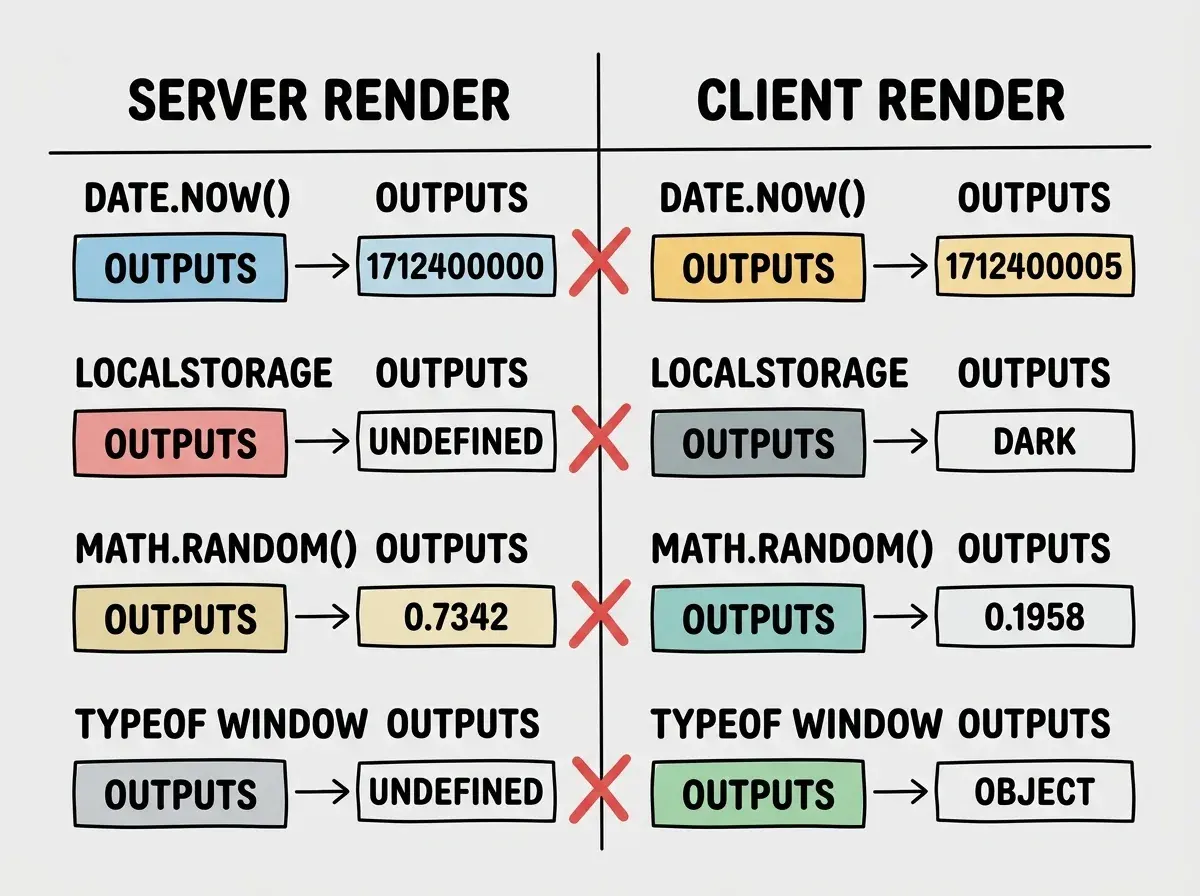
Here are the four patterns that cause the most hydration errors in AI-generated Next.js code.
Date and time formatting. LLMs love sprinkling new Date().toLocaleDateString() or Date.now() into components. The server renders at build time (or request time), and the client renders seconds later. The timestamps will never match. Even toLocaleDateString() can produce different strings because the server and browser may have different locale settings.
Window and localStorage access. AI tools constantly generate code like const theme = localStorage.getItem('theme') || 'light' directly in a component's render body. The server has no localStorage and no window object. So the server renders with the fallback value while the client renders with whatever is stored locally, producing a mismatch.
Random IDs and values. Need a unique ID for an accessibility label? AI will write const id = Math.random().toString(36). The server generates one random value, the client generates a different one. Instant mismatch.
Conditional rendering based on client state. Patterns like if (typeof window !== 'undefined') { return <ClientOnlyComponent /> } seem smart but create a divergence. The server sees typeof window as undefined and skips the component. The client sees it as defined and renders it. The HTML trees do not match.
Reading the Error Messages
The most common hydration error you will see is "Text content does not match. Server: X Client: Y." This one is actually helpful because it tells you exactly which text diverged. Search your components for anything that generates dynamic text without accounting for server rendering.
The harder error is "Hydration failed because the initial UI does not match what was rendered on the server." This is React's way of saying the DOM structure itself is different, not just text content. This typically happens when you conditionally render entire elements based on client-only state.
A third variant is "There was an error while hydrating. Because the error happened outside of a Suspense boundary, the entire root will switch to client rendering." This is the nuclear option. React gives up on hydration entirely and re-renders everything from scratch, destroying your SSR performance benefits.
When debugging hydration errors in Next.js, the error message alone is often not enough. Open View Source (not the DevTools Elements tab, which shows the hydrated DOM) and compare the raw server HTML against what the client expects. The mismatch will jump out.
Hydration errors happen when server and client renders produce different output. The fix is always the same principle: make sure your component returns identical HTML on both server and client during the initial render, then update to client-specific values afterward. Every solution in this article follows that pattern.
Fixing Date and Time Mismatches
Render a placeholder on the server and update it on the client after hydration. The useEffect hook is your best friend here because it only runs on the client, after hydration.
'use client';

import { useState, useEffect } from 'react';

function FormattedDate({ date }: { date: string }) {
  const [formatted, setFormatted] = useState(date);

  useEffect(() => {
    setFormatted(new Date(date).toLocaleDateString());
  }, [date]);

  return <time dateTime={date}>{formatted}</time>;
}
The server renders the raw ISO date string. The client renders the same raw string during hydration (matching the server), then useEffect fires and updates it to the localized format. Both chefs produce the same dish initially, then the browser chef adds a garnish after the fact.
Fixing Window and localStorage Access
Never read from window or localStorage during render. Move all browser API access into useEffect.
'use client';

import { useState, useEffect } from 'react';

function ThemeProvider({ children }: { children: React.ReactNode }) {
  const [theme, setTheme] = useState('light');

  useEffect(() => {
    const saved = localStorage.getItem('theme');
    if (saved) setTheme(saved);
  }, []);

  return <div data-theme={theme}>{children}</div>;
}
Server and client both render with 'light' as the initial theme. After hydration, the client reads the actual stored preference and updates. No mismatch.
Fixing Random IDs With useId
React 18 introduced useId specifically to solve this problem. It generates deterministic IDs that are identical on server and client.
import { useId } from 'react';

function SearchInput() {
  const id = useId();

  return (
    <div>
      <label htmlFor={id}>Search</label>
      <input id={id} type="search" />
    </div>
  );
}
Stop using Math.random() for IDs. Stop using crypto.randomUUID(). Stop using counters that increment differently on server and client. useId exists for this purpose and it works every time.
Using Dynamic Imports for Client-Only Components
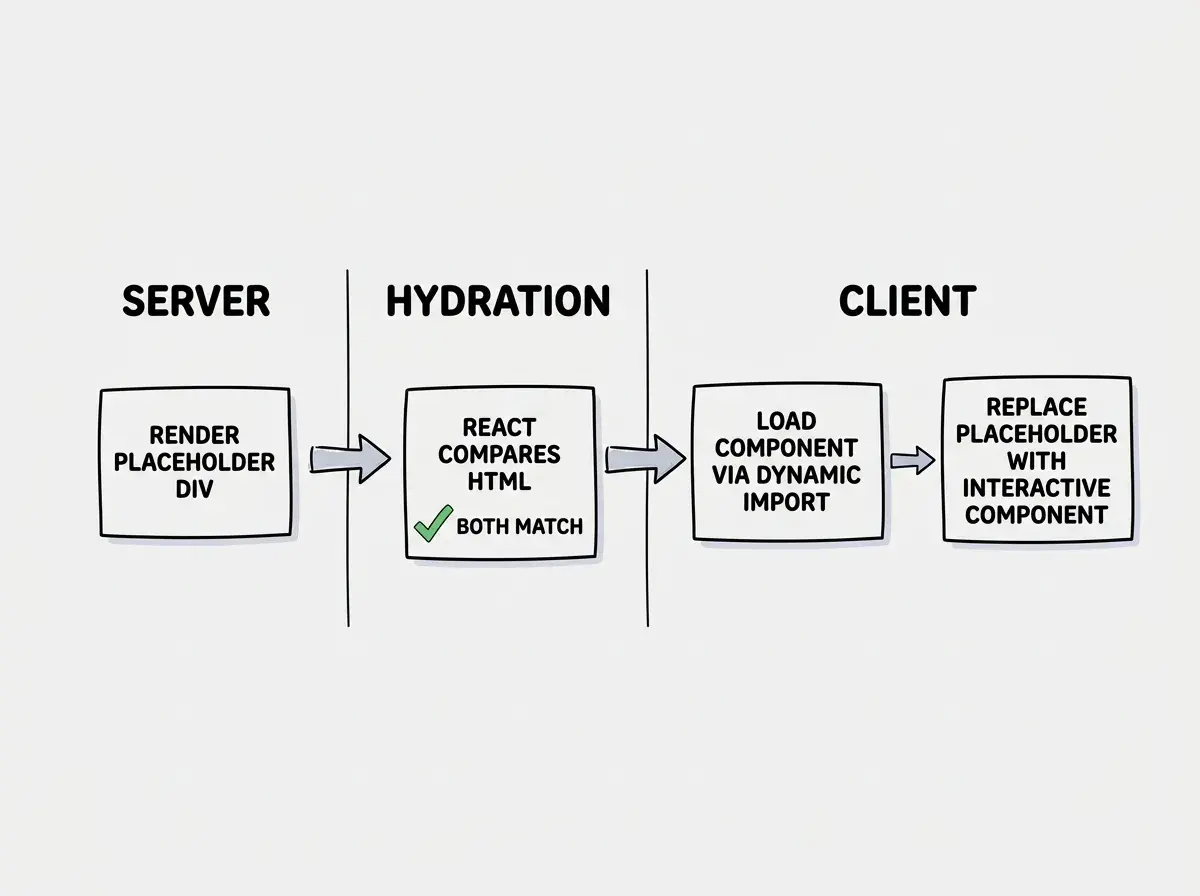
Some components genuinely cannot run on the server. A chart library that accesses canvas, a map component that needs window.navigator, or a rich text editor that manipulates the DOM. For these, use Next.js dynamic imports with SSR disabled.
import dynamic from 'next/dynamic';

const LiveMap = dynamic(() => import('./LiveMap'), {
  ssr: false,
  loading: () => <div className="h-64 animate-pulse bg-gray-100 rounded" />,
});
This tells Next.js to skip rendering the component on the server and show the loading placeholder instead. The client loads the component after hydration. Both server and client agree on the initial HTML (the placeholder), so no mismatch occurs.
One last tool worth mentioning is suppressHydrationWarning, but it deserves a serious warning of its own.
Using suppressHydrationWarning as your first fix instead of your last resort. This prop tells React to ignore the mismatch, but the mismatch still exists. Your server HTML and client HTML are still different, meaning screen readers, crawlers, and users with slow connections see the server version while JavaScript loads, which could be wrong or broken. Only use suppressHydrationWarning on leaf elements like timestamps where the visual difference is trivial and expected. Never use it on structural elements or containers.
A Systematic Debugging Process
When you hit a hydration error in a large codebase, follow this process to find the source quickly.
First, check the error message. If it says "Text content does not match," grep your components for Date, Math.random, localStorage, and window. One of those is almost certainly the culprit.
Second, use binary search. Comment out half your component tree and see if the error disappears. Keep halving until you isolate the offending component. This sounds crude but it works faster than staring at code when the error is unhelpful.
Third, compare View Source against the Elements tab in DevTools. View Source shows the server HTML. The Elements tab shows the post-hydration DOM. Diff them mentally or paste them into a diff tool. The discrepancy will be obvious.
Fourth, check third-party libraries. Some component libraries have known hydration issues, especially older ones written before server components existed. Check the library's GitHub issues for "hydration" before writing a bug report.
Learn the patterns that separate prototypes from production-ready code.
Explore shipping guidesPreventing Hydration Errors in AI-Generated Code
The best fix is prevention. When you are prompting an AI to generate Next.js components, add these constraints to your prompts.
Tell the AI explicitly: "This component will be server-rendered. Do not use window, localStorage, document, or Date.now() during the render phase. Move all browser API access into useEffect hooks. Use React's useId hook for generated IDs."
Review every AI-generated component for the four patterns covered in this article. It takes thirty seconds per component and saves hours of debugging later. AI tools are getting better at this, but they still default to client-side patterns because most training data comes from single-page applications that never touch a server.
Build a small library of "hydration-safe" utility components (a ClientOnly wrapper, a FormattedDate component, a BrowserValue hook) and tell your AI assistant to use them. Once those primitives exist, the AI composes them correctly instead of reinventing broken patterns every time.
What This Means For Your Next.js Projects
Hydration errors are not mysterious once you understand the two-chef model. The server and browser cook the same recipe. If any ingredient produces a different result depending on which kitchen it is in, the dishes will not match and React will complain.
- If you are building with AI tools daily: Add hydration safety checks to your review process. The four patterns in this article (dates, browser APIs, random values, conditional client rendering) account for the vast majority of hydration bugs in AI-generated code. Catch them during review and you will never debug a cryptic mismatch in production again.
- If you are maintaining a large Next.js application: Create a shared
hooks/useHydrationSafe.tsutility and enforce its usage through linting rules or PR templates. Standardizing the approach prevents each developer (or each AI session) from inventing a slightly different workaround that may not actually solve the problem.
The two chefs always cook in different kitchens. Your job is making sure the recipe accounts for that.
Practical fixes for the errors AI tools create most often.
Browse tutorials