If you want a visual, IDE-driven experience where AI lives inside your editor, use Cursor. If you want an autonomous agent that reads your codebase, runs commands, and handles complex multi-file refactors from the terminal, use Claude Code. These tools solve the same fundamental problem (writing code faster with AI) but they approach it from opposite directions, and the right choice depends entirely on how you already work.
Quick Verdict
| Cursor | Claude Code | |
|---|---|---|
| Best for | Visual learners, teams, GUI-native workflows | Senior devs, complex refactors, terminal-native workflows |
| Price | Free (limited), Pro $20/mo, Business $40/mo | Pay-per-use API, typically $50-200+/mo |
| Strength | Familiar IDE with inline AI suggestions | Autonomous agent that reads, writes, and runs code |
| Weakness | Context window limits on large codebases | No GUI; steeper learning curve for non-terminal users |
The table gives you the surface-level answer. The rest of this article gives you the real answer, based on specific scenarios where each tool wins and loses.
What Cursor Does Well
Inline suggestions that feel like autocomplete on steroids. Cursor Tab predicts what you are about to type and offers completions that go far beyond single lines. You are editing a React component, you change a prop name, and Cursor suggests updating every reference to that prop across the file before you even think to do it. This feels magical when it works. The suggestions appear right where you are working, so the feedback loop is nearly instantaneous.
Composer mode for multi-file edits with visual diffs. When you need to make changes across several files, Composer lets you describe what you want in natural language and see a visual diff of every proposed change before accepting. You can accept individual files, reject others, and iterate on the prompt. For someone who wants to review every change before it lands, this workflow is ideal. You never lose visibility into what the AI is doing.
Familiar environment with zero setup friction. Cursor is a VS Code fork. If you already use VS Code, switching takes about five minutes. Your extensions carry over, your keybindings carry over, your muscle memory carries over. You open the app, sign in, and start using AI features immediately. There is no terminal to configure, no API key to set up (on Pro), and no mental model shift required. For teams, this matters enormously because onboarding a new developer to Cursor is trivially easy compared to teaching someone a CLI-based workflow.
Project context via .cursorrules. You can define project-specific instructions in a .cursorrules file that shapes how the AI understands your codebase. "Always use Tailwind classes instead of inline styles." "Our API responses follow this schema." "We use Zustand for state management, not Redux." This file acts as persistent context that every Cursor feature respects, so the AI's suggestions align with your project's conventions from the start.
The choice between Cursor and Claude Code is not about which tool is "better." It is about whether you think in visual diffs or terminal output. If you instinctively reach for a GUI when solving problems, Cursor will feel natural. If you instinctively open a terminal, Claude Code will feel natural. Trying to force yourself into the wrong paradigm wastes more time than either tool saves.
What Claude Code Does Well
Autonomous multi-step task execution. Claude Code does not just suggest edits. It reads files, understands your project structure, writes code, runs tests, checks the output, and iterates until the task is done. You can say "refactor the authentication module to use JWT instead of session cookies, update all the route handlers, and make sure the tests pass," then walk away. When you come back, the work is done, the tests are green, and you can review the commits. This level of autonomy is fundamentally different from an inline suggestion engine.
Deep codebase understanding across hundreds of files. Claude Code indexes your entire project and builds a mental model of how everything connects. When you ask it to change how errors are handled across your application, it finds every error handler, understands the patterns, and applies consistent changes. It does not need you to manually open each file or point it to the right directory. It figures out what needs to change and where, which is exactly the kind of tedious work that senior developers spend hours on during large refactors.
Editor agnostic, works with your existing setup. Claude Code runs in the terminal alongside whatever editor you already use. Vim user? Fine. Emacs? Fine. VS Code? Also fine. You do not have to switch editors or adopt a new IDE. This matters for developers who have spent years customizing their editor and refuse to give that up. It also means Claude Code works over SSH, inside tmux sessions, and in environments where a GUI editor simply is not available.
CLAUDE.md for persistent project context. Similar to Cursor's .cursorrules, Claude Code reads a CLAUDE.md file for project-specific instructions. But because Claude Code operates as an agent rather than an autocomplete engine, this context shapes entire workflows rather than individual suggestions. You can define build commands, deployment processes, coding standards, and architectural decisions. The agent respects these instructions across every task, creating consistency that would be difficult to maintain manually across a long coding session.
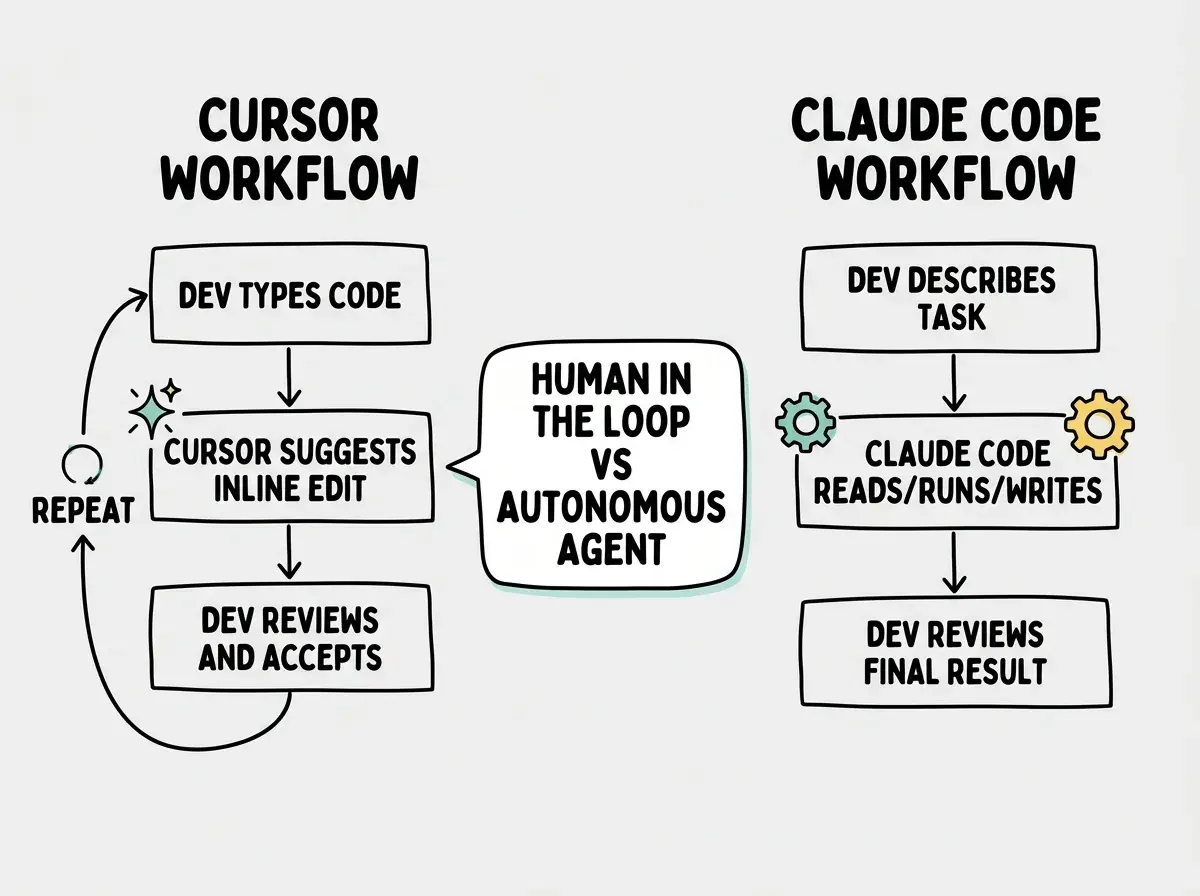
The autonomy gap between these two tools is the core differentiator. Cursor augments your existing coding workflow. Claude Code replaces parts of your coding workflow with autonomous execution. Neither approach is universally better, but they suit very different working styles.
Many of our best engineers no longer manually write code, they multiplex across multiple cc sessions.
Head-to-Head on What Matters
The Editing Experience
Cursor wins on moment-to-moment editing. When you are writing code line by line, Cursor Tab's inline suggestions are faster than switching to a terminal to describe what you want. The suggestions appear in context, you hit Tab to accept, and you keep typing. The friction is almost zero.
Claude Code wins on task-level editing. When you need to make coordinated changes across ten files, describing the task once in natural language and letting the agent handle it is faster than accepting individual suggestions file by file. The friction is front-loaded (you have to describe the task clearly) but the execution is hands-off.
Multi-File Changes
Cursor's Composer mode handles multi-file changes well for small to medium scoped work. You describe what you want, it proposes diffs across files, and you review them visually. The limitation is that Composer's context window can struggle with very large changesets. If your refactor touches fifty files, Composer may lose track of earlier changes or miss files that should have been updated.
Claude Code handles large-scale refactors better because it can read, execute, test, and iterate in a loop. It is not constrained to a single prompt-response cycle. If the first pass of changes breaks a test, it reads the test output, figures out what went wrong, and fixes it. This iterative capability makes it significantly more reliable for complex, interconnected changes.
Pricing and What It Actually Costs
Cursor Pro at $20/mo is predictable and affordable. You know exactly what you are paying, and for most individual developers, the free tier or Pro tier covers their needs. Business at $40/mo adds admin features and higher limits. The pricing is simple.
Claude Code's pay-per-use model through the API is harder to predict. Light usage might cost $50/mo. Heavy usage during a complex refactoring sprint could push past $200/mo. The cost scales with how much you use it, which is great when you need it occasionally and expensive when you lean on it heavily. You need to monitor your spend, especially early on when you are still learning how to write efficient prompts.
Comparing these tools by monthly cost alone misses the point. A $200/mo Claude Code bill that saves you 20 hours of refactoring work is dramatically cheaper than doing it yourself. A $20/mo Cursor subscription that saves you 30 minutes per day of typing is equally valuable. Compare the cost against the time saved, not against each other.
Learning Curve
Cursor's learning curve is gentle. If you use VS Code, you already know 90% of what you need. The AI features layer on top of an experience you are familiar with. Most developers are productive with Cursor within their first day.
Claude Code's learning curve is steeper. You need to be comfortable in the terminal, you need to learn how to write effective prompts for an agentic workflow, and you need to develop judgment about when to let the agent run autonomously versus when to intervene. Most developers need a week or two before they feel confident enough to let Claude Code handle complex tasks without micromanaging it.
I run 5 Claude Code instances in parallel terminal tabs, each with its own git worktree of the same repo. System notifications signal which Claude needs input. Plus 5-10 sessions on claude.ai/code in the browser, plus iOS app sessions.
Who Should Use What
Use Cursor if you:
- Prefer a visual, GUI-first editing experience
- Want predictable monthly pricing with no surprises
- Work on a team where everyone needs the same tool
- Are early in your coding journey and want gentle AI assistance
- Value reviewing every change inline before it is applied
Use Claude Code if you:
- Live in the terminal and prefer CLI workflows
- Regularly do large refactors that touch dozens of files
- Want an agent that can run commands, test code, and iterate autonomously
- Are a senior developer comfortable with less hand-holding
- Work across multiple editors or environments (including SSH)
Use both if you:
- Want Cursor for day-to-day editing speed and Claude Code for big refactoring tasks
- Work on a codebase large enough that some tasks need autonomous handling
- Can budget for both tools and want the best of each paradigm
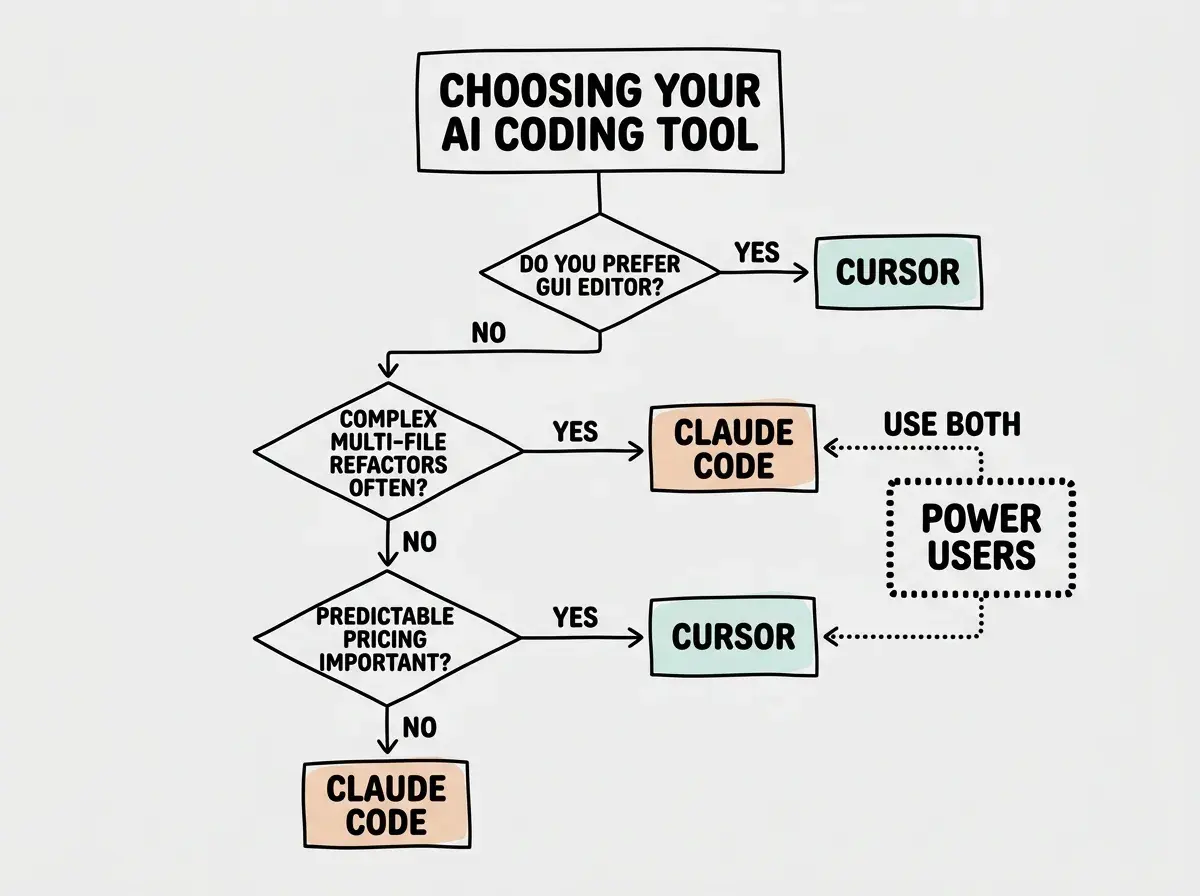
Many experienced developers end up using both tools for different types of work. That is not a cop-out answer; it is the practical reality. Cursor excels at the small, frequent interactions that make up most of a coding day. Claude Code excels at the big, infrequent tasks that would otherwise eat an entire afternoon. Using the right tool for each situation is more effective than forcing one tool to do everything.
Start with the fundamentals that every builder needs to understand.
Learn the basicsWhat This Means For You
The GUI-versus-terminal divide is real, but it is not permanent. Both tools are evolving rapidly, and the gap between them will narrow over time. What matters now is picking the tool that matches your current workflow so you start getting value immediately instead of fighting your own habits.
- If you are a founder building an MVP: Start with Cursor. The visual editing experience and predictable $20/mo pricing let you move fast without worrying about runaway API costs. You can see every change the AI proposes, which matters when you are still learning what good code looks like. Once your codebase grows and you need larger refactors, add Claude Code for those specific tasks.
- If you are changing careers into tech: Cursor is the safer starting point. The VS Code interface is what most bootcamps and tutorials teach, so you will find abundant resources and community support. The inline AI suggestions help you learn patterns as you code because you see the AI's reasoning in context. Claude Code's terminal-first approach assumes a comfort level with command-line tools that career changers may not have yet.
- If you are a student: Try both, because the skills transfer differently. Cursor teaches you how to work within a modern IDE with AI augmentation, which is the environment most companies use. Claude Code teaches you how to think about coding tasks at a higher level of abstraction, describing what you want rather than writing it line by line. Both skills will be valuable in the job market, and experimenting now while the stakes are low is the best time to build fluency with each approach.
Explore more comparisons and tutorials to find the right workflow for you.
Browse all articles