Cursor is the AI code editor that everyone in the vibe coding world is talking about, and for good reason. It is a VS Code fork with AI deeply integrated into every part of the editing experience. If you want a single tool that handles autocomplete, chat, and multi-file editing all in one place, Cursor is the strongest option available right now. That said, it is not magic, and knowing how to use it well is the difference between "this is incredible" and "this keeps breaking my code."
I have been using Cursor daily for months, across side projects, production apps, and rapid prototyping sessions. This guide is everything I wish someone had told me on day one.
What Cursor Is (and Isn't)
Cursor is a desktop code editor built on top of VS Code. If you have ever used VS Code, Cursor will feel immediately familiar because it supports the same extensions, themes, keybindings, and settings. The difference is that AI is woven into every interaction. You get intelligent autocomplete, an inline chat panel, and Composer, which is Cursor's standout feature for multi-file code generation.
What Cursor is not is a replacement for understanding your codebase. It generates code fast, sometimes faster than you can review it. That speed is a double-edged sword. Cursor will confidently produce code that looks right but does the wrong thing if you give it vague instructions. The developers who get the most out of Cursor are the ones who know enough to steer it precisely and review its output critically.
You might think Cursor is just VS Code with a chatbot bolted on. But actually, the integration goes much deeper than that. Tab completion in Cursor predicts multi-line changes based on context from your entire project, not just the current file. The chat understands your codebase structure. Composer can create, modify, and delete files across your project in a single operation. These are not things you can replicate by pasting code into ChatGPT.
Getting Started with Cursor
Download Cursor from cursor.com and install it like any desktop app. On first launch, it will offer to import your VS Code settings, extensions, and keybindings. Say yes. You will be working in a familiar environment within minutes.
The first thing to configure is your AI model. Cursor lets you choose between several models, and the default works well for most tasks. Open settings, navigate to the AI section, and verify your model preference. For vibe coding workflows where you want speed, the fast model is fine. For complex architectural decisions or refactoring, switch to the more capable model.
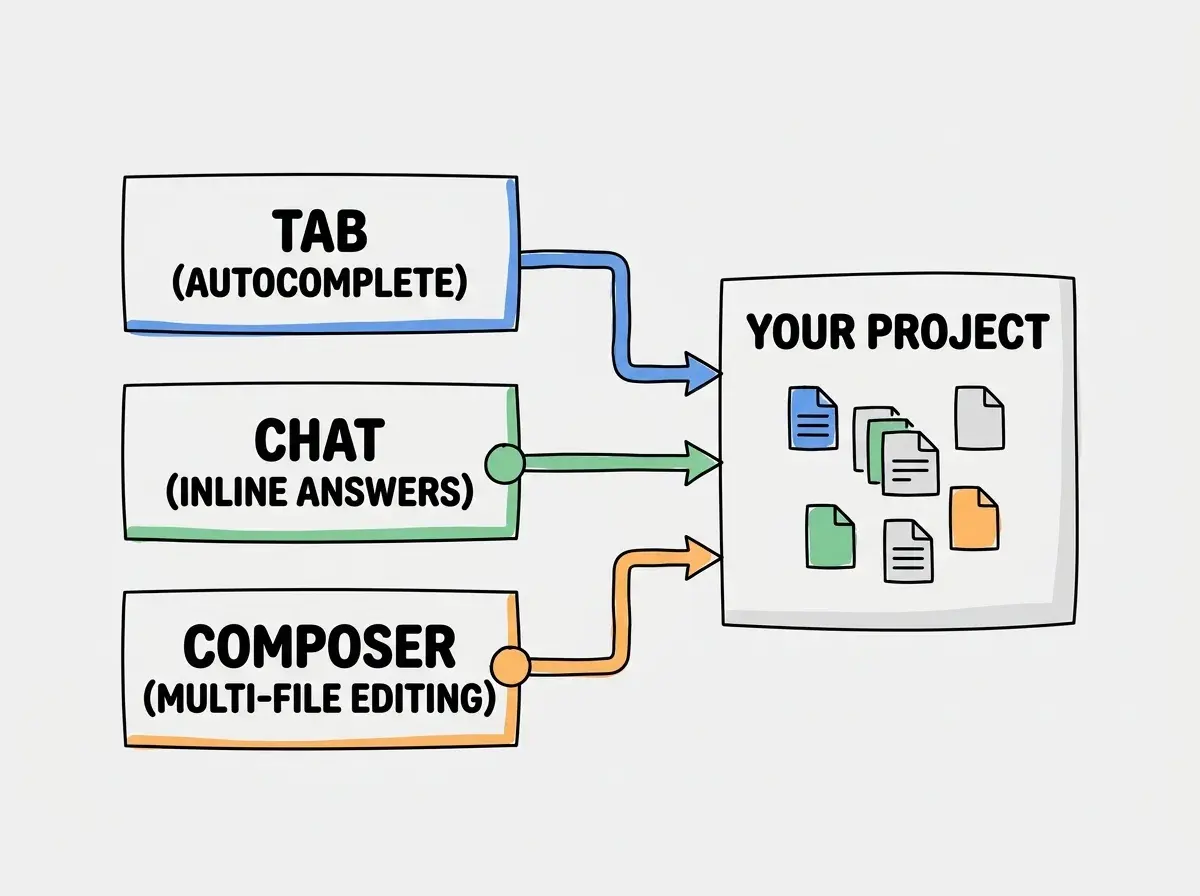
Set up your project by opening a folder. Cursor indexes your codebase automatically, building context that the AI uses for better suggestions. For larger projects, this indexing takes a few minutes on the first run but is nearly instant afterward. You will notice the quality of suggestions improves significantly once indexing is complete because the AI can reference code patterns and conventions from across your entire project.
Composer Is the Killer Feature
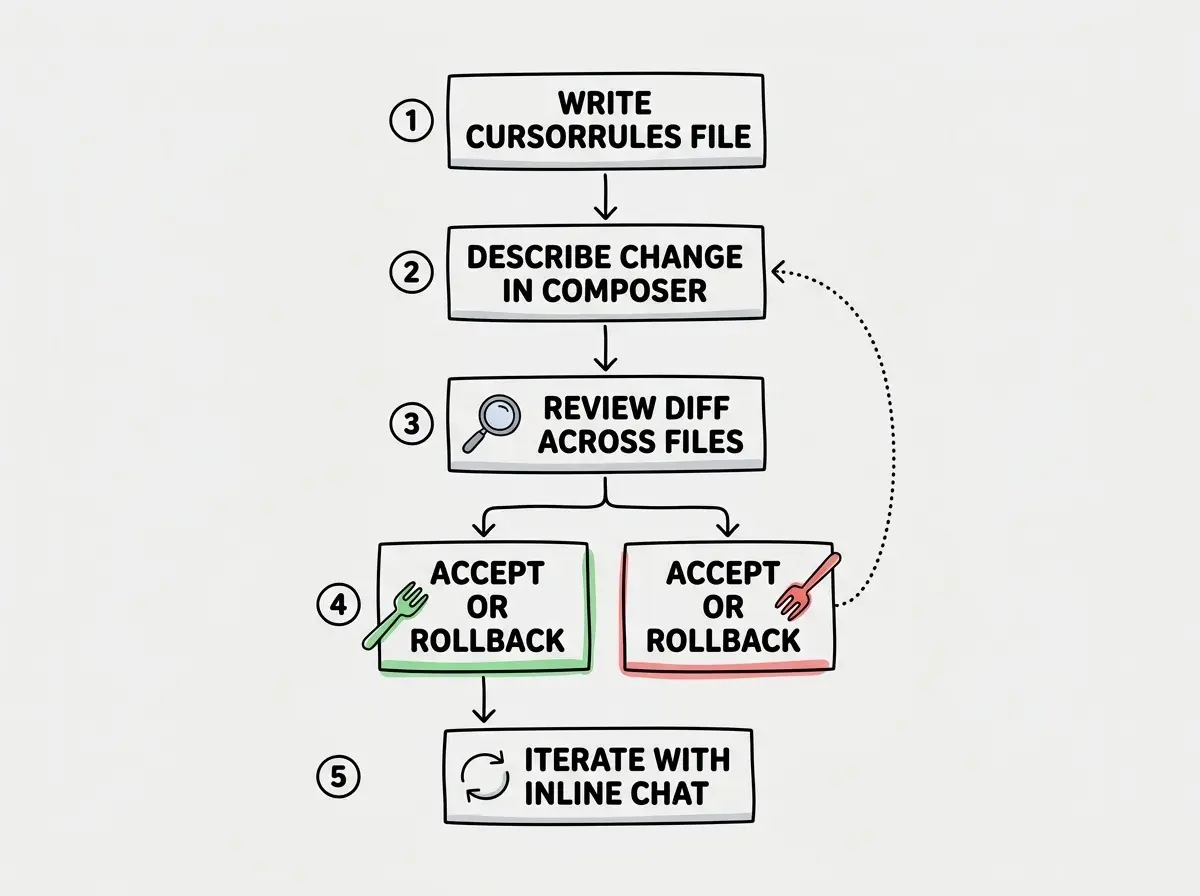
Composer is what separates Cursor from every other AI coding tool. It lets you describe a change in natural language, and Cursor generates edits across multiple files simultaneously. Need a new API endpoint with a route handler, database query, type definitions, and tests? Describe it in Composer and watch it create or modify all the relevant files at once.
Here is exactly what I did on a recent project. I needed to add a comment system to a blog. I opened Composer and typed: "Add a comment system. Create a comments API route that handles POST and GET. Add a Comment component that shows existing comments and a form to submit new ones. Use the existing database connection from lib/db.ts. Add the Comment component to the blog post page."
Composer generated five files. It created the API route, the Comment component, a type definition file, updated the blog post page to include the component, and added the database migration. Every file referenced the others correctly. The imports were right. The types matched. It was not perfect (the validation logic was too permissive, and I had to tighten it), but the structural work that would have taken me an hour was done in thirty seconds.
Composer's value is proportional to how specific your instructions are. "Add authentication" will produce generic boilerplate. "Add email/password authentication using the existing User model in lib/models.ts, with bcrypt hashing, JWT tokens stored in httpOnly cookies, and middleware that protects all /api/admin routes" will produce something you can actually ship.
The key to getting good Composer results is context. Reference specific files. Mention your existing patterns. Tell it which libraries you are already using. The more concrete your description, the less you have to fix afterward.
Tab Completion and Inline Chat
Tab completion in Cursor is smarter than what you are used to from other editors. It does not just suggest the next word. It predicts entire blocks of code based on what you are doing, often completing a full function body, a test case, or a configuration block after you type the first line.
The trick is to write a descriptive comment or function name first. If you type // Validate that the email is unique and the password meets complexity requirements and then hit enter, Cursor will generate the full validation function. The comment acts as a prompt. Senior developers who already write descriptive comments before implementing find that Cursor's tab completion basically writes their first draft for them.
Inline chat (Cmd+K or Ctrl+K) is useful for targeted changes. Select a block of code, hit the shortcut, and describe what you want changed. "Refactor this to use async/await instead of .then() chains." "Add error handling for the case where the API returns a 429." "Make this component accept an optional className prop." These focused, specific requests are where inline chat shines.
Power User Tips That Actually Matter
Use .cursorrules files. Create a .cursorrules file in your project root with instructions about your codebase conventions. Tell Cursor about your preferred patterns, your tech stack, and your coding style. This file is included as context in every AI interaction, which means the AI produces code that matches your project instead of generic boilerplate. This single tip improved my Cursor output quality more than anything else.
Reference files with @. In chat and Composer, type @ followed by a filename to explicitly include that file as context. This is critical for getting accurate results. If you want Cursor to create a new component that matches an existing one, reference the existing component with @ComponentName.tsx and say "follow the same patterns."
Use checkpoints. Composer creates checkpoints before making changes, which means you can undo an entire multi-file operation with one click. This makes it safe to experiment. Try ambitious prompts, review the results, and roll back if they are not right. The ability to undo fearlessly changes how you interact with the tool.
Be explicit about what NOT to change. Sometimes Cursor gets enthusiastic and refactors things you did not ask it to touch. Adding "Do not modify any existing tests" or "Only change files in the /components directory" prevents this scope creep.
Pricing Breakdown
Cursor offers three tiers. The free tier gives you limited AI requests, which is enough to try it out but not enough for daily use. The Pro tier at $20 per month gives you generous usage limits that cover most individual developers. The Business tier at $40 per month adds team features and admin controls.
The hidden cost that nobody mentions is that Cursor's quality depends heavily on which AI model you use, and the more capable models burn through your usage limits faster. You can also bring your own API key for certain models, but then you are paying both the Cursor subscription and your API usage. For heavy users, the real monthly cost can be $20 for Pro plus $10 to $30 in additional API charges if you consistently use premium models.
Starting with the free tier and concluding that Cursor is not impressive. The free tier limits are restrictive enough that you never experience the tool at full capability. If you are serious about evaluating Cursor, commit to one month of Pro. The difference in available features and usage limits is substantial, and you cannot form an honest opinion from the free tier alone.
The Pro tier is worth it for any developer shipping code regularly. The Business tier is primarily valuable for teams that need centralized billing and policy controls. Solo founders and indie hackers should stick with Pro.
Limitations and Gotchas
Cursor is not without problems. The most significant limitation is that it sometimes generates code that looks correct but has subtle bugs. It will import a module that does not exist. It will use an API that was deprecated two versions ago. It will create a function that handles the happy path perfectly but breaks on edge cases. You need to review every change, especially in Composer where the scope of changes is large.
Performance can be an issue with very large codebases. If your project has hundreds of thousands of lines of code, indexing takes longer and some features slow down. Cursor works best with small to medium projects where it can hold meaningful context.
The VS Code fork approach means Cursor is always slightly behind the latest VS Code release. Extensions that depend on the newest VS Code APIs sometimes break. This is rarely a dealbreaker, but it is worth knowing if you rely on cutting-edge extensions.
Who Should Use Cursor (and Who Shouldn't)
Cursor is the right choice if you want AI integrated directly into your editing experience, you are comfortable with VS Code, and you work on projects where multi-file code generation saves meaningful time. It is excellent for full-stack development, rapid prototyping, and building side projects quickly.
Cursor is not the right choice if you prefer working in the terminal, if you need an editor that works over SSH on remote servers, or if you are on a tight budget and cannot justify $20 per month. Developers who prefer minimal, keyboard-driven editors like Vim or Emacs will find Cursor's approach too heavy, and they should look at terminal-based alternatives instead.
Learn the fundamentals that will make you effective with any AI coding tool.
Learn the basicsWhat This Means For You
Cursor has earned its popularity by solving a real problem. Writing code with AI assistance is faster, and Cursor makes that assistance available in every part of your workflow. The gap between idea and working code has never been smaller.
- If you are a founder building a product: Cursor with Composer is the fastest way to go from idea to prototype. You can describe features in plain language and get working implementations in minutes. The $20 per month Pro subscription pays for itself the first time you ship a feature in an afternoon that would have taken a weekend.
- If you are a career changer learning to code: Cursor is a powerful learning environment because you can see how AI structures code, then study and understand each piece. Start with tab completion and inline chat before moving to Composer. Use the AI as a tutor by asking it to explain the code it generates, not just to write code for you.
- If you are a student: The free tier is enough to explore and learn, but invest in Pro when you start building real projects. The multi-file editing capability teaches you how professional codebases are structured, which is something you will not learn from tutorials alone.
See how Cursor compares to other options in the vibe coding ecosystem.
Browse tools