Think about the first time you learned keyboard shortcuts in Photoshop. You probably spent weeks reaching for the menu bar to resize, crop, and adjust layers. Then someone showed you Cmd+T, Cmd+J, Cmd+Shift+S, and suddenly the same work took half the time. Nothing about Photoshop changed. Your fluency with it did. Each shortcut saved seconds that compounded into hours across hundreds of daily actions.
Cursor works the same way. Most people install it, use Composer a few times, and think they have seen what it can do. They have not. These 25 cursor tips and tricks come from months of daily use, and each one either saves real time, improves AI output quality, or prevents a class of mistakes.
Composer Workflows That Actually Ship
1. Break complex features into sequential Composer prompts. The instinct is to describe an entire feature in one massive prompt. Resist it. "Build a complete authentication system with OAuth, email verification, password reset, and role-based access" will produce a tangled mess. Instead, start with "create the database schema and type definitions for user authentication." Accept that, then prompt for the auth API routes. Then the UI components. Each step builds on reviewed, working code, and Composer has concrete context instead of trying to hold an entire feature in its imagination.
2. Highlight code before opening Composer. When you want Composer to modify an existing file, select the relevant section first. This anchors the AI's attention to the code you care about. Without this anchor, Composer sometimes creates a new file instead of editing the existing one.
3. Always review diffs before accepting. Composer shows you exactly what it plans to change. Treat this diff view like a code review from a junior developer. The structural decisions are usually sound, but the details (error handling, edge cases, validation logic) need tightening. Accepting without reviewing is how subtle bugs compound over weeks.
4. Roll back aggressively with checkpoints. Composer creates a checkpoint before every operation. If the output misses the mark, roll back immediately and rewrite your prompt. Do not try to fix bad output with follow-up prompts. Each correction adds another layer of patches, and after three layers you have AI spaghetti code. A clean rollback with a better prompt always beats iterative fixes.
5. Tell Composer what NOT to change. Composer sometimes gets enthusiastic and refactors code you did not ask it to touch. Adding "do not modify any existing tests" or "only change files in /components" at the end of your prompt prevents scope creep.
Context Management That Changes Everything
6. Create a .cursorrules file on day one. This is the single highest-leverage Cursor tip. Create a .cursorrules file in your project root describing your tech stack, coding conventions, and preferred patterns. Cursor includes this file as context in every AI interaction. Without it, every prompt starts from zero. With it, the AI already knows you use Next.js App Router, Tailwind v4, and prefer server components by default. My .cursorrules file improved output quality more than switching to a better model did.
7. Add negative constraints to .cursorrules. Most people list what they use. Add what you do not want. "Never use inline styles. Never use default exports. Never add console.log to production code. Never use any as a TypeScript type." Negative constraints prevent the AI's most common bad habits for your specific project.
8. Use @ mentions to pin context. In Chat and Composer, type @ followed by a filename to include that file as context. If you want Composer to create a new API route matching your existing patterns, type @app/api/users/route.ts and say "follow the same error handling and response format." Without the @ mention, Composer guesses. With it, Composer copies.
9. Reference multiple files to show patterns. When you want Composer to follow a convention, reference two or three examples. "Create a new component following @components/ui/Button.tsx and @components/ui/Card.tsx" gives the AI a consistent target. One example might be a coincidence. Two examples are a pattern the AI will reliably follow.
10. Use @docs to reference documentation. Cursor can fetch and include external documentation as context. Type @docs and paste a URL to a library's docs page. This is invaluable when working with libraries released after the model's training cutoff. Instead of the AI guessing at an API, it reads the actual docs.
Every minute you spend improving your .cursorrules file saves five minutes across every future AI interaction in that project. A well-written rules file is not documentation for humans. It is a system prompt for your AI pair programmer. Treat it with the same care you would give a production configuration file.
Keyboard Shortcuts That Compound
11. Cmd+K for inline edits. Select a block of code, hit Cmd+K (Ctrl+K on Windows), and describe the change. "Add error handling for 404 and 500." "Convert this to async/await." "Add an optional className prop." Inline editing is faster than Composer for single-file changes. Use it dozens of times per day.
12. Cmd+L to open Chat. Highlight a confusing block, hit Cmd+L, and ask "what does this do?" or "is there a bug here?" Chat sees your current file and cursor position, so you do not need to explain context.
13. Cmd+I to open Composer. The difference between Cmd+K (inline, single file) and Cmd+I (Composer, multi-file) should become muscle memory. Small change? Cmd+K. Feature-level change? Cmd+I.
14. Tab, then Tab again for predictive edits. After accepting a suggestion with Tab, Cursor often predicts the next change you need. Keep pressing Tab to flow through a chain of related edits. The AI notices the pattern after the first edit and pre-fills the rest.
15. Cmd+Shift+E to toggle file explorer and Composer. Context switching between browsing files and editing with AI becomes seamless when you stop reaching for the mouse.
Model Selection Strategy
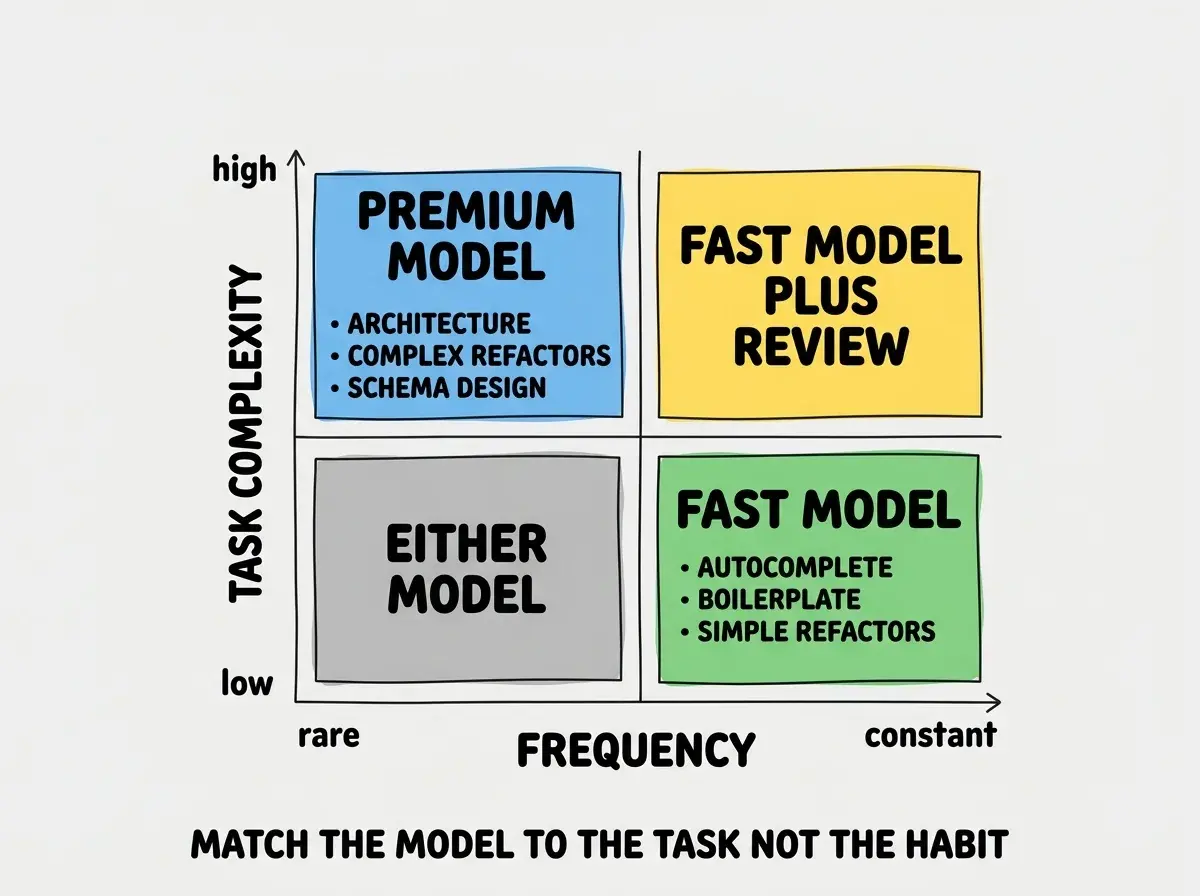
16. Use the fast model for autocomplete and small edits. Cursor lets you choose different models for different tasks. The fast model handles autocomplete, simple refactors, and boilerplate just as well as the premium model, and responds significantly faster. Save premium usage for tasks where reasoning quality matters.
17. Switch to a premium model for architecture decisions. When you are designing a database schema, planning a migration, or refactoring a complex module, the difference between models is dramatic. The premium model catches edge cases and suggests better abstractions. The extra latency is worth it for decisions that affect your entire codebase.
18. Watch your usage limits. Cursor Pro gives you a generous but finite number of premium requests per month. If you burn through them in week one on autocomplete, you will not have them for complex Composer sessions later. Use the fast model as your default and switch to premium deliberately, not habitually.
19. Bring your own API key for heavy months. Cursor supports your own API key for certain models. If you are in a sprint, adding your own key means you never hit a wall. The cost is $10 to $30 per month, far less than the lost productivity of waiting for your plan to reset.
Project Setup That Pays Off Immediately
20. Index your codebase before starting work. Cursor indexes your project to build context for the AI. For large projects, this takes a few minutes on the first run. Do not start prompting until indexing completes. The difference in suggestion quality between an indexed and unindexed project is stark.
21. Add a .cursorignore file for large repos. Create a .cursorignore file (similar to .gitignore) to exclude node_modules, build artifacts, and generated files from indexing. This makes indexing faster and prevents the AI from suggesting patterns from third-party code instead of your own.
22. Keep your project focused. If you open a monorepo with fifteen microservices, the AI's context gets diluted. Open just the service you are working on. Focused context produces focused suggestions.
23. Set up terminal integration. Cursor can read terminal output for debugging context. When your dev server throws an error, the AI sees the stack trace and suggests fixes without copy-pasting. Make sure your terminal runs inside Cursor, not in a separate app.
24. Use .cursor/rules for directory-specific conventions. Beyond the root .cursorrules, create .cursor/rules files in subdirectories for area-specific conventions. Your API routes might have different patterns than your UI components. Directory-level rules keep things precise.
25. Sync settings across machines. Cursor supports settings sync through your account. Your .cursorrules live in your repo, but editor preferences, model selections, and keybindings sync across devices.
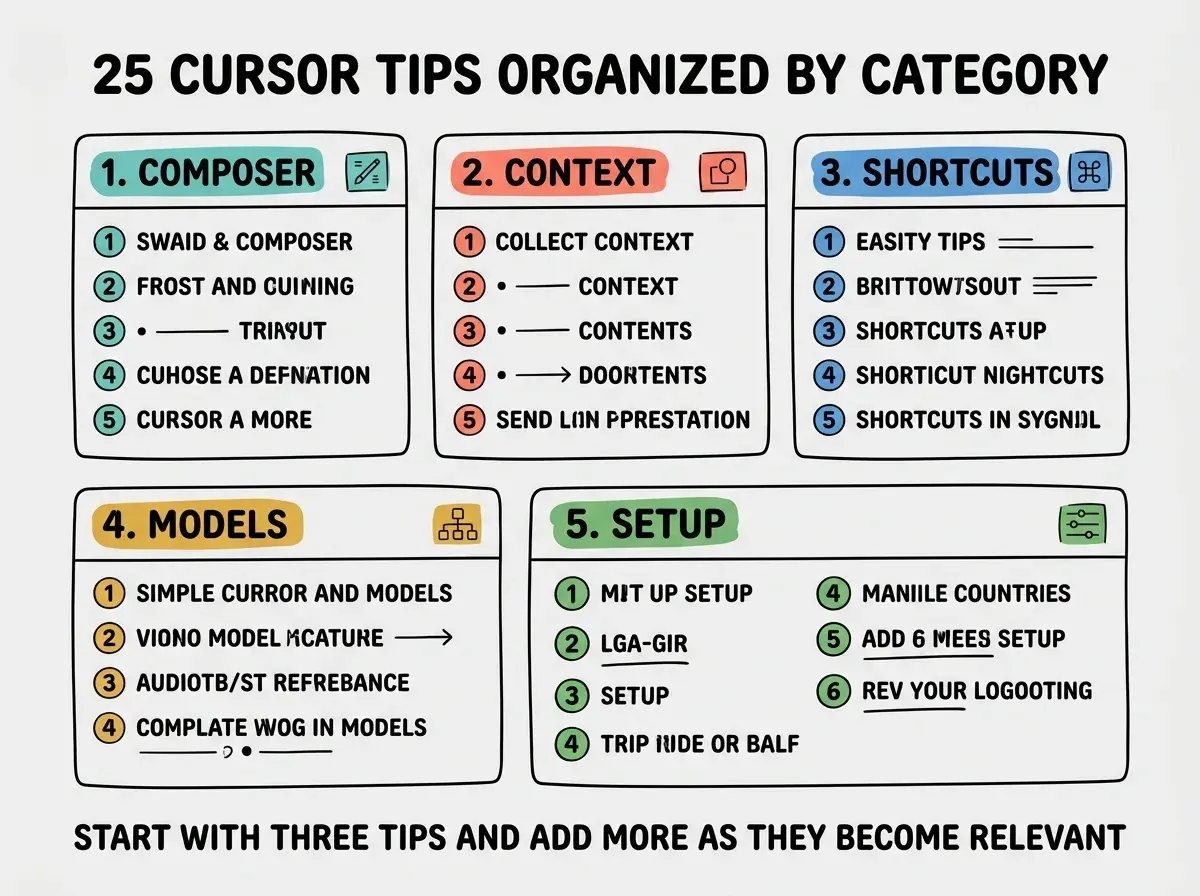
You do not need to implement all 25 tips today. Pick three that address your biggest friction points. For most people, that is creating a .cursorrules file (tip 6), learning Cmd+K versus Cmd+I (tips 11 and 13), and breaking Composer prompts into smaller pieces (tip 1). Master those three, then add more as they become relevant.
What This Means For You
These tips are not about memorizing shortcuts or following a checklist. They are about developing fluency with a tool you already use every day. The gap between a Cursor user and a Cursor power user is the same gap between someone who hunts through Photoshop menus and someone who works entirely from the keyboard. The tool is identical. The throughput is not.
Start with the complete setup and feature walkthrough before diving into power-user tips.
Read the complete guide- If you are a senior developer: The context management tips (6 through 10) will have the biggest impact. You already understand your codebase deeply. Teaching Cursor to understand it too, through .cursorrules and @ mentions, means the AI generates code that fits your architecture instead of fighting it.
- If you are an indie hacker shipping fast: The Composer workflow tips (1 through 5) are your priority. Breaking features into sequential, reviewable prompts and rolling back aggressively keeps velocity high without accumulating technical debt.
The best time to learn these was when you first installed Cursor. The second best time is right now. Pick three tips, use them for a week, and notice how much less friction you feel. Then pick three more.
Cursor tips only go so far. The real multiplier is learning to write prompts that produce working code on the first try.
Read the prompt guide