Cursor 3.7, released June 5, extended Design Mode with multi-element selection and a persistent voice mic that stays active while an agent is writing code. You no longer need to write text descriptions of which UI element to change or wait for one agent run to finish before queueing the next. You click the element, select multiple at once if needed, and voice-narrate the next edit while the first is still in progress.
For vibecoders who spend significant time on frontend UI, this changes the mechanics of iteration. The friction that remained after Design Mode launched in April was the serial nature of the loop: click, describe, wait, click again. The June 5 update removes the wait from that sequence.
Why Does Writing Text Descriptions Slow Down Frontend UI Work?
There is a translation cost hidden inside every text-based agent prompt for UI changes. You look at the screen, notice a problem, and then convert that visual observation into words precise enough for the agent to find the correct element and understand what to fix. For components without obvious text labels, or when you are comparing alignment across two elements, that translation step is surprisingly error-prone. The agent edits the wrong element, or interprets "the left card" as the wrong component, and you spend two correction rounds on something you saw clearly in two seconds.
Design Mode, introduced in Cursor 3 (April 2, 2026), addressed the identification problem directly. When you activate it with Cmd+Shift+D inside the Agents Window, a browser overlay appears over your running app. You click an element and describe what you want changed. Cursor passes the agent the element's HTML, applied CSS, and visual bounding box. The agent no longer has to search for what you mean; it receives the actual element.
Cursor Design Mode (Cmd+Shift+D in the Agents Window browser) eliminates the element-identification problem in UI iteration. When you click an element, the agent receives its HTML, CSS, and visual bounding box as context. Cursor 3.7 extends this with multi-element selection via Shift+click and a persistent voice mic that lets you queue the next edit before the current one finishes. Enable it in any session using the integrated Cursor browser or a canvas surface.
The limitation at the April launch was that the interaction was single-element and serial. You clicked one element, submitted a prompt, and waited. That cycle is better than text-only prompting, but the pause between each agent run still creates a rhythm that feels slow once you have several changes queued in your head.
What Did Cursor 3.7 Add to Design Mode?
The June 5 release shipped three specific improvements. Multi-element selection lets you Shift+click or Shift+drag across two or more elements at once. Cursor passes the full context of every selected element to the agent, including the visual relationship between them on the page. A persistent voice mic keeps the microphone overlay active while the agent is running, so you can narrate the next change before the current one finishes. Design Mode also extends to canvases in 3.7, so point-and-describe editing is available on canvas-based dashboards and internal tools, not only in the integrated browser.
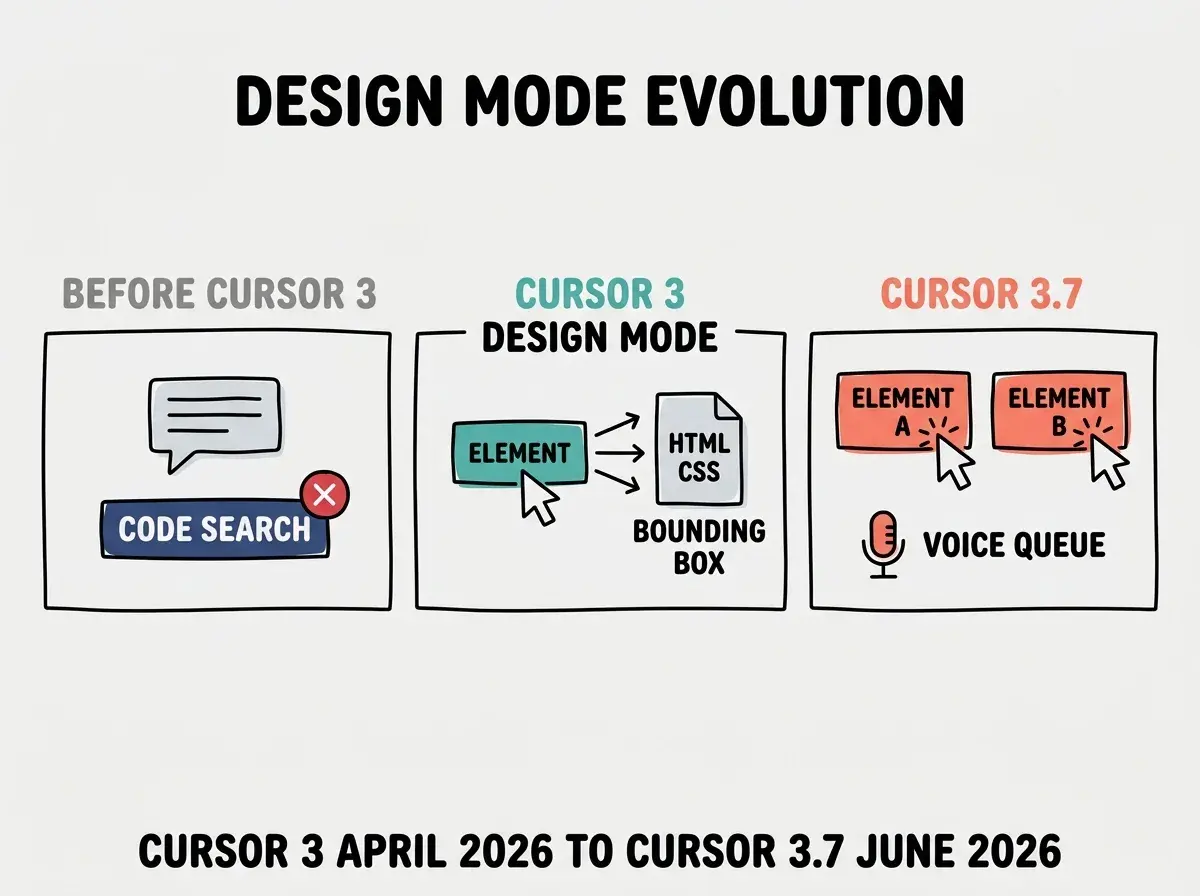
Multi-element selection has a clear payoff in alignment and consistency work. Before 3.7, making one card component match another required you to describe both cards in words and ask the agent to apply styles from one to the other. With Shift+click, you select both cards and say "make the left one match the right one." The agent receives the actual HTML and CSS of both, and can diff them directly rather than searching based on your description.
How Does the Persistent Voice Mic Change the Iteration Loop?
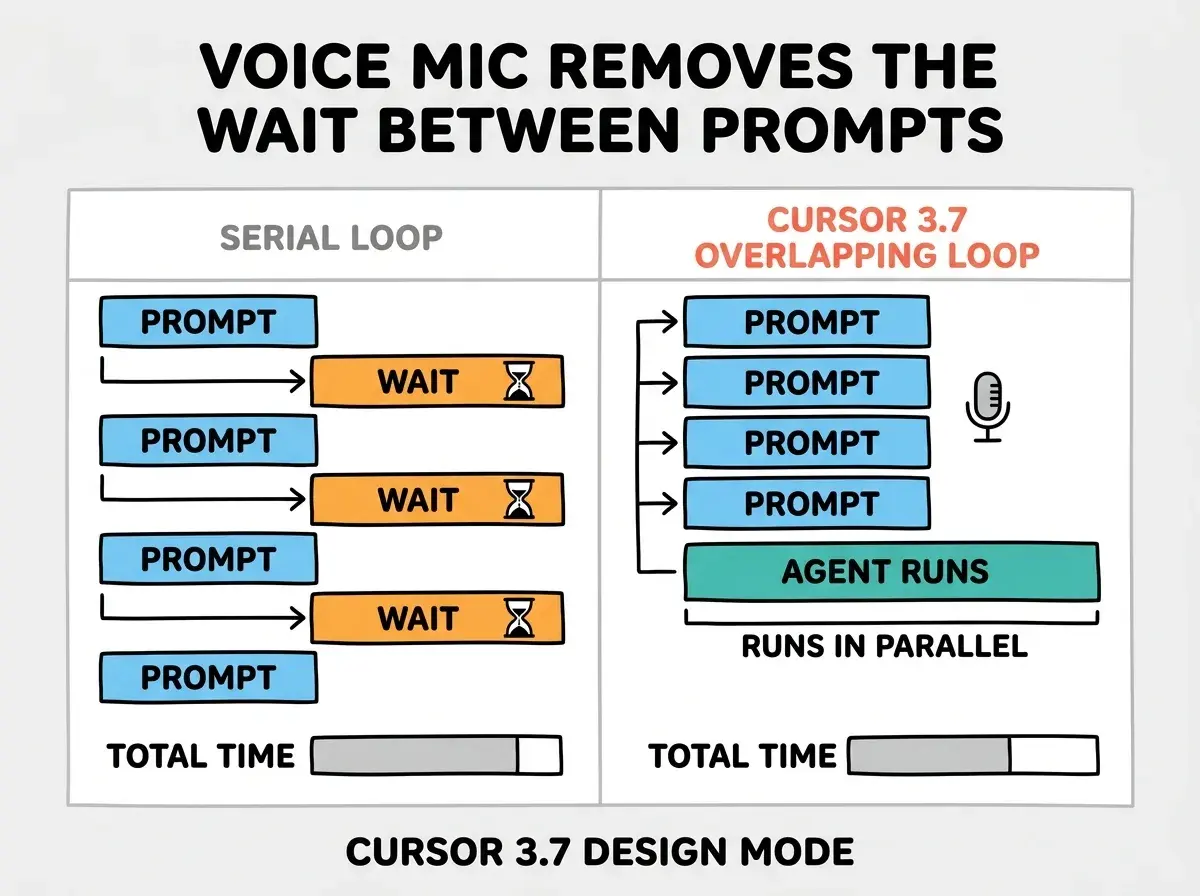
The voice mic is the change most people will feel most in daily use. In prior Design Mode versions, the overlay deactivated once you submitted a prompt. The mic was off during agent execution. You watched the agent work, waited for completion, then reactivated Design Mode for the next change.
The Vibe Coder Blog tracks AI coding tool updates focused on what actually changes your workflow.
Browse All PostsWith Cursor 3.7, the mic stays live throughout the agent run. You can narrate the next change while the agent is writing code for the previous one. For a session with five sequential UI changes, this means five agent runs can overlap with their instruction phases rather than running strictly in series. The elapsed time from first prompt to last change implemented drops in proportion to how many changes you had queued.
The voice input is usable with approximate language. "Make the heading a bit smaller, maybe half size" or "add more space below the nav" produce reasonable edits without needing exact CSS values. The agent infers from context. Precision matters less because the agent is also receiving the element's current CSS, so it has a baseline from which to interpret "smaller" or "more space."
The canvas extension is smaller but resolves a specific gap. Cursor canvases are interactive surfaces where agents can build dashboards, planners, and internal tools. Before 3.7, editing components on a canvas meant text prompting in chat. Now you can click on a rendered canvas component and describe what to change, the same way you would in the browser.
Expecting Design Mode to work everywhere in Cursor. It activates only over the integrated browser or canvas surfaces, not in standard chat or for backend code edits. The voice mic and multi-element selection are both Design Mode features, so they apply to rendered UI elements only. For non-visual code changes, you are still working with text prompts in the agent chat pane.
The 3.7 changelog entry also notes a context usage report now available as a canvas artifact. Agents can generate a breakdown of where tokens are going across the session: system prompt, tool definitions, rules, skills, and conversation history. If your sessions are slowing down mid-run, this report tells you which component is consuming the most context budget, which is useful for trimming long-running agent sessions before they hit context limits.
What Does This Mean for Vibecoders Building Frontend Apps?
The workflow changes break down by task type.
Alignment and consistency work benefits most from multi-element selection. If your build includes multiple card components, repeated navigation items, or a design system with variants that should stay consistent, Shift+clicking two elements and saying "match these" is meaningfully faster than describing both in text.
Long iteration sessions compress when you can queue three or four changes while an agent is still running. If you are doing an afternoon of frontend polish, the voice mic turns the session into something closer to real-time direction than request-and-wait task execution.
Canvas-based tools are now first-class surfaces for Design Mode. Teams building internal dashboards or workflow tools on Cursor canvases can edit those surfaces visually rather than through text prompts.
For backend logic, API work, or non-visual code, none of these features apply. Design Mode's scope is the rendered UI. But frontend iteration is frequently where vibecoding feedback loops are longest, and the April introduction followed by the June 5 improvements represent a sustained push to compress that specific cycle.
The Vibe Coder Blog publishes focused analysis for builders who ship software with AI.
Read More