Cursor 3.9 shipped on June 22, 2026 with a change that addresses a growing friction point: as Cursor's extension ecosystem has expanded to include plugins, skills, and MCPs, managing all of them was fragmented across config files and separate settings panels. The new Customize page brings every extension type into one unified interface, adds team leaderboards so you can see what's popular across your org, and opens the team marketplace to repositories hosted on GitLab, BitBucket, and Azure DevOps.
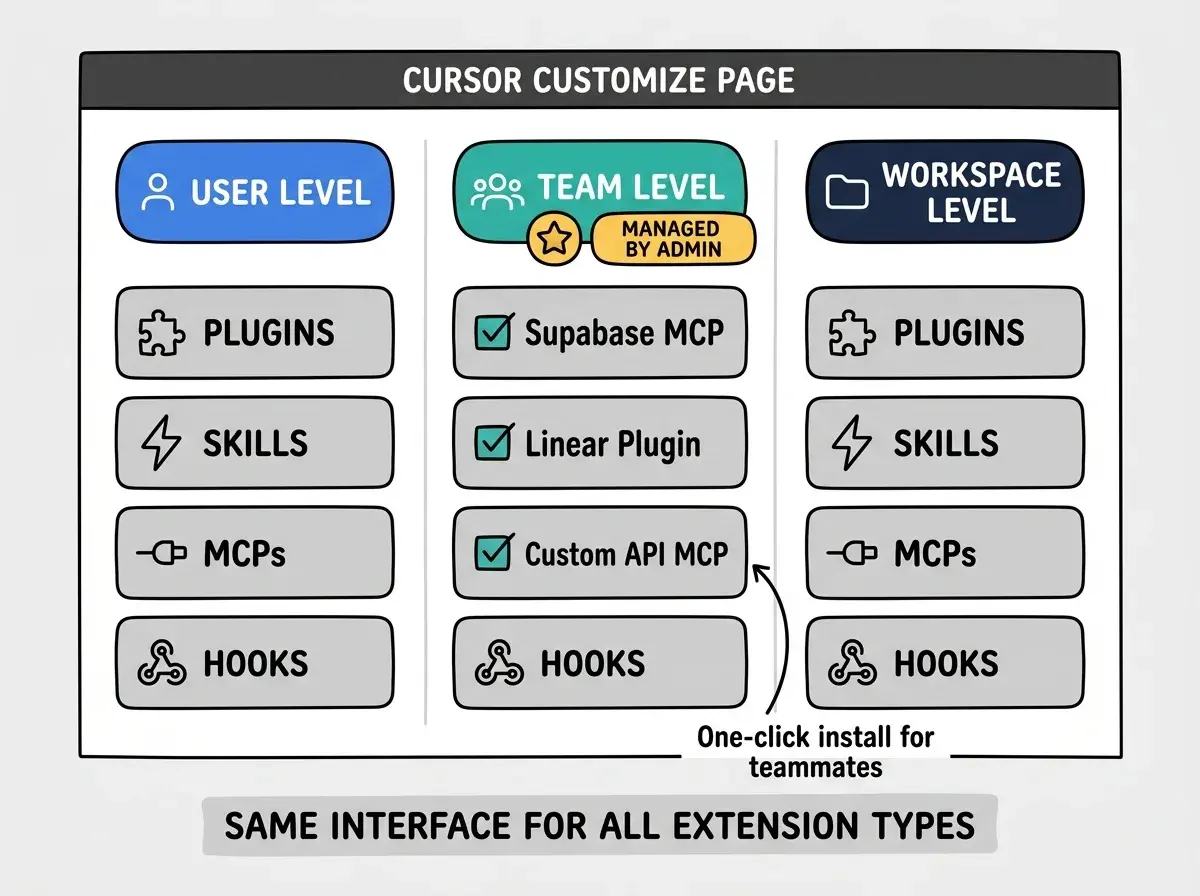
If your team uses multiple MCPs (Supabase, Linear, Notion, custom internal tools) and each developer configures them manually, the Customize page changes this. A team admin can now manage which MCPs, plugins, and skills are available at the team level. New teammates open the Customize tab, see what the team uses, and install it in one click instead of editing JSON config files. Head to the Customize tab in Cursor 3.9 and check whether any popular MCPs on your team leaderboard are missing from your setup.
Cursor launched its plugin marketplace in February 2026, then added over 30 plugins from partners including Atlassian, GitLab, Datadog, and Hugging Face in March 2026. Skills for custom slash commands launched earlier this year. MCPs have been available since Cursor added Model Context Protocol support. Each of these arrived as a separate system with its own configuration. Cursor 3.9 is the first release that treats all three as the same category of thing: tools that extend what your agent can do, managed together.
What does the Customize page actually manage
The Customize page is a single tab that covers six extension types: plugins, skills, MCPs, subagents, rules, commands, and hooks. For each type, you can manage configuration at three scopes: your personal user account, your entire team, or a specific workspace. Switching between scopes shows you what is enabled at that level without requiring separate menus or config file edits.
The scope system matters for teams. If your organization standardizes on a specific MCP for your internal API (say, a custom tool that queries your production database schema), a team admin sets it at the team scope. Every developer on that team then sees it in their Customize tab and can add it in one click. When a new developer joins, they do not need to ask which MCPs to install or how to configure them. They open the Customize tab, look at the team section, and see exactly what the rest of the org uses.
Cursor also ships a team leaderboard as part of the Customize page. The leaderboard shows the most popular plugins, skills, and MCPs among your teammates, ranked by adoption. If half your team is using a particular Linear MCP and you are not, it shows up at the top. You can install it with one click directly from the leaderboard view. For distributed teams where individuals discover tools independently, the leaderboard surfaces what is actually working in practice rather than what was agreed on at some point in a Notion doc.
How does this change the MCP onboarding experience for teams
Before Cursor 3.9, adding an MCP to a Cursor instance required editing a configuration file manually. The exact process varied slightly by operating system and Cursor version, but the common path involved locating a JSON config file, adding an entry with the correct server name, command, and arguments, saving the file, and restarting Cursor. For developers who found the right documentation and had the right permissions, this took five to ten minutes. For developers unfamiliar with MCP configuration, it often meant a Slack message to someone who had already done it.
The Customize page replaces that process with a browser-style extension management interface. Finding an MCP, seeing what it does, and enabling it requires no file editing. For custom internal MCPs that a team has built (common for vibecoder teams that have wrapped their own APIs in MCP tools), the team marketplace lets you host the configuration in a repository and distribute it to the team from there.
Which VCS platforms can now host team plugin repositories
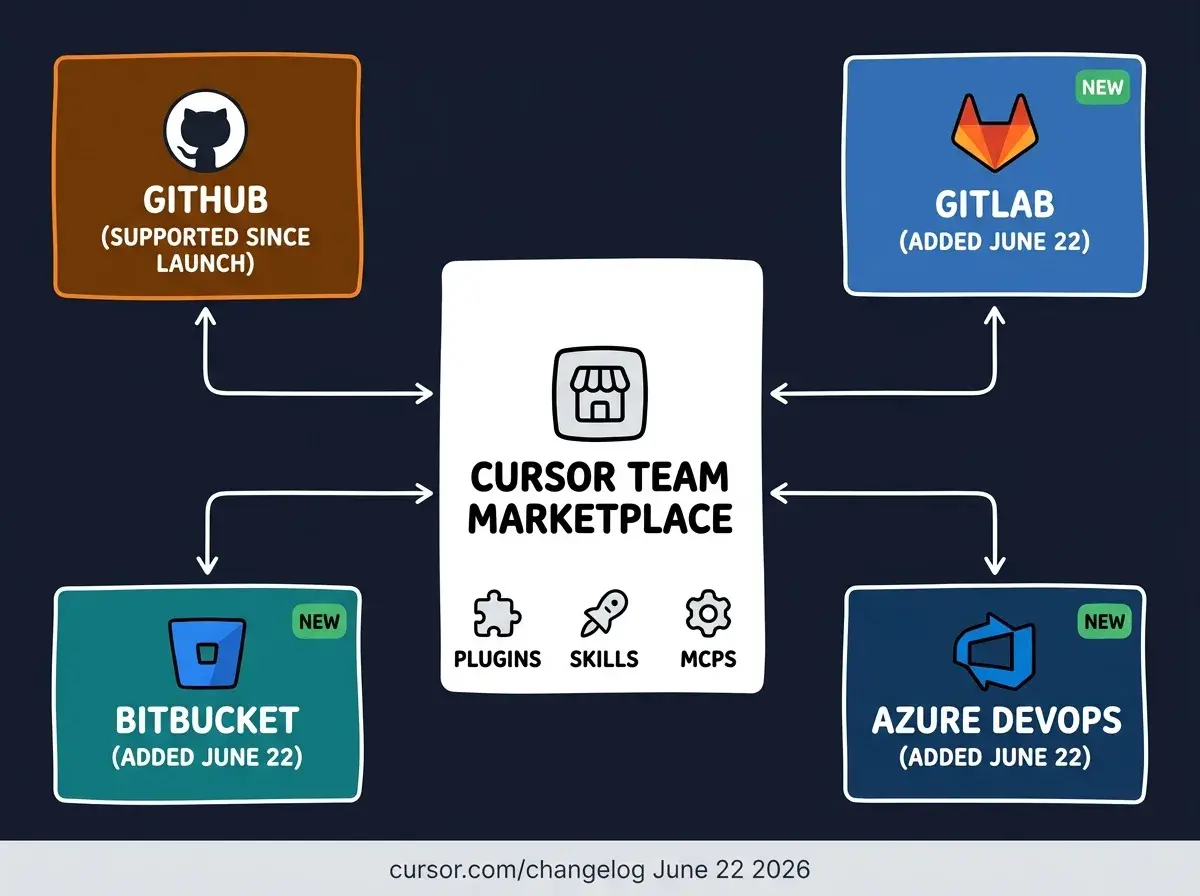
Before Cursor 3.9, the team marketplace only supported plugin repositories hosted on GitHub. This was a limitation for organizations that use GitLab, BitBucket, or Azure DevOps as their primary VCS, since their internal plugin repositories could not be imported into the marketplace without first mirroring to GitHub.
The June 22 update adds import support for all three platforms. A team admin can now point the marketplace at a GitLab group, a BitBucket workspace, or an Azure DevOps organization to pull plugin and skill repositories and distribute them to the team. For enterprise teams already standardized on one of these platforms, this removes a practical barrier that was blocking internal plugin distribution.
The Vibe Coder Blog covers capability shifts in AI coding tools focused on what vibecoders can act on this week.
Browse All PostsWhat are prebuilt canvases and which plugins include them
Cursor 3.9 adds support for plugins that ship with prebuilt canvases. A prebuilt canvas is a shared workspace template that a plugin provides for a specific workflow. When you install a plugin that includes a canvas, you get a ready-made Cursor canvas configured for that plugin's use case, which your team can open and reuse without rebuilding from scratch.
Two canvases shipped with the initial release. The Hex Canvas, from the data analytics tool Hex, sets up a workspace for building data visualizations. You open it, connect your Hex workspace, and start querying and charting data from inside Cursor without switching context. The Atlassian Canvas provides a real-time view of Jira issues, Confluence documents, and project status from inside Cursor. For teams that manage work in Jira and write code in Cursor, the Atlassian Canvas removes the context switch of checking issue status in a browser tab while working in the editor.
Prebuilt canvases are significant because they represent a new surface area for what plugins can provide. Until now, a plugin added capabilities to the agent (tools it could call, context it could read). A prebuilt canvas adds a visual workspace to the editor alongside those agent capabilities. Plugin developers can now ship both a set of agent tools and a human-facing panel as part of the same plugin installation.
The team leaderboard shows what is most popular across your team, but popular is not the same as appropriate for your project. Before installing an MCP from the leaderboard, check what access it requests. An MCP that reads your production database schema has different security implications than one that reads your Linear tickets. Review the permissions each MCP requests before enabling it at the team or workspace level, especially for MCPs that access infrastructure or credentials. The Customize page makes installation easy; that ease applies to both useful extensions and overly permissive ones.
How should teams migrate to the Customize page today
The most useful first step is an audit. Open the Customize tab in Cursor 3.9 (it replaces the earlier Extensions panel) and look at what your team has installed across different scopes. Many teams have MCPs configured at the workspace level in individual developer machines that were never standardized. The team view in the Customize tab shows you what is actually in use across your org.
For teams that have been configuring MCPs manually via JSON files, migrate the most commonly used MCPs to the team scope through the Customize interface. Set the ones everyone should use as team-level defaults. Individual developers can still add personal MCPs at the user scope without affecting the team configuration.
For non-GitHub teams migrating from manual plugin distribution, the GitLab, BitBucket, or Azure DevOps marketplace import is the direct upgrade path. Point the import at your existing internal plugin repository and the Customize page will make your plugins available team-wide without any file distribution.
Solo vibecoders without a team benefit primarily from the leaderboard and discovery. Check the popular MCPs in your Customize tab. If you have not set up a Supabase MCP, a GitHub MCP, or a custom documentation MCP and those are consistently popular among Cursor users in your niche, the leaderboard is a faster way to discover them than browsing community posts.
The Cursor 3.9 changelog covers the full list of changes from the June 22 release. For teams exploring the team marketplace import for GitLab or Azure DevOps repositories, the Cursor plugin documentation has the current format for plugin manifests and how to structure a repository for marketplace import.
The Vibe Coder Blog tracks AI coding tool capability shifts focused on what builders can act on today.
Read More Posts