Cursor 3.6, released May 29, 2026, ships auto-review mode, a new run setting that sits between constant approval prompts and full yolo mode. Rather than stopping to ask you about every shell command, the new mode routes each tool call through a three-tier trust system with a classifier subagent making the safety call on your behalf.
That changes the math on long agentic sessions. Before 3.6, you either accepted 30 or 40 approval interrupts per session or enabled yolo mode and gave the agent unconditional access to your system. Auto-review creates a third path: let the classifier decide, step in only when it cannot, and get a summary of what it allowed.
Why Did the Old Approval Model Break Flow So Badly
The friction was compounding. Every approval prompt required you to context-switch back to the agent window, read what it wanted to do, make a judgment call, and then try to re-enter the mental state you had before the interrupt. For a large refactor or a debugging session involving file deletes, renames, and test runs, the approval count could hit 40 or 50 in a single afternoon.
Developers worked around this by enabling yolo mode, which instructed the agent to run every terminal command without asking. Yolo mode solved the interruption problem by removing all safety controls. It worked well in sandboxed or throwaway environments, but was not a reasonable default for shared repositories, production codebases, or any project with external side effects like API calls or file system writes to shared directories.
The gap between "ask for every single thing" and "do everything without asking" had no middle option until 3.6.
Cursor 3.6 introduces three tiers of trust for tool calls. Allowlisted calls (commands you have pre-approved) run immediately with no interrupt. Sandboxable calls run inside Cursor's cloud sandbox where they cannot affect your host system. Everything else goes to a classifier subagent that picks one of three outcomes: allow the call, try a different approach that avoids the risky action, or surface it for your approval. You configure all of this at Settings > Cursor Settings > Agents > Run Mode.
The practical effect is that the classifier handles the judgment calls your past self would have had to make manually. You pre-approve the commands you trust, the sandbox catches things that need isolation, and the classifier acts as a policy agent for the rest.
How Does the Classifier Subagent Decide What to Allow
The classifier receives the proposed tool call as input and runs a policy check against three possible outputs. The first outcome is approval: the classifier determines the call is safe given the context and lets it proceed. The second is redirection: the classifier identifies a safer way to accomplish the same goal and instructs the main agent to try that instead. The third is escalation: the classifier cannot confidently evaluate the call and passes it to you.
You can steer the classifier by writing custom instructions. If your project never makes external API calls that modify production data, you can tell the classifier to treat all fetch calls as safe. If you want the classifier to be more conservative about file deletions in specific directories, you can add that as a constraint. The classifier instructions are a short natural-language policy document, not a config file.
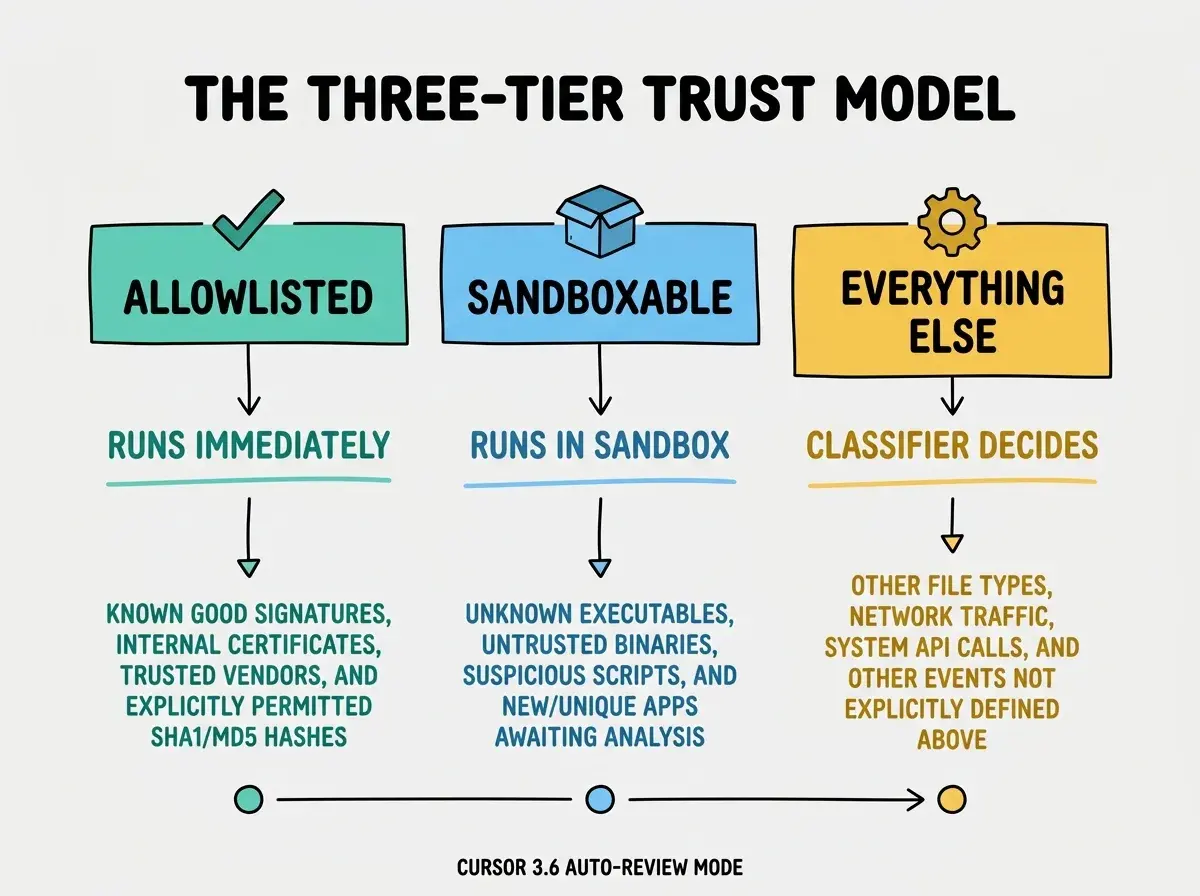
This design matters because the classifier overhead only applies to calls that did not fit a cleaner category. In a typical session, the majority of shell commands are allowlisted after a few runs. The classifier sees the edge cases, which are exactly the cases where a human judgment call adds the most value.
What Does a Session Look Like in Auto-Review Mode
In practice, you start an agentic session the same way you always did: describe the task, set the scope. The difference appears in what you do not see. File reads, test runs, and Git operations you have pre-approved no longer surface any prompt. The agent keeps moving. Commands that touch external services or shared state go to the classifier, which either clears them silently or flags a brief notification.
The Agents Window in 3.6 received quality-of-life updates to support this workflow. Full-screen mode expands the right panel to fill your entire working area, replacing the agent chat with a floating prompt bar at the bottom of the screen. Compact chat responses reduce the visual noise from routine tool call confirmations. You can toggle full screen with Cmd/Ctrl+Shift+M or from the command palette.
The result is that your attention is drawn back to the session only when the session genuinely needs you, rather than every time the agent wants to run a command.
The Vibe Coder Blog covers practical AI development for builders who ship.
Read MoreWhat Else Did Cursor 3.6 Ship for Teams
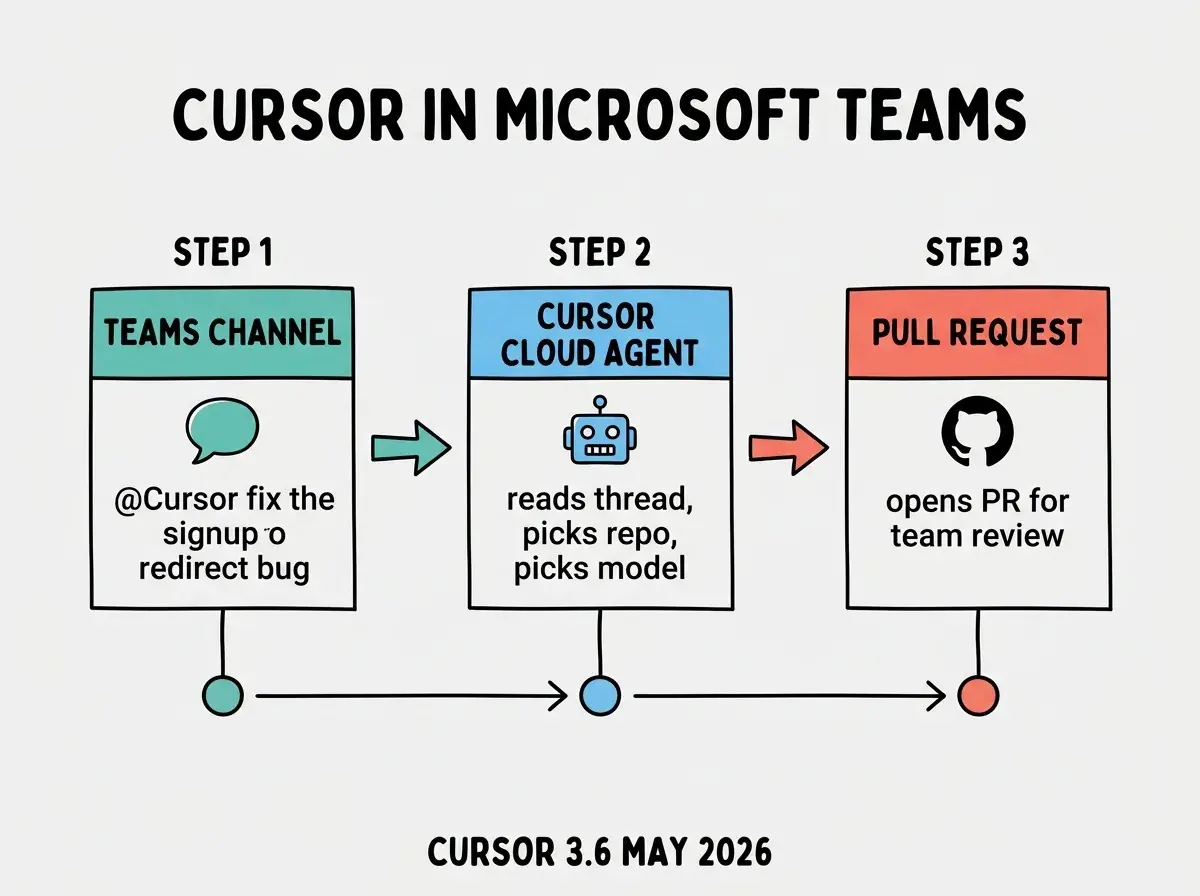
The same 3.6 release includes a Microsoft Teams integration that extends Cursor's cloud agents into chat. You can mention @Cursor in any Teams channel, describe a task in natural language, and Cursor automatically picks the right repository and model based on your prompt and your team's recent agent activity. It reads the full thread for context before implementing a solution and opens a pull request that any team member can review.
This is a meaningful workflow change for teams that use Teams as a coordination layer. Rather than switching to the IDE to kick off an agent session, a product manager or QA engineer can delegate a coding task from inside the channel where the request originated. The PR lands in GitHub; the conversation stays in Teams.
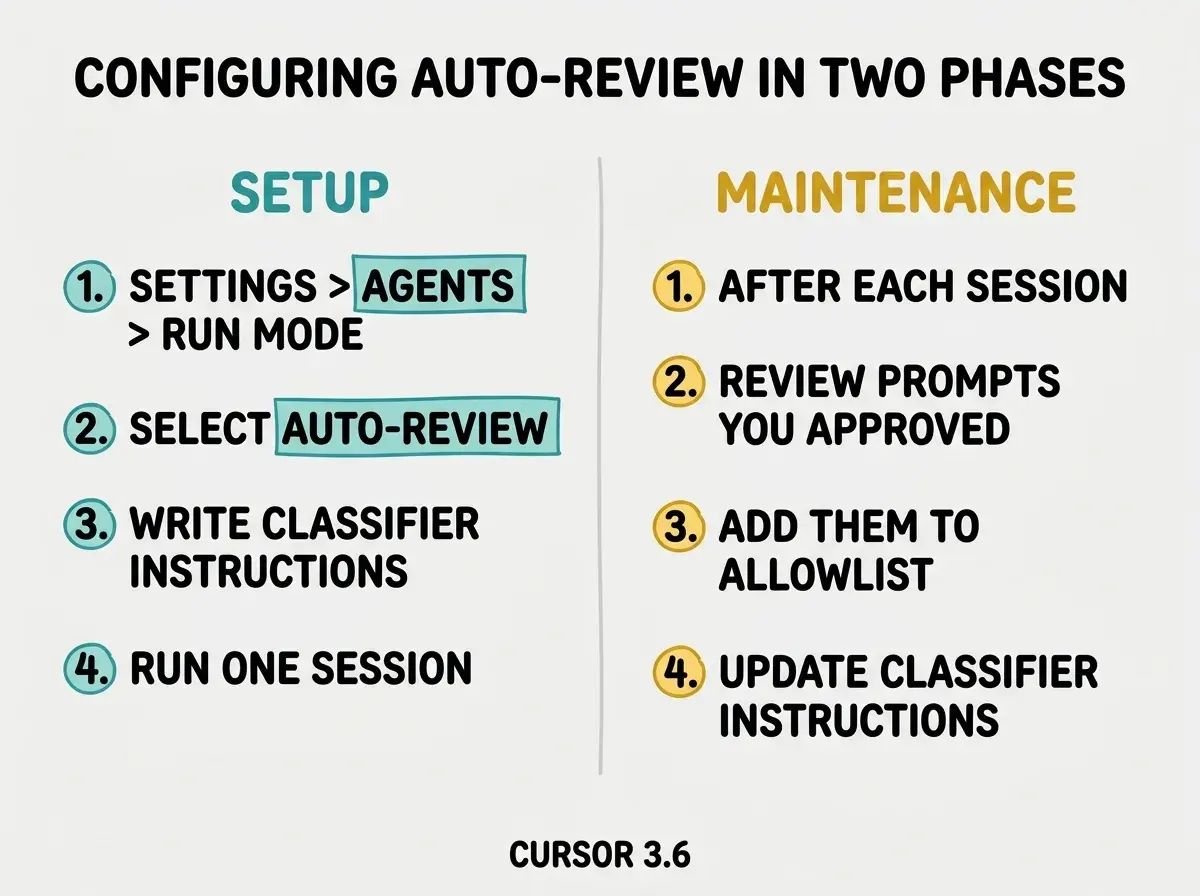
The most common error when setting up auto-review is treating the allowlist as a one-time setup task. The allowlist should grow with your project. Commands that were unfamiliar in week one are routine by week three. If you do not update the allowlist as your workflow stabilizes, the classifier sees a higher volume of edge-case calls than it should, which slows the session down by surfacing decisions you would have pre-approved. Review your allowlist each time you start a genuinely new category of agent work.
How Should Vibecoders Configure Auto-Review Today
Open Settings > Cursor Settings > Agents > Run Mode and switch from your current setting (Normal or Yolo) to Auto-review. The first few sessions will surface more classifier prompts than usual because your allowlist is empty. Approve the routine commands and they will not appear again.
Write a short classifier instruction document to pre-encode your project's risk profile. A three-line instruction that says "this project does not modify production databases, external API calls to our staging API are safe, and file deletions in /tmp are always safe" is enough to reduce classifier escalations by a substantial margin in most projects.
The Microsoft Teams integration requires your workspace admin to connect Cursor to your Teams environment. Once connected, no developer configuration is needed. The @Cursor mention works from any channel the integration has been added to.
Both features are available now in Cursor 3.6 on Pro, Teams, and Enterprise plans. The auto-review classifier runs as a Cursor-managed subagent; it does not consume tokens from your main model context, so it does not affect session cost in the way that a larger context window would.
The Vibe Coder Blog publishes analysis for builders who ship with AI.
Browse All Posts