Cursor 3.8 shipped on June 18, 2026 with two changes to Cursor Automations that directly address the two reasons most vibecoders have not set up always-on agents yet: configuration is too manual, and it is hard to trust the output without seeing it run. The /automate skill lets you describe what you want in plain language and Cursor configures the automation; computer use lets the cloud agent capture screenshots and record video of its own work so you can verify it without running the change yourself.
If you have been putting off setting up a Cursor Automation because configuring triggers and instructions felt fiddly, /automate removes that friction. Open any Cursor agent session, type /automate, describe the task in plain English, and Cursor generates the full automation configuration: trigger, instructions, and tools. Computer use is enabled by default on every new automation from June 18 forward. Tell the agent to include a demo in its instructions and it will produce a video or screenshot automatically.
Cursor Automations launched in March 2026 as a way to build always-on agents that react to events from GitHub, Linear, Slack, PagerDuty, and custom webhooks. When a trigger fires, Cursor spins up a cloud sandbox, runs the agent with the instructions and tools you specified, and opens a PR or posts a result. The May 2026 update added multiple repo support and brought automations into the Agents window. The June 18 update ships the two features that make the difference between a capability that exists and a capability that people actually use.
What does the /automate skill actually do
The /automate skill turns the automation setup process from a configuration form into a conversation. Before this update, creating a new automation meant going to cursor.com/automations, selecting a trigger from a dropdown, writing instructions manually, and choosing MCPs and models from a list. That process worked for power users who already understood how automations ran, but it created enough friction that most vibecoders never got past the "I should set this up someday" stage.
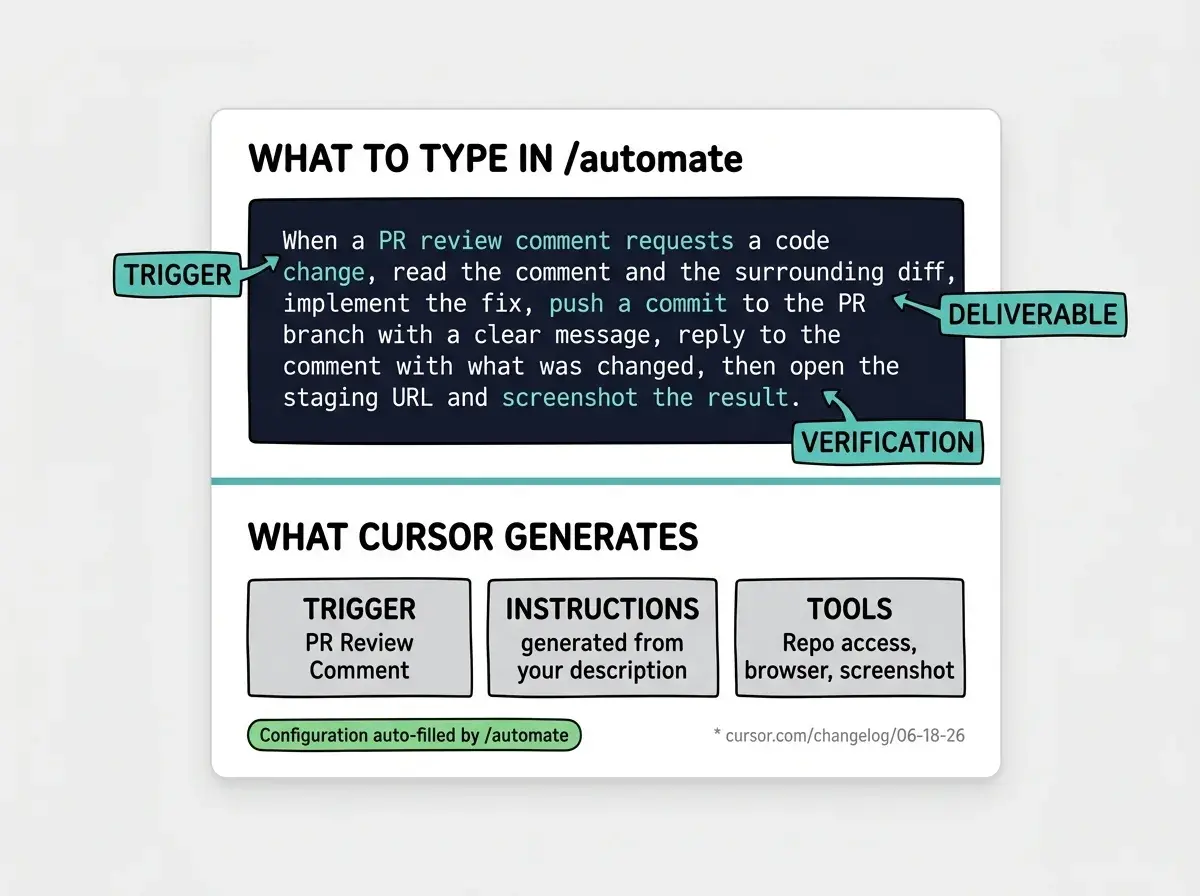
With /automate, you describe the task to the agent exactly as you would in a chat: "When a PR review comment asks for a code change on any PR in this repo, read the comment, implement the fix in a new commit, and push to the same branch." Cursor parses that description, identifies the right trigger (PR review comment), writes the instructions, selects relevant tools, and creates the automation. You review the configuration, make adjustments if needed, and enable it. The whole setup takes a few minutes instead of a session of digging through documentation.
The underlying agent also has access to a memory tool, which means the automation can learn from past runs. If the agent consistently makes a specific kind of mistake, you can leave feedback after a run and the agent incorporates it into subsequent executions. Automations that have been running for a few weeks with active feedback tend to produce tighter output than fresh automations on the first run.
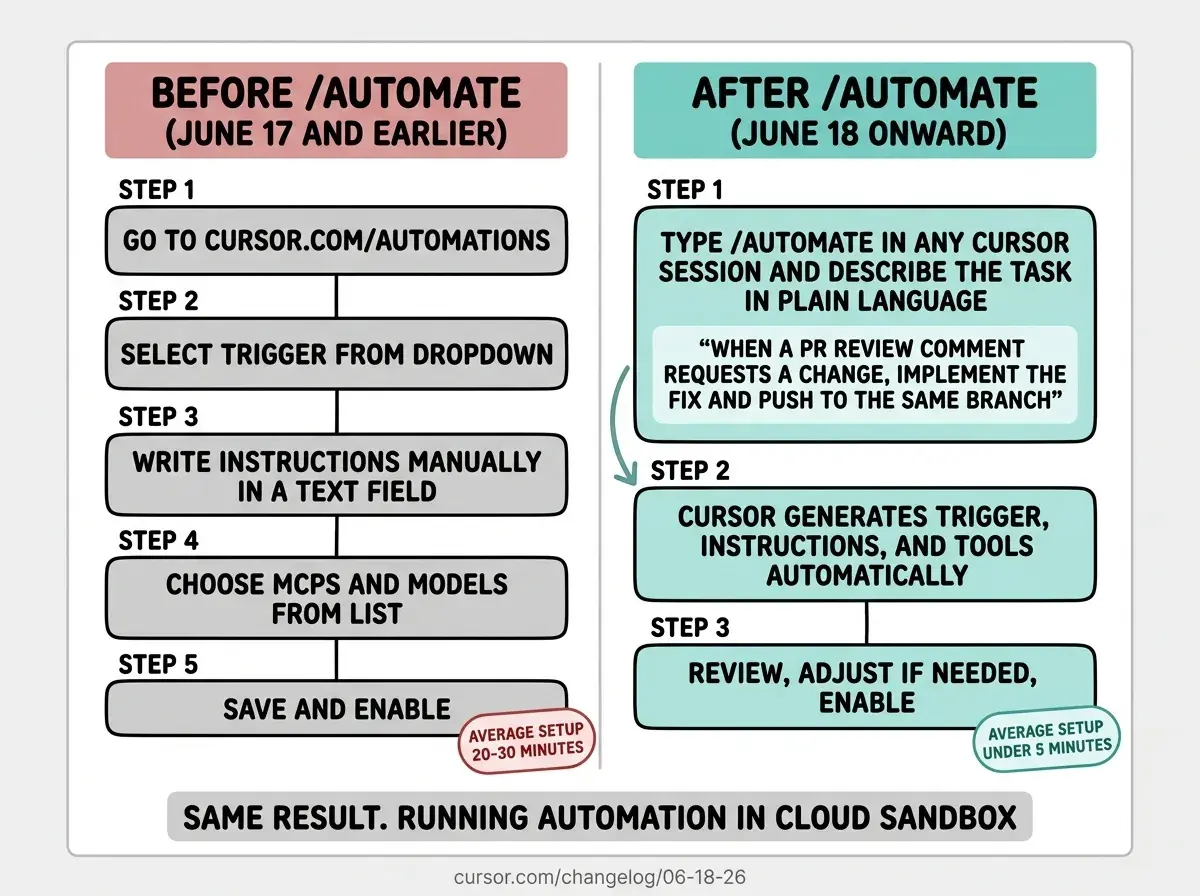
The practical implication is that you can now describe an automation mid-session, immediately after you have figured out what you want it to do, rather than having to remember to configure it separately later. That immediacy matters. Most automation ideas come up while you are already working in a session. /automate lets you capture the idea and set up the automation before the context is gone.
How does computer use change what cloud agents can produce
Cloud agents running in Cursor Automations have, since the original launch, been able to write code, run tests, open pull requests, and post comments. What they could not do before June 18 is operate a graphical interface: open a browser, interact with a deployed app, take a screenshot of what they see, or record a video of a workflow running end to end.
Computer use changes this. When a Cursor Automation cloud agent now executes, it has access to a full desktop environment inside its cloud sandbox. It can open a browser, navigate to your deployed staging URL, click through a user flow, and capture a screenshot or screen recording as an artifact. That artifact is included in the automation's output alongside the PR or comment it produces.
The most immediate use case is validation. If you have an automation that responds to a failed GitHub Actions run by diagnosing and fixing the issue, computer use lets the agent open the app after applying the fix, verify the affected page or API endpoint is working, and attach a screenshot as evidence before it opens the pull request. You can review the PR knowing the agent already ran a visual check, not just a unit test.
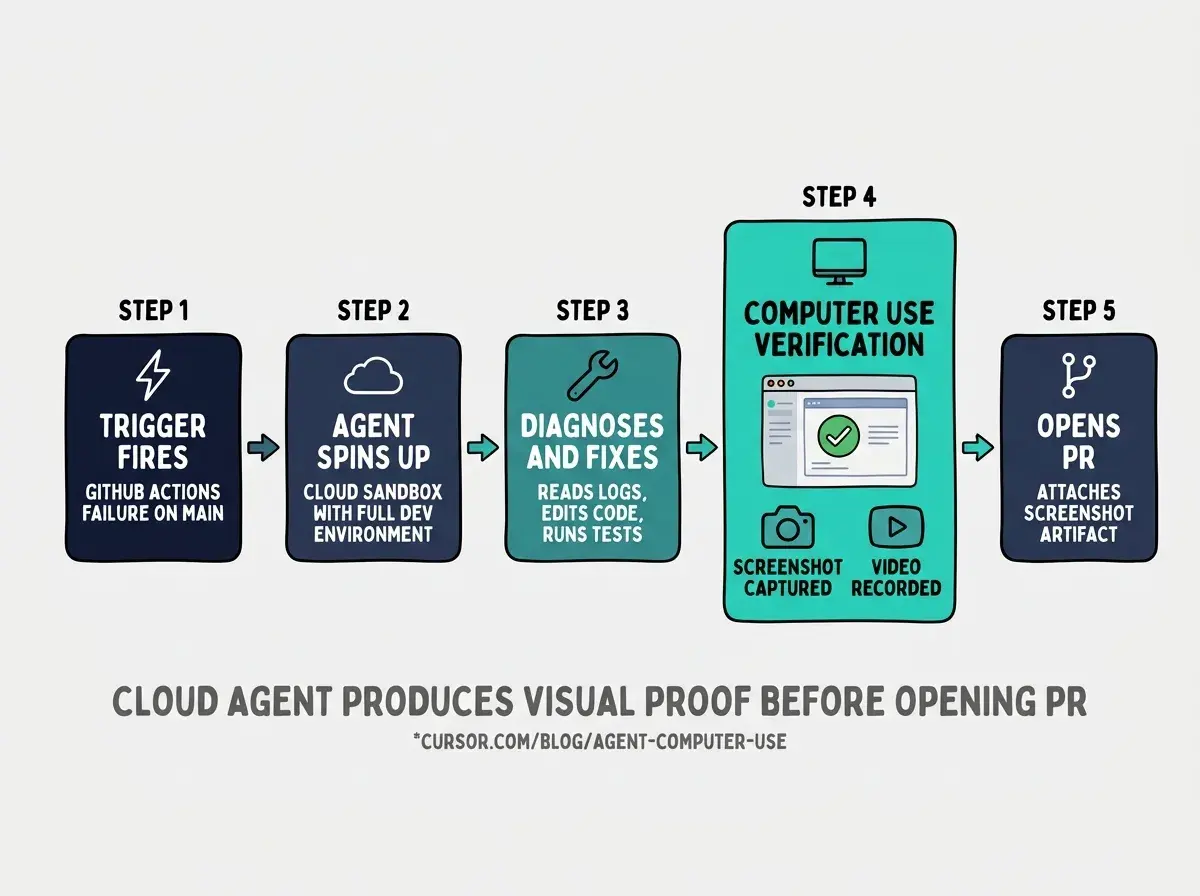
Cursor noted in the original cloud agents computer use announcement that internally, roughly 35 percent of Cursor's own pull requests are handled by cloud agents. Computer use is what makes that proportion credible to a human reviewer: the agent does not just assert the change works, it shows you what the change looks like running. For vibecoders shipping fast, that shift from "trust the tests" to "see the behavior" is a meaningful change in how you review automated work.
Computer use is enabled by default for every automation created from June 18 onward. To use it, you simply include an instruction like "verify the change by opening the staging URL and screenshot the result" in your automation description. The agent handles the browser session inside the sandbox without any additional configuration.
The Vibe Coder Blog covers AI coding tool updates focused on what vibecoders need to act on this week.
Browse All PostsWhat GitHub and Slack triggers did the June 18 update add
Beyond /automate and computer use, the June 18 release added five new GitHub triggers and a Slack trigger. The new GitHub triggers are:
- Issue comment: fires when a comment is posted on a regular issue (not a PR)
- PR review comment: fires when an inline comment is left on a pull request diff
- PR review submitted: fires when a full PR review is submitted
- Review thread updated: fires when a review thread is marked resolved or unresolved
- PR synchronize: fires when new commits are pushed to an open PR
For Slack, you can now designate a specific emoji reaction as a trigger. React to any Slack message with that emoji and Cursor kicks off the associated automation. This means a teammate can tag a bug report or feature request in Slack and immediately hand it to an agent without leaving the channel.
These triggers cover the most common handoff points in a code review workflow. An automation triggered by PR review comment can respond to change requests automatically. One triggered by review thread resolved can verify the fix is in place and close related issues. One triggered by the Slack emoji can take a support ticket from Slack, open a GitHub issue, and assign it without a human touching the context switch.
The most common mistake with Cursor Automations is automating a task that requires judgment you have not yet codified. If your automation description is vague, like "handle PR review comments," the agent will interpret the instruction broadly and produce inconsistent results. The /automate skill helps here because it forces you to write a specific description to generate the configuration. A good description has a concrete trigger condition, a specific deliverable (a commit, a comment, a screenshot), and a quality bar the agent can check against. If you cannot write that description, the task is not ready to automate yet.
How should vibecoders start using Cursor Automations today
The lowest-risk entry point is an automation that responds to PR review comments requesting code changes. This is a well-scoped task: the trigger is specific (PR review comment), the deliverable is specific (a code fix pushed to the same PR branch), and you can verify the output before merging by reading the PR.
To set it up: open a Cursor session in the repo you want to target, type /automate, and describe: "When a PR review comment is left requesting a code change, read the full comment and the surrounding diff context, implement the requested change, push a commit to the PR branch with a message describing what changed, and add a reply to the comment saying the fix has been pushed." Cursor will generate the automation. Review the configuration, confirm the trigger and permissions, and enable it.
If you want to add computer use validation, extend the description: "After pushing the fix, open the staging URL and take a screenshot showing the affected component, then attach it to the reply." Cursor will include the screenshot step automatically.
For solo vibecoders without a team review workflow, the Slack emoji trigger is a practical starting point. Pick a task you regularly assign yourself in Slack (linking an issue, starting a research task, kicking off a code refactor) and create an automation for it. The next time you would have sent yourself a Slack message as a reminder, you react to the context message with the trigger emoji instead, and the automation starts.
The memory tool compounds over time. Every automation run that you provide feedback on teaches the agent what good output looks like in your codebase. A PR review comment automation that has processed 50 PRs with active feedback will handle edge cases more consistently than one running for the first time. Starting now, even with a narrow scope, builds that baseline.
The June 18 changelog entry and the Cursor Automations blog post cover additional detail on the trigger types, memory tool, and how to configure automations from templates at cursor.com/automations. The computer use announcement explains the sandbox environment and what artifacts agents can produce.
The Vibe Coder Blog tracks capability shifts in AI coding tools focused on what builders can act on today.
Read More Posts