Most AI coding features work one file at a time. You select some code, tell the AI what to change, and it edits that file. This is useful for small tasks, but real development rarely lives in a single file. Adding a feature usually means touching a route handler, a component, a type definition, maybe a test, maybe a migration. That is where Cursor's Composer mode becomes essential. It lets you describe a change once and have it applied across every file that needs to be touched.
I have been using Composer daily for months on production codebases, and the pattern that makes it reliable is not the prompting. It is the review workflow. The developers who treat Composer output as a first draft they inspect carefully ship faster and break less. The developers who hit "Accept All" without reading the diffs are the ones posting on Reddit about how AI broke their app.
This tutorial covers the Composer workflow I use every day: when to reach for it, how to scope it, how to review its output, and how to roll back when things go sideways.
Composer vs Inline Editing
Cursor gives you two distinct ways to make AI-assisted edits: inline editing (Cmd+K) and Composer. They solve different problems, and choosing the wrong one wastes time.
Inline editing with Cmd+K works on a single file. You highlight some code, press Cmd+K (or Ctrl+K on Windows/Linux), describe what you want changed, and Cursor modifies that selection. This is perfect for targeted, surgical changes. Refactoring a function signature. Converting a callback to async/await. Adding error handling to a try/catch block. The scope is small, the feedback is instant, and you can see exactly what changed.
Composer works across your entire project. You open it with Cmd+Shift+I, describe a change in natural language, and Cursor generates edits across as many files as needed. It can create new files, modify existing ones, and delete code that is no longer relevant. The scope is large, which is both its power and its risk.
Think of it like the difference between tuning a single instrument and conducting an orchestra. Cmd+K is you sitting down with the violin section and adjusting their part. Composer is you standing at the podium, giving instructions that every section of the orchestra executes simultaneously. The violin changes its melody, the bass adjusts its rhythm, the percussion shifts its timing, all coordinated from a single set of instructions. When it works, the result is a cohesive change that would have taken you twenty minutes of manual file-hopping. When it does not work, you get instruments playing in different keys.
The rule I follow is simple: if a change touches one file, use Cmd+K. If it touches two or more files, use Composer. If you are unsure, start with Cmd+K and escalate to Composer when you realize the change is bigger than you thought.
Scoping Composer to Specific Files
The biggest mistake people make with Composer is leaving the scope wide open. By default, Composer can see and modify anything in your project. This sounds powerful until it decides to "helpfully" refactor a utility function you did not ask it to touch, or updates an import path in a file you forgot existed.
You control scope by explicitly referencing files with the @ symbol. When you type @ in the Composer prompt, Cursor shows you a file picker. Select the specific files you want Composer to work with, and it will focus its attention there. This is not optional for production work. It is mandatory.
Here is the difference in practice. A wide-open prompt like "Add a loading state to the dashboard" gives Composer permission to touch anything. It might modify your layout component, your API route, your state management, and three components you did not expect. A scoped prompt like "Add a loading state to @components/Dashboard.tsx using the existing Spinner from @components/ui/Spinner.tsx and the loading flag from @hooks/useDashboardData.ts" tells Composer exactly which files to read and which to modify. The output is focused, predictable, and reviewable.
I scope every Composer prompt to five files or fewer. If a change genuinely requires touching more than five files, I break it into two or three Composer operations, each scoped tightly. This feels slower in the moment but saves significant time on review and debugging.
The Review Workflow
Composer does not apply changes automatically. It shows you a diff for every file it wants to modify, and you decide what to accept. This review step is the most important part of the entire workflow. Skip it and you are gambling. Use it well and you have an incredibly fast development loop.
When Composer finishes generating, you see a list of files with proposed changes. Click into each file to see the diff: green lines are additions, red lines are deletions. Read every diff. Not skimming, reading. Here is what I look for in order.
Imports and dependencies first. Did Composer import something that does not exist? Did it add a package you do not have installed? Did it change an import path? These are the most common silent failures, because the code will look correct but throw a runtime error.
Type consistency second. If Composer changed a type definition in one file, did it update every file that uses that type? Partial type updates are a classic Composer failure mode. It will rename a field in your interface but forget to update two of the four components that reference it.
Logic correctness third. Does the actual implementation make sense? Is the error handling complete? Are edge cases covered? This is where your domain knowledge matters. Composer can write syntactically perfect code that does the wrong thing because it misunderstood your intent.
Scope verification last. Did Composer touch files you did not ask it to modify? If you see changes in unexpected files, reject those specific files and keep only the ones you intended.
You can accept or reject changes file by file. This is critical. A Composer operation might generate perfect code in four files and introduce a bug in the fifth. Accept the four, reject the one, and fix that file manually or with a follow-up prompt.
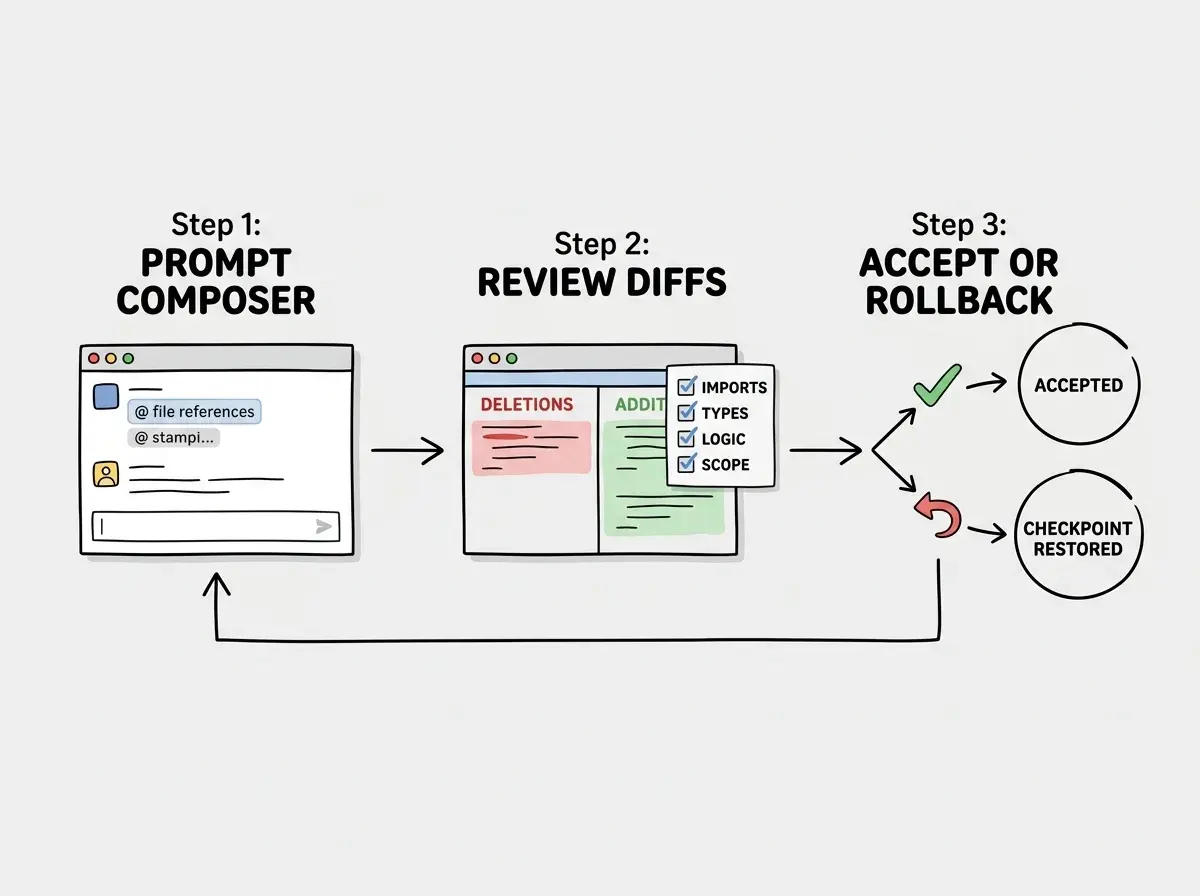
The developers who get the most value from Composer are not the ones who write the best prompts. They are the ones who review diffs the most carefully. A mediocre prompt with a thorough review produces better code than a perfect prompt with a blind accept.
Rollback with Checkpoints
Every Composer operation creates a checkpoint before making changes. This is your safety net, and it is one of the best features in Cursor that almost nobody talks about.
If you accept a set of changes and then realize something is wrong (tests fail, the UI breaks, a subtle regression appears), you can roll back the entire Composer operation to the checkpoint. Every file returns to its pre-Composer state in a single action. You do not need to manually undo changes across six files. You do not need to remember which files were touched. One click, and you are back to where you started.
This changes the risk calculus entirely. Without checkpoints, accepting a large Composer operation feels risky because undoing it is painful. With checkpoints, you can accept aggressively and roll back cheaply. Try the ambitious prompt. See if it works. If it does not, roll back in two seconds and try a different approach.
The workflow I use daily looks like this: prompt Composer, review the diffs, accept the changes, run my tests or check the browser, and if anything is wrong, roll back immediately. I do not try to fix a bad Composer output by layering more Composer prompts on top. That compounds errors. I roll back to the clean state and try again with a better prompt or a tighter scope.
Checkpoints persist across the session, so you can roll back to any previous checkpoint, not just the most recent one. If you ran three Composer operations and realized the first one introduced a subtle bug that the second and third built on top of, you can roll back all the way to before the first operation.
Patterns That Work Reliably
After months of daily use, certain Composer patterns produce consistently good results and others consistently produce garbage. Here are the patterns worth adopting.
Describe the architecture, not just the feature. Instead of "add user settings," try "create a UserSettings component in components/ that reads from the existing useUser hook, displays email and notification preferences in a form, and calls PATCH /api/user/settings on submit. Use the same Card and Input components from components/ui/." The more you describe how the pieces connect, the better Composer coordinates the changes across files.
One concern per Composer operation. Do not ask Composer to add a feature AND refactor existing code AND update tests in a single prompt. Each of those is a separate operation with a separate review cycle. Combining them makes it impossible to accept the good parts and reject the bad parts because they are entangled across the same files.
Reference existing patterns. If your codebase already has an API route that follows a specific pattern, tell Composer to follow it. "Create a new API route for /api/comments following the same pattern as @app/api/posts/route.ts." Composer is dramatically better at replicating existing patterns than inventing new ones.
State your constraints. "Do not modify any test files." "Keep the existing function signatures, only change the implementations." "Do not add any new dependencies." These negative constraints prevent the scope creep that makes Composer output unpredictable.
Common Failure Modes
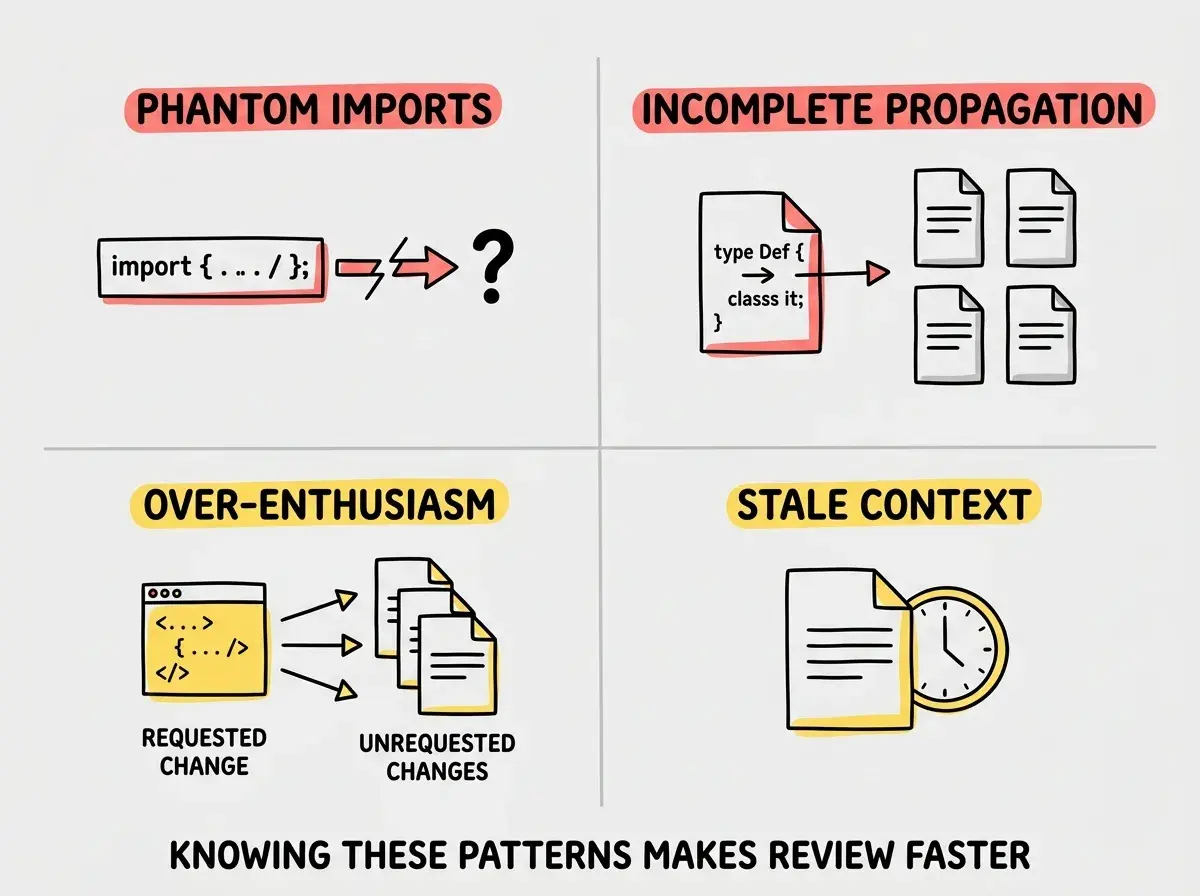
Composer fails in predictable ways, and knowing these patterns helps you catch problems during review.
Phantom imports. Composer invents imports that do not exist. It will import a utility function from a path that looks reasonable but does not actually exist in your project. Always verify import paths against your actual file structure.
Incomplete propagation. Composer changes a type, prop, or function signature in one file but does not update every consumer. If you see a type change, mentally trace every file that uses that type and verify they were all updated.
Over-enthusiasm. Composer "improves" code you did not ask it to improve. You wanted a loading state added, and it also refactored your state management, renamed three variables for "clarity," and added comments to functions that did not need them. Scope your prompts tightly and reject unexpected changes.
Stale context. If you have been working for a while and have unsaved changes, Composer might generate code based on the saved version of a file, not your current edits. Save all files before starting a Composer operation.
Layering Composer prompts on top of broken output instead of rolling back. When a Composer operation produces bad results, developers often try to fix it with another Composer prompt. This compounds errors across files. Roll back to the clean checkpoint and try again with a better-scoped prompt instead.
The difference between struggling with Composer and mastering it is the willingness to roll back early and often.
What This Means For You
Composer is the feature that makes Cursor genuinely different from other AI coding tools. Inline editing and chat exist in every AI-powered editor. Multi-file coordinated editing with visual diffs, checkpoints, and file-level accept/reject is something only Composer delivers at this level of polish.
The workflow that makes it reliable is not complicated: scope your prompts with @ file references, review every diff before accepting, use checkpoints as your safety net, and keep each operation focused on a single concern. Developers who follow this pattern consistently report that Composer handles 70-80% of the mechanical work in feature development, freeing them to focus on architecture, edge cases, and the parts of the codebase that actually require human judgment.
Start with a small, well-scoped change on a feature branch. Review the diffs carefully. Roll back if anything feels off. As you build trust in the workflow, expand the scope of what you ask Composer to do. Within a week, you will wonder how you ever developed without it.
Composer is just one piece. Learn all 25 power-user features that make Cursor dramatically more effective.
Read the tips guide- If you are a senior developer: Composer's value is in the review workflow, not the generation. Treat it like a junior developer who writes fast but needs code review on every PR. The checkpoint system makes aggressive experimentation safe.
- If you are an indie hacker: The one-concern-per-operation pattern will save you the most time. Resist the urge to cram everything into a single prompt. Three focused Composer operations produce better code than one ambitious one.
Learn how to configure system prompts and project rules for better AI output.
Read the guide