Cloud cost monitoring is what separates a profitable side project from a $607 surprise charge. With 92% of US developers using AI tools daily, the number of services billing you each month has doubled. Spending caps prevent 100% of surprise bills. Here is exactly how to set them up.
The 150% Rule
Before you touch any dashboard, you need a framework. Cap every service at 150% of your expected monthly spend.
Why not 100%? Because legitimate spikes happen. You ship a feature, it gets shared, traffic doubles for three days. A 100% cap kills your app during your best growth moment. A 200% cap gives runaway costs too much room. The 150% rule balances growth and safety.
| Service | Expected Monthly | 150% Cap |
|---|---|---|
| Vercel | $20 | $30 |
| Supabase | $25 | $38 |
| OpenAI API | $50 | $75 |
| Anthropic API | $30 | $45 |
| Resend | $20 | $30 |
| Total | $145 | $218 |
Your numbers will differ. The principle stays the same. Know what you expect to spend, then set a hard ceiling at one and a half times that amount.
Setting Spending Caps on Vercel
Go to your team settings, then billing, then spend management. Set a maximum monthly spend at 150% of your expected cost. If you are on the Pro plan at $20 per month and expect about $10 in usage charges, set your cap at $45.
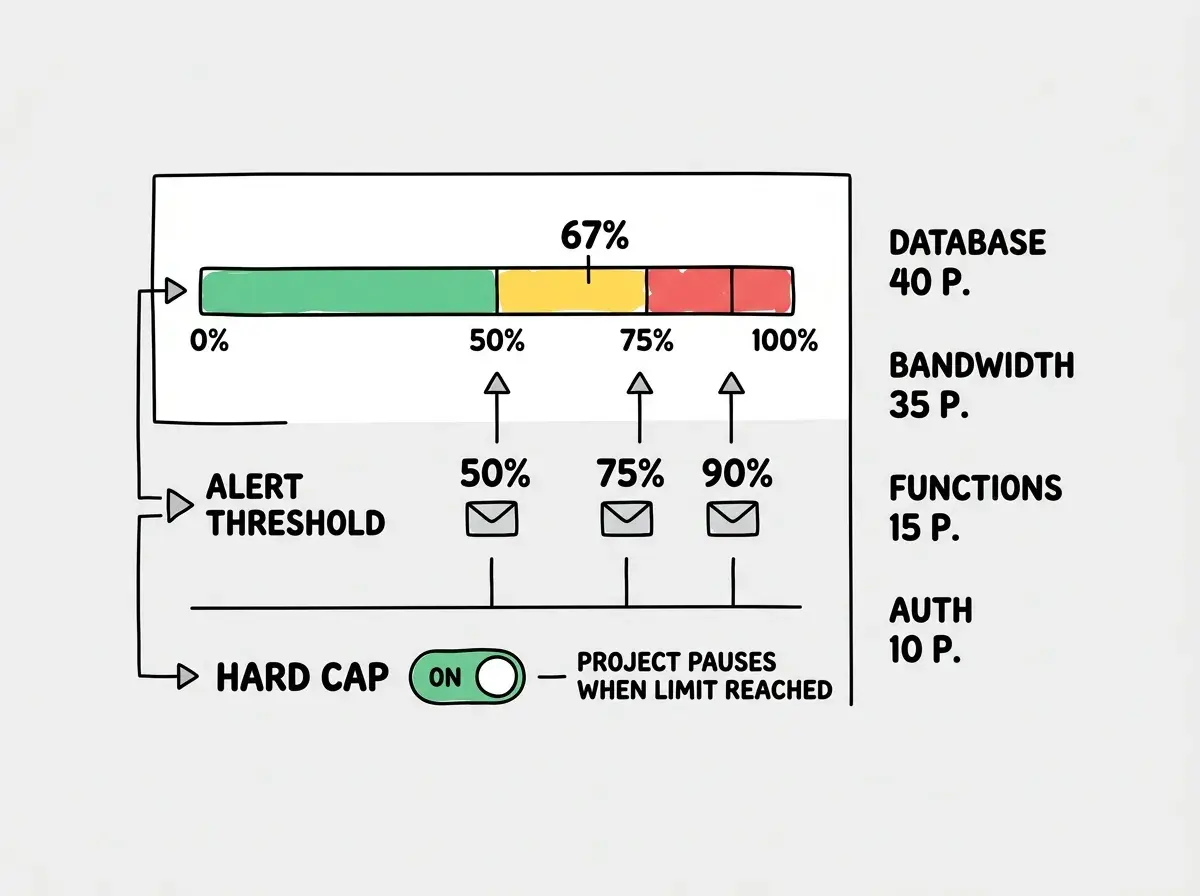
Configure three alert thresholds: 50%, 75%, and 90% of your cap. Each sends an email. The 50% alert is informational. The 75% alert means check your patterns. The 90% alert means investigate immediately.
The detail most people miss is that serverless function usage and bandwidth both contribute beyond your base subscription. If your app makes heavy server-side AI calls, those invocations add up fast. Check the function usage tab, not just the billing overview.
Setting Spending Caps on Supabase
Go to project settings, then billing. Set a cost cap that prevents your project from exceeding a specified amount. When you hit it, Supabase pauses your project rather than continuing to charge you.
This is actually better than most platforms. Your app goes down instead of your bill going up. For a side project, that tradeoff is exactly right.
Set alert emails at the same 50%, 75%, and 90% thresholds. Pay special attention to the bandwidth number in your usage reports. A misconfigured query returning too much data can blow through bandwidth limits before anything else triggers.
Setting Spending Caps on AI APIs
AI APIs are where the real danger lives. A single runaway loop can burn hundreds of dollars in minutes.
Anthropic. Go to your Console, then settings, then usage limits. Set a monthly spend limit at 150% of expected. Anthropic enforces this as a hard cap. Once you hit it, API calls return errors. Your app should handle this gracefully with a fallback message.
OpenAI. Go to your dashboard, then billing, then usage limits. OpenAI offers both a soft limit (sends email) and a hard limit (stops access). Set the soft limit at 75% and the hard limit at 150% of expected spend.
The pattern behind surprise AI bills is almost always the same: retry loops. Your code calls the API, gets an error, retries automatically. Each retry costs money. Add exponential backoff to every AI call. Limit retries to three maximum. Log every call with its token count so you can spot anomalies.
Set hard spending caps on every AI API before your first call. A cap at 150% of expected spend gives room for growth while making surprise bills mathematically impossible. The five minutes it takes to configure these limits will save you from becoming the next viral billing horror story.
Budget Alerts via Email
Spending caps are your safety net. Email alerts are your early warning system. Every service above supports email notifications at custom thresholds.
The 50% alert tells you that you are halfway through your budget. If this fires on the 10th, you are on pace to exceed your limit. Worth watching.
The 75% alert is your action trigger. If it fires before the 20th, something changed. Maybe traffic increased, maybe a new feature is more expensive than estimated. Open your dashboards and find which service is running hot.
The 90% alert means you are about to hit your cap. Either you had a genuinely busy month (adjust next month's cap) or something is wrong (fix it now).
All three alerts should go to email, not a Slack channel you might mute. Set up a dedicated filter that flags billing alerts as important so they never get buried.
Tracking AI API Usage
AI costs deserve their own monitoring because they are the most volatile line item. Hosting might vary 10% month to month. AI API costs can vary 500%.
Build simple tracking into your app. Every API call, log three things: timestamp, model used, and token count. Most SDKs return this data automatically. Anthropic gives you usage.input_tokens and usage.output_tokens with every response. OpenAI does the same. Store these in a database table or even a JSON file if volume is low.
Weekly, check which endpoints make the most calls and which users drive the most usage. Without logging, these questions are impossible to answer. With it, they take five minutes.
Understand what every service in your stack actually costs before you launch.
Read all guidesFree Monitoring Tools
You do not need to pay for monitoring to get solid coverage.
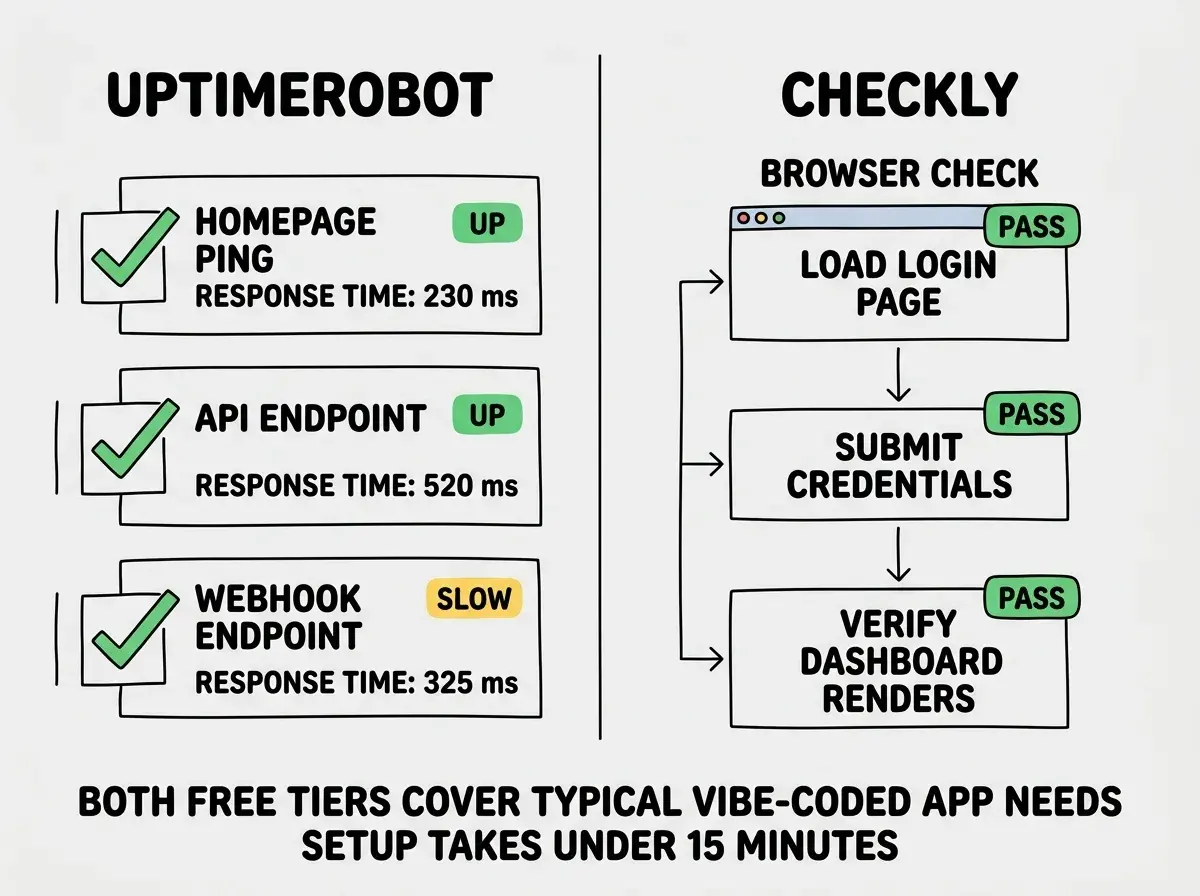
UptimeRobot checks whether your app is online. The free tier gives you 50 monitors at 5-minute intervals. Set up checks for your main URL, API endpoints, and critical webhooks. When something goes down, you get notified within five minutes.
Checkly goes further with synthetic checks that simulate real user behavior. The free tier lets you run browser checks that log into your app, click through flows, and verify features work. If your AI features stop responding because you hit a cap, Checkly catches it before users complain.
The 15-Minute Monthly Cost Review
Caps and alerts do not replace a monthly review. On the first of every month, spend fifteen minutes checking five things.
Minutes 1 to 3. Open every billing dashboard. Write down last month's actual spend next to expected spend for each service.
Minutes 4 to 6. Flag any service where actual spend exceeded 80% of your cap. Either usage is growing naturally (adjust your cap) or something is inefficient (fix it).
Minutes 7 to 10. Check AI API logs. Find the top three most expensive endpoints. Is each delivering value proportional to its cost?
Minutes 11 to 13. Update spending caps for the coming month. Consistently at 90%? Raise by 25%. Consistently at 40%? Lower it. Caps should track your actual usage, not stay static.
Minutes 14 to 15. Check UptimeRobot and Checkly for downtime events. Correlate with spending data. Did hitting a cap cause an outage?
Setting spending caps once and never adjusting them. Your costs change as traffic grows, features ship, and API pricing shifts. A cap from six months ago might be too low for current usage (causing unnecessary outages) or too high (giving runaway costs too much room). Review caps monthly during your fifteen-minute check.
The Complete Setup Checklist
Here is every step in order, from zero to fully monitored.
- List every paid service with its expected monthly cost
- Set a hard spending cap at 150% of expected on each service
- Configure email alerts at 50%, 75%, and 90% of each cap
- Add API call logging to every AI integration
- Set up UptimeRobot for uptime checks on all critical endpoints
- Set up Checkly for synthetic browser checks on key flows
- Schedule a fifteen-minute cost review on the first of every month
- Add exponential backoff and retry limits to all AI API calls
Steps one through six take thirty minutes. Step seven takes fifteen minutes per month. Step eight is a one-time code change per integration.
See real monthly breakdowns at every scale for vibe-coded apps.
Explore all guidesWhat This Means For You
Cloud cost monitoring is not glamorous. Nobody tweets about billing alerts. But the developers who never get surprise bills just spent thirty minutes on the setup described above.
- If you are an indie hacker: Set spending caps on every service today, starting with AI APIs. The 150% rule gives you a simple framework that works without overthinking. Your fifteen-minute monthly review catches problems before they become expensive.
- If you are a senior dev managing a team: Make API call logging standard for every AI integration. Put the monthly cost review on a shared calendar. When everyone sees what features cost to run, spending decisions get better fast.
The $607 surprise charges, the AI agents that ran all night, the bills nobody expected. These stories keep happening because people skip the boring setup work. You now have every step to make sure it never happens to you.