A CORS error is the single most common reason your app works perfectly on localhost and then breaks the moment you deploy it. With 92% of US developers using AI tools daily and 46% of code now AI-generated, this problem is everywhere. AI happily generates fetch calls that run fine in development and fail instantly in production.
Here is exactly what happened to me, what CORS actually is, and how to fix it in every framework I have used.
The Security Guard Analogy
Think of your browser as a security guard stationed at the entrance of an office building. Every time your frontend code makes a request to a server, the guard checks an ID badge. The badge says where the request came from (the "origin"), and the guard compares it against an approved visitor list that the server provides.
If the badge matches the list, the request goes through. If it does not match, the guard blocks the request on the spot. The server never even sees it. That is CORS in one paragraph.
The full name is Cross-Origin Resource Sharing. An "origin" is the combination of protocol, domain, and port. So https://myapp.com and http://myapp.com are different origins. And localhost:3000 and localhost:8080 are different origins, even though they are on the same machine.
The guard (your browser) enforces this rule. The server decides who is on the approved list by sending back specific HTTP headers. If the server does not send those headers, or sends the wrong ones, the guard blocks everything.
The Error Message You Will See
Open your browser console after deploying, and you will find something like this:
Access to fetch at 'https://api.myapp.com/data' from origin
'https://myapp.com' has been blocked by CORS policy: No
'Access-Control-Allow-Origin' header is present on the
requested resource.
This error is your browser telling you: "The server at api.myapp.com did not include your origin on the approved list. I am blocking this request to protect the user."
The frustrating part is that the request itself is fine. If you paste the same URL into a new browser tab or use curl from your terminal, it works. That is because CORS is a browser-only security rule. Direct requests (tabs, curl, Postman) skip the security guard entirely.
Why Localhost Gets a Free Pass
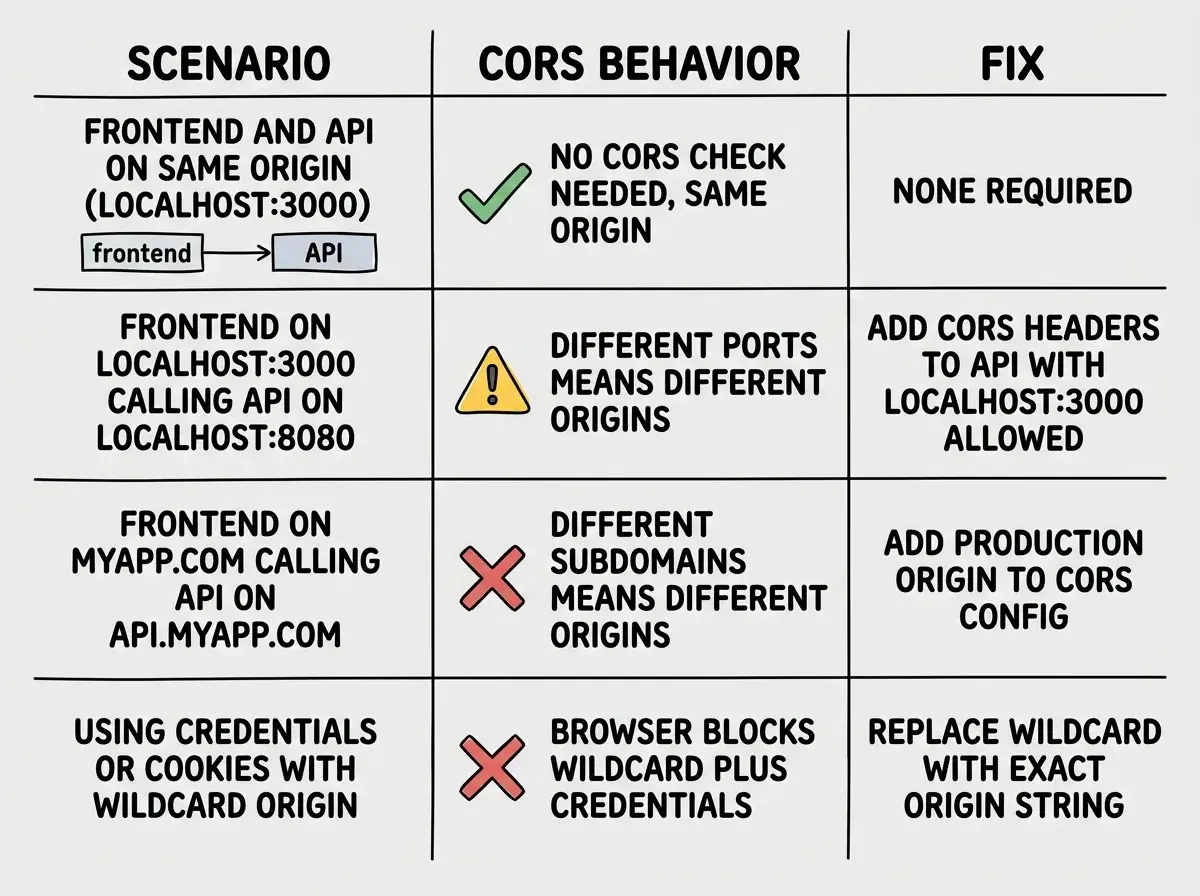
Here is the part that makes CORS errors so confusing for people building with AI tools. During development, your frontend and backend often run on the same machine. Your Next.js app serves both the page and the API routes from localhost:3000. Same origin, same building. The security guard never even checks.
Or you are running a separate backend on localhost:8080 and your AI tool helpfully added Access-Control-Allow-Origin: * to your Express config (allowing everyone in). This works locally because there is no real security concern on your own machine.
Then you deploy. Your frontend goes to https://myapp.vercel.app. Your API goes to https://api.myapp.com. Different origins. The security guard wakes up and starts checking badges. And the server is either not sending CORS headers at all, or it is still sending localhost:3000 as the only approved origin.
CORS errors almost never appear on localhost because your frontend and backend share the same origin during development. The moment you deploy to separate domains (or even different subdomains), the browser enforces origin checks that did not exist before. This is not a bug in your code. It is a security feature working as designed.
The AI does not warn you about this. It generates code that works in the environment it can see (your local machine) and has no concept of your production architecture.
How CORS Actually Works Under the Hood
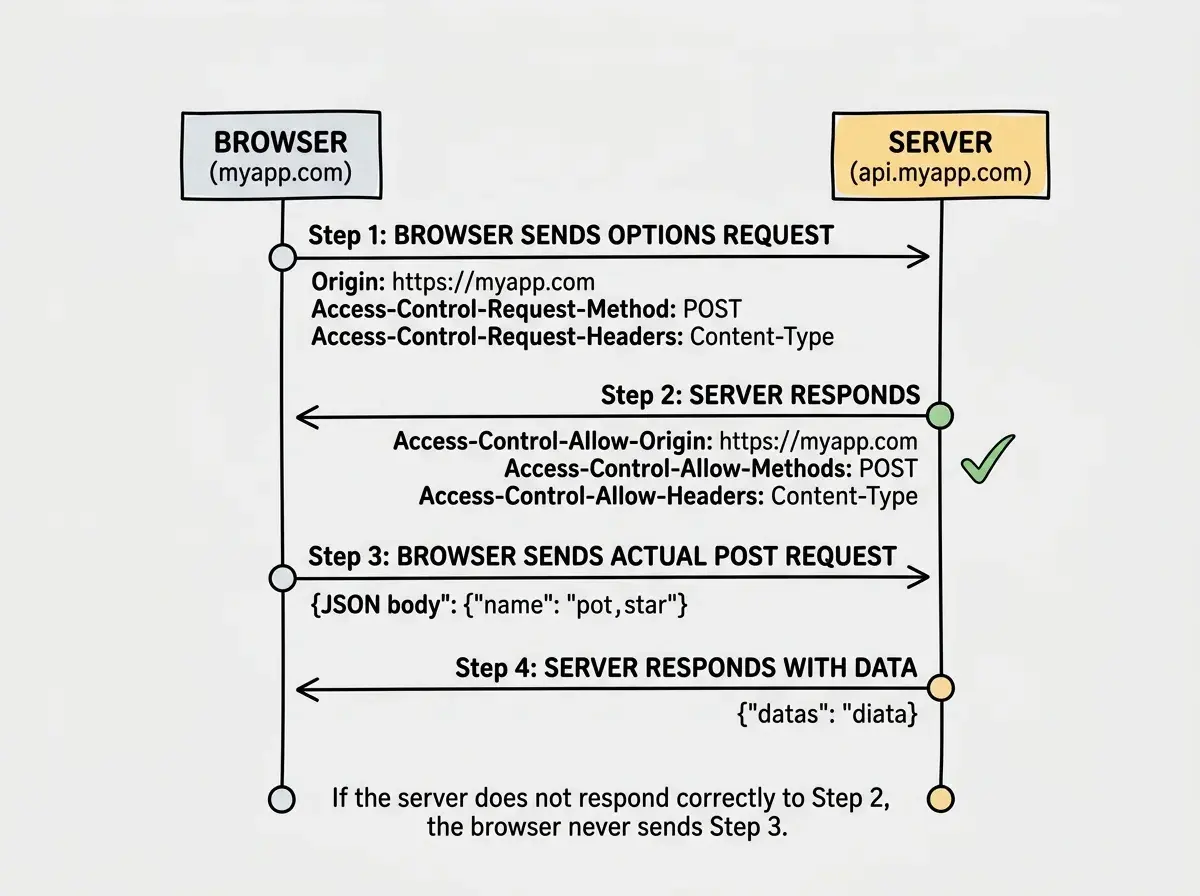
When your browser sends a cross-origin request, it first sends a "preflight" request. This is a separate HTTP request using the OPTIONS method. The browser asks the server: "My origin is https://myapp.com. Am I allowed to send a POST request with JSON content?"
The server responds with headers that answer the question:
Access-Control-Allow-Origin: https://myapp.com
Access-Control-Allow-Methods: GET, POST, PUT, DELETE
Access-Control-Allow-Headers: Content-Type, Authorization
If the server responds with those headers, the browser proceeds with the actual request. If the server does not respond, or responds without the right headers, the browser blocks the real request and throws the CORS error.
Simple GET requests without custom headers can skip the preflight. But the moment you add Content-Type: application/json or an Authorization header (which almost every real API call needs), the preflight kicks in.
Fixing CORS in Next.js API Routes
If your frontend and API both live in the same Next.js app, you probably will not hit CORS issues at all. Same origin, same building. But if your Next.js API routes serve a separate frontend, or you are calling them from a mobile app, you need to set headers explicitly.
In a Next.js Route Handler (App Router):
// app/api/data/route.ts
import { NextResponse } from 'next/server'

export async function GET(request: Request) {
  const data = { message: 'Hello from the API' }

  return NextResponse.json(data, {
    headers: {
      'Access-Control-Allow-Origin': 'https://myapp.com',
      'Access-Control-Allow-Methods': 'GET, POST, OPTIONS',
      'Access-Control-Allow-Headers': 'Content-Type, Authorization',
    },
  })
}

export async function OPTIONS() {
  return new Response(null, {
    status: 204,
    headers: {
      'Access-Control-Allow-Origin': 'https://myapp.com',
      'Access-Control-Allow-Methods': 'GET, POST, PUT, DELETE, OPTIONS',
      'Access-Control-Allow-Headers': 'Content-Type, Authorization',
    },
  })
}
The OPTIONS handler is critical. Without it, the preflight request gets a 405 Method Not Allowed, and your browser blocks every non-simple request. AI tools almost never generate this handler, so you need to add it yourself.
For Next.js middleware that applies CORS to all API routes:
// middleware.ts
import { NextResponse } from 'next/server'
import type { NextRequest } from 'next/server'

const allowedOrigins = ['https://myapp.com', 'https://www.myapp.com']

export function middleware(request: NextRequest) {
  const origin = request.headers.get('origin') ?? ''
  const isAllowed = allowedOrigins.includes(origin)

  if (request.method === 'OPTIONS') {
    return new NextResponse(null, {
      status: 204,
      headers: {
        'Access-Control-Allow-Origin': isAllowed ? origin : '',
        'Access-Control-Allow-Methods': 'GET, POST, PUT, DELETE, OPTIONS',
        'Access-Control-Allow-Headers': 'Content-Type, Authorization',
      },
    })
  }

  const response = NextResponse.next()
  if (isAllowed) {
    response.headers.set('Access-Control-Allow-Origin', origin)
  }
  return response
}

export const config = { matcher: '/api/:path*' }
Fixing CORS in Express
Express is where AI tools cause the most CORS confusion. The AI usually generates something like this:
const cors = require('cors')
app.use(cors())
That allows every origin. It works on localhost, but it is a security risk in production and can actually break if you need to send cookies or credentials (the browser rejects Access-Control-Allow-Origin: * when credentials are involved).
Here is the production-safe version:
const cors = require('cors')

app.use(cors({
  origin: ['https://myapp.com', 'https://www.myapp.com'],
  methods: ['GET', 'POST', 'PUT', 'DELETE'],
  allowedHeaders: ['Content-Type', 'Authorization'],
  credentials: true,
}))
Specifying exact origins instead of * is more secure and is required if your frontend sends cookies or authorization headers.
Using Access-Control-Allow-Origin: * in production when your app sends cookies or uses credentials: 'include' in fetch requests. The browser will block the response because wildcard origins and credentials are mutually exclusive by spec. You must specify the exact origin. AI tools default to * because it is the simplest thing that works locally, but it breaks real authentication flows in production.
Fixing CORS in Vercel Deployment
If you deploy to Vercel, you can configure CORS headers in vercel.json without changing any code:
{
  "headers": [
    {
      "source": "/api/(.*)",
      "headers": [
        {
          "key": "Access-Control-Allow-Origin",
          "value": "https://myapp.com"
        },
        {
          "key": "Access-Control-Allow-Methods",
          "value": "GET, POST, PUT, DELETE, OPTIONS"
        },
        {
          "key": "Access-Control-Allow-Headers",
          "value": "Content-Type, Authorization"
        }
      ]
    }
  ]
}
This applies headers to every API route. If you need multiple allowed origins, use the middleware approach from the Next.js section instead, because vercel.json only supports static header values.
CORS is one piece of the deployment puzzle. Understand the full picture before you ship.
Start with deployment fundamentalsDebugging CORS in Five Minutes
When you hit a CORS error in production, here is the exact debugging sequence.
Open DevTools and go to the Network tab. Filter by the failed request. Look for a red entry. Click it and check the Response Headers. If there is no Access-Control-Allow-Origin header, your server is not sending one.
Check for a preflight request. Look for an OPTIONS request to the same URL. If it is missing or returning an error, your server does not handle OPTIONS. Add an OPTIONS handler.
Compare origins exactly. Copy the value from the Origin request header and compare it character-by-character with your Access-Control-Allow-Origin response header. Trailing slashes, www vs non-www, http vs https, any mismatch fails.
Test with curl. Run curl -I -X OPTIONS https://api.myapp.com/data -H "Origin: https://myapp.com" from your terminal. This simulates the preflight. If the response lacks the CORS headers, the problem is server-side configuration.
Check your hosting platform. Some platforms (Cloudflare, AWS API Gateway) strip or override CORS headers. Your code might be correct, but a proxy sitting in front of your server removes the headers before they reach the browser.
What This Means For You
CORS errors are not random. They follow a predictable pattern: everything works locally where origins match, and everything breaks in production where they do not. The browser is the security guard, and it is doing its job.
- If you are a founder building with AI tools: Every time your AI generates a fetch call to an external API or a separate backend, check for CORS configuration before you deploy. Add it to your deployment checklist right next to environment variables. Five minutes of CORS configuration saves hours of debugging a blank page in production. The AI will not add this for you.
- If you are a career changer learning to build: Understanding CORS separates people who can only build locally from people who can actually ship. When you can explain why a request works in development but fails in production, and fix it in under five minutes, you have demonstrated a skill that even experienced developers sometimes struggle with. Add "configured CORS for cross-origin API access" to your project descriptions.
CORS is just one thing that can go wrong when you ship. Make sure you have covered the rest.
Review the deployment checklist