You do not need to understand an error message to fix it. That statement sounds irresponsible, like telling someone they can navigate Tokyo without speaking Japanese. But here is the thing: millions of people navigate Tokyo every year without speaking Japanese. They use translation services. They point at menus. They copy text from signs into Google Translate and figure out where they are going. Copy paste debugging works the same way.
You see an error. You do not understand it. You copy the entire message, paste it into an AI tool like ChatGPT or Claude, and ask what went wrong. The AI translates the error into plain English and tells you how to fix it. You apply the fix. Your app works again. You never needed to understand what "TypeError: Cannot read properties of undefined" actually means at a technical level. You just needed a good translation service.
This is not a workaround or a crutch. Research shows that 92% of developers use AI tools daily. Professional engineers with decades of experience copy errors into AI chat and ask for explanations. The difference between them and you is not that they understand every error. It is that they have practiced this workflow so many times it feels automatic. By the end of this guide, you will have that same workflow.
Why Copy Paste Debugging Actually Works
Think about that Tokyo analogy for a moment. When you use a translation service in a foreign country, you are not pretending to speak the language. You are using a tool that bridges the gap between what you know and what you need. Over time, you start recognizing common phrases. You learn that "sumimasen" means "excuse me" without needing a full Japanese course. The translation service did not make you lazy. It gave you the confidence to walk into situations you would have otherwise avoided.
Copy paste debugging does the same thing for error messages. Every time you paste an error into AI and read the explanation, you absorb a tiny bit of pattern recognition. After seeing "Module not found" ten times, you stop pasting and just install the missing package yourself. The method teaches you through repetition, not through formal study.
And here is a stat that might surprise you: 63% of people using AI coding tools are not developers. They are founders, marketers, designers, and creatives who build things by describing what they want and letting AI write the code. For this audience, copy paste debugging is not a shortcut. It is the primary skill that keeps projects moving forward when something breaks.
Copy paste debugging is not about avoiding understanding. It is about getting unstuck immediately and building understanding gradually through repetition. Every error you paste and read the explanation for teaches you something, even if you do not realize it at the time.
The Exact Workflow, Step by Step
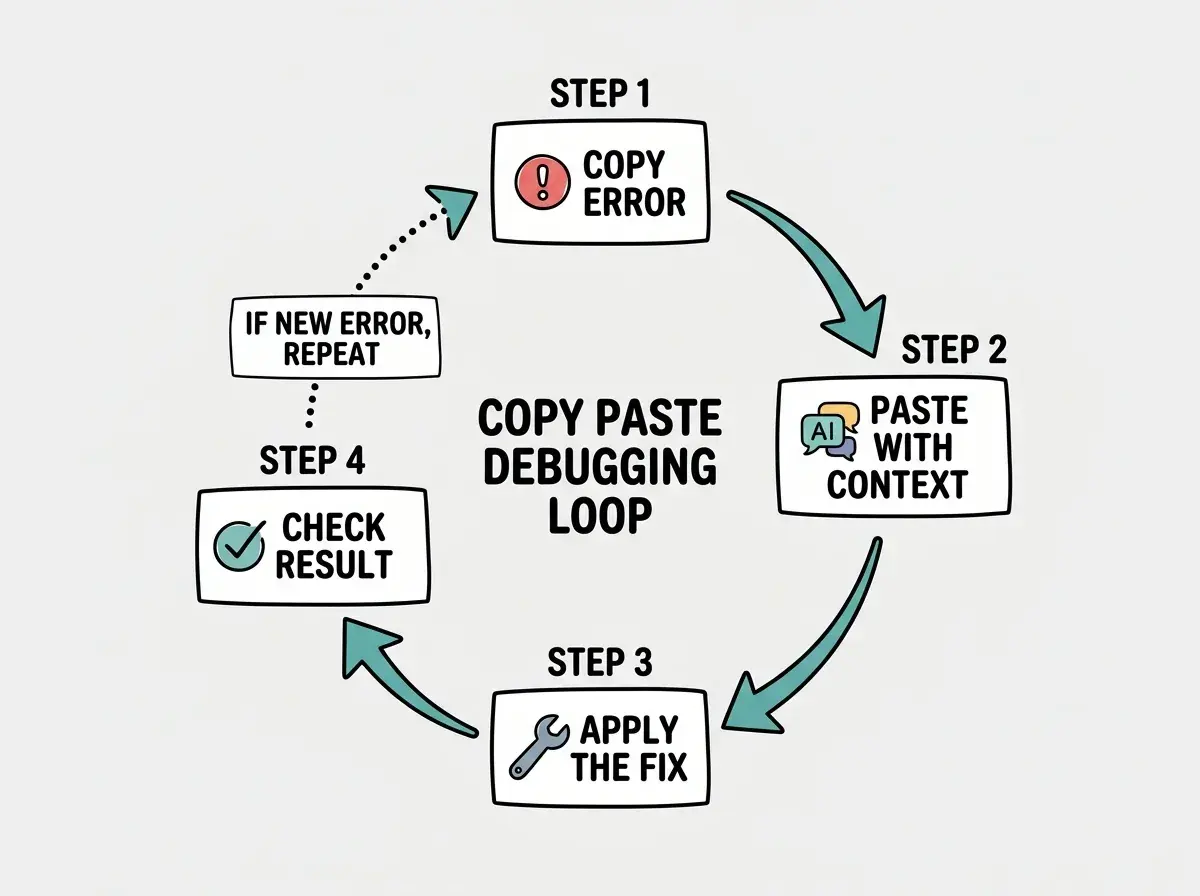
The copy paste debugging method has four steps. They are simple, but doing them correctly makes the difference between a quick fix and an hour of frustration.
Step 1: Copy the error message. When something breaks, you will see red text somewhere. It might be in your browser console (right-click, Inspect, Console tab), in the terminal where your app is running, or directly on the screen as an error page. Select the entire error message and copy it. Not a summary. Not a paraphrase. The exact text.
This is your phrase in a foreign language. If you type it from memory, you will lose the details that matter. It is like trying to tell a translator what the sign said instead of showing them a photo. Show them the photo.
Step 2: Paste it into your AI tool. Open ChatGPT, Claude, or whichever AI assistant you use. Paste the full error message. But do not just paste and hit enter. Add one sentence of context: what you were doing when it broke.
A good paste looks like this: "I was adding a contact form to my landing page and got this error: [full error message here]. Can you explain what went wrong and how to fix it?"
A bad paste looks like this: "My app is broken. Fix it."
The difference is context. That one sentence about what you were doing helps the AI narrow down the cause from hundreds of possibilities to a handful.
Step 3: Read the explanation and apply the fix. The AI will respond with an explanation and a suggested fix. Read the explanation, even if only quickly. You are building pattern recognition with every error you read. Then apply the fix to your code.
If the AI gives you a code snippet, paste it into the right file. If it says to install a package, run the command it suggests. Back in our translation analogy, this is where you use the translation service not just to understand the foreign phrase but to write your response in the same language.
Step 4: Check if it worked. Save, refresh, and see if the error is gone. If a new error appears, repeat from Step 1. If the same error persists, you need to iterate, which we cover next.
How to Copy the RIGHT Error Message
This is where most beginners trip up. Not every red text on your screen is equally useful. Sometimes you see a wall of errors, and grabbing the wrong one sends the AI on a wild goose chase.
Start from the first error. When multiple errors appear at once, the first one is almost always the root cause. The errors below it are usually consequences. Fix the first error, and the others often disappear on their own. This is like arriving in a new city and your translation app shows twelve alerts. Handle the first one (connecting to wifi) and half the other alerts resolve themselves.
Look for the file name and line number. The most useful error messages include something like "at ProductList.jsx:14:23" or "in /src/components/Header.tsx line 42." This tells the AI exactly where to look. Always include this when you copy.
Grab the full stack trace when you can. If the error includes a list of file paths and line numbers stacked on top of each other, that is a stack trace. Copy all of it. The AI uses this to understand not just where the crash happened but why.
When in doubt, copy everything. Some terminals show timestamps or repeated warnings before the actual error. If you are unsure what is noise and what matters, just copy it all. Too much information is better than too little.
Providing Context That Actually Helps
The error message alone gives the AI about 60% of what it needs. The other 40% comes from you. Here is how to provide context that turns a decent AI response into a great one.
Tell the AI what you were doing when it broke. "I was trying to add user authentication" or "I clicked the submit button on my form" or "I ran npm install and then this happened." This single sentence eliminates entire categories of possible causes.
Share the relevant code if you can. If the error mentions a specific file, paste that file's contents into the conversation along with the error. This is the difference between telling a translator "someone said something confusing at the restaurant" and showing them the full menu along with the confusing sentence.
Mention what changed recently. "This was working yesterday. Today I added a new component and now it breaks." The bug is almost always in whatever you changed most recently.
Paraphrasing or retyping error messages instead of copying them exactly. Changing even one word can send the AI down the wrong path. If an error says "Cannot read properties of null" and you type "cannot read properties of undefined," those are two different problems with different solutions. Always copy and paste the exact text. Treat error messages like evidence at a crime scene. Do not touch them, just photograph and hand them over.
When the First Fix Does Not Work
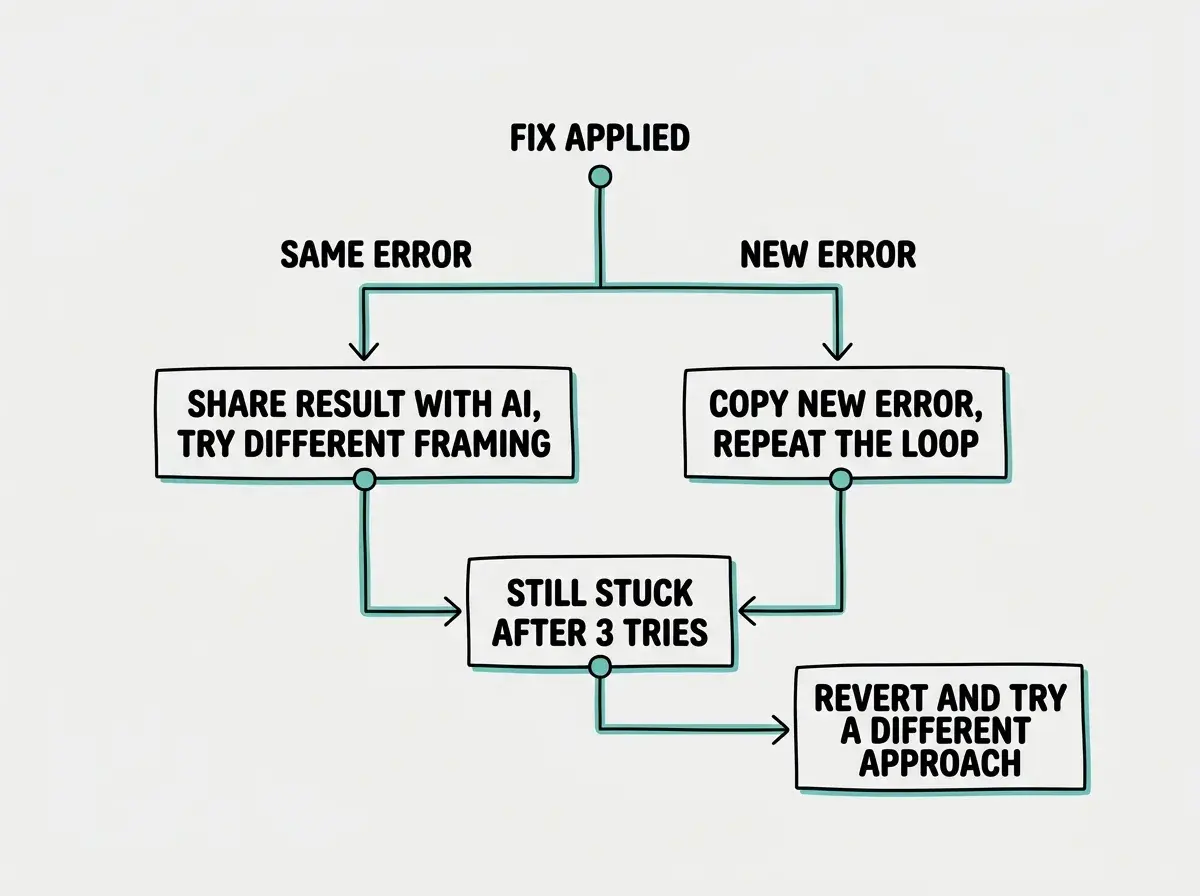
Sometimes you apply the AI's suggested fix and the same error (or a new one) appears. This is normal. It means you need another translation pass.
Give the AI the update. Tell it: "I tried your fix and here is what happened. The error changed to [new error]" or "The same error is still appearing even after I made that change." The AI needs this feedback to adjust its approach. It is a conversation, not a vending machine.
Try a different framing. If the AI keeps suggesting the same fix and it keeps not working, change how you describe the problem. Instead of pasting the error again, try: "I have a contact form that was working. I added email validation and now the form does not submit. Here is the full component code." Sometimes the translation service needs a different angle on the phrase.
Ask the AI to explain three possible causes. When a single suggested fix fails, asking for multiple possibilities helps. One of the three will often be the actual issue.
Check whether you applied the fix in the right place. The AI says "add this line to your configuration file" and you add it to the wrong file or the wrong section. This catches more people than you would expect. Double-check the file name and location.
Knowing When to Stop and Revert
This is the skill that separates people who ship projects from people who abandon them. Sometimes the fix is not working, the errors keep multiplying, and you have been going back and forth with the AI for twenty minutes. That is your signal to stop fixing forward and revert.
Reverting means undoing your recent changes and going back to the last version that worked. If you are using git, that means checking out the previous commit. If you are in Lovable or Bolt, use their built-in undo or version history.
The three-attempt rule. If you have tried three rounds of copy-paste-fix and the error is still there or getting worse, revert. Do not try a fourth. Revert to working code and try a completely different approach to whatever feature you were adding.
The multiplication rule. If fixing one error creates two new errors, and fixing those creates more, you are in an error cascade. Stop immediately. The original approach has a fundamental problem that incremental fixes will not solve. Revert and describe what you want to the AI from scratch, in a fresh conversation.
Save before you experiment. Before trying any fix you are unsure about, copy the file you are about to change and rename it with "-backup" at the end. In our translation analogy, this is writing down the address of your hotel before wandering into an unfamiliar neighborhood. You can always find your way back.
Copy paste debugging is one of the core skills for building with AI. Learn the foundations that make everything click.
Start hereBuilding Your Debugging Instincts
Every time you go through the copy-paste-fix cycle, you are building instincts you do not even notice forming. After your tenth "Module not found" error, you will stop pasting and just install the package. After your fifth "Cannot read properties of undefined," you will check whether the data loaded before the component tried to use it.
This is how everyone learns. Developers did not learn debugging from textbooks. They learned it from breaking things, reading errors, and fixing them hundreds of times. Copy paste debugging just gives you a translator for the early stages so you are never completely lost.
Keep a simple notes file where you write down errors you have seen before and what fixed them. After a month, you will have your own personal debugging reference more useful than any tutorial because it contains exactly the errors your specific project produces.
The people who succeed with AI-assisted building are not the ones who never see errors. They are the ones who have a reliable method for handling errors when they appear. You now have that method.
You have the debugging workflow. Now put it to use on a real project.
Explore tutorials