Take a breath. Your app broke and you do not know why. You are staring at a screen that was working ten minutes ago and now shows an error, a blank page, or something that looks completely wrong. You built this with AI tools, not with years of programming knowledge, and you have no idea where to even start fixing it.
You are not alone. 63% of people using AI coding tools are non-developers. Founders, marketers, designers, and creatives building real products with tools like Lovable, Bolt, Cursor, and Replit. Every single one of them has had this exact moment of "everything was fine, and now it is not."
Here is the good news. Debugging (just a fancy word for "figuring out what went wrong") follows a predictable process. You do not need to understand code to follow it.
Think About It Like a Car That Will Not Start
When your car will not start, you do not immediately disassemble the engine. You check a few things in order. Is there gas in the tank? Is the battery dead? Is the key turning? You follow a logical sequence from the simplest cause to the more complex ones.
Debugging your app works the same way. Start with the simplest explanations, check them one at a time, and work toward the less obvious causes. Most of the time, the problem is the equivalent of an empty gas tank. Something simple that just needs to be identified.
This guide walks you through that sequence in plain language. No jargon. No assumptions about what you know. Just a calm, systematic approach to getting your app working again.
Over 92% of developers now use AI tools daily, and they still spend a significant chunk of their time debugging. Broken apps are not a sign that you did something wrong. They are a completely normal part of building software. The difference between someone who gets stuck and someone who fixes it is not technical skill. It is knowing the process.
Step 1, Do Not Panic and Do Not Delete Anything
The worst thing you can do right now is start making random changes. That is like jiggling every wire under the hood when your car will not start. You might disconnect something that was working fine, and now you have two problems instead of one.
Before you touch anything, take a screenshot. If there is an error message, even if it looks like gibberish, capture it. This screenshot is your evidence. It is the difference between telling a mechanic "there was a weird noise" versus playing them a recording of the exact sound.
If your app was working before and now it is not, something changed. Your job is to figure out what. That is the entire debugging process in one sentence.
Step 2, Open the Browser Console
Every web browser has a hidden panel called the "console" that shows what is happening behind the scenes. Think of it as the dashboard warning lights for your app. When something goes wrong, the console almost always has a message about it.
On Chrome or Edge, press F12 (or Ctrl+Shift+J on Windows, Cmd+Option+J on Mac). On Firefox, press Ctrl+Shift+K on Windows or Cmd+Option+K on Mac. On Safari, enable the developer menu in preferences under Advanced, then press Cmd+Option+C.
A panel will appear at the bottom or side of your screen. Click the tab that says "Console." Red text means errors. Yellow means warnings. White or gray is informational.
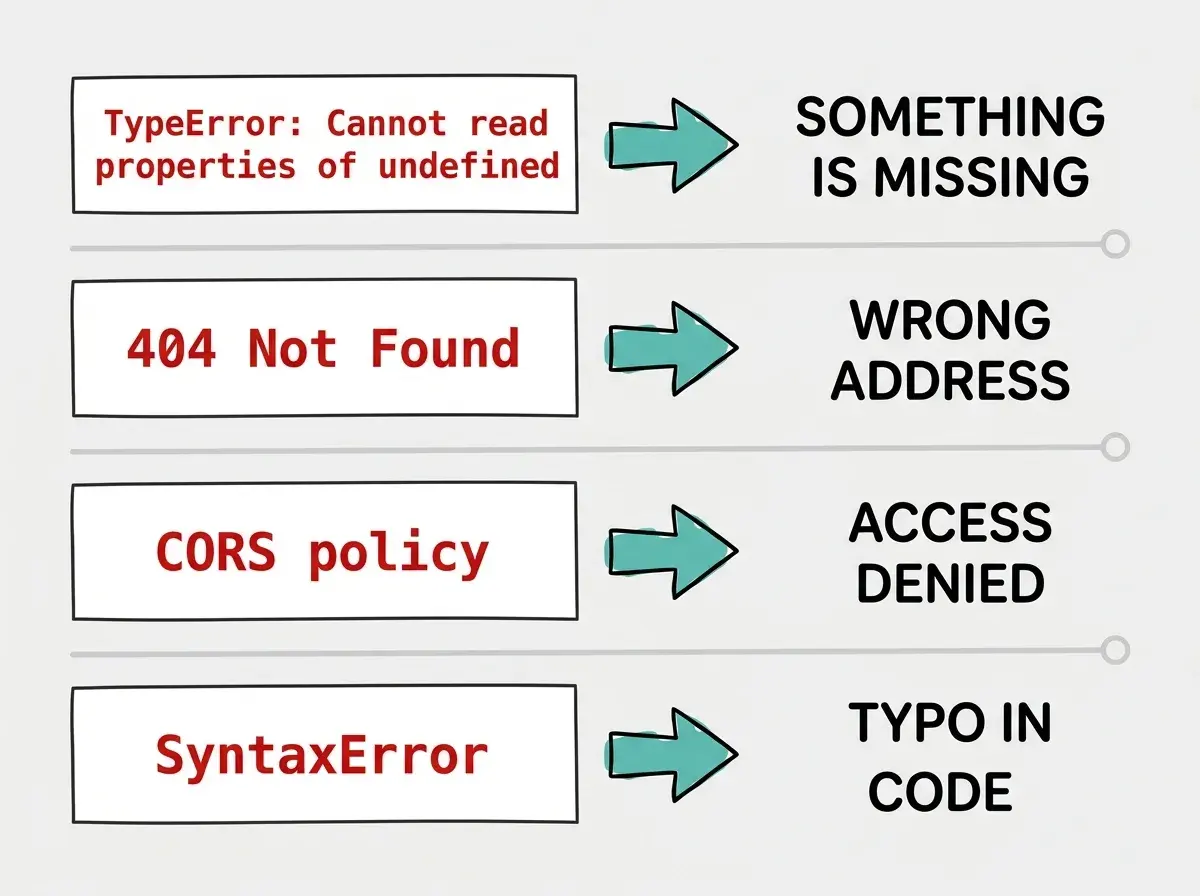
You do not need to understand every word. You are looking for red error messages with patterns you can recognize. Here are the most common ones translated into plain English.
"TypeError: Cannot read properties of undefined" means your app tried to use something that does not exist yet. Like trying to open a car door that has not been attached. Something your app expected to find is missing.
"404 Not Found" means your app tried to reach a file or address that does not exist. Like driving to a building that has been demolished. The destination is gone or the address is wrong.
"CORS error" or "blocked by CORS policy" means your app tried to talk to another service and was rejected. Like pulling into a parking garage that does not have your license plate on the approved list.
"SyntaxError" means there is a typo in the code. A missing comma, an extra bracket, a quotation mark never closed. Like a key that is slightly bent. Almost the right shape, but the lock will not turn.
Step 3, Screenshot the Error for Your AI Tool
Here is where being a non-developer in 2026 works in your favor. You have AI tools that can read error messages better than most junior developers can.
Take a screenshot of the console errors (the red text from Step 2). Go to your AI coding tool and paste the screenshot or copy the error text directly into the chat.
Say something like: "My app was working and now it shows this error. I did not change anything intentionally. Can you explain what this means in simple terms and suggest how to fix it?"
The AI will almost always give you a clear explanation and a specific fix. This is like texting a photo of your car's dashboard warning light to a mechanic friend. They can usually tell you what it means and whether it is serious.
Give the AI as much context as possible. What you were doing when the app broke, what it was supposed to do, and the exact error message.
Step 4, Try the Undo Last Change Approach
If you made a recent change through your AI tool, that change is the most likely suspect. Just like if your car stopped starting right after your cousin "fixed" something under the hood, the most recent change is where you look first.
Most AI coding tools have version history or undo functionality. In Lovable and Bolt, you can step back through recent changes. In Cursor, you can use Git to see what changed and revert it. Even if you do not know Git, you can tell the AI: "Undo the last change we made" or "Revert to the version from before we added the login feature."
If undoing the last change fixes things, you have found your culprit. Re-approach that change more carefully, asking the AI to implement it differently or in smaller steps.
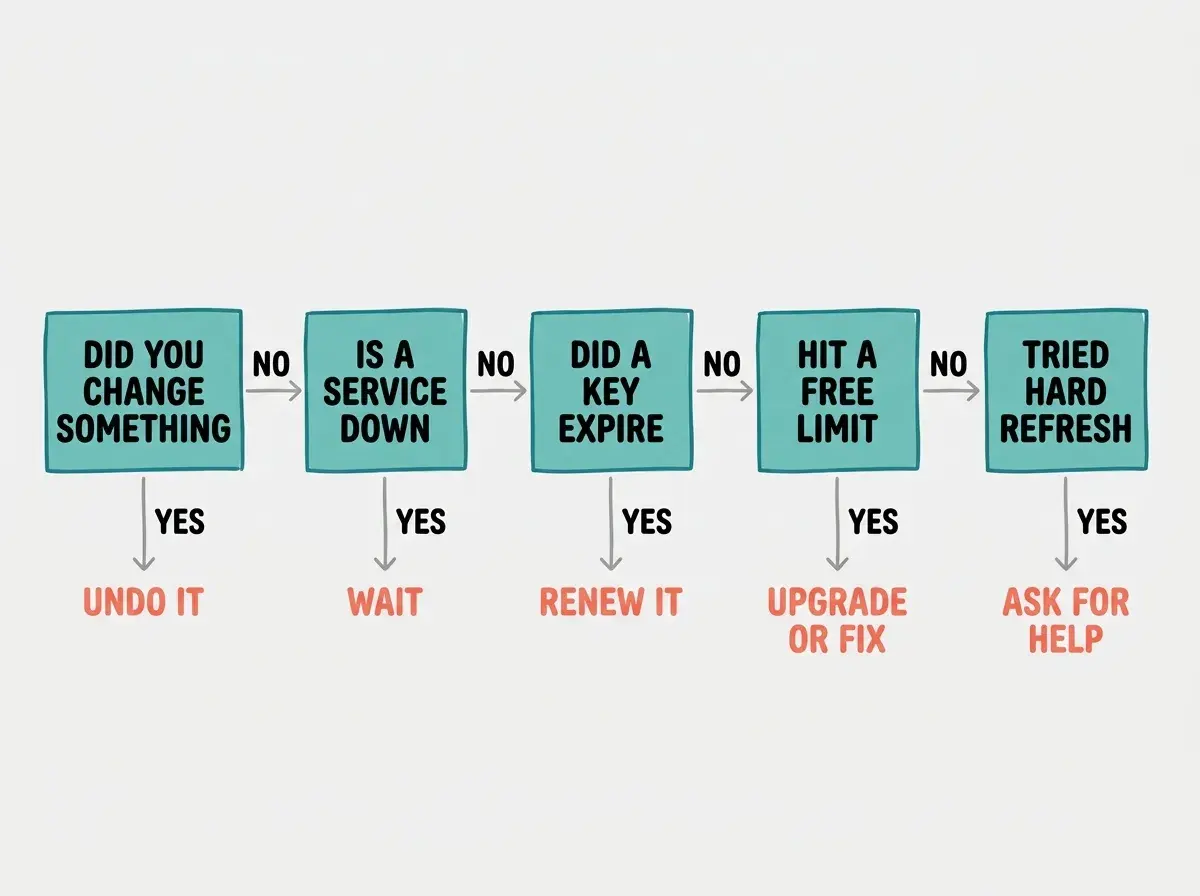
If you genuinely did not change anything, the problem might be external. A service might be down, an API key might have expired, or a free tier limit might have been reached. These are "someone siphoned your gas" scenarios. Not your fault, but still yours to solve.
Learn the fundamentals that make debugging easier from day one.
Start hereStep 5, Check the Usual Suspects
Think of this as checking the gas gauge, the battery terminals, and the tire pressure. These are the most common reasons apps break, and you can check all of them without understanding code.
Did a service go down? If your app uses a database (Supabase, Firebase), auth service (Clerk, Auth0), or payment processor (Stripe), check their status pages. Google "[service name] status" and look for outages. You would be surprised how often the fix is just "wait an hour."
Did an API key expire? Connections to external services rely on API keys. If you recently changed hosting or settings, a key might have been lost. Ask your AI tool: "Can you check if all my environment variables and API keys are configured correctly?"
Did a free tier limit get reached? Many services cut off access once you hit limits on database rows, API calls, or bandwidth. If your app suddenly stops loading data, this might be why.
Is it a browser caching issue? Sometimes your browser shows an old, broken version while the actual app is fine. Try an incognito/private window, or do a hard refresh (Ctrl+Shift+R on Windows, Cmd+Shift+R on Mac). This is the equivalent of turning your car off and on again, and it works more often than you would expect.
Step 6, Know When to Ask for Help
Sometimes the car will not start and you have checked everything you know how to check. Gas is full, battery is charged, key turns, but nothing happens. That is when you call a mechanic, and there is no shame in it.
Whether you are posting in a forum, messaging a developer friend, or hiring someone on Upwork, include four things: what your app is supposed to do, what it is doing instead, the exact error message (screenshot it), and what you have already tried. That combination gives anyone helping you a huge head start.
Describing the problem as "it does not work" without specifics. This is like calling a mechanic and saying "my car is broken." They need to know what kind of car, what happened, and when the problem started. The more details you provide, the faster someone can help. Always include the error message, what you were doing when it broke, and what you have already tried.
Good places to ask include the Discord or forum for your tool (Lovable, Cursor, Bolt, and Replit all have active communities), Reddit communities like r/vibecoding, and Twitter/X where tool creators are often responsive. If your app is business-critical, hiring a freelance developer for a quick fix is faster and cheaper than you expect.
You Are Going to Be Fine
Every developer, from beginners to people with twenty years of experience, has stared at a broken app and felt that sinking feeling. The difference is that experienced developers have felt it hundreds of times, so they know it always passes. The app always gets fixed.
You now have the same process they follow. Stay calm, check the console, screenshot the error, try undoing the last change, check the common causes, and ask for help if needed. Just like checking gas, battery, and engine in order, this systematic approach eliminates possibilities one at a time instead of guessing randomly.
The next time your app breaks (and it will), you will feel that initial spike of worry. But underneath it, you will also feel something new. A quiet confidence that you have been here before and you know exactly what to do first.
More guides for non-developers who are shipping real products with AI tools.
Explore guides