You asked an AI to build you a login page. The code looks right. The page loads. But when you click "Sign In," nothing happens. No error message, no redirect, no feedback at all. The button just sits there like it is on vacation.
This is the moment most beginners stare at the screen, scroll through AI-generated code they half-understand, and wonder what went wrong. There is a better approach. You can leave sticky notes in your code.
Think of console.log like placing sticky notes at specific pages in a book. Each sticky note tells you "the reader was here" and what they saw on that page. When something goes wrong, you check your sticky notes and discover the reader never made it past chapter three, or they arrived at chapter five with the wrong data. That is console.log debugging. You place markers in your code, run it, and read the trail they leave behind.
92% of US developers now use AI coding tools daily. That means millions of people are shipping code they did not write from scratch. Console.log is the fastest way to understand what that code is actually doing, and it works in every JavaScript project, every framework, and every browser.
What Console.log Actually Does
When you write console.log("hello") in your JavaScript code, you are telling the browser (or Node.js) to print the word "hello" to a hidden output panel. The code keeps running normally. Nothing changes for the user. But behind the scenes, you now have a message waiting for you.
It is the simplest possible debugging tool. No setup, no extensions, no configuration. You type one line, and you get information back.
console.log("The button was clicked");
That single line, placed inside a button's click handler, tells you whether the button is actually connected to any code. If you click the button and see nothing in the output, the handler is not wired up. If you see the message, the handler works and the problem is somewhere further down the chain.
This is your first sticky note. Place it, check it, and move on to the next question.
Where to See the Output
Here is where beginners get stuck. You add console.log to your code, run the app, and see nothing. That is because the output does not appear on the web page itself. It appears in the browser's developer console.
To open it:
- Chrome: Right-click anywhere on the page, select "Inspect," then click the "Console" tab
- Firefox: Right-click, "Inspect Element," then the "Console" tab
- Safari: Enable the Develop menu in Preferences first, then Develop > Show Web Inspector > Console
- Edge: Same as Chrome, right-click, "Inspect," then "Console"
Once the console is open, every console.log message your code produces will appear there in real time. You can keep it open while you use your app. Click buttons, submit forms, navigate pages, and watch the messages flow in.
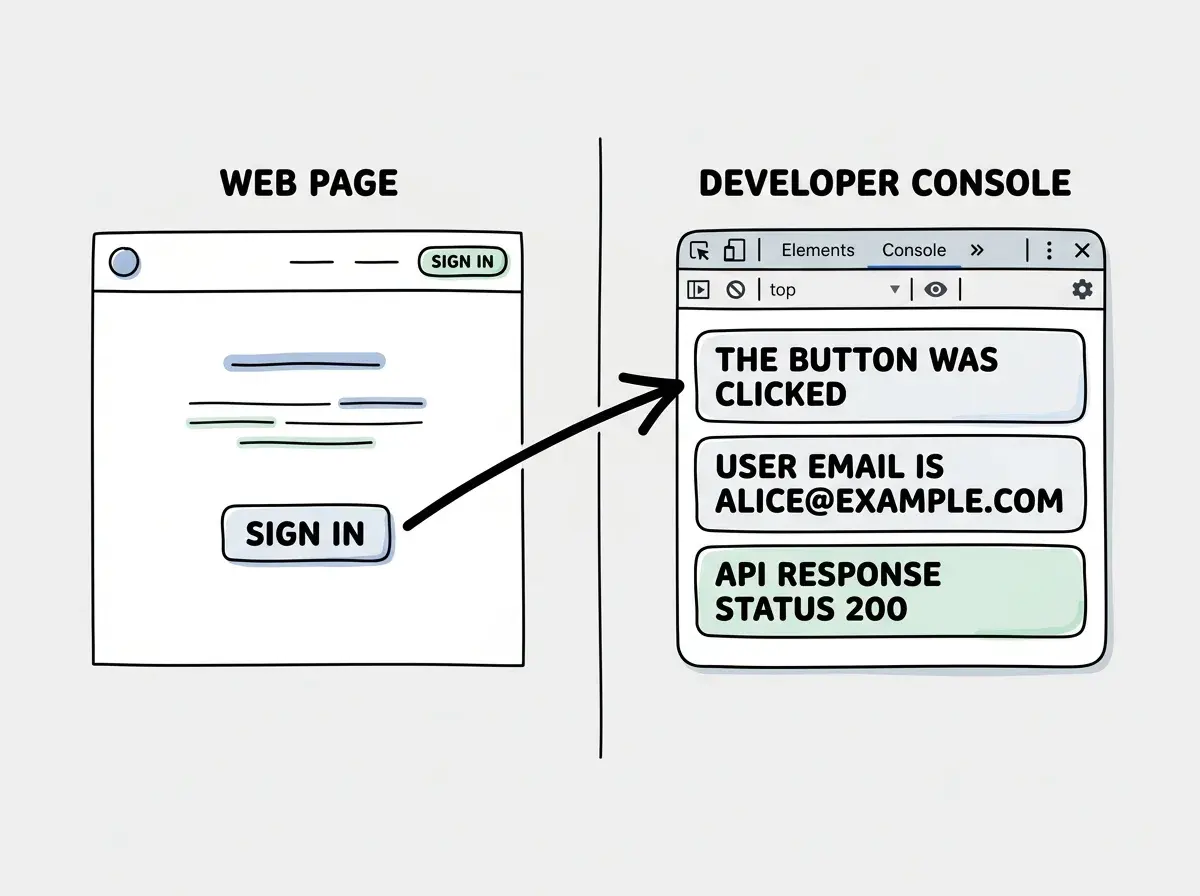
If you are working in a Next.js or similar framework, some of your code runs on the server rather than the browser. Server-side console.log messages appear in your terminal (the window where you ran npm run dev), not in the browser console. If you do not see your message in the browser, check the terminal.
What to Log and When
Knowing where to see the output is step one. Knowing what to log is where this technique becomes genuinely useful. There are four situations where a well-placed sticky note saves you hours.
Log Variable Values
When your app behaves unexpectedly, the first question is usually "what value does this variable actually contain?" You might assume user holds a name and email. But maybe the API returned something different, or the variable is undefined entirely.
console.log("user data:", user);
This prints the full contents of the user variable. If it says undefined, your code never received the data. If it shows an object with different fields than you expected, the API response structure does not match what the code assumes.
Log Function Entry and Exit
When you have a chain of functions and something breaks, you need to know which function actually ran. Place a sticky note at the entrance of each one.
function handleSubmit(formData) {
  console.log("handleSubmit called with:", formData);
  // ... rest of the function
}

function validateEmail(email) {
  console.log("validateEmail called with:", email);
  // ... rest of the function
}
Now when you submit the form, you can see the order of execution. If handleSubmit fires but validateEmail never appears, you know the code path skips validation. Your sticky notes reveal which pages the reader actually visited and in what order.
Log API Responses
API calls are the number one source of mystery bugs in AI-generated code. The AI writes a fetch call, assumes a specific response format, and never checks whether the real API agrees.
const response = await fetch("/api/login", {
  method: "POST",
  body: JSON.stringify({ email, password }),
});
const data = await response.json();
console.log("API response status:", response.status);
console.log("API response data:", data);
Those two lines tell you whether the API returned a success or error code, and exactly what data came back. When the login button does nothing, this is often the sticky note that reveals the answer: a 401 status, or an error message buried in the response body that your code silently ignores.
Log Conditional Branches
When your code has if/else blocks and the wrong branch executes, log which path was taken.
if (user.role === "admin") {
  console.log("Taking admin path");
  showAdminDashboard();
} else {
  console.log("Taking regular user path, role is:", user.role);
  showUserDashboard();
}
Console.log is not about logging everything. It is about asking one specific question at a time. "Did this function run?" "What value does this variable hold?" "Which branch did the code take?" Place one sticky note, check the answer, then place the next one. Methodical beats random every time.
Formatting Tricks That Save Time
Basic console.log works fine, but a few formatting tricks make the output easier to read when you have multiple messages.
Template Literals for Context
Instead of logging bare values, add context so you can tell which log is which.
console.log(`User email: ${user.email}, role: ${user.role}`);
The backtick syntax lets you embed variables directly in a string. When you have ten log statements, context labels prevent you from guessing which message corresponds to which line.
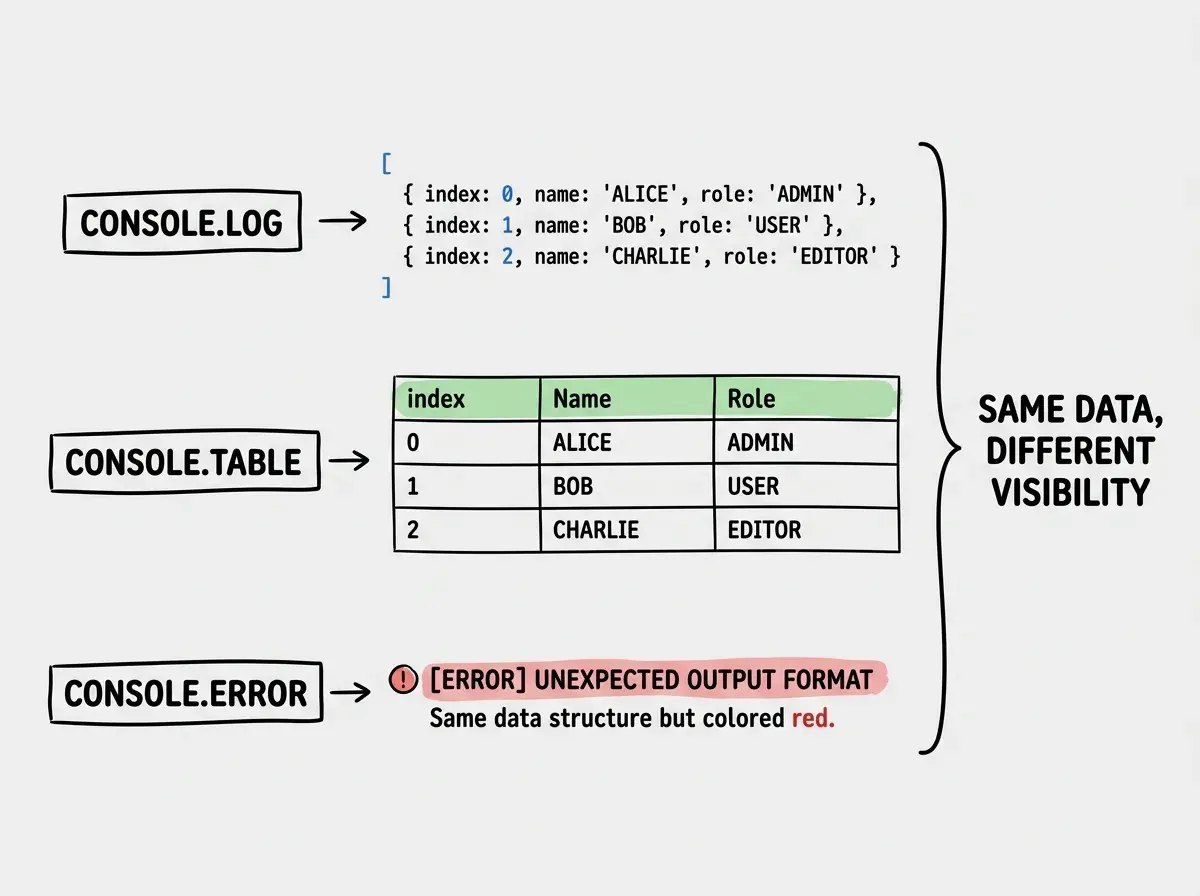
Console.table for Arrays and Objects
When you are logging an array of items or an object with many properties, console.table formats the data as a clean, readable table.
const users = [
  { name: "Alice", role: "admin" },
  { name: "Bob", role: "user" },
  { name: "Carol", role: "user" },
];
console.table(users);
This prints a formatted table with columns for each property, significantly easier to scan than a raw object dump.
Console.warn and Console.error
You can use console.warn() for things that seem off and console.error() for things that are definitely broken. These show up in different colors (yellow for warnings, red for errors) which makes them stand out in a busy console.
if (!apiKey) {
  console.error("API key is missing! Check your environment variables.");
}
Removing Logs Before Production
Here is the part that separates careful builders from sloppy ones. Console.log statements are for you, the developer. They should not ship to production where your users can open the console and see your debugging notes.
Before you deploy, search your codebase for console.log and remove or comment out your debugging statements. Most code editors make this easy with a global search (Ctrl+Shift+F or Cmd+Shift+F) for "console.log."
Some teams use linting rules (like ESLint's no-console rule) that flag any remaining console statements as errors during the build process. If your AI tool set up ESLint for you, ask it to add this rule. It acts as a safety net.
There are a few console.log statements that belong in production, like logging critical errors to a monitoring service. But your debugging sticky notes ("handleSubmit called," "user data:", "taking admin path") should always come out before you ship.
Leaving dozens of console.log statements scattered through your production code. Every user who opens the browser console sees your debugging notes, variable dumps, and test messages. It looks unprofessional, it can expose sensitive data like user objects or API responses, and it clutters the console when you need to debug a real production issue later. Clean up your sticky notes before you ship.
A Simple Debugging Workflow
When something breaks in your AI-generated code, follow this pattern:
- Identify the symptom. What exactly is not working? "The button does nothing" is better than "the app is broken."
- Form a hypothesis. What do you think should happen when the button is clicked? Which function should run?
- Place your first sticky note. Add a
console.logat the start of the function you think should fire. - Check the console. Did your message appear? If yes, the function ran and the problem is further down. If no, the function never executed and the problem is in how the button connects to it.
- Move the sticky note forward. Log the next step in the chain. Keep narrowing until you find the exact line where reality diverges from your expectation.
This is the same process experienced developers use. The tools get fancier (breakpoints, step debuggers, profilers), but the fundamental approach is the same: form a question, check the answer, repeat.
Console.log debugging is one skill in the builder's toolkit. Learn what else you need.
Explore the fundamentalsWhat This Means For You
- If you are a founder: Console.log is how you verify that the code your AI generated actually works the way you think it does. You do not need to understand every line. You need to understand the flow, and console.log shows you the flow in plain English.
- If you are a career changer: Learning to debug puts you ahead of most people using AI tools. Anyone can generate code. Fewer people can figure out why it broke and fix it. That skill makes you valuable, and console.log is the first step.
Debugging really is that simple at its core. You are not rewriting the book. You are placing sticky notes at key moments, checking which ones were reached, and reading what they found. Start with one console.log. Check the output. Place the next one.
Start building with AI tools and the debugging skills to back it up.
Start building