The release of Cline CLI 2.0 brings a renewed focus to developers who prefer working entirely within their terminal environments. Announced in February 2026, this major version upgrade introduces a dedicated terminal user interface and robust session management capabilities. For teams automating headless tasks or building complex shell compositions, understanding how this tool fits into your workflow is critical.
This documentation based review examines the architectural choices behind the new command line tool. We will explore how it differentiates itself from the popular editor extension, how you can evaluate it for your own projects, and how to navigate recent security advisories regarding specific package versions.
Retrospective edition for February 24, 2026. Researched and published September 9, 2026. Product details reflect documentation checked at publication unless explicitly identified as historical.
Understanding the CLI and Extension Split
A common point of confusion for teams adopting AI coding assistants is the relationship between different client interfaces. According to the official Cline CLI 2.0 announcement published on February 13, this release specifically targets the command line interface rather than the editor extension. They are distinct tools designed for different primary use cases.
The VS Code extension may fit developers who prefer visual review inside their editor. When you need to see side by side diffs, interact with syntax highlighted inline suggestions, or manage complex multi file refactors with visual confirmation, compare the editor and terminal experiences on the changes you actually review.
Conversely, the CLI is built for shell composition and headless repeatable tasks. It allows developers to pipe standard input and output, integrate AI generation into continuous integration scripts, and manage environments without a graphical interface.
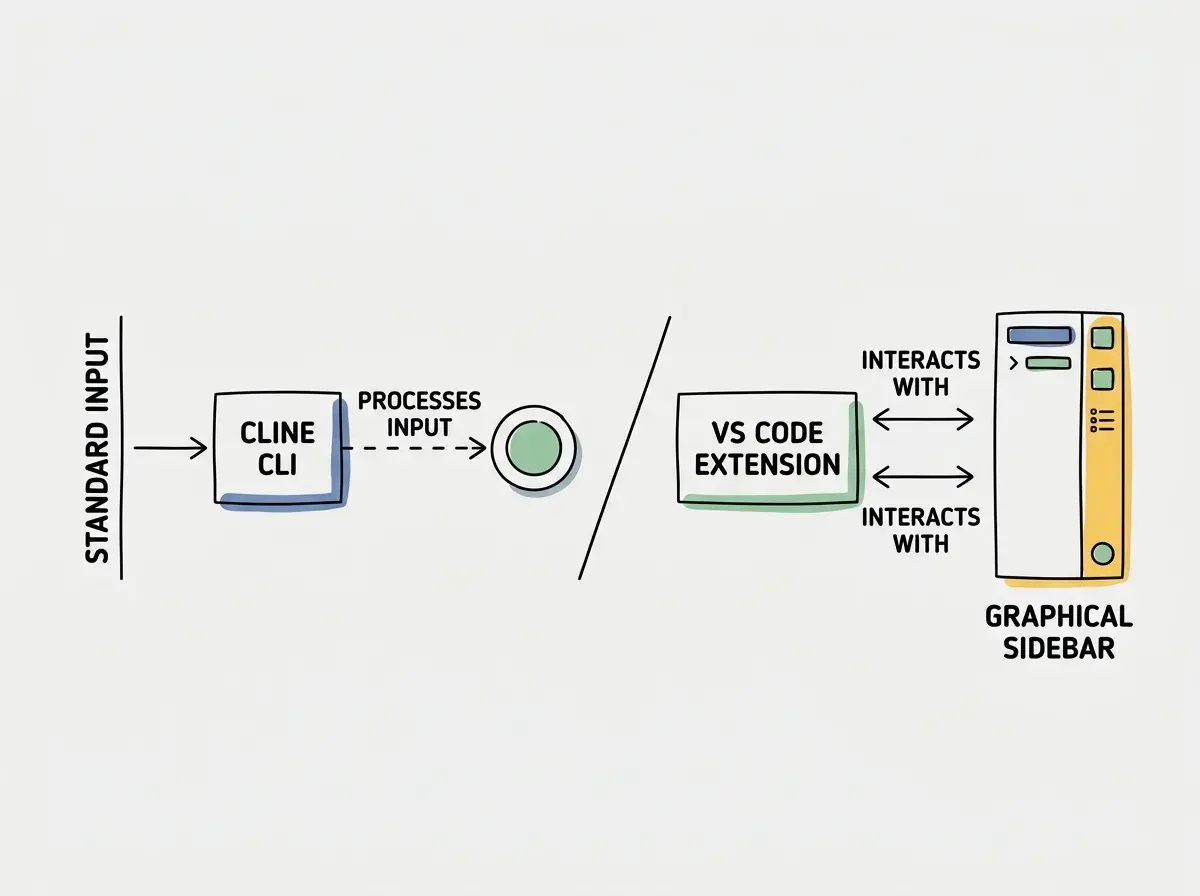
When planning your adoption strategy, you should treat these as complementary tools rather than mutually exclusive options. Many developers will find themselves using the CLI for automated scaffolding and the extension for nuanced logic adjustments.
Core Features of the New Terminal Interface
The February 13 documentation highlights several structural improvements to the command line experience. The most prominent addition is the new terminal user interface. Instead of a simple text stream, the tool now provides a structured layout within your terminal emulator, making it easier to read model responses and review proposed file system changes before approving them.
Another major addition is the support for multiple terminal sessions. Separate sessions allow independent conversations, but they can still interfere if they edit the same checkout. Use separate branches and working directories when tasks need isolation. You might have one session analyzing a log file while another session actively scaffolds a new component.
Model choice and CLI authentication have also been streamlined. The documentation indicates that users can now configure their preferred language models directly through the command line flags or configuration files, using the documented authentication flow; inspect credential storage and scopes for your environment.
The introduction of a structured terminal UI means you no longer have to parse raw text streams to understand what the AI is proposing. Evaluate that interface during interactive use. For headless work, focus instead on logs, exit behavior, and whether approval requirements are handled explicitly.
To better understand where the command line tool excels compared to the graphical extension, consider the following feature breakdown.
| Feature | Cline CLI 2.0 | Cline Extension |
|---|---|---|
| Primary Interface | Terminal emulator | Editor sidebar |
| Best Use Case | Headless automation and scripting | Visual code review and inline edits |
| Shell Composition | Native piping support | Limited to editor context |
| Concurrent Sessions | Multiple isolated processes | Managed via editor tabs |
If your daily workflow involves chaining commands together in Bash or Zsh, the CLI provides a native feel that an editor extension simply cannot replicate.
Explore clear explanations of AI coding tools, project context, and reliable development workflows.
Explore the blogPlanning Your Evaluation with Three Tasks
Because AI tooling performance varies wildly depending on your specific codebase and the language model you select, you should never rely on generic benchmarks. Instead, I recommend a structured three task evaluation plan to test the CLI in your own environment.
The goal of this evaluation is to measure how well the tool handles repeatable tasks, how easily it integrates into your existing shell scripts, and how clearly the new terminal UI presents information.
Task One Batch File Renaming and Refactoring
The first evaluation task tests the tool's ability to handle tedious file system operations. Create a directory with twenty dummy files containing inconsistent naming conventions and outdated import statements.
Your objective is to write a single shell script that pipes a prompt into the CLI, instructing it to standardize the file names to kebab case and update all internal references.
When running this task, pay close attention to how the terminal UI presents the proposed changes. Does it clearly list every file that will be moved? Does it allow you to selectively approve changes, or is it an all or nothing operation? This test will reveal the practical usability of the new interface for bulk operations.
Task Two Headless Test Generation
The second task evaluates the tool's utility in a continuous integration context. Select a small isolated utility module in your codebase that currently lacks test coverage.
Write a prompt instructing the CLI to read the utility module and generate a comprehensive suite of unit tests. Run this task in a headless mode, simulating a CI environment where user interaction is impossible.
Evaluate the output based on whether the generated tests compile and run successfully without human intervention. This task is crucial for teams looking to automate test scaffolding during their build pipelines. It will also highlight how well the CLI handles context limits when operating without interactive feedback.
Task Three Log Parsing and Summarization
The final task tests the multiple terminal sessions feature and the tool's ability to process large amounts of unstructured data.
Generate a large dummy application log containing a mix of routine informational messages and hidden error stack traces. Open two separate terminal sessions. In the first session, instruct the CLI to parse the log and extract all error messages. In the second session, instruct it to summarize the overall health of the application based on the log's contents.
Observe how the CLI manages these concurrent requests. Check if the authentication and model choice configurations hold up under parallel execution. This exercise can reveal shared-state problems and limits in processing text streams; it does not prove isolation for every workflow.
Do not evaluate the CLI using the same criteria you would use for an editor extension. Focus on repeatability, scriptability, and headless execution rather than visual diffing capabilities.
Keep a reviewable record of each run
For each proposed evaluation, save the prompt, package version, model identifier, changed files, and checks completed. Use a clean fixture directory so another developer can repeat the task. Record failures as well as successes, including whether the tool stopped for input or exceeded a time limit.
This record separates a useful terminal workflow from a convincing demonstration. A polished transcript does not establish that the generated tests catch a regression or that a bulk rename preserved every import. Run the resulting project checks and inspect the diff before accepting the change.
Cost Management and Provider Selection
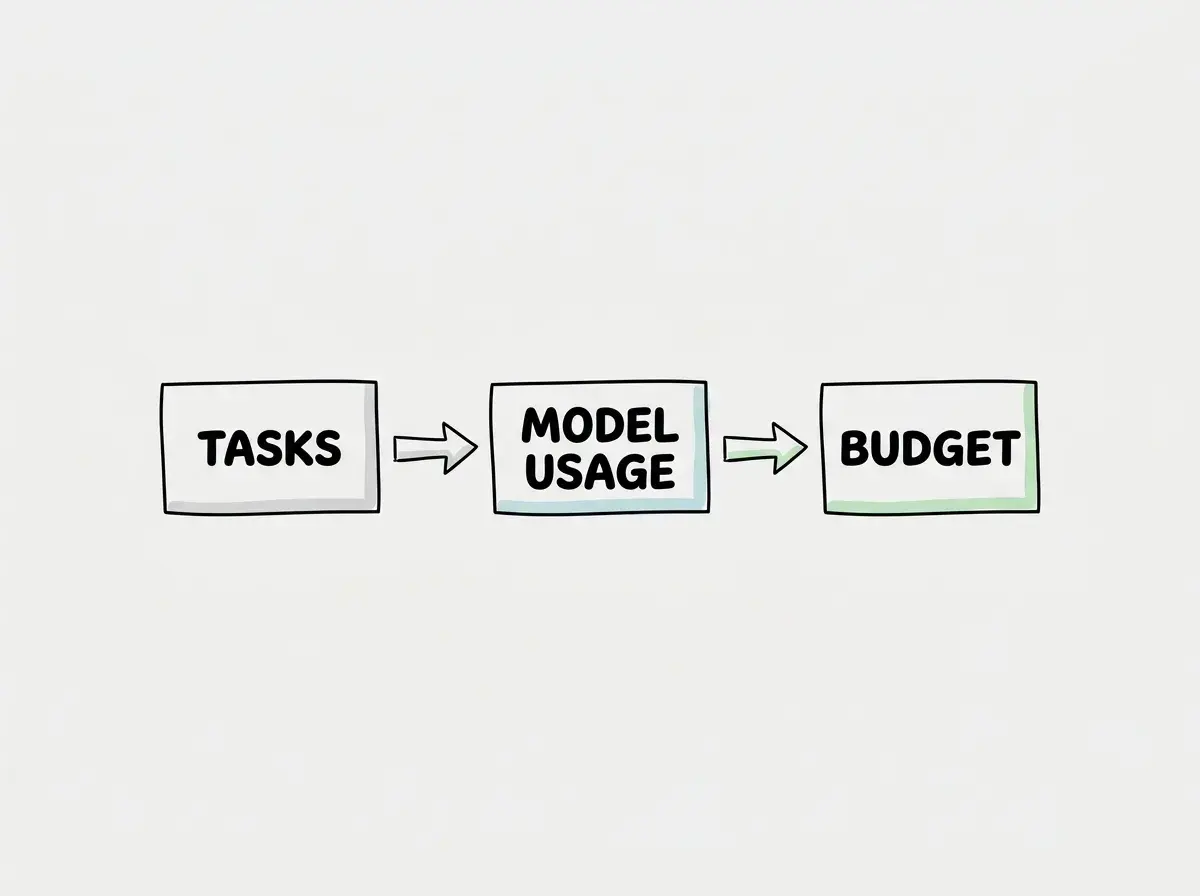
When integrating any AI tool into automated workflows, cost predictability becomes a significant concern. Unlike interactive editor usage where a human inherently rate limits the requests, headless CLI tasks can consume tokens rapidly.
The documentation notes that the CLI supports model choice, meaning model charges depend on the provider and model you configure, alongside any subscription or execution costs in your setup. If you choose a premium model for a batch processing script, the costs can escalate quickly.
I recommend utilizing version pinning and strict review isolation for all automated tasks. Pin a reviewed package version and choose a model that passes your task checks. A cheaper model that repeatedly fails can cost more per accepted result; measure retries before deciding which tasks to route to it.
Always calculate your expected token usage based on your provider's pricing sheet before running bulk operations through the CLI. Establish billing alerts with your chosen provider to prevent unexpected charges from runaway scripts.
Navigating the February Security Incident
When evaluating any development tool, understanding the maintainer's security posture and incident response is just as important as reviewing the feature set.
On February 24, the maintainers published an official postmortem regarding an incident that occurred earlier in the month. According to the official postmortem, an unauthorized cline@2.3.0 npm publish occurred on February 17. The maintainers reported an unwanted installation of the legitimate OpenClaw package, no malicious code, and no affected editor extensions. They published corrected version 2.4.0 and revoked the compromised token. This is a historical incident summary, not a recommendation to install an old version today.
When updating your environment or incorporating the CLI into your build pipelines, it is imperative to read the official postmortem carefully. You must verify the exact affected versions listed in their advisory rather than guessing or relying on third party summaries.
Ensure your package managers are configured to reject the specific compromised versions. Implementing strict dependency pinning and utilizing lockfiles will help protect your automation pipelines from unexpected upstream changes.
Frequently Asked Questions
What this means for you
The release of Cline CLI 2.0 represents a maturation of terminal based AI assistance. By providing a structured interface and robust session management, it bridges the gap between raw API calls and fully integrated editor extensions.
For developers who live in the terminal, this tool offers a powerful way to bring AI generation into shell scripts and automated pipelines. However, successful adoption requires careful planning. You must evaluate the tool using realistic, headless tasks, manage your model costs proactively, and stay vigilant regarding package security.
By understanding the distinct advantages of the command line interface, you can build more resilient and automated development workflows.
Read more practical articles for choosing tools, reviewing changes, and shipping useful software.
Read more guides