Claude Code slash commands are instructions you type into the CLI starting with /, like /compact to compress a long session or /review to audit pending changes. They control session state, trigger workflows, and run automation that would otherwise take several manual prompts. Claude Code ships with over 70 built-in commands, and you can author your own.
This reference covers every built-in command worth knowing, the three that can quietly burn through your credits, how to write your own as Markdown files, and where to find community-built ones. The fastest way to use this page is to jump straight to a command in the glossary below.
/planPlan before writing code/goalRun until a condition is met/contextSee context window usage/reviewAudit changes or a PR/ultrareviewMulti-agent deep review/security-reviewScan for security issues/diffInteractive diff viewer/batchParallel work in worktrees/autofix-prAuto-fix PRs on CI fail/loopRepeat prompt on interval/scheduleCloud cron routines/compactCompress conversation/clearFresh conversation/resumeReturn to prior session/rewindJump to checkpoint/btwOff-the-record question/modelSwitch model mid-session/effortTune reasoning depth/fastLower-latency mode/usageSession cost and limitsHow to see every slash command in Claude Code
Type / at the Claude Code prompt to see the live list of every command available in your installation. Then type a few letters to filter. The list updates with new releases, so the in-CLI menu is always the authoritative source. This reference is the curated, opinionated version of that menu.
Built-in commands fall into three categories that matter operationally. Most are safe and free (/clear, /compact, /diff). A handful control cost and model behaviour (/model, /effort, /fast). Three can run for hours and bill accordingly if you walk away (/loop, /goal + /loop, /schedule). Knowing which is which prevents surprise charges.
You will not use most of the 70 commands in a given week. The 20 below cover roughly 90 percent of real day-to-day use. Skim them once, then come back when you need a specific one.
The slash commands you will actually use every day
These twenty commands are grouped by what you are trying to accomplish. Each one carries a one-line description, an example, and a watch-out where it matters. The official docs at code.claude.com cover every command in detail.
Planning a change before Claude writes code
Tells Claude to map out its approach before doing anything else. Instead of jumping straight to edits, Claude analyses the relevant files, drafts a step-by-step plan in the chat, and waits. You read the plan, push back on the parts you disagree with, then approve to let it execute. Costs less in the long run than letting Claude pick the wrong approach and reversing it.
Example: /plan refactor the auth system to support OAuth2
Watch out: Plan mode does not write code on its own. After you approve, you still need to tell Claude to proceed. If you read the plan and walk away, nothing happens.
Defines a measurable success condition like "all tests pass" or "build is green". Claude then iterates on its own, running tests, fixing what breaks, and re-running until the condition is met. You can step away between turns instead of confirming each step. The session keeps going until the goal is hit (or you stop it).
Example: /goal fix the failing checkout test and stop after tests pass
Watch out: Vague goals like "make the code better" never terminate and burn credits indefinitely. The stopping condition has to be something Claude can verify objectively (a passing test, a clean build, a regex match).
Shows how full Claude's working memory is right now, broken down by what is filling it: loaded skills, tool results, conversation history, system prompts. As the window fills up, Claude starts forgetting earlier decisions and contradicting itself. This is the diagnostic command for deciding whether your session needs a /compact, a /clear, or is still healthy.
Example: /context all
Best use: Run when Claude feels like it is losing the thread or you are partway through a long session. The breakdown tells you which category to trim.
Reviewing code
Reviews your uncommitted changes (or a GitHub PR if you pass the number). Claude reads the diff, considers each change in the context of the surrounding code, and writes structured feedback covering logic errors, missing edge cases, security gaps, and style issues. Single-agent review, faster and cheaper than /ultrareview.
Example: /review 342
Watch out: Reviews only what is in your diff, not the entire codebase. Bugs that already existed in files you did not touch will not be caught. Treat it as a review of your changes, not an audit of your project.
Runs multiple reviews in parallel, each from a different angle: one agent looks at architecture, another at security, another at performance. The agents work simultaneously in isolated contexts and merge their findings into one report. Catches issues a single reviewer would miss because each agent is scanning for a different category of problem.
Example: /ultrareview 287
Watch out: Costs considerably more than /review because you are running several reviews at once. Reserve for PRs that touch payments, authentication, or core systems where a missed issue has real consequences. Pro/Max plans include a small number of free runs per month.
A narrow audit of your pending changes hunting specifically for SQL injection, authentication bypass, sensitive data exposure, and cross-site scripting. Reads only the diff (not the surrounding codebase). Less comprehensive than a professional security audit, but it catches the common mistakes that ship to production by accident.
Example: /security-review
Best use: Run on anything that touches user input, authentication, or external services. Particularly valuable before pushing to production at the end of a long session, when fatigue is highest.
Opens an interactive viewer for all uncommitted changes. Arrow keys move between files. A per-turn breakdown shows what Claude changed in each step of the conversation, so you can trace exactly which prompt produced which edit. Cleaner than running git diff in a separate terminal, and the per-turn view is something git cannot show you.
Example: /diff
Best use: Run after any major Claude edit before accepting. The per-turn view is especially useful after autonomous runs where multiple changes accumulated and you want to understand the sequence.
Running long tasks without watching them
Splits a repetitive task across many files into independent pieces and runs each piece in parallel. Every piece gets its own git worktree (a separate working copy of the repo) and its own Claude subagent, so the parallel work never steps on itself. Designed for changes like "add error handling to all 30 API routes" where each file can be edited in isolation.
Example: /batch add error handling to all API endpoints in src/routes/
Watch out: If file A depends on file B and both are edited at the same time, you get merge conflicts or subtly broken logic when the worktrees are recombined. Verifying that the pieces are genuinely independent is your job, not Claude's. Skip /batch for interconnected refactors.
Points Claude at one of your open pull requests and lets it push fixes automatically. When CI fails, Claude reads the failure logs and pushes a commit that addresses the failure. When a reviewer leaves a comment, Claude reads it and pushes a change. The instruction you give right after the command controls what Claude is allowed to touch.
Example: /autofix-pr only fix lint and type errors
Watch out: Without a tight scope, Claude can rewrite production logic based on a vague reviewer comment. "Fix lint and type errors" is safe because the boundary is clear. "Fix the reviewer comments" is dangerous because Claude has to interpret what each comment means.
Re-runs the same prompt every N minutes for as long as the session stays open. Useful when something changes over time and you want Claude to check in: has the deploy finished, are there new errors in the log, summarise any changes since last check. Each iteration is a full new prompt, so it costs tokens.
Example: /loop 5m check if the deploy finished
Watch out: A 5-minute loop running for 3 hours generates 36 API calls. A 1-minute loop running overnight generates 480. Set the interval based on how fast the thing you are watching actually changes, and check /usage regularly.
Creates a routine that runs on Anthropic's cloud on a cron schedule, independent of whether your terminal is open. Unlike /loop (which only runs while your session is active), schedules persist until you delete them and execute on their own. Useful for genuinely recurring work like a daily morning summary of overnight activity.
Example: /schedule every morning at 9am review overnight PRs and summarise
Watch out: Scheduled routines run with your credits whether or not you remember they exist. A daily routine using $2 of credits is $60 a month for something you may have stopped needing. Audit your active schedules monthly.
Managing long sessions
Replaces your full conversation history with a focused summary, freeing up context window space without ending the session. Long sessions degrade as Claude forgets early decisions or contradicts itself. Compact rewrites the history into a shorter, focused version so you can keep working without losing the thread. The optional argument tells Claude what to prioritise when writing the summary.
Example: /compact focus on the database migration
Watch out: Compression is lossy. Details from early in the session may not survive the rewrite. If a specific constraint, decision, or edge case matters, include it explicitly in your focus instruction.
Wipes the current conversation entirely and starts a new one. Project memory (CLAUDE.md, custom skills, configured permissions) survives, but everything you and Claude discussed in the previous session is gone. The difference from /compact is that nothing gets summarised; it is a clean slate.
Example: /clear
Watch out: There is no undo. Anything not saved to memory or written to files is permanently gone the moment you clear. If you might want to come back, use /resume later rather than starting over.
Reopens a previous Claude Code session. Pass a session ID if you know one, or run it bare to get a picker of recent sessions. The entire conversation history comes back as if you never left, including any unresolved tasks or decisions you wanted to revisit.
Example: /resume
Best use: Pairs naturally with /clear. Together they let you context-switch between several active threads (one per feature you are working on) without losing the history of any of them.
Goes back to an earlier state in the current session. Claude Code creates checkpoints automatically as the conversation progresses, and rewind lets you pick one and resume from there. Useful when Claude took a few turns in the wrong direction and you want to undo all of them at once rather than manually reverting.
Example: /rewind
Best use: When you realise three or four turns back that Claude went off track. Faster than undoing each change by hand, and the session continues from the checkpoint as if the bad turns never happened.
Asks Claude a quick question without it entering the main conversation. The question and answer are both invisible to the rest of the session, so your context window stays focused on the actual task. Useful for syntax lookups, library questions, or anything tangential to what you are building.
Example: /btw what's the default timeout for Redis connections?
Best use: Mid-task lookups where you want the answer right now but do not want Claude treating the side topic as part of the work in progress. Especially valuable late in a long session where every extra token in context hurts quality.
Tuning Claude's model and reasoning
Switches which Claude model handles your prompts, mid-session. You can move between Opus (most capable, most expensive), Sonnet (balanced), and Haiku (cheapest and fastest) without ending the conversation or losing context. The switch applies to subsequent turns.
Example: /model haiku
Best use: Drop to Haiku for mechanical work like renaming or formatting, then switch back to Sonnet or Opus when you hit a hard problem. Cheap way to manage cost without losing depth where it actually matters.
Controls how much time Claude spends thinking before responding. Higher effort means longer chains of reasoning, more verification of intermediate steps, and more tokens consumed. The levels are low, medium, high, xhigh, max, and auto. Auto scales effort to the apparent difficulty of each prompt.
Example: /effort high
Best use: Bump up for architectural decisions, debugging tricky issues, or anything where being wrong is expensive to undo. Drop down for mechanical edits where the answer is obvious and you want fewer tokens spent.
Toggles a lower-latency mode available on Opus. Responses stream faster, which makes back-and-forth conversation feel more interactive. The underlying model is still Opus; only the output cadence changes, so reasoning quality is unaffected.
Example: /fast on
Best use: Interactive sessions where you are iterating quickly and waiting for tokens makes the conversation feel sluggish. Less useful for long autonomous runs where you are not watching the output anyway.
Shows how much you have spent in the current session, how much of your monthly plan allowance is used, and your remaining rate limit. The single most important command for anyone on API or pay-per-use pricing.
Example: /usage
Best use: Check before and after every long autonomous run, and once a day if you keep schedules or loops active. Most surprise bills come from forgetting that something is still running, not from any individual run.
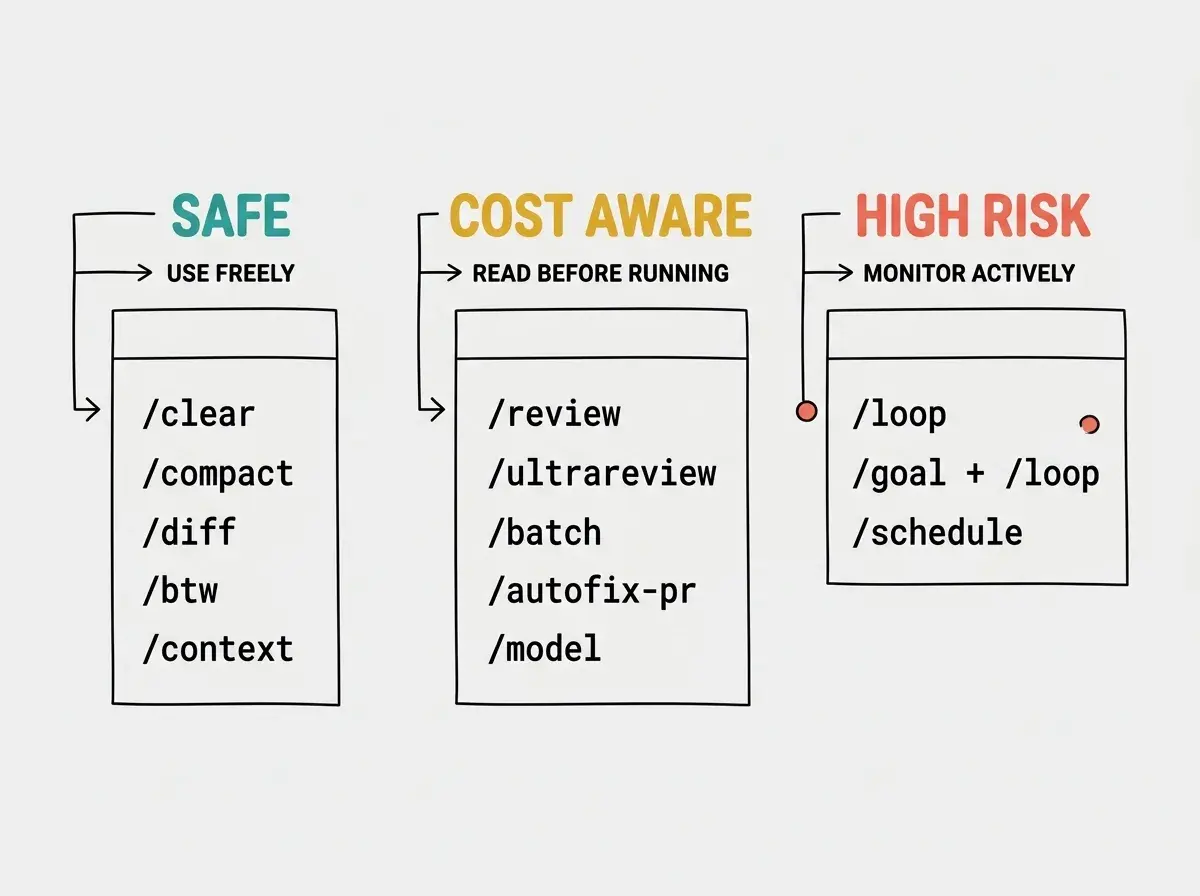
Which Claude Code commands can burn through your credits
Three commands account for almost every surprise bill in Claude Code. They are also the most useful commands in the toolkit. The trick is knowing what they actually do to your token count.
/loop consumes tokens on every iteration. A five-minute loop running for three hours generates 36 full prompt cycles. Each cycle reads context, makes a decision, and writes output. A short interval over a long window adds up fast. Always set a ceiling on how long you are willing to let it run.
/goal + /loop is the most capable setup in Claude Code and the fastest way to spend credits. You set a success condition, then loop until the condition is met. A ten-minute loop over three hours is 18 full cycles, each one reading errors, writing fixes, and re-running tests. Walk away with this combination only if you have a specific stopping condition and you have checked /usage recently.
/schedule runs routines on Anthropic's cloud on a cron interval, independent of your terminal. The convenience is that you do not need to keep a session open. The risk is that you forget about it. A daily routine consuming $2 of credits is $60 a month for something you may have stopped needing. Audit your active routines monthly.
The pattern across all three is the same. Cost scales with iterations, not with elapsed time. Tighten the interval, narrow the scope, and check /usage more often than feels necessary.
The complete guide covers installation, CLAUDE.md files, and the agentic workflow in detail.
Read the complete guideThe single highest-leverage habit when using these three commands is checking /usage before and after every long run. Most surprise bills come from forgetting a loop or schedule exists, not from any individual run.
How to create custom slash commands in Claude Code
Custom slash commands are Markdown files. You drop them in a specific folder, and they show up in the / menu in your next session. There are two formats, legacy commands and skills, and skills are the recommended path now.
A legacy command is one Markdown file. Put it at .claude/commands/my-command.md (project) or ~/.claude/commands/my-command.md (personal), write your instructions inside, and invoke it as /my-command. That is the entire setup.
A skill is a folder with a SKILL.md file inside. Put it at .claude/skills/my-skill/SKILL.md, add YAML frontmatter, and Claude can either invoke it manually (/my-skill) or load it automatically based on the description. The frontmatter lets you control which tools the skill can use, what arguments it accepts, and whether Claude is allowed to load it without you typing the slash.
| Feature | Legacy Command | SkillRecommended |
|---|---|---|
| File location | .claude/commands/*.md | .claude/skills/*/SKILL.md |
| Manual invocation | ||
| Auto-invocation | ||
| Arguments | $ARGUMENTS only | $ARGUMENTS, $1, $name |
| Pre-approved tools | ||
| Supporting files | ||
| Model override | ||
| Recommended for new commands |
Arguments work the same way in both formats. Reference all arguments as $ARGUMENTS, or specific positional ones as $0, $1, $2. Skills also let you declare named arguments in frontmatter (arguments: [issue, priority]) and then reference them as $issue and $priority in the body.
The other thing skills do better is dynamic context. You can run a shell command inline with !`gh pr diff`, and the output gets injected into the prompt before Claude sees it. This is how the most useful skills work, by pulling in fresh context (git diff, test results, environment info) at the moment of invocation rather than relying on Claude to fetch it.
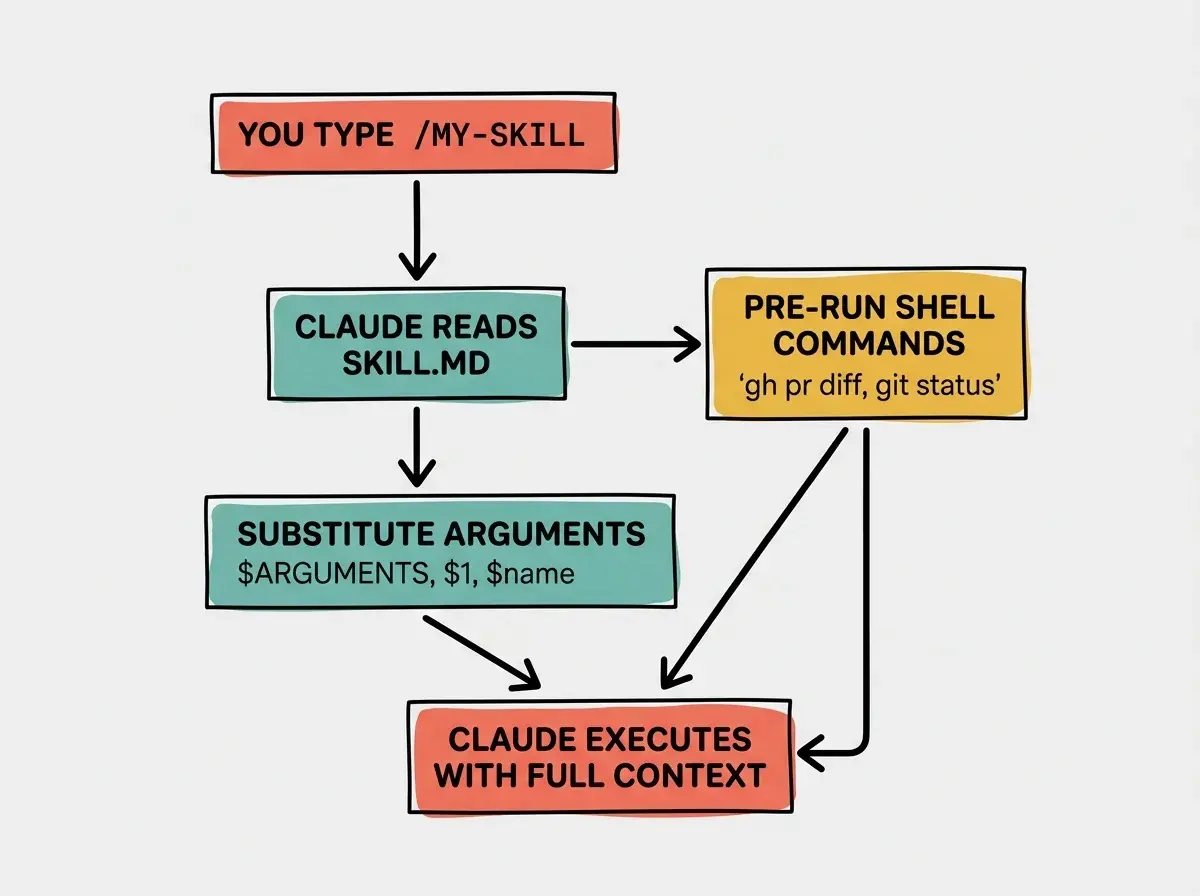
The result is a single command that pulls fresh state from your environment, runs against the right model with the right effort level, and uses only the tools you have pre-approved. That is a meaningful jump in capability from a static prompt.
The biggest mistake new authors make is writing a skill description like a function name (refactor-component) instead of like a trigger sentence (Refactor a React component to use the target pattern). Claude decides whether to auto-load a skill by matching the description against your current request. A vague description means Claude never loads it, and you have to invoke it manually every time.
Power combinations every Claude Code user should know
The real productivity in Claude Code comes from chaining commands, not from any single one. A few patterns are worth learning by name.
Plan into goal is /plan followed by /goal. Use /plan to map the approach, review the output, then set a /goal that codifies the success condition. This catches bad approaches before they consume autonomous cycles.
Goal plus loop is the autonomous setup covered above. Use it when you have a measurable stopping condition and you trust the harness to converge. Walk away only with a hard cap on time or cost.
Compact with focus is /compact focus on X. Standard /compact is lossy. Adding a focus instruction tells Claude what to prioritise in the summary, which preserves the specific constraint or decision you cannot afford to lose.
Batch in worktrees is /batch for repetitive changes across many independent files. The worktree isolation is what makes it safe. Skip it if your changes are interconnected.
Autofix scoped is /autofix-pr only fix lint and type errors. The scoping instruction is the difference between a useful CI babysitter and Claude rewriting your logic based on a vague reviewer nit.
Where to find community-built slash commands
Most of the useful custom commands you will ever need have already been written by someone else. Six places are worth knowing.
- awesome-claude-code is the canonical curated list. Skills, hooks, commands, agents, and plugins, all in one repo.
- wshobson/commands has 57 production-ready commands across workflows like TDD, security hardening, and incident response.
- qdhenry/Claude-Command-Suite is enterprise-grade, focused on structured software workflows like architectural analysis and feature creation.
- claudemarketplaces.com is a searchable registry with thousands of skills and marketplaces.
- The official Anthropic docs are the source of truth for command syntax and behaviour.
- The
/helpcommand inside Claude Code is the only authoritative live source, because it updates with every release.
For one-off commands, start with awesome-claude-code and read the descriptions. For production workflows, wshobson/commands and Claude-Command-Suite are the highest-quality starting points.
What this means for your workflow
If you have never written a custom command, write one this week. Pick something you type into Claude Code three times a week and turn it into a Markdown file. The setup takes five minutes and the savings compound.
If you are using /loop or /goal + /loop without checking /usage regularly, set yourself a rule. Check /usage before and after every autonomous run, and never start one without a stopping condition in mind.
If you are running long sessions and watching context degrade, switch to /compact every 30 to 40 minutes with a focus instruction. The single command keeps Claude coherent across multi-hour work better than any other habit.
If you have not browsed awesome-claude-code recently, do it. The ecosystem moves fast. The commands you wrote six months ago are probably outclassed by something a stranger published last week.
The complete guide to terminal-based AI coding workflows, CLAUDE.md files, and agentic development.
Read the complete guideThe questions below cover the points readers ask most often when picking up slash commands for the first time.