You can build a project management tool with AI coding tools in a single weekend, and it will handle real work. 92% of developers now use AI tools daily, and CNBC journalists recently replicated Monday.com in under an hour. This tutorial walks you through building your own version with kanban boards, task lists, team views, and status tracking.
Think of a project management tool like a kitchen ticket system. Orders come in (tasks), each ticket moves through stations (statuses), different cooks handle different tickets (assignments), and the head chef watches a board showing every ticket's position (the kanban view). You are building that system, except the tickets are your team's work and the board lives in a browser.
Why a Project Management Tool Is Worth Building
Project management tools are among the most common SaaS products for a reason. Every team needs one, and every team wants something slightly different. Trello is too simple for some, Monday.com is too expensive for others, and Jira makes everyone want to throw their laptop out a window.
Building your own gives you three things. First, you learn full-stack patterns that apply to any complex web application. Database relations, drag-and-drop interfaces, real-time status updates, and multi-view layouts are skills that transfer everywhere. Second, you get a tool you can actually use, customized to your exact workflow. Third, if you nail a niche (project management for freelancers, for agencies, for content teams), you have the foundation for a SaaS product.
The project has natural complexity tiers. The core (task lists and statuses) is buildable in a few hours. The intermediate features (kanban board, team assignments, filtering) fill out Saturday afternoon. The advanced layer (dashboard and polish) is a Sunday project. Each tier works independently, so you have something useful even if you stop early.
Build each view as a standalone feature before connecting them. Get the table view working perfectly, then build the kanban board as a second way to look at the same data. AI tools produce much better code when they can focus on one interface pattern at a time rather than juggling three views in a single prompt. One view, working and polished, then the next.
Saturday Morning, Project Setup and the Task Table
Start with your stack. Next.js with a SQLite database (via Prisma or Drizzle), Tailwind CSS, and shadcn/ui for polished components. This keeps everything in a single project with no external services to configure or pay for.
Open your AI coding tool and describe the foundation and the first feature together.
"Create a Next.js app with a SQLite database using Prisma. Set up these models: Project (name, description, color, timestamps), Task (title, description, status, priority, due date, position, relation to Project), and User (name, email, avatar URL). Build a project page that shows all tasks in a table with columns for title, status, priority, assignee, and due date. Add a form to create new tasks. Use Tailwind CSS and shadcn/ui for styling."
This prompt should generate your scaffolding, database schema, and a working task table. Review the database schema before moving forward. Confirm the relations look right, that Task belongs to Project, and that the status field has reasonable defaults.
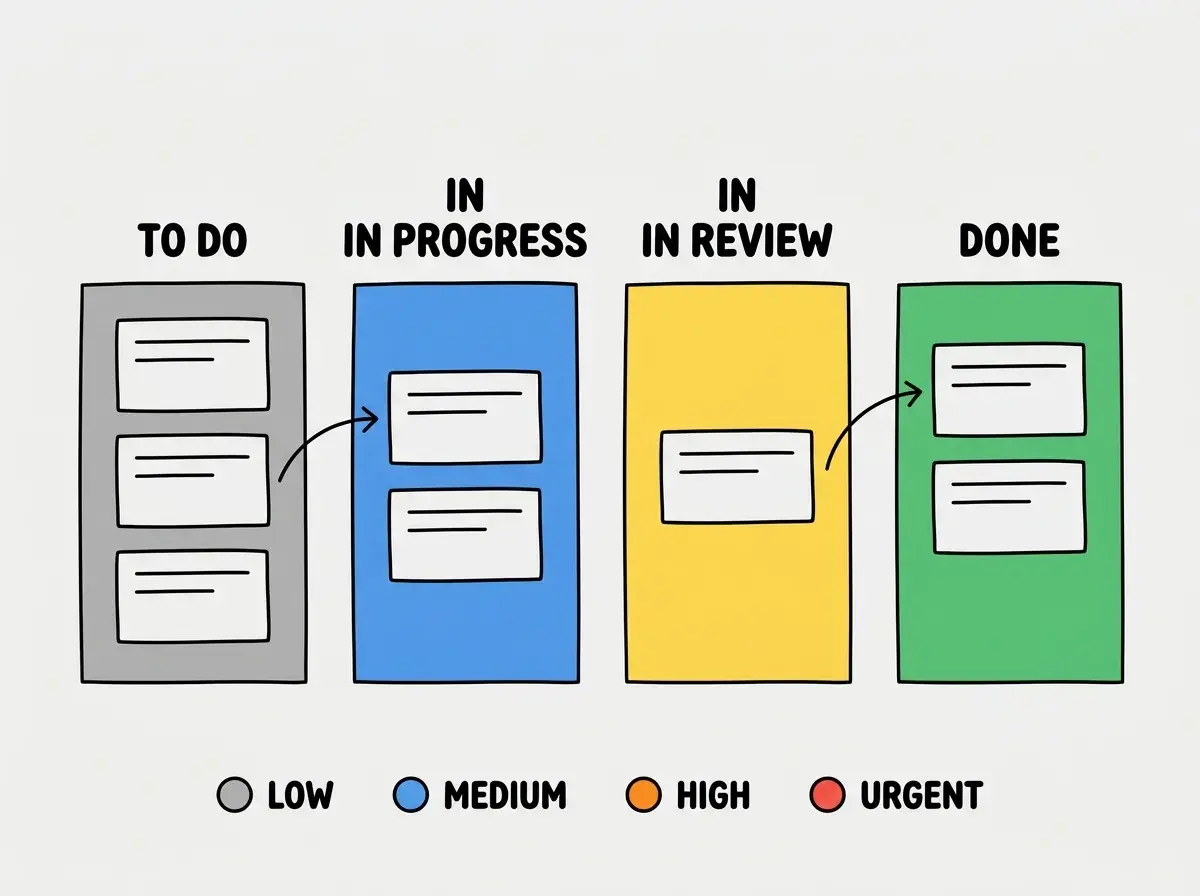
Now refine the table into something that feels like a real tool. "Add inline editing so I can click on a task title in the table to edit it directly. Make the status column a dropdown with options To Do, In Progress, In Review, and Done. Color-code each status with a different background: gray for To Do, blue for In Progress, yellow for In Review, and green for Done. Add a priority column with options Low, Medium, High, and Urgent, color-coded similarly."
Spend the next thirty minutes on the table's usability. "Add the ability to sort tasks by any column. Add a filter bar above the table that lets me filter by status, priority, and assignee. Add a search box that filters tasks by title. Show a count of visible tasks versus total tasks."
By late morning, you should have a fully functional task table with inline editing, color-coded statuses, sorting, filtering, and search. This alone is a useful project management tool.
Saturday Afternoon, The Kanban Board
The kanban board is the feature that makes your tool feel like Monday.com or Trello. It shows the same tasks as the table, but arranged in columns by status with drag-and-drop to move tasks between columns.
"Create a kanban board view for the project page. Show four columns (To Do, In Progress, In Review, Done), each displaying task cards from that status. Each card should show the task title, assignee avatar, priority indicator, and due date. Add drag-and-drop so I can move cards between columns to update their status. When a card is dropped in a new column, update the task's status in the database."
Drag-and-drop can be tricky for AI tools. If the first implementation has bugs (cards snapping to wrong positions, janky animations, or dropped events), try a more specific prompt. "Use the dnd-kit library for drag-and-drop. Each column should be a droppable area, and each task card should be a draggable item. When a card is dropped, update the task's status via an API call and reorder the cards within the column based on drop position."
If drag-and-drop still gives you trouble, implement a simpler alternative first. "Add a right-click context menu to each task card with options to move it to any other status column. When selected, animate the card moving to the new column." You can revisit drag-and-drop later once the rest of the application is solid.
Now add a view toggle so users can switch between table and kanban. "Add a toggle in the project page header that switches between Table View and Board View. Remember the user's preference in local storage so it persists between page loads. Both views should respect the same filters."
Building drag-and-drop before the underlying data model is solid. If your task statuses, ordering, and database updates are not reliable, drag-and-drop will feel broken even when the drag logic itself works fine. Get the table view with status dropdowns working perfectly first. Once you can change a task's status via a dropdown and see the change persist after a page refresh, the kanban board is just a visual layer on top of that same logic.
Sunday Morning, Team Views and Assignments
A project management tool becomes genuinely useful when multiple people can see their own work filtered from the team's work.
"Add a team members page that lists all users with their name, email, avatar, and a count of tasks assigned to them. Make each team member clickable to show a filtered view of only their assigned tasks. On this filtered view, show both the table and kanban layouts."
Then build the assignment experience into the task flow. "On the task creation form, add an assignee dropdown that shows all team members with their avatars. On the kanban board, show the assignee's avatar on each card. Add the ability to reassign a task by clicking the avatar on a card and selecting a different team member from a dropdown."
Add a "My Tasks" view that acts as a personal dashboard. "Create a My Tasks page that shows only the tasks assigned to the current user. Group them by status with counts for each group. Add an overdue section at the top that highlights tasks past their due date in red. Sort overdue tasks by how many days overdue they are."
Sunday Afternoon, Dashboard and Polish
The dashboard ties everything together by answering the question every project manager asks: where do things stand right now?
"Create a dashboard page as the app's homepage. Show stat cards at the top: total tasks, tasks completed this week, overdue tasks, and completion percentage. Below the stats, add a horizontal bar chart showing task distribution across statuses. Add a section showing recent activity, the last ten task status changes with timestamps. Add a section showing upcoming deadlines, tasks due in the next seven days sorted by date."
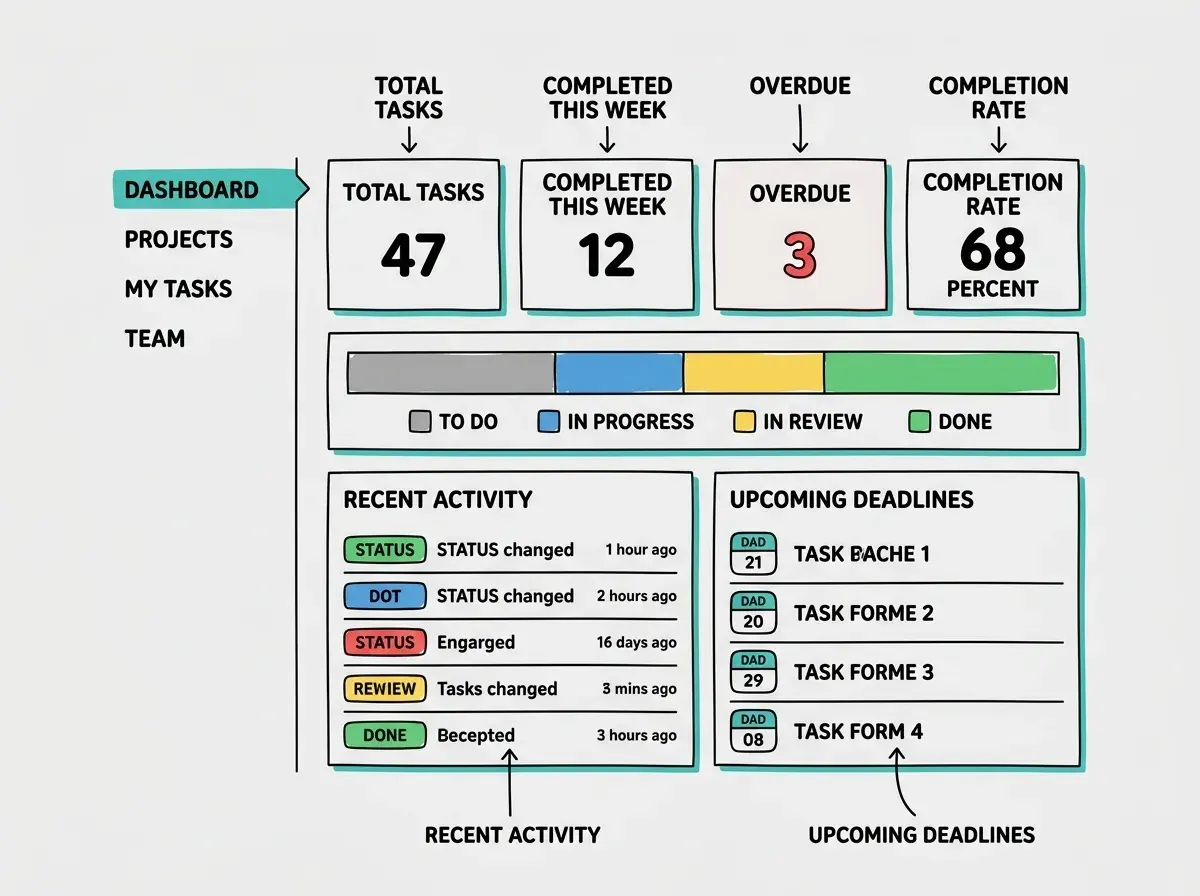
Spend remaining time on polish. "Add a sidebar with icons and labels for Dashboard, Projects, My Tasks, and Team. Highlight the current page. Make the sidebar collapsible. Add keyboard shortcuts: N to create a new task, F to focus the search bar."
Learn the AI-assisted development fundamentals that make builds like this possible.
Explore the basicsExtending Beyond the Weekend
Once the core is working, your tool can grow in focused sessions. Multiple projects add a project selector and overview page. Comments turn task cards into conversation threads. Due date timeline adds a Gantt-style view using date-fns and a charting library. Notifications keep the team aware of changes with in-app alerts. Each extension is one session, not a rebuild.
What This Means For You
You just built a project management tool with kanban boards, task tables, team assignments, and a dashboard. That is the kind of application that Monday.com charges $36 per seat per month to access.
- If you are a founder running a small team: You now have a project management tool that fits your workflow without monthly per-seat fees. Customize the statuses to match your process, add the fields your team actually needs, and skip everything you do not. As your team grows, you can add features instead of migrating to a more expensive tier of someone else's product.
- If you are an indie hacker evaluating SaaS ideas: Niche project management tools are a proven market. Content teams, construction companies, event planners, and legal firms all want tools that speak their language. Customize what you built for one specific audience and you have a product with real commercial potential.
- If you are building your portfolio of AI-assisted projects: A full-stack project management tool with drag-and-drop, multiple views, and team features demonstrates that you can build complex, interactive applications. This is not a to-do list. It is a multi-view application with real UX considerations, and that distinction matters when someone evaluates your skills.
Keep building with more intermediate AI-assisted projects.
Explore build tutorials