A post deployment checklist is the five minutes between "it's live" and "why isn't it working." Run through one after every deploy, and you will catch broken pages, missing environment variables, failed auth flows, and slow loads before a single user encounters them. Skip it, and your users become your QA team.
I learned this the hard way. My first vibe-coded project got a green checkmark from Vercel, so I shared the link. Three people got a blank screen. Two saw a login loop. One told me every image was broken. The build passed. The deploy succeeded. The app was broken in five ways that ninety seconds of checking would have caught.
92% of US developers now use AI coding tools daily, and more of the people shipping apps are founders, marketers, and designers who have never deployed before. The AI handles code generation. Nobody handles post-deploy verification. That gap is where bugs live.
Why Post-Deploy Checks Matter More for AI-Built Apps
Traditional deployment checklists assume the developer wrote the code and can trace every request path. Vibe-coded apps break that assumption. Your AI tool might have generated a login flow that redirects to http://localhost:3000/callback in production, hardcoded an API URL that only resolves on your machine, or skipped image optimization because you never mentioned it.
Missing environment variables cause roughly 80% of first-deployment failures. Four out of five broken deploys come down to a variable in your local .env that was never added to your hosting platform. The error messages are unhelpful: blank screens, generic 500 errors, or features that silently stop working.
The checklist below is organized by category. Each check takes seconds. The full process takes five minutes once you have done it twice.
Basic Functionality
Start here. These checks confirm that your application is actually alive and serving pages to real visitors.
- Open your production URL in a private/incognito window. Not your regular browser with cached assets and saved cookies. A fresh window sees exactly what a first-time visitor sees. If you get a blank screen, check your browser's developer console (right-click, Inspect, Console tab) for errors.
- Click every link in your navigation. Top nav, footer links, sidebar links. Click them all and confirm each loads a real page, not a 404. AI-generated nav menus frequently include links to pages that were never created or routes that got renamed.
- Submit every form on the site. Contact forms, signups, newsletter inputs, search bars. Enter real data and confirm you get the expected confirmation or email. Forms often fail in production because the API endpoint they submit to is unreachable.
- Test on your phone. Open the URL on an actual phone, not a resized browser window. Tap buttons, scroll pages, try a form with the on-screen keyboard. Responsive bugs invisible on desktop become obvious on a real device.
- Check that images load. Scroll through every page. Look for broken image icons, placeholder boxes, or images that never finish loading. Missing images are the second most common post-deploy issue after missing env vars.
If any of these checks fail, stop and fix the issue before continuing.
The incognito window test is the single highest-value check on this list. Your regular browser has cached CSS, saved auth tokens, and remembered form data that mask real problems. An incognito window shows you what every new visitor experiences. If you only do one check after deploying, make it this one.
Authentication and Authorization
If your app has user accounts, this section catches the failures that expose user data or lock people out. 45% of AI-generated code contains security vulnerabilities according to Veracode's 2025 research, and broken auth is one of the most common.
- Create a brand new account. Use an email you have never used with this app. Walk through the full signup flow: registration, email verification (if applicable), first login. Do not test with your developer account from the development environment.
- Log out and log back in. Confirm logout clears the session (protected pages should redirect to login). Log back in and verify you land on the correct page.
- Visit a protected page while logged out. Copy the URL of a protected page. Open it in incognito without logging in. You should get redirected to login, not see the content. If the content loads, your route protection is broken.
- Test the password reset flow. Click "Forgot password," enter your email, confirm the reset email arrives and the link works. Broken password resets are a top cause of support tickets.
- Check OAuth redirects. If you use Google, GitHub, or social login, test each one. OAuth redirect URLs are environment-specific. Your AI tool likely configured them for
localhost:3000; they need to point to your production domain in both your code and the provider's dashboard.
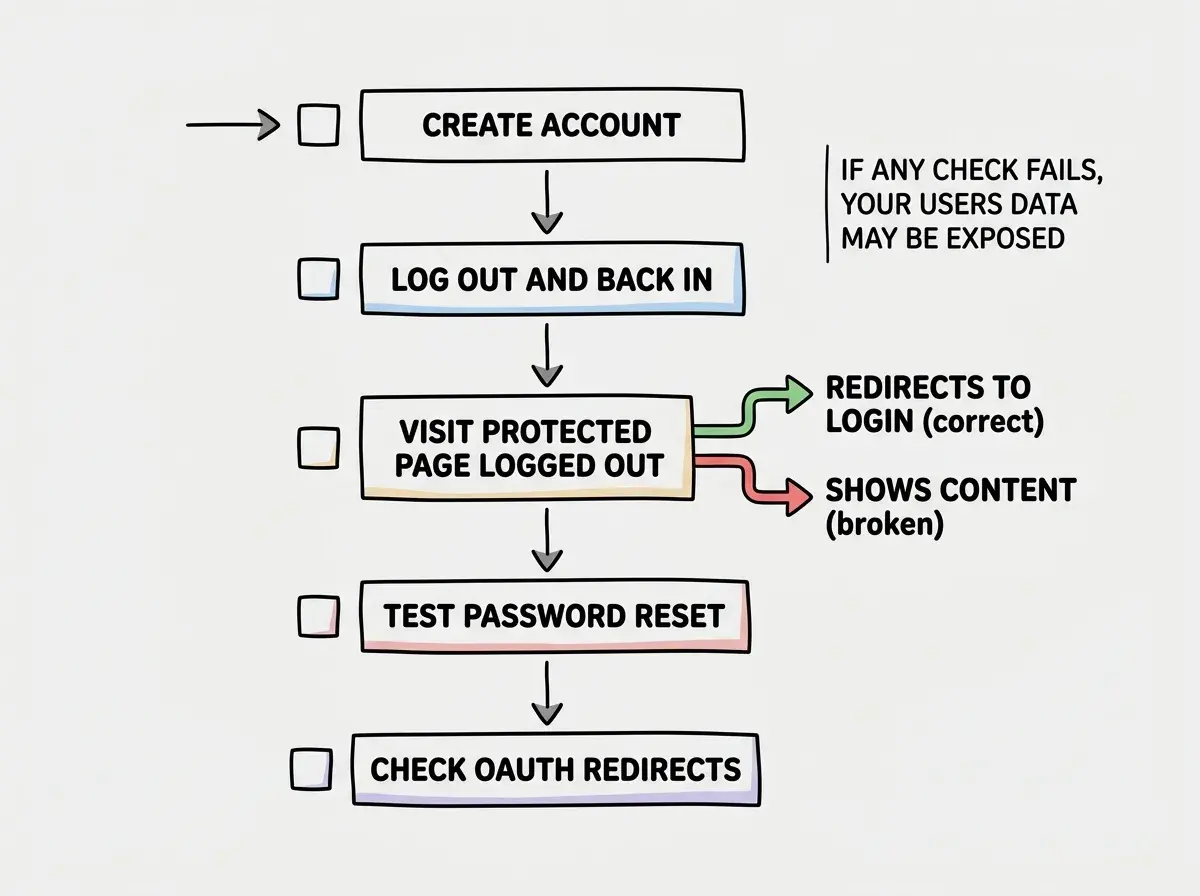
OAuth redirect mismatches are nasty because the error message is usually a generic "something went wrong" with no hint that the redirect URL is the problem.
Performance and Loading
Your app might work perfectly and still drive users away because it takes eight seconds to load.
- Run Google PageSpeed Insights. Go to
pagespeed.web.devand enter your production URL. Check the mobile Performance score. Below 50 needs immediate attention. Common culprits: unoptimized images, oversized bundles, missing text compression. - Check your heaviest page load time. Open DevTools, Network tab, reload your heaviest page. If total transfer exceeds 3 MB or load time exceeds 4 seconds, you have work to do.
- Verify static assets are cached. In the Network tab, click a CSS or JS file and check response headers for
Cache-Control. If it saysno-cacheor is missing, users re-download the same files every page load. - Test with a throttled connection. In Chrome DevTools Network tab, select "Slow 3G" and reload. If the page takes over 10 seconds, your mobile users are bouncing before they see anything.
Make sure you got the pre-deploy fundamentals right too.
Read the deployment basicsSEO and Metadata
These checks determine whether search engines can find and correctly display your application.
- Check the title tag. Right-click your production page, select "View Page Source," and search for
<title>. Confirm it contains a real, descriptive title, not "Create Next App" or "Vite App." AI tools rarely update the default page title. - Check the meta description. In page source, search for
meta name="description". Confirm it exists and contains a real description. If missing, search engines pull random page text as the snippet. - Verify Open Graph tags. Paste your URL into Facebook's Sharing Debugger (
developers.facebook.com/tools/debug/). Check that the title, description, and image appear correctly. If they do not, your app looks broken when anyone shares it on social media. - Confirm
robots.txtis accessible. Visityourdomain.com/robots.txt. If it returns a 404, search engines have no crawling instructions. - Check for a sitemap. Visit
yourdomain.com/sitemap.xml. If it 404s, that is not urgent for launch, but add it soon.
The social sharing check is the one most people skip, and it matters. When someone shares your app and the preview card shows a broken image or a title that says "localhost," it undermines every impression you are making.
Security Basics
You do not need a penetration test on day one. You do need to confirm the most common vulnerabilities are not present.
- Confirm HTTPS is active. Check for the padlock icon in your browser's address bar. Click it and confirm the certificate is valid. Most hosting platforms handle this automatically, but verify rather than assume.
- Check that
.envis not in your repository. Search your GitHub repo for.env. If you find one, your secrets are public. Remove it, add.envto.gitignore, and rotate every exposed credential immediately. - Test for exposed API routes. Try accessing API endpoints directly in the browser without logging in. Visit
yourdomain.com/api/usersor similar. If they return data, they are open to the public. - Search your page source for API keys. View source on production pages and search for strings starting with
sk_,pk_, orapi_. Client-side bundles sometimes contain secrets that should only exist on the server.
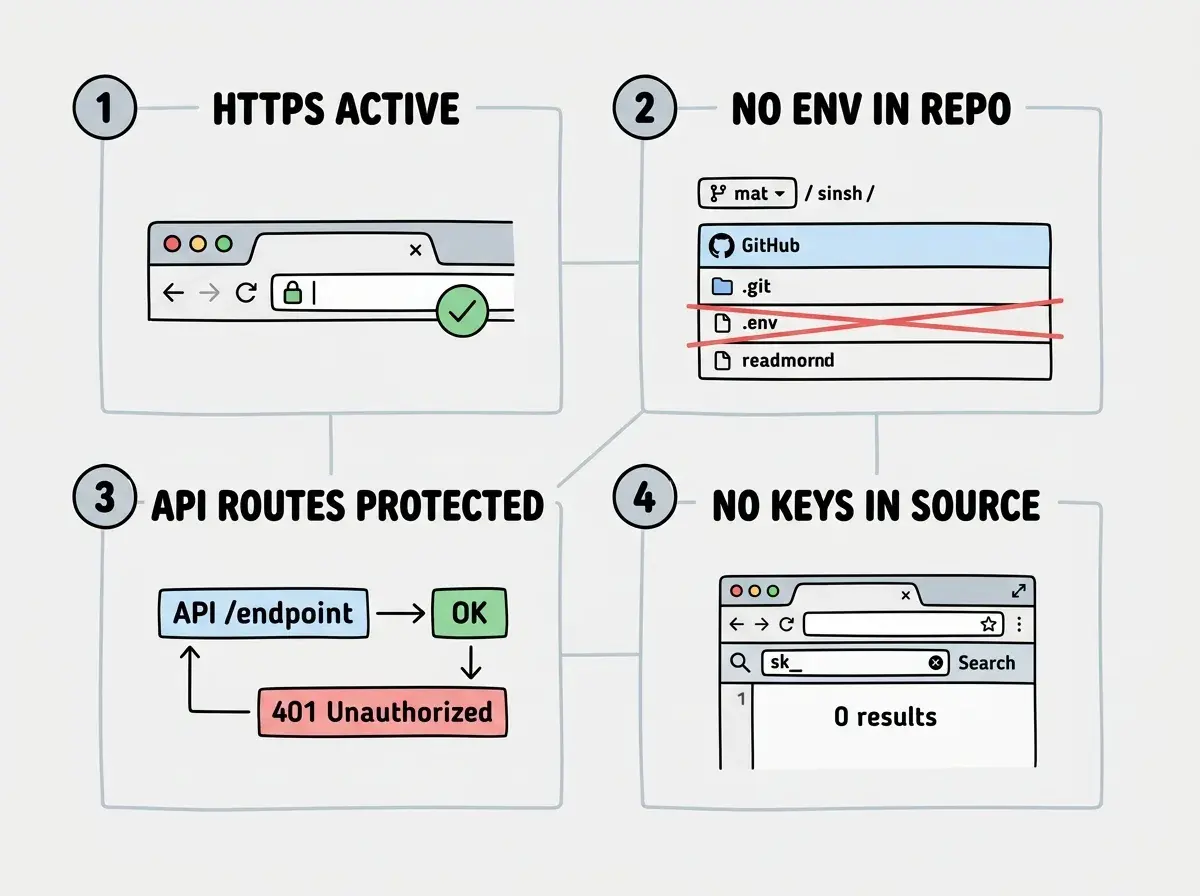
This is the 70% wall in action. Building the app was the easy 70%. Securing it, testing it, and verifying it works in production is the last 30% where projects die. This checklist is how you push through.
Testing only the happy path. You log in with your developer account, click through the main pages, see everything working, and declare victory. But your developer account has cached data, saved sessions, and permissions that a new user does not have. A real user hits the signup flow, the password reset, the error states, the empty states. If you only tested the path that works for you, you missed the paths that break for everyone else.
Making This a Habit
The first time through takes ten to fifteen minutes. The second time takes five because you know what to look for and your app is already in better shape.
Save this checklist somewhere you can reach it every deploy. The pilots who have logged the most flight hours are the most committed to their pre-flight checklists, not because they forgot how to fly, but because checklists catch what expertise alone cannot.
Dig deeper
A few hand-picked sources if you want to go further.
What This Means For You
- If you are a founder: This checklist is your quality gate between "deployed" and "ready for users." Run it before you share your URL with anyone. Five minutes of checking is nothing compared to the impression a broken login flow makes on an early adopter.
- If you are a career changer: Verifying your own work separates serious builders from casual experimenters. Add this to your workflow now, and it becomes second nature by your third project. Clients notice when someone ships things that actually work.
- If you are a student: Build the habit early. Professional teams have post-deploy verification as a standard part of their release process. Running a checklist after every deploy trains you to think like a professional engineer, even when your code was written by an AI.
Pair this post-deploy check with the complete pre-deployment checklist for end-to-end coverage.
Get the pre-deploy checklist