Multi-file prompting is the skill that separates people who build toy demos from people who ship real products with AI. 92% of developers now use AI coding tools daily, but most of them hit the same wall: the AI changes one file perfectly and breaks three others. This tutorial shows you how to write prompts that coordinate changes across your entire codebase without leaving a trail of broken imports, mismatched types, and mystery errors.
Why Multi-File Changes Break Things
Every AI coding tool has the same fundamental limitation. When you ask it to make a change, it processes each file as a somewhat isolated unit of work. The AI might rename a function in your API route handler but forget to update the component that calls it. It might add a new field to your database schema but miss the validation logic in your form. It might refactor a type definition but leave three files importing the old version.
This is not a bug in the tools. It is a consequence of how context windows work. The AI can only hold so much information at once, and when your change touches six files scattered across different directories, some of those files inevitably fall outside the window of attention. The result is a codebase where half the files reflect the new world and half still live in the old one.
Single-file prompts work fine for isolated changes. Adding a button to a component, fixing a calculation in a utility function, updating styles on a page. The moment your change has dependencies that cross file boundaries, you need a different approach.
Multi-file prompting is not about writing one massive prompt. It is about giving the AI a map of how your files relate to each other before asking it to change anything. The AI is excellent at making consistent changes when it understands the connections. It fails when it has to guess which files are affected.
The "Describe the Relationship First" Technique
The most reliable multi-file prompting technique is deceptively simple: before you ask for any changes, describe how the files connect to each other.
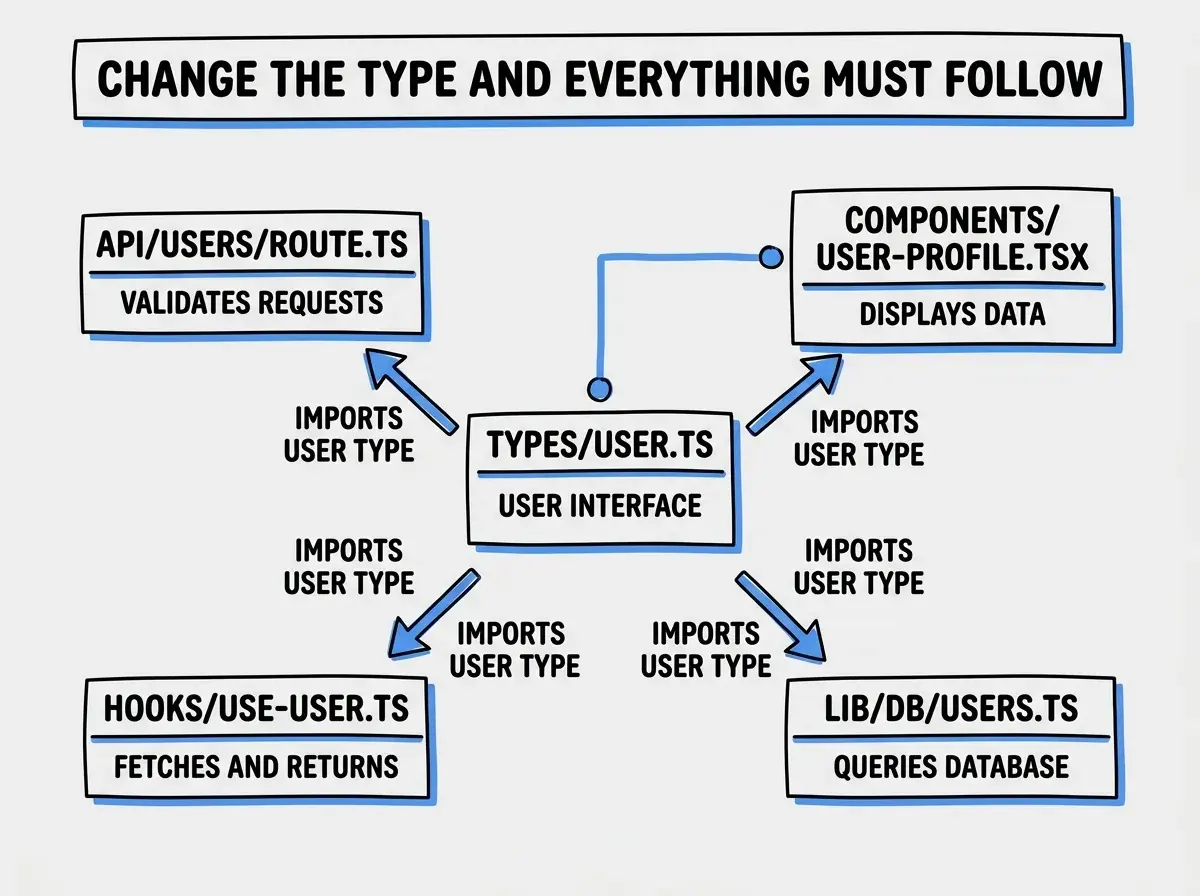
Here is what this looks like in practice. Instead of jumping straight to "rename the User model to Account," you start with a relationship map:
"Here is how our user data flows through the codebase. The type definition lives in types/user.ts and exports a User interface. The API route app/api/users/route.ts imports that type and uses it for request/response validation. The component components/user-profile.tsx imports the type for props. The hook hooks/use-user.ts imports the type for its return value. The database query in lib/db/users.ts returns data shaped to match this type."
Now when you say "rename User to Account across all of these files," the AI has a complete picture. It knows every file that needs updating, how they connect, and what role the type plays in each location. The success rate on this kind of prompted refactor goes from maybe 60% to well above 90%.
This works because you are doing the part that AI is bad at (understanding project-wide relationships) and letting the AI do the part it is great at (making consistent text transformations across multiple files).
Including Type Definitions in Your Prompts
Types are the connective tissue of a codebase. When you include the actual type definition in your prompt, you give the AI a contract that every file must honor. This single practice eliminates the most common category of multi-file errors.
Say you are adding a role field to your user system. Instead of "add a role field to the user," try this:
"I need to add a role field to our user system. Here is the current type:
interface User {
  id: string;
  name: string;
  email: string;
  createdAt: Date;
}
Update it to:
interface User {
  id: string;
  name: string;
  email: string;
  role: 'admin' | 'editor' | 'viewer';
  createdAt: Date;
}
Then update every file that uses the User type to handle the new role field: the API route should accept role in POST requests, the profile component should display it, and the user list should allow filtering by role."
By showing the before and after type, you give the AI an unambiguous specification. There is no room for it to guess whether role should be a string, a number, or an enum. Every downstream change can reference this concrete definition.
Cursor Composer for Multi-File Edits
Cursor's Composer mode was built specifically for multi-file prompting. You open Composer, describe what you want, and it shows you proposed changes across every affected file as visual diffs. You can accept or reject changes on a per-file basis before anything touches your code.
The key to getting Composer to handle multi-file changes well is front-loading your prompt with file references. Tag the specific files you want changed using @ mentions. If you are renaming a data model, tag every file that imports it. Composer works best when you explicitly tell it which files are in scope rather than hoping it discovers them on its own.
A strong Composer prompt looks like this: "In @types/user.ts, @app/api/users/route.ts, @components/user-profile.tsx, and @hooks/use-user.ts, rename the User interface to Account. Update all imports, all variable names that reference User (like currentUser to currentAccount), and all API response keys. Keep the same fields and types, just change the naming."
By listing every file, you eliminate the discovery problem entirely. Composer will show you the diffs for each file, and you can verify that the rename is complete and consistent before accepting.
Claude Code's Agent Mode for Cross-File Refactors
Claude Code takes a fundamentally different approach. Instead of showing you diffs to approve, it acts as an autonomous agent that reads your project, makes changes, and runs your tests to verify everything works. For large multi-file refactors, this can be dramatically faster than reviewing individual diffs.
The best multi-file prompts for Claude Code combine the relationship description with explicit verification steps: "Rename the User model to Account across the entire codebase. The type is defined in types/user.ts and imported in at least five other files. After making the changes, run npm run typecheck to make sure there are no TypeScript errors, and run npm test to make sure the tests still pass."
That last sentence is critical. By telling Claude Code to run your type checker and tests, you create a feedback loop. If the rename missed a file, the type checker will catch it, and Claude Code will fix it automatically. You get the benefit of an exhaustive, verified refactor without manually reviewing every file.
Do not ask AI tools to refactor "everything" without specifying what "everything" means. Prompts like "rename User to Account everywhere in the project" sound comprehensive but actually cause problems. The AI might rename User references in your README, your comments, your test fixtures, and your migration files in ways you did not intend. Always specify the scope: which directories, which file types, and which kinds of references should change.
Real Example: Renaming a Data Model End to End
Let me walk through a complete multi-file rename so you can see every piece of this in practice. Suppose you have a task management app and you want to rename the Task model to Ticket because your users think in terms of tickets, not tasks.
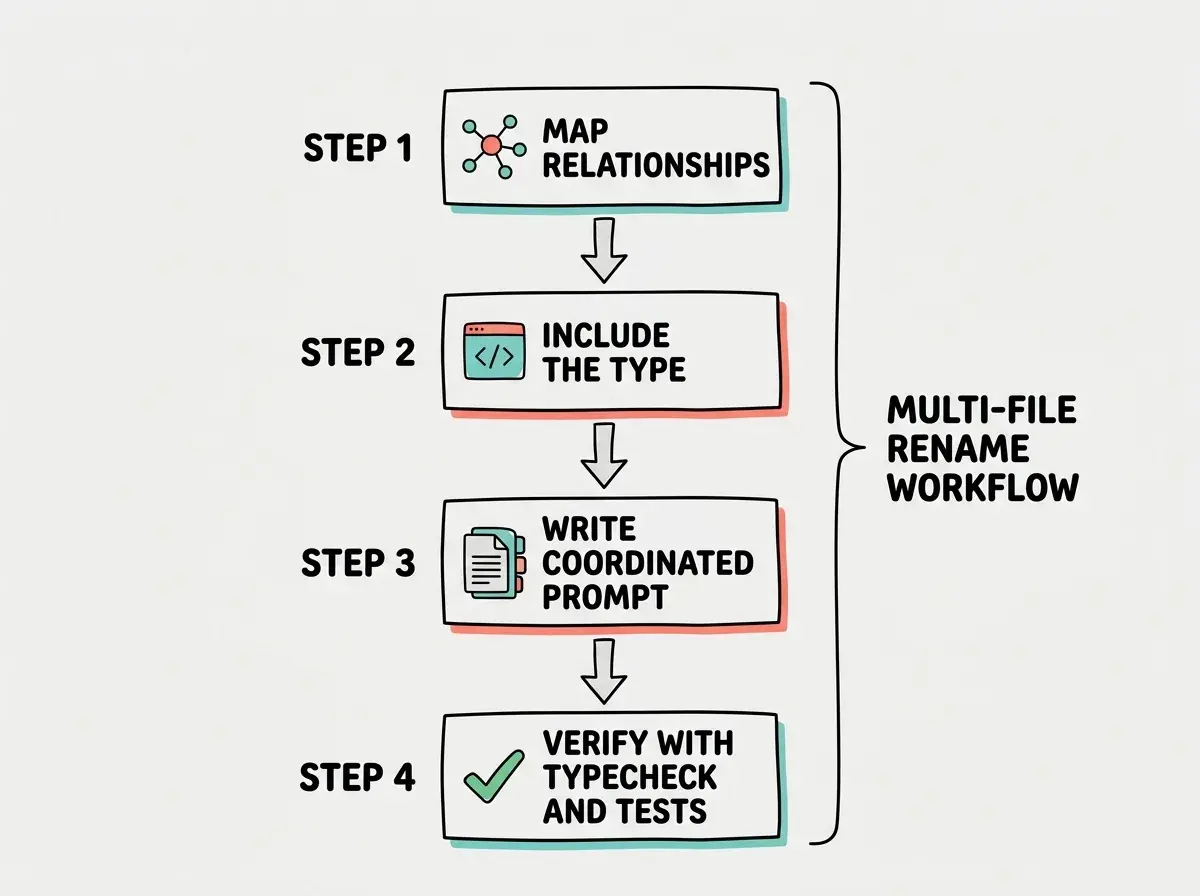
Step 1: Map the relationships. Identify every file that references the Task model. In a typical Next.js app, this might include types/task.ts, app/api/tasks/route.ts, app/api/tasks/[id]/route.ts, components/task-card.tsx, components/task-list.tsx, hooks/use-tasks.ts, lib/db/tasks.ts, and your test files.
Step 2: Include the type. Paste the current Task interface into your prompt so the AI has the exact shape to work with.
Step 3: Write the coordinated prompt. "Rename the Task model to Ticket across the following files: [list them all]. This includes renaming the TypeScript interface from Task to Ticket, renaming the API routes from /api/tasks to /api/tickets, renaming component files from task-card.tsx to ticket-card.tsx, updating all imports and variable names, and updating all test descriptions. The database table name should stay as tasks for now since that is a separate migration. Run typecheck and tests after making changes."
Step 4: Verify. Whether you are using Composer's visual diffs or Claude Code's autonomous verification, check that every reference was caught. Pay special attention to dynamic references like route parameters, localStorage keys, and URL paths that TypeScript cannot catch.
What This Means For You
Multi-file prompting is not a fancy technique. It is a practical necessity for anyone building real applications with AI tools. The moment your project grows beyond a handful of files, the quality of your multi-file prompts becomes the bottleneck for your productivity. The good news is that the pattern is always the same: describe the relationships, include the types, specify the scope, and verify with automated checks. Start applying this to your next refactor and you will feel the difference immediately.
Learn more practical techniques for building real applications with AI coding tools.
Start Building SmarterEvery multi-file change you make with these techniques saves you thirty minutes of debugging broken imports later. That time compounds fast.
Explore more tutorials on writing better prompts and shipping faster with AI.
Level Up Your Prompting