GitHub Copilot is the most widely adopted AI coding tool in the world, and that ubiquity is both its greatest strength and its most interesting limitation. It works across more editors, supports more languages, and integrates with more workflows than any competitor. If you want an AI assistant that fits into your existing setup without forcing you to change editors or workflows, Copilot is the safest bet. But "safest" and "best" are not the same thing, and understanding where Copilot excels versus where it falls behind is essential for making the right tool choice.
92% of US developers now use AI coding tools daily, and Copilot is where most of them started. That first-mover advantage means enormous training data, deep IDE integration, and a mature ecosystem. It also means the tool was designed for a world that has already changed. Newer tools were built for agentic, multi-file workflows from the ground up. Copilot is adding those features retrospectively, and the seams sometimes show.
What Copilot Is (and Isn't)
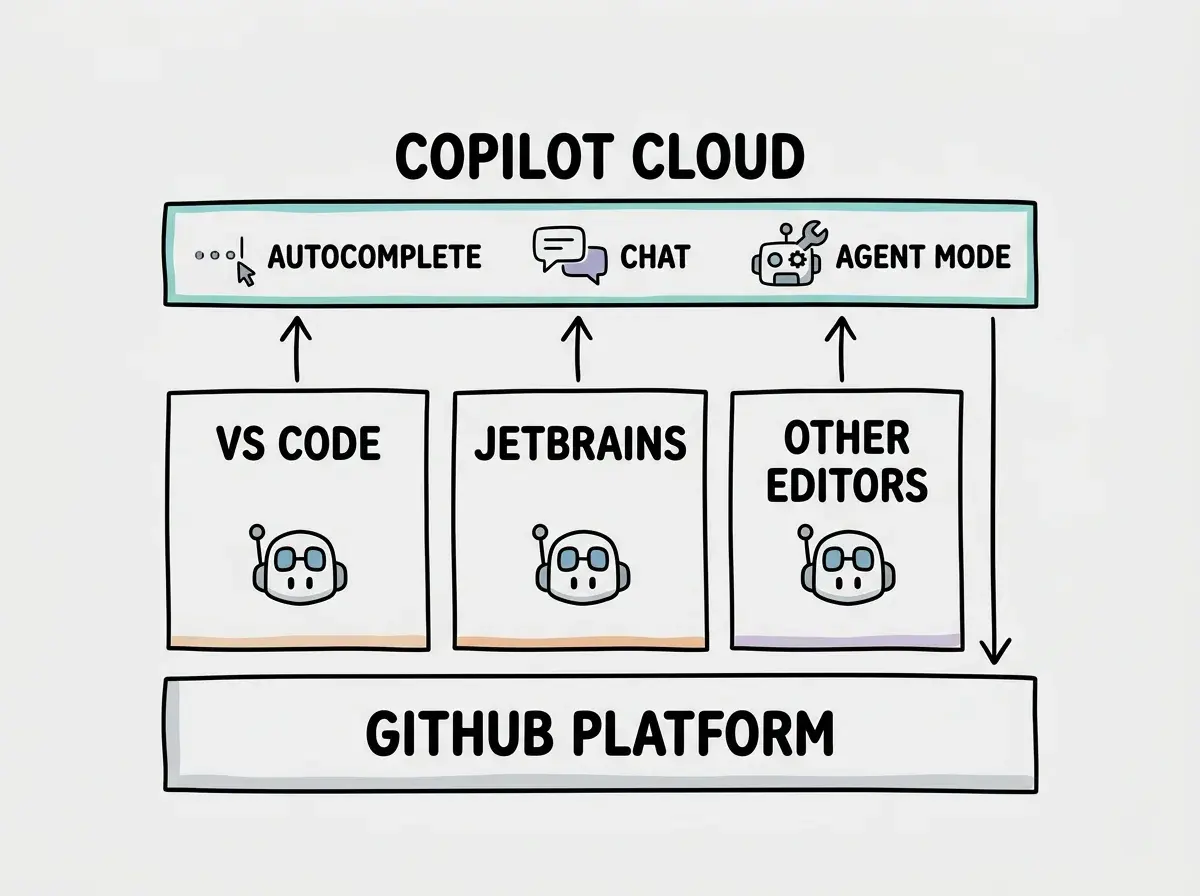
GitHub Copilot is an AI assistant that lives inside your editor as an extension. It provides inline code suggestions as you type, a chat panel for asking questions about your code, and a growing set of agentic features that let it make multi-file changes. It works in VS Code, Visual Studio, JetBrains IDEs, Neovim, and others.
What Copilot is not is a standalone tool. It always requires a host editor, which means your experience depends partly on which editor you use. The VS Code experience is the most polished because Microsoft develops both. JetBrains support is solid but occasionally lags behind on new features. Neovim support exists but is minimal compared to the GUI editors.
The core experience is autocomplete. As you type, Copilot suggests completions that range from a single line to entire function bodies. These suggestions appear as ghost text in your editor, and you accept them with Tab. This is the feature that made Copilot famous, and it remains the most seamless inline AI experience available. The suggestions are fast, context-aware, and right often enough that they genuinely accelerate your typing speed.
Getting Started with Copilot
Sign up at github.com/features/copilot and choose your plan. Install the GitHub Copilot extension in your editor. Authenticate with your GitHub account. That is it. There is no configuration, no API keys, no model selection. Copilot is designed to work immediately with zero setup, and it delivers on that promise.
Once installed, start coding. Copilot begins suggesting completions immediately. Write a function name and a comment describing what it should do, then pause. Copilot will suggest the implementation. Write a test file and type the first test case, and Copilot will suggest the remaining cases based on the patterns it sees. The learning curve is essentially zero, which is rare for a tool this capable.
For the chat feature, open the Copilot Chat panel in your editor sidebar. You can ask questions about your code ("What does this function do?"), request changes ("Refactor this to use a Map instead of an object"), or get explanations ("Why might this cause a memory leak?"). The chat understands your currently open file and can reference other files in your workspace.
Is Copilot as Good as ChatGPT
This is the most common question developers ask, and the answer depends on what you mean by "good." ChatGPT is a better general-purpose AI for explaining concepts, brainstorming architecture, and having open-ended technical conversations. Copilot is better at writing code in the context of your actual project.
The fundamental difference is context. ChatGPT sees only what you paste into it. Copilot sees your open files, your project structure, your imported libraries, and your coding patterns. When ChatGPT suggests code, you need to manually adapt it to fit your project. When Copilot suggests code, it already fits because it was generated with your project as context.
You might think ChatGPT's newer models make Copilot obsolete. But actually, the model is only half the equation. The other half is integration. Copilot's inline suggestions appear exactly where you need them, at your cursor position, as you type. There is no context switching, no copy-pasting, no tab-switching. That seamlessness compounds over hundreds of small interactions throughout a day. Senior developers who have tried both consistently report that Copilot's inline suggestions save more time than ChatGPT, even when ChatGPT's raw output is higher quality, because the integration friction is zero.
That said, for complex tasks like designing a database schema or planning a migration strategy, ChatGPT (or Claude) in a chat window is still more effective. The tools are complementary, not competitive. Most productive developers use both.
Agent Mode and Multi-File Editing
Copilot's agent mode is its answer to Cursor's Composer and Claude Code's agentic workflow. It lets you describe a task in natural language, and Copilot plans and executes changes across multiple files. You can ask it to "add a dark mode toggle to the settings page" and it will identify the relevant files, propose changes, and apply them.
Agent mode works, but it feels like a version one compared to purpose-built agentic tools. The change proposals are reasonable, and the ability to review diffs before accepting them is well designed. But the scope of what agent mode can handle in a single session is more limited than Cursor Composer or Claude Code. Complex, multi-step tasks that involve creating new files, modifying existing ones, and running commands to verify the changes are better handled by tools that were designed for that workflow from the start.
Where Copilot agent mode genuinely shines is in pull request reviews and issue-to-code workflows. Because Copilot is built on GitHub, it can read issues, understand PR context, and suggest changes that reference the broader project history. No other tool has this level of integration with the code hosting platform.
Copilot's competitive advantage is not raw AI capability. It is integration depth. It works in more editors, connects to GitHub more deeply, and requires less setup than any alternative. Choose Copilot when broad compatibility and zero-friction setup matter more than maximum AI power.
What Are the Disadvantages of GitHub Copilot
Copilot's biggest disadvantage is that its inline suggestions can be confidently wrong. It will suggest code that compiles but has subtle logic errors. It will autocomplete a function using a deprecated API because it has seen that pattern in millions of repositories. It will suggest security-vulnerable code patterns (like SQL concatenation instead of parameterized queries) if those patterns exist in your codebase or the training data.
The second disadvantage is suggestion fatigue. Copilot suggests code constantly, and not all of it is good. Experienced developers learn to scan and dismiss bad suggestions quickly, but newer developers sometimes accept suggestions without fully understanding them. This leads to codebases with inconsistent patterns, unnecessary complexity, and logic that the developer cannot explain or debug.
Privacy is a real concern for some organizations. Copilot sends code to cloud servers for processing. While GitHub has clear data handling policies and offers a Business tier with additional privacy guarantees, some companies in regulated industries (healthcare, finance, government) cannot use cloud-based AI tools on proprietary code. Copilot for Business addresses some of these concerns, but it does not eliminate them entirely.
The final disadvantage is model lock-in. Copilot recently added the ability to choose between models, but historically you were limited to the models Microsoft and OpenAI chose for you. Competitors like Cursor and Claude Code let you switch models more freely or use the latest models on their release day. Copilot's model options are improving, but the selection still trails behind tools that prioritize model flexibility.
Treating Copilot suggestions as reviewed code. Copilot's autocomplete is a first draft, not a final answer. The 46% of new code that is AI-generated needs the same review rigor as human-written code, arguably more because AI-generated bugs are harder to catch since the code looks clean and intentional. Always read what you accept.
Pricing Breakdown
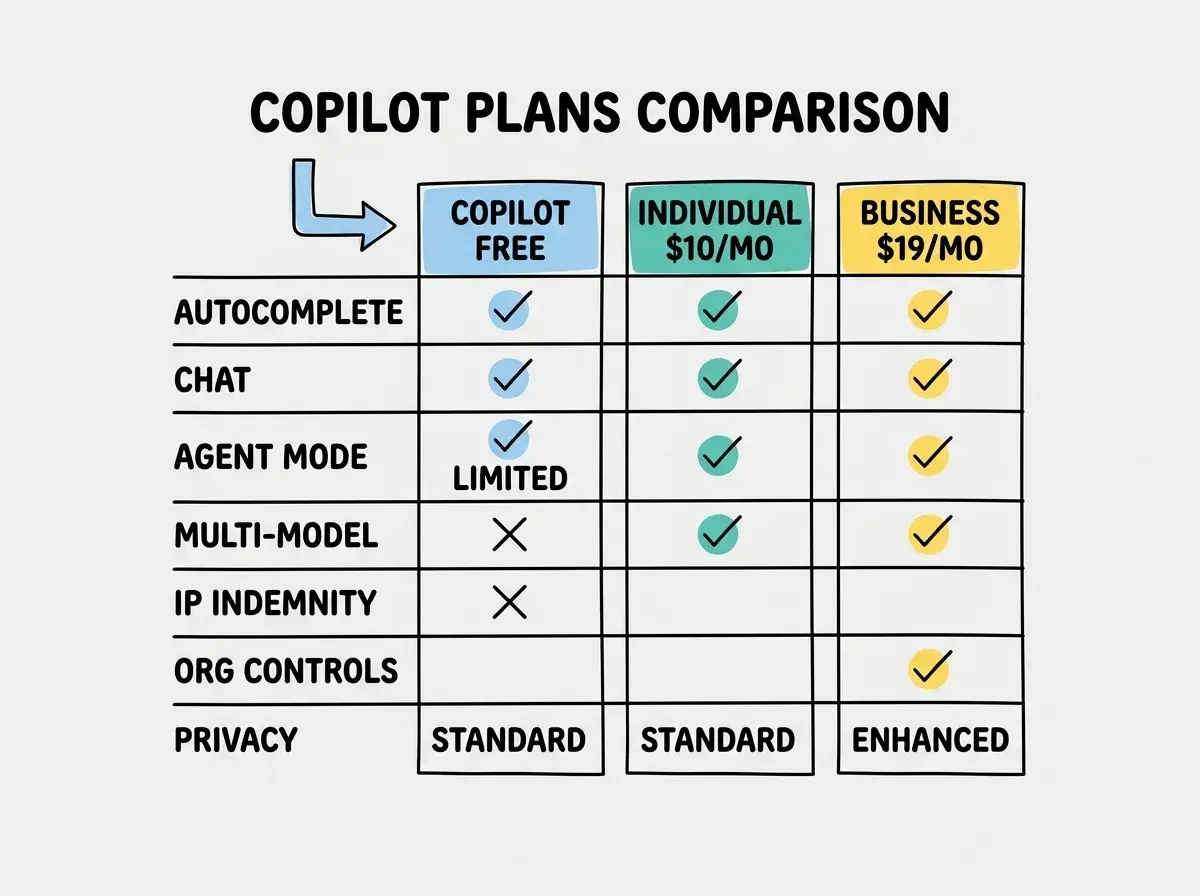
Copilot Free gives you limited completions and chat, which is enough to evaluate whether the tool fits your workflow. Individual at $10 per month is the most cost-effective AI coding subscription on the market, offering generous autocomplete, chat, and agent mode access. Business at $19 per month adds organization management, policy controls, and enhanced privacy. Enterprise at $39 per month adds everything in Business plus fine-tuning on your organization's code patterns.
The pricing is straightforward with no hidden costs. Unlike pay-per-use tools, your monthly bill is predictable regardless of how much you use it. This makes budgeting simple, especially for teams. The $10 Individual tier is the best dollar-for-dollar value in AI coding right now, though you get less raw AI capability per session than higher-priced alternatives.
For students and open-source maintainers, Copilot Individual is free. This is a significant advantage and a smart strategy by GitHub to build habits early. If you qualify, there is no reason not to use it.
Who Should Use Copilot (and Who Shouldn't)
Copilot is the right choice if you want AI assistance that works everywhere, you value setup simplicity, and your primary use case is inline autocomplete and chat. It is the best option for teams that need standardized tooling across multiple editors and platforms. It is also the obvious choice if your organization is already deeply invested in the GitHub ecosystem.
Copilot is not the right choice if you primarily need multi-file code generation, if you want the most capable AI model available, or if you work in a context where data privacy requirements rule out cloud-based AI entirely. Developers who have experienced Cursor's Composer or Claude Code's agentic workflow often find Copilot's agent mode limited by comparison.
Learn the fundamentals that make every AI tool more effective.
Start learningWhat This Means For You
Copilot is the Toyota Camry of AI coding tools. It is reliable, widely available, well-supported, and good enough for most people. It is not the fastest, the most powerful, or the most exciting. But it works well, it works everywhere, and it does not require you to change your existing workflow.
- If you are a founder building a product: Copilot Individual at $10 per month is the most affordable way to get AI coding assistance. If your primary bottleneck is typing speed and boilerplate, Copilot delivers excellent value. If your bottleneck is complex feature implementation across many files, you will likely outgrow Copilot and want Cursor or Claude Code alongside it.
- If you are a career changer: Copilot is the best starting point because it works inside the editor you are already learning, requires zero configuration, and provides suggestions that teach you patterns as you code. The free tier for students is an incredible resource. Start here, build your foundation, and explore more powerful tools as your skills develop.
- If you are a student: Get the free Individual plan immediately. Use Copilot's chat to ask "why" questions about the code it suggests. Treat it as a tutor that shows you one way to solve a problem, then challenge yourself to understand whether that solution is actually good. The habit of questioning AI suggestions is more valuable than the suggestions themselves.
Find the right tool for your workflow and experience level.
Explore tools