A content calendar with drag and drop is one of the most useful internal tools a marketing or content team can build, and one of the easiest to vibe code in a weekend. The tool handles scheduling posts across channels, dragging them to new dates, recurring rules for series, and a small team-friendly view where collaborators can leave comments. The full build is roughly 600 lines of code, most of it generated by AI from a clear prompt sequence, deployable to Vercel for free.
This guide walks through the architecture, the drag library that does the heavy lifting, the data model that scales, the prompting sequence that builds the tool, and the small workflow features that make it production-ready.
Why Build Instead of Buy
Most marketers default to one of three options for content calendars, Notion, Airtable, or a dedicated SaaS like Sprout Social. Each works, but each has tradeoffs. Notion is flexible but hard to coordinate across teams. Airtable is structured but expensive at scale. Dedicated SaaS is powerful but slow to customize for your specific workflow.
Building your own tool inverts every tradeoff. You get exactly the workflow you want, the cost is hosting plus a weekend, and you own the data forever. The catch is that building means committing to a small amount of ongoing maintenance, but for a tool used daily by your team, the math works out quickly.
A 2024 ConvertKit content team survey found that 71% of small marketing teams used between 3 and 5 different tools to manage content scheduling, calendar visibility, and approval workflows. Teams that consolidated to a single custom tool reported 4 to 6 hours of saved coordination time per week, primarily by removing tool-switching overhead.
The pattern to copy is the way internal company wikis evolved. Companies started with shared Google Docs, moved to Confluence or Notion, and the most discerning ones eventually built simple custom internal sites with exactly the workflow they needed. Content calendars follow the same arc.
The Drag and Drop Library
The single biggest decision in building a content calendar is which drag-and-drop library to use. Three serious options exist for React, react-beautiful-dnd (deprecated but still common), dnd-kit (modern, accessible), and react-dnd (lower-level, more flexible). My recommendation for vibe coded tools is dnd-kit, because it has the cleanest API, good accessibility defaults, and active maintenance.
The library handles the hardest parts of drag and drop, hit detection, scrolling during drag, touch device support, and keyboard accessibility. Without a library, building these from scratch is genuinely hard work that takes weeks. With dnd-kit, you wire up the drag handlers and the library does the rest.
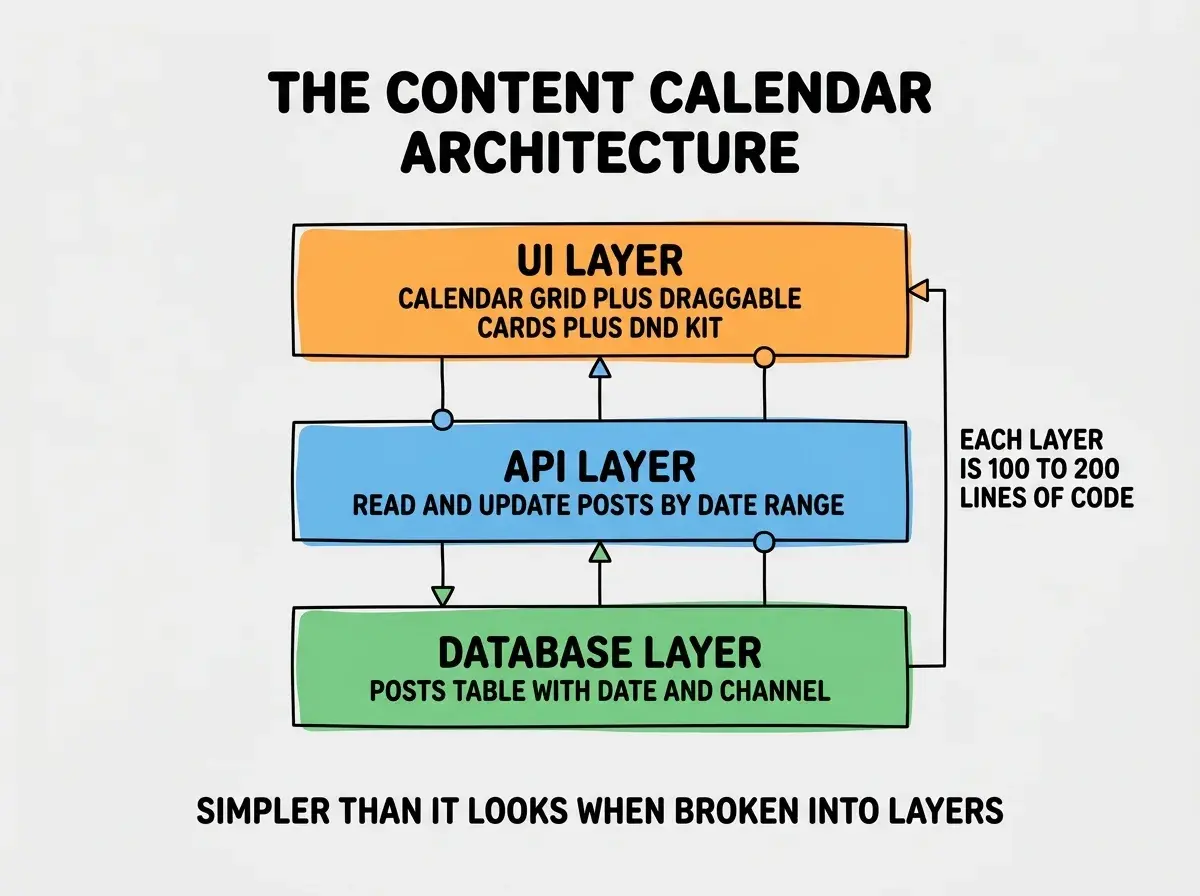
The integration looks like this conceptually, wrap your calendar grid in a DndContext, mark each post card as Draggable, mark each calendar day as Droppable, and handle the onDragEnd event to update the post's date in your database. The actual code is roughly 50 lines for the basic implementation.
The other library worth knowing about is FullCalendar, a more opinionated calendar component that includes drag and drop out of the box. FullCalendar is faster to set up but harder to customize, and its open source version has fewer features than the paid version. Use it when you want something working in 30 minutes, use dnd-kit when you want something fully under your control.
The Data Model
The data model for a content calendar is small but specific. Three tables cover almost every use case.
Table 1, posts. Columns include id, title, body or excerpt, channel (Twitter, LinkedIn, blog, etc.), scheduled_date, status (draft, scheduled, published), assigned_to, and any metadata specific to the channel. This is the main table.
Table 2, comments. Columns include id, post_id, author, body, created_at. This enables the team workflow where collaborators can comment on individual posts.
Read more marketer-friendly build tutorials
Browse build articlesTable 3, recurring_rules. Columns include id, post_template_id, rule (rrule string), end_date. This handles the case where you want to schedule a series (every Monday at 9am for the next 12 weeks) without manually creating 12 posts.
The recurring logic is where most homemade calendars get complex. The right pattern is to use the iCalendar RRULE standard, which has libraries in every language and handles edge cases like daylight saving time correctly. Asking your AI to "use rrule.js to expand recurring rules into individual posts" produces working code in a few minutes.
The Prompt Sequence
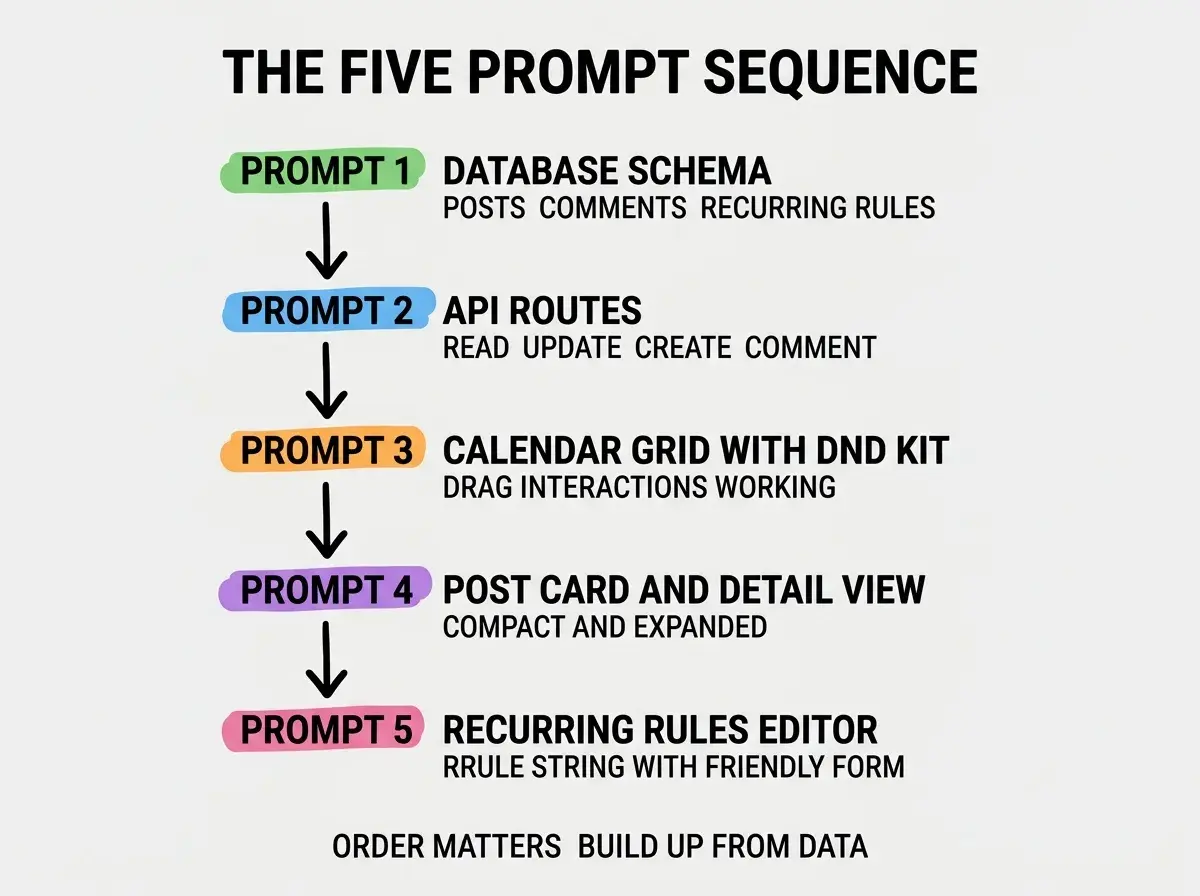
The build sequence matches the architecture, bottom up from data to UI.
Prompt 1, the schema. Ask for a Postgres or Supabase schema with the three tables above. The AI produces the migration file.
Prompt 2, the API routes. Ask for Next.js API routes that fetch posts by date range, update a post's date (for drag and drop), and create comments. The AI produces the routes with the correct types.
Prompt 3, the calendar grid. Ask for a React calendar grid component using date-fns for date math, with each cell rendering posts for that day. Specify "use dnd-kit for drag and drop." The AI produces the grid with working drag interactions.
Prompt 4, the post card and detail view. Ask for a card component that shows a post compactly in the grid and a detail view that shows the full post with comments. The AI produces both, often with reasonable styling defaults.
Prompt 5, the recurring rules editor. Ask for a UI that lets users create recurring posts with an rrule string, generated from a friendly form. The AI produces the form and the rule expansion logic.
The most expensive content calendar mistake is overengineering the recurring logic. Marketers often want "every other Tuesday except holidays unless the campaign is active." That kind of conditional recurring rule is genuinely hard, even for experienced engineers. Stick to simple rules (every Monday, every weekday, monthly on the 15th) and create exceptions manually. The simplicity saves weeks of edge case debugging.
The corollary is that the calendar tool will probably do 90% of what you need with simple rules and 10% manual editing. That tradeoff is much better than 100% automation at 10x the build cost.
The other piece worth adding is integrations once the core works. A "publish to Twitter" button or a "schedule with Buffer" handoff turns the calendar from a planning tool into a workflow tool. Most channels expose APIs that AI tools can wire up in an afternoon, and the resulting integration removes the last manual step. Add integrations one channel at a time, the most-used channel first, and resist the temptation to wire up every channel at once. Each integration has its own auth flow, error handling, and edge cases that compound if you try to ship them in parallel.
What This Means For You
A custom content calendar is the kind of internal tool that pays for itself fast. The build is short, the maintenance is small, and the daily improvement to your team workflow is meaningful.
- If you're a founder: Build this for your marketing function before you grow past 3 marketers. The tool consolidates work that would otherwise sprawl into multiple SaaS subscriptions.
- If you're changing careers: A shipped content calendar tool is a strong portfolio piece, especially if you can show it being used by a real team.
- If you're a student: This project teaches database design, drag-and-drop UX, and recurring time math at the same time. The lesson density is high for a weekend.
Browse more internal tool build tutorials
Read more build guides